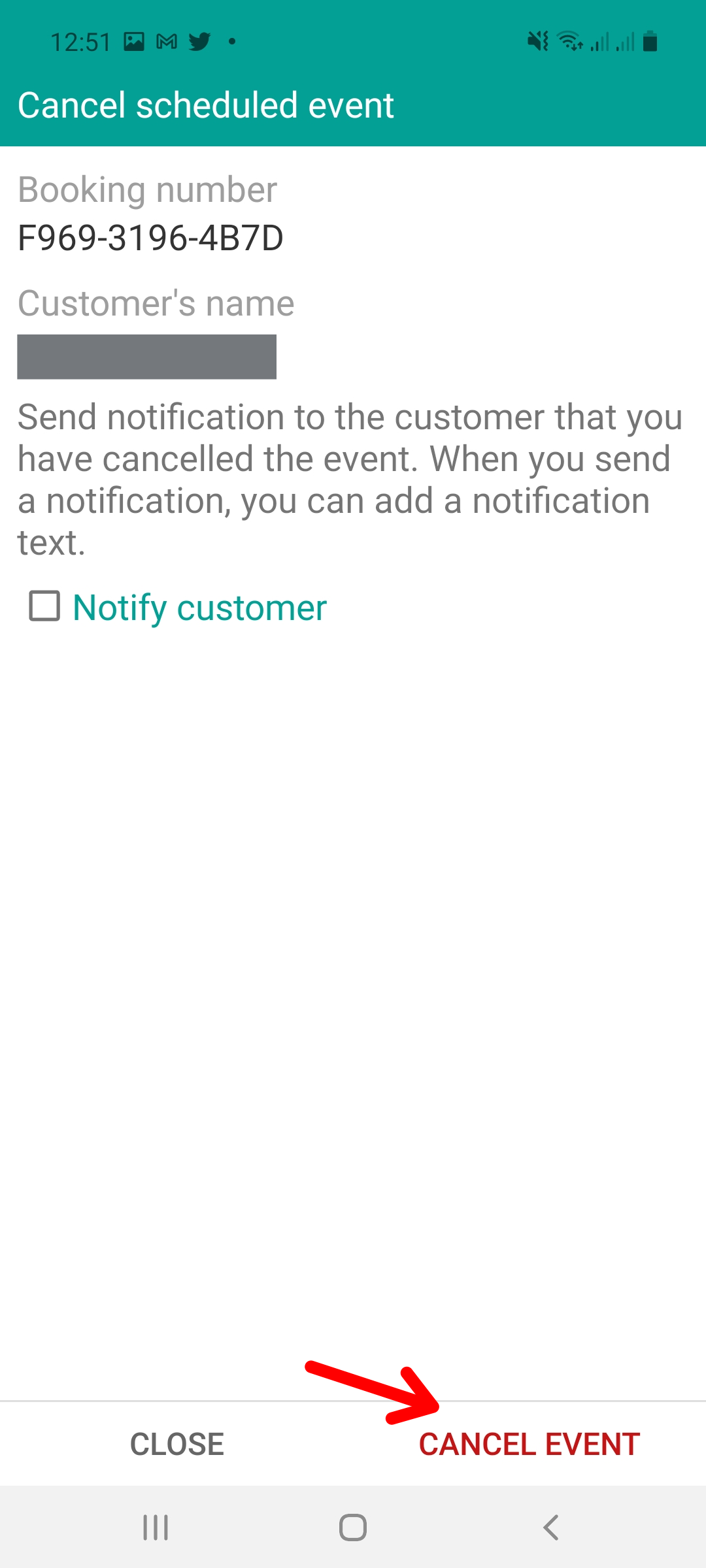
Sometimes you may need to cancel an event because you can't attend, or reschedule it for a different date and time. Both actions, canceling and rescheduling a meeting, can be done easily from the TuCalendi App.
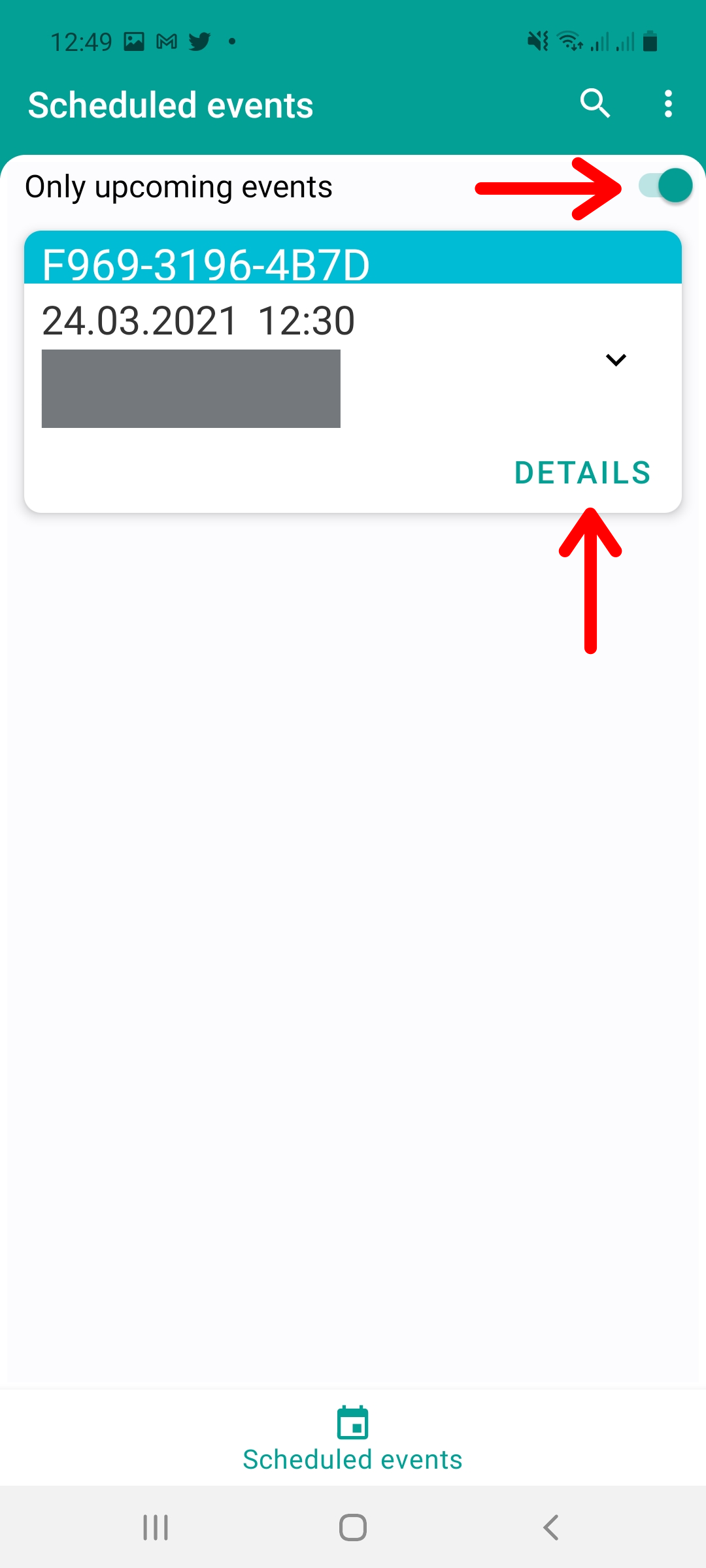
Once you have logged in to the TuCalendi App with your username and you are viewing your upcoming events, click on "Details":
All the event information will be displayed. In the upper right corner of the event detail screen, you can open the options menu with the options Reschedule event and Cancel event.
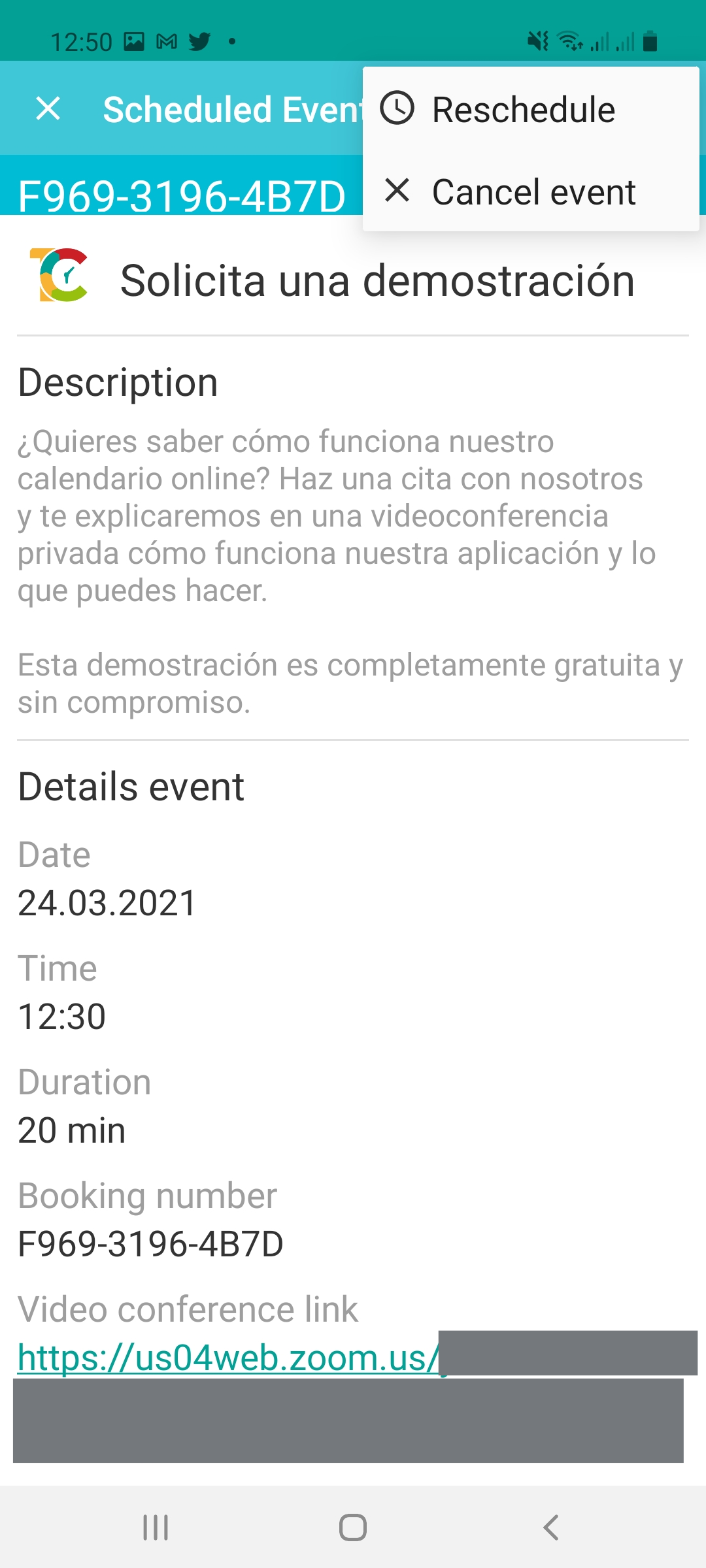
Reschedule event
In the options menu, click on "Reschedule event" to set the new date and time.
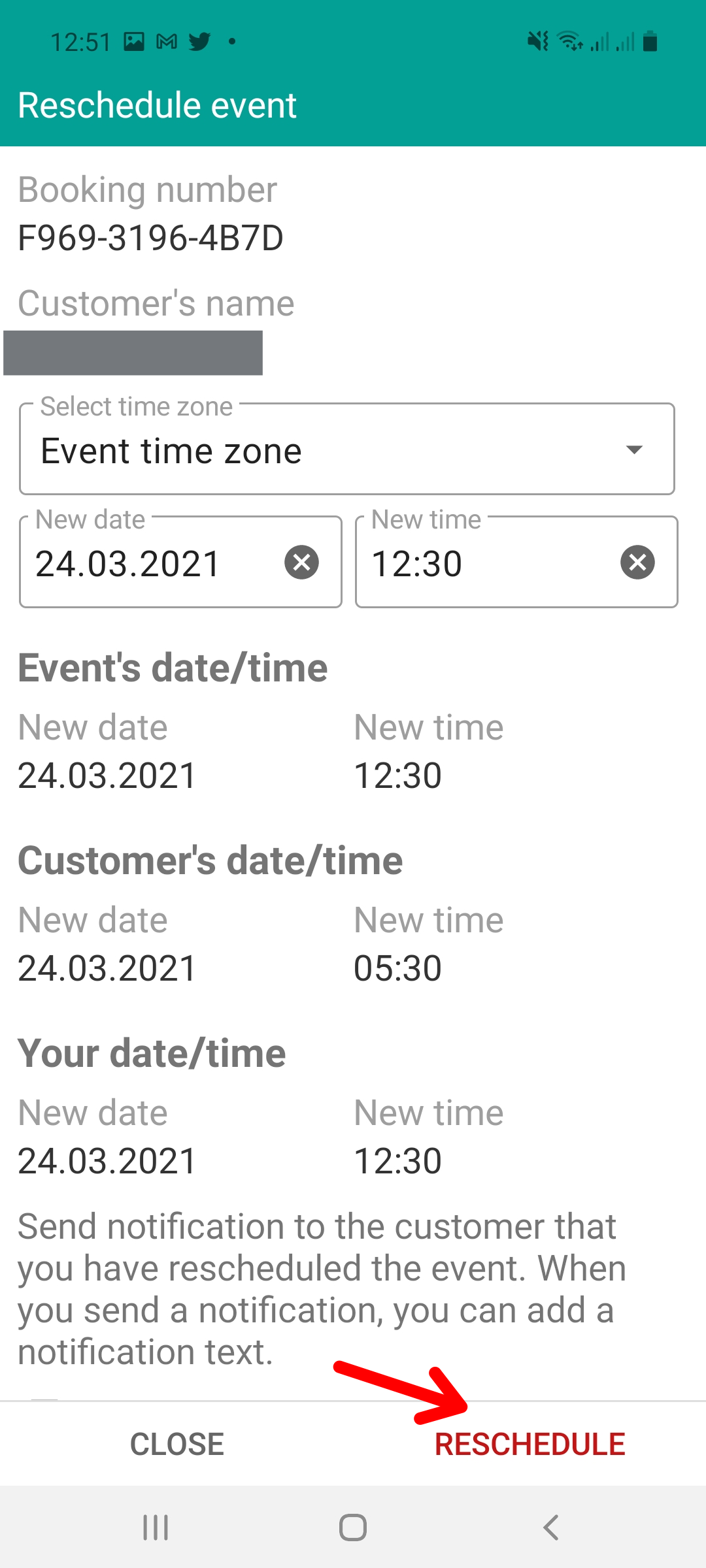
When you are done, click on "Reschedule" and the appointment will be scheduled with the new date and time.
Cancel event
In the options menu, clicking on "Cancel event" opens a confirmation window. If you cancel the event, it will be deleted from the calendar and you will not be able to recover it.