
What is bidirectional synchronization with Google Calendar? It means that all bookings your customers make in TuCalendi are added to Google Calendar. In addition, if you manually add any kind of event or task in Google Calendar, the system checks it against the time availability of the events you have created in TuCalendi. If the times overlap, those time slots are removed from your online calendar so nobody can book them, which avoids conflicts.
Setting up this TuCalendi feature is very simple. Once you have completed the integration of TuCalendi with Google Calendar so that your events are synchronized between TuCalendi and Google Calendar, you need to connect the events.
Log in to TuCalendi with your username and password and go to the "Calendars" option.
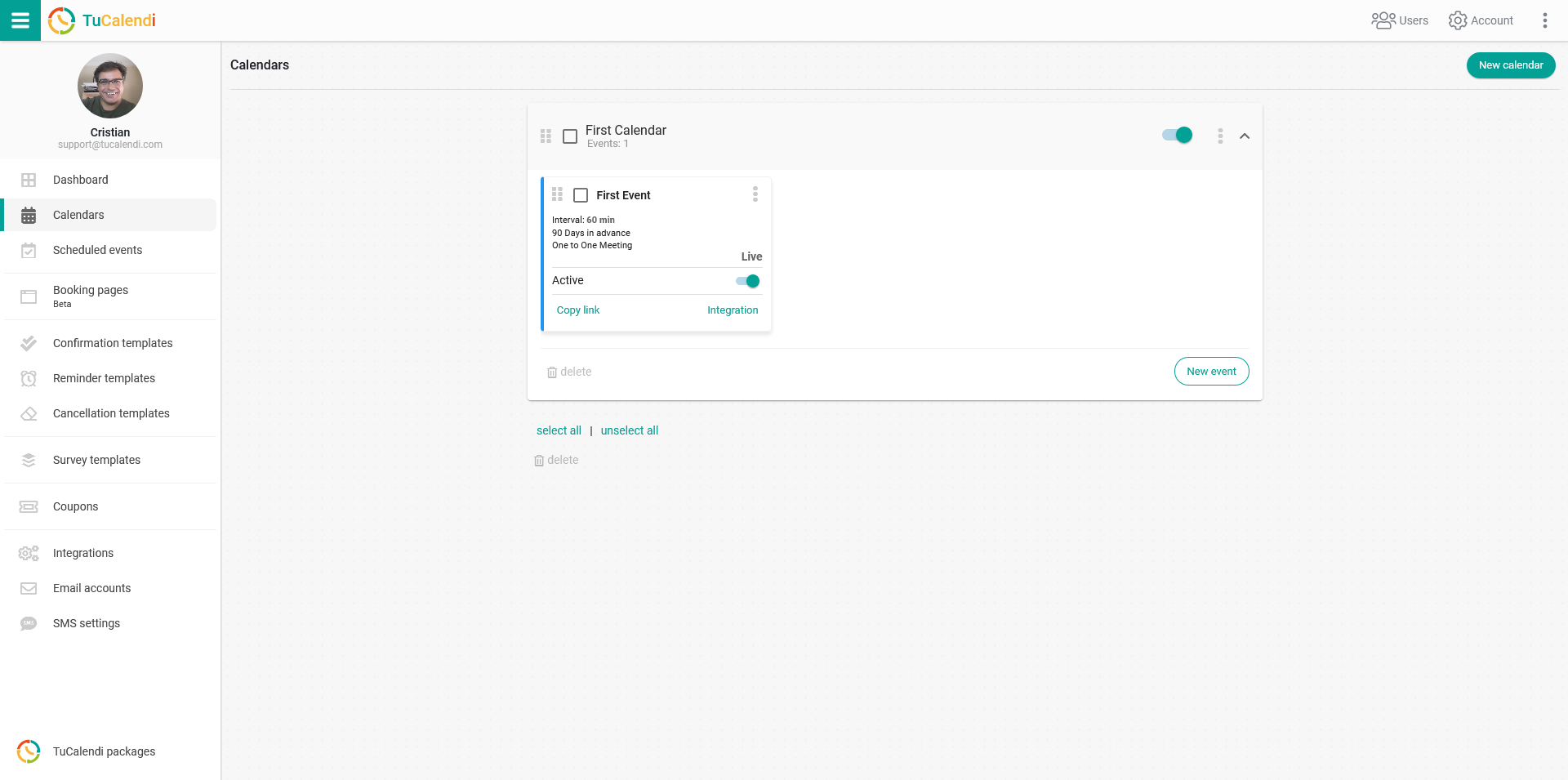
Find the event you want to synchronize with Google Calendar and click on the event name.
All the event configuration options appear in the horizontal menu.
Click on "Synchronization".
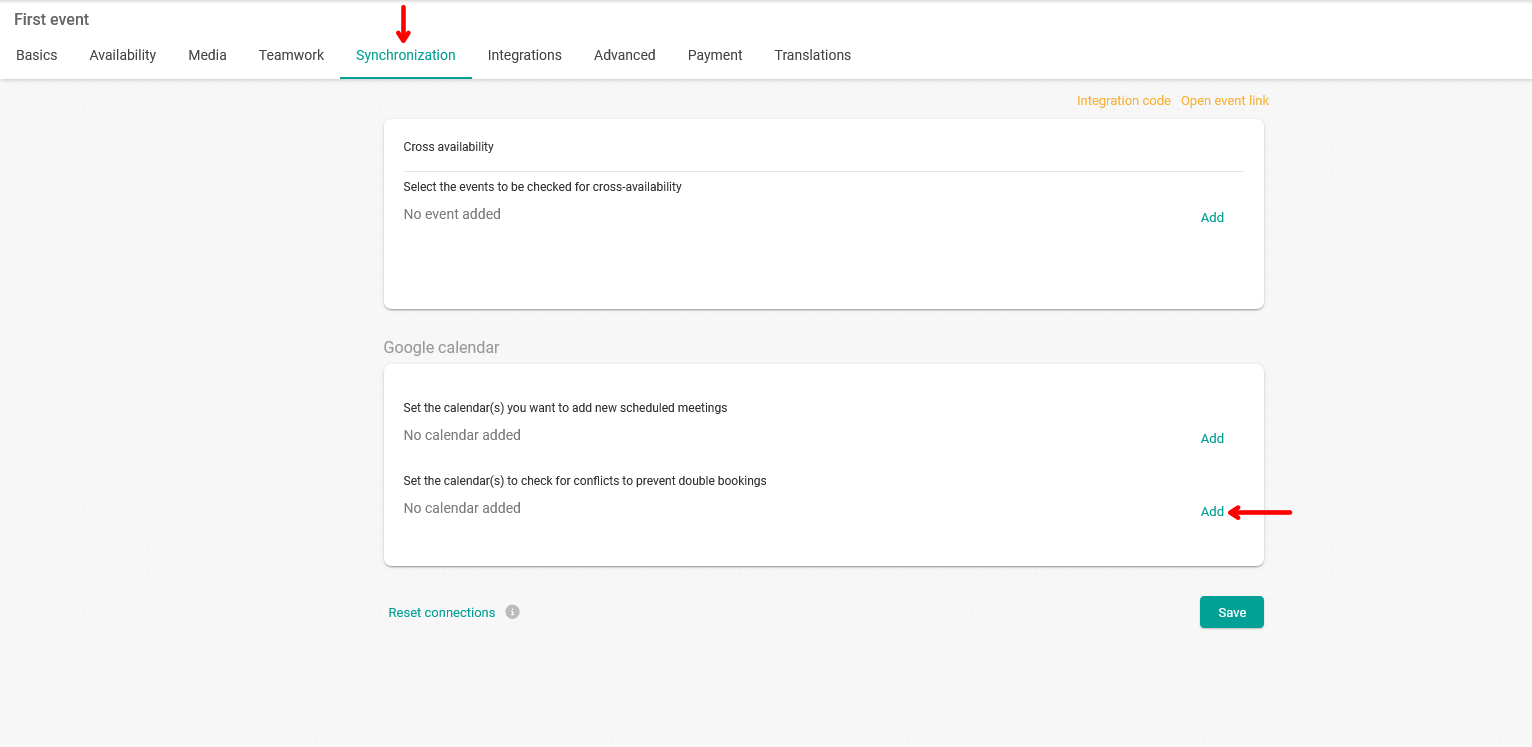
Under the "Google Calendar" option, in the field "Select the calendars to be checked for conflicts and avoid double bookings", click "Add" to choose the calendars you want to use for the bidirectional synchronization between TuCalendi and Google Calendar.
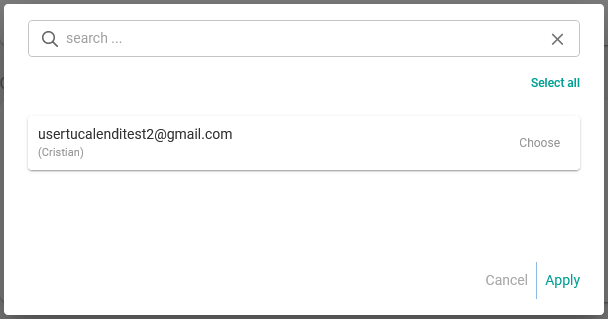
Select the calendars that will be checked for conflict detection to avoid double bookings and click "Apply".
Check both options to connect the calendar and disable busy times in Google Calendar.
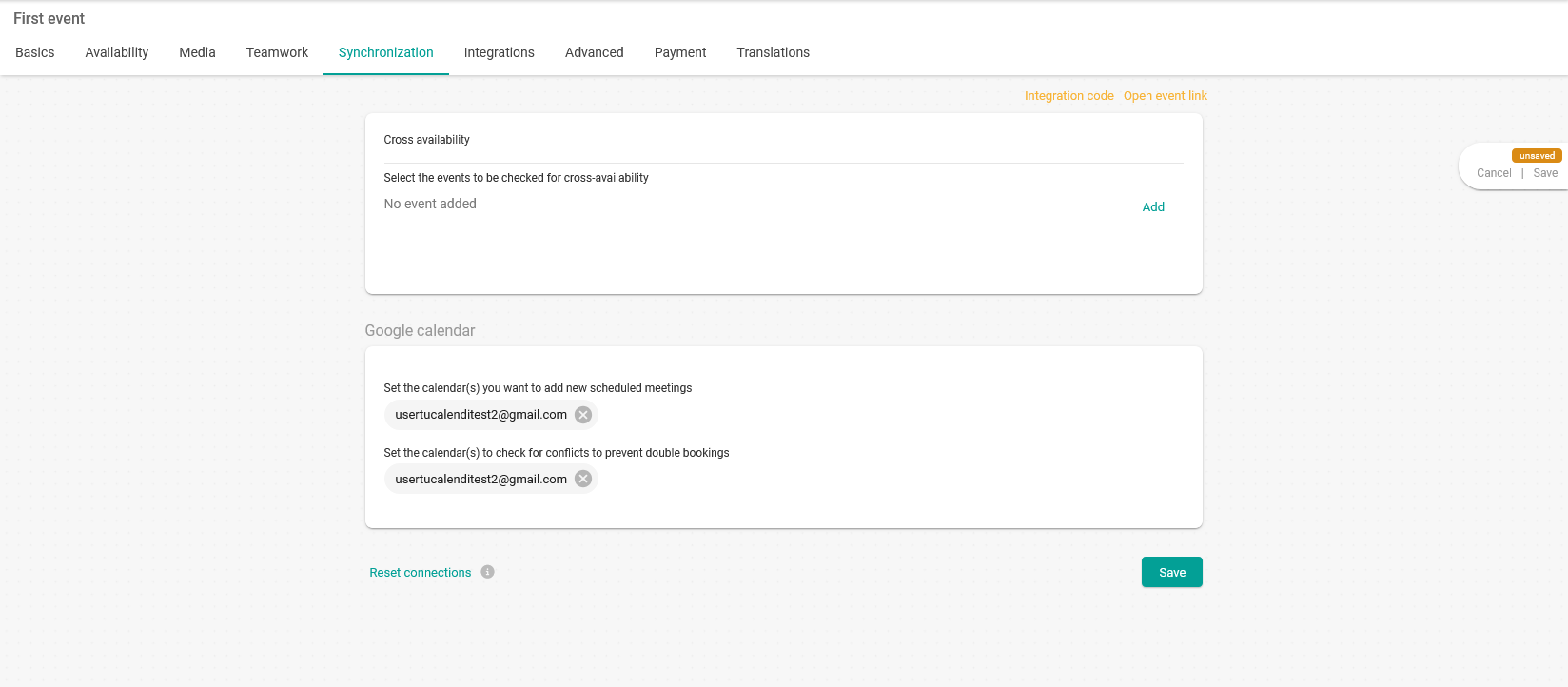
Once you have done this, click "Save" and the bidirectional synchronization will be active.