
After you have integrated iCloud Calendar with TuCalendi, you can sync events with iCloud Calendar. Connecting events with iCloud Calendar is very easy with TuCalendi.
Log in to TuCalendi and go to the "Calendars" option.
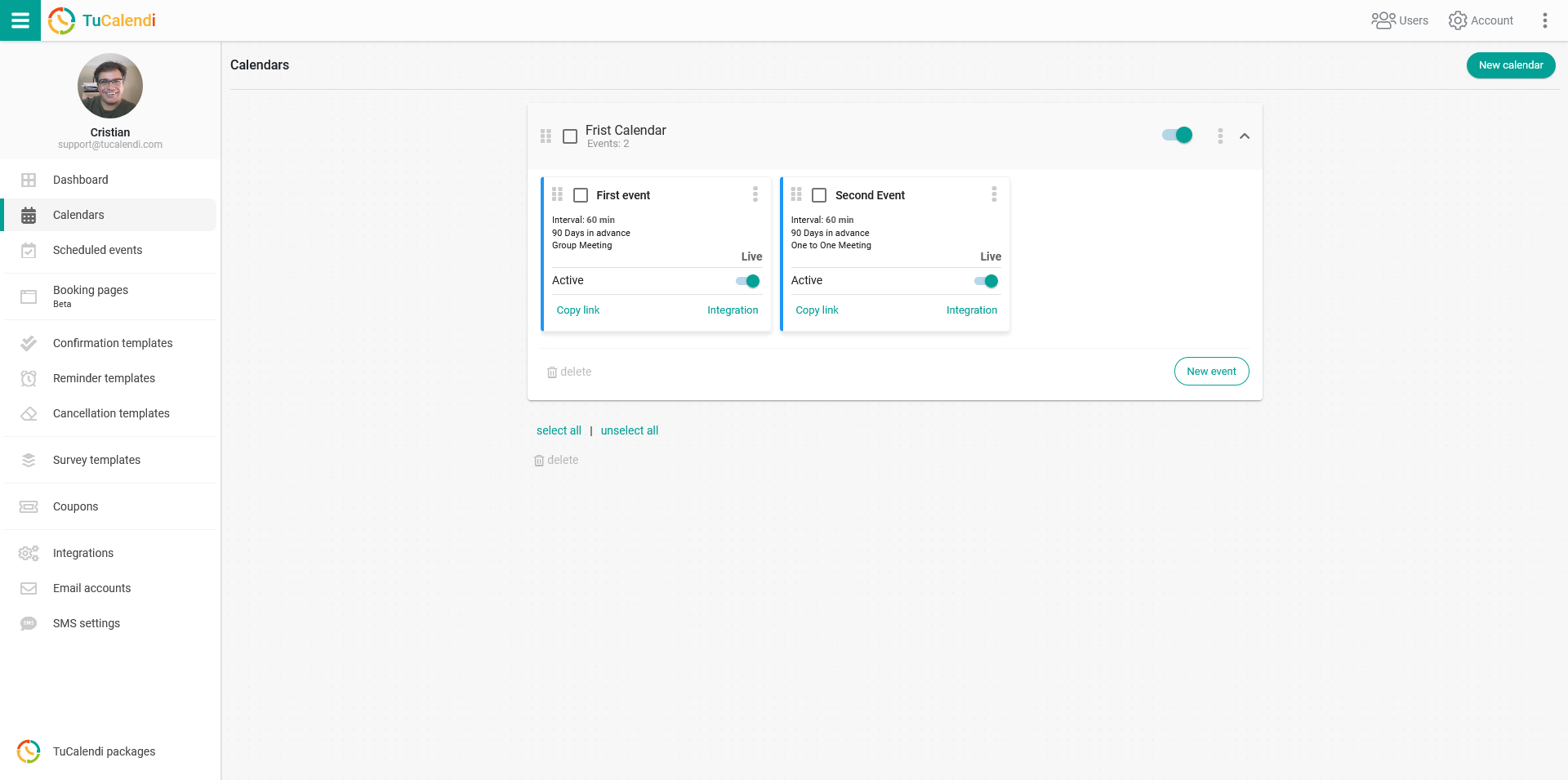
Find the event you want to sync with iCloud Calendar and click on the event name.
All the event configuration options appear in the horizontal menu.
Click on the "Synchronization" option.
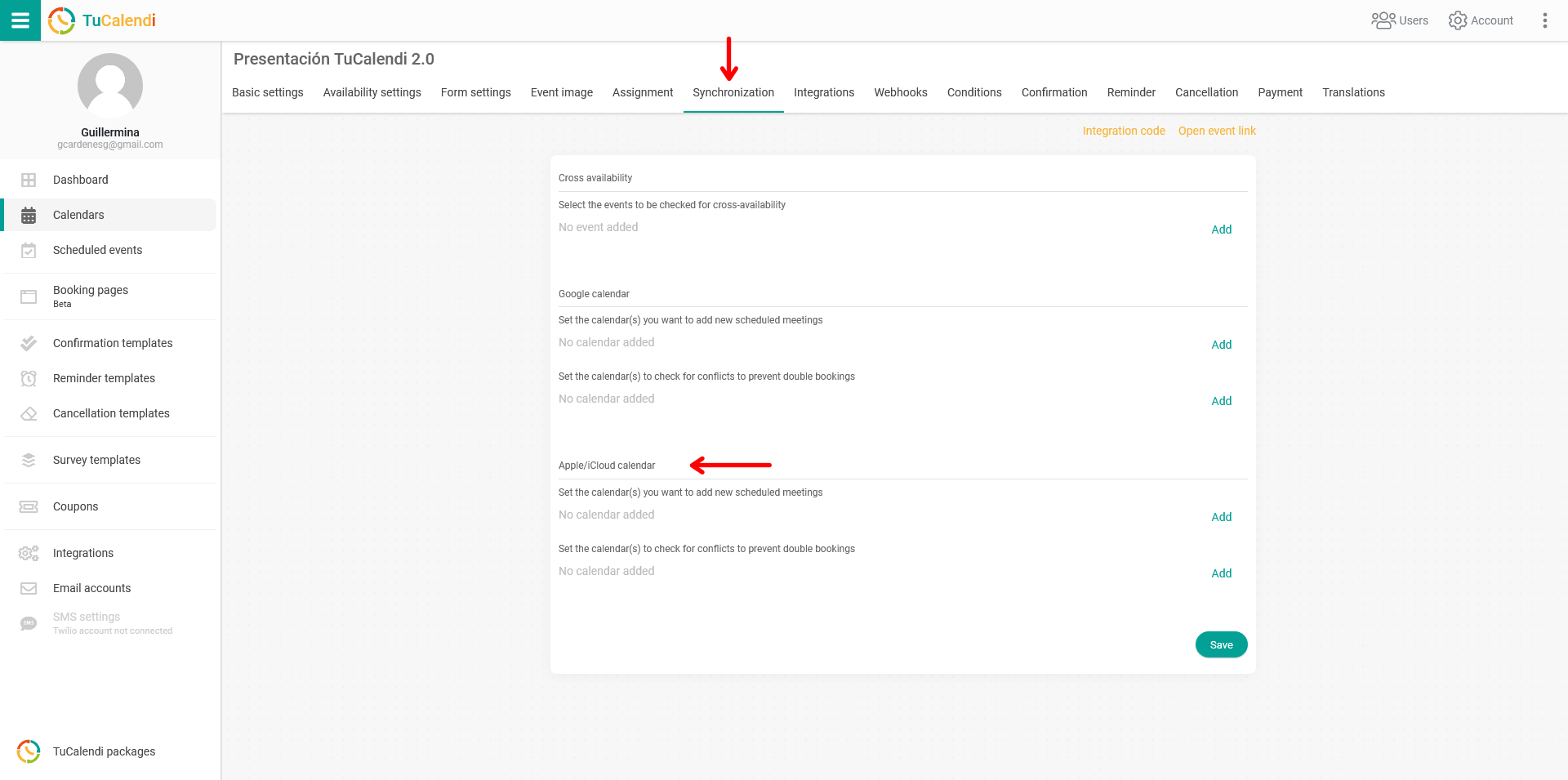
The "Apple / iCloud Calendar" block contains the options to add the event to iCloud Calendar and to set up bidirectional synchronization to avoid booking conflicts.
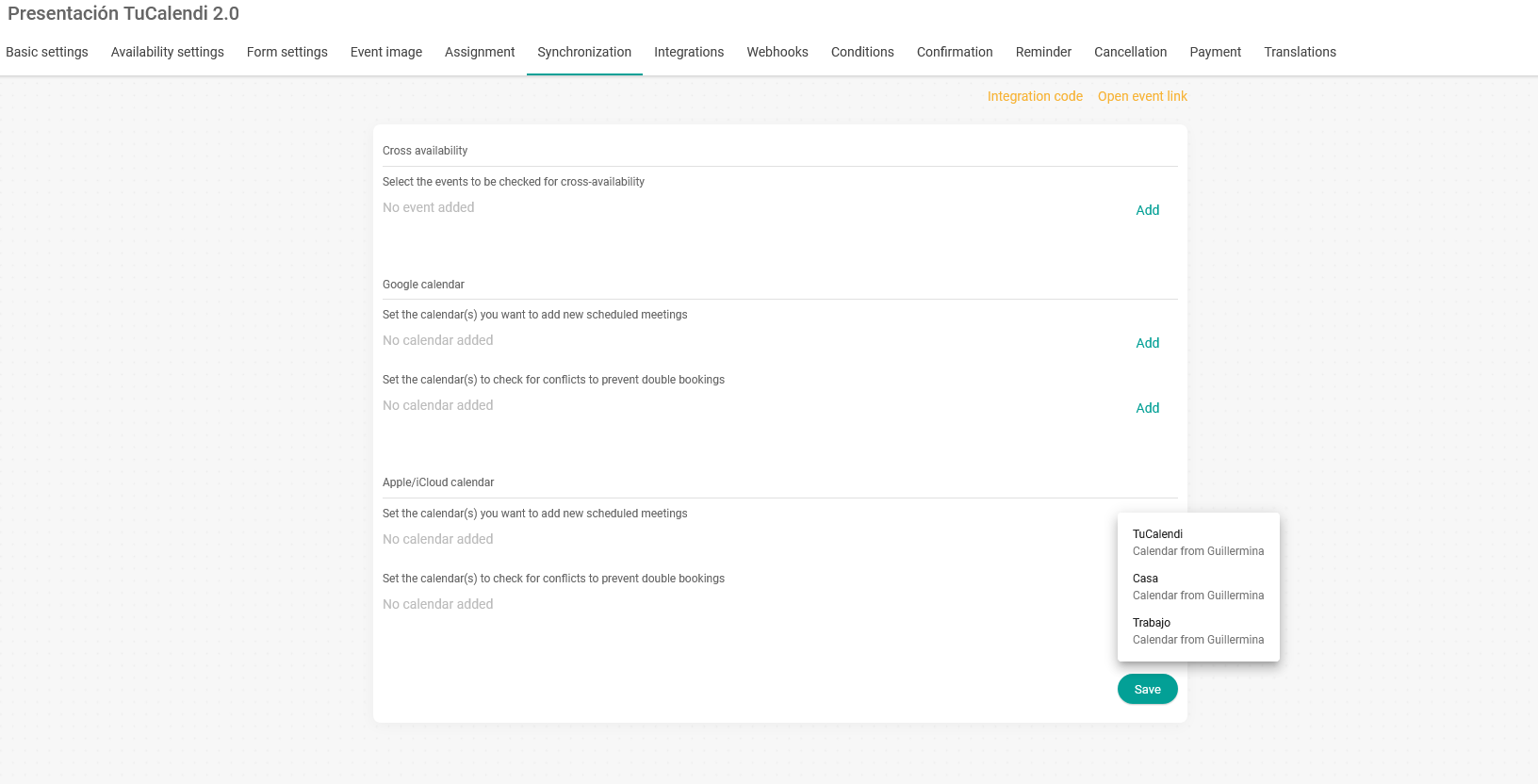
Connect iCloud calendars with the event
In the first option, click "Add" and select the iCloud calendars you want to sync with.
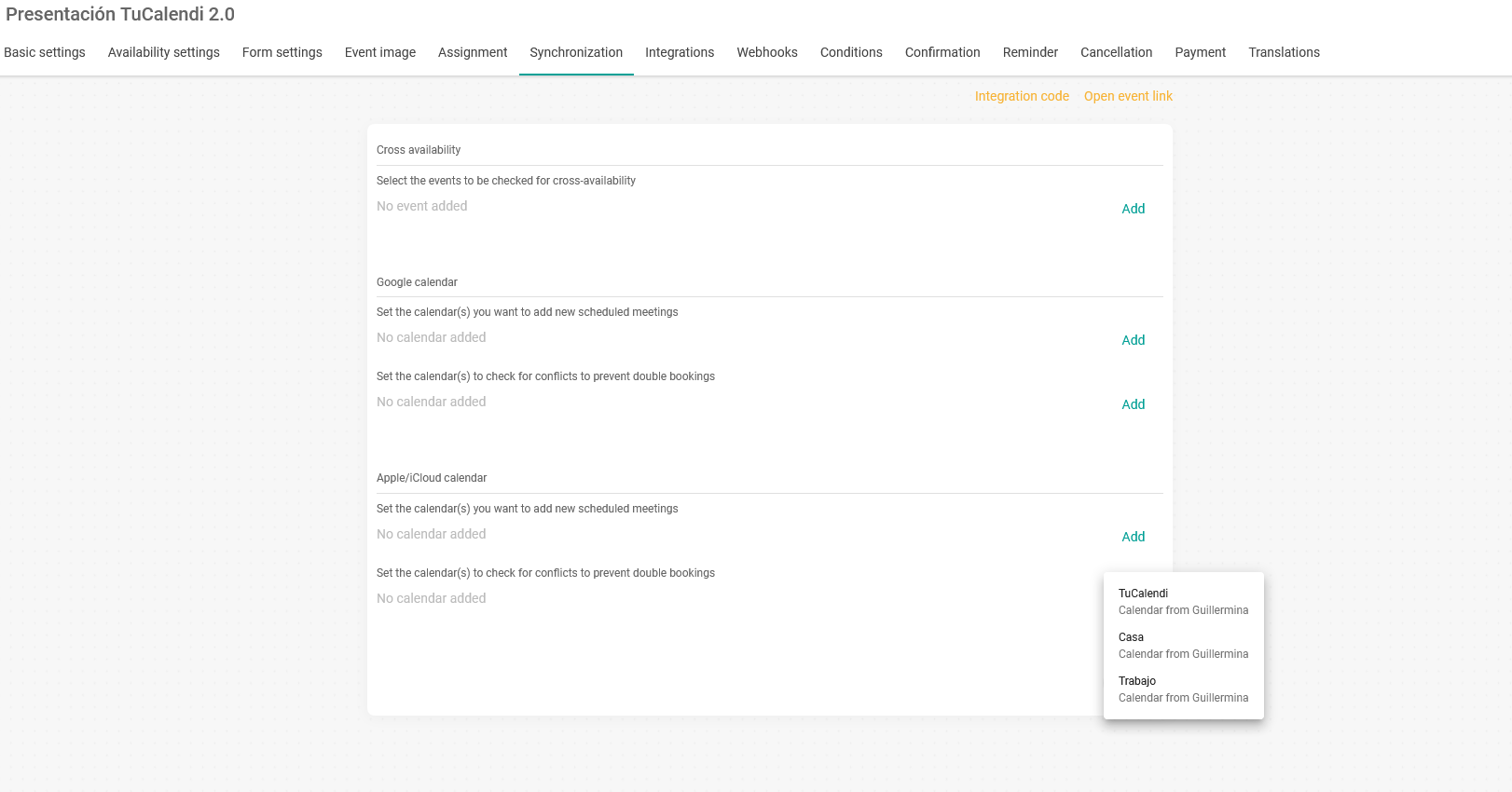
Avoid conflicts in iCloud Calendar and event bookings
To use the bidirectional sync option with iCloud Calendar and avoid booking conflicts, click "Add" and choose the iCloud calendars you want to sync bidirectionally. This prevents conflicts with bookings made from your TuCalendi online calendar.
Once you have checked the options you need, click "Save", and the connection between the event and the selected iCloud calendars is complete.
From now on, every event your clients book with you from your TuCalendi online calendar will be reflected in iCloud Calendar.