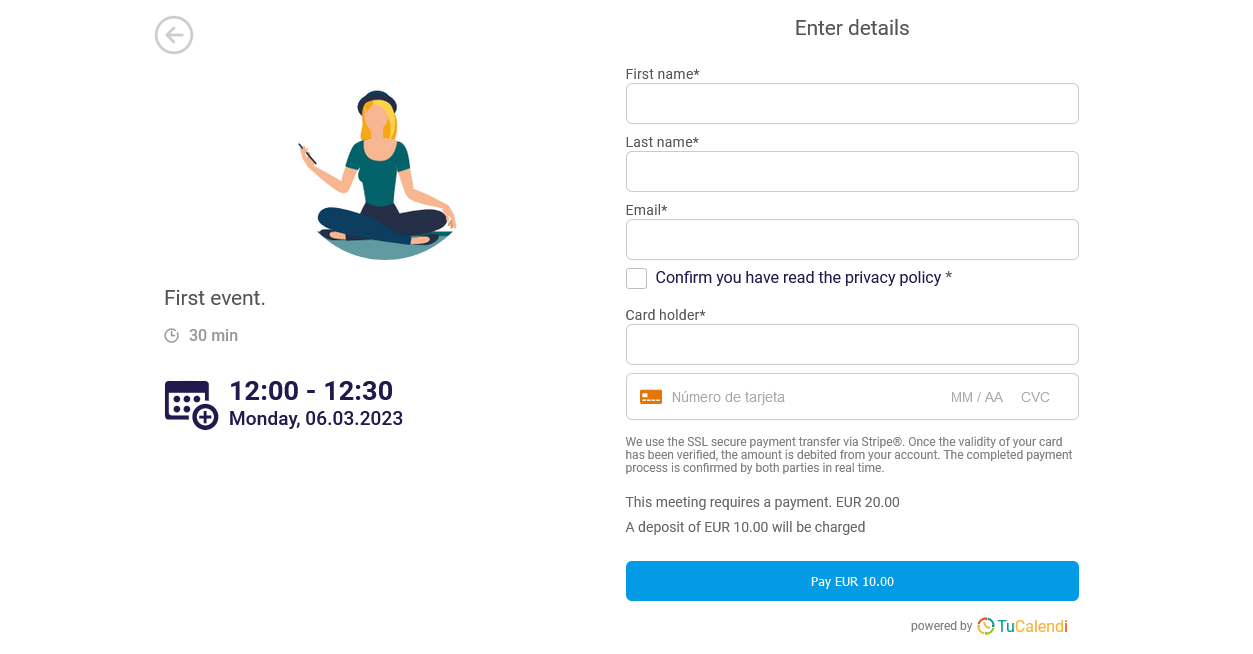
For paid events, you may sometimes prefer that customers don't pay the full amount of the event at the time of booking, but only a deposit. Let's see how to charge only a deposit on a paid event at the time of booking.
With the "Charge only a deposit" feature for events that require payment, this is very simple.
Log in to TuCalendi and go to the "Calendars" option:
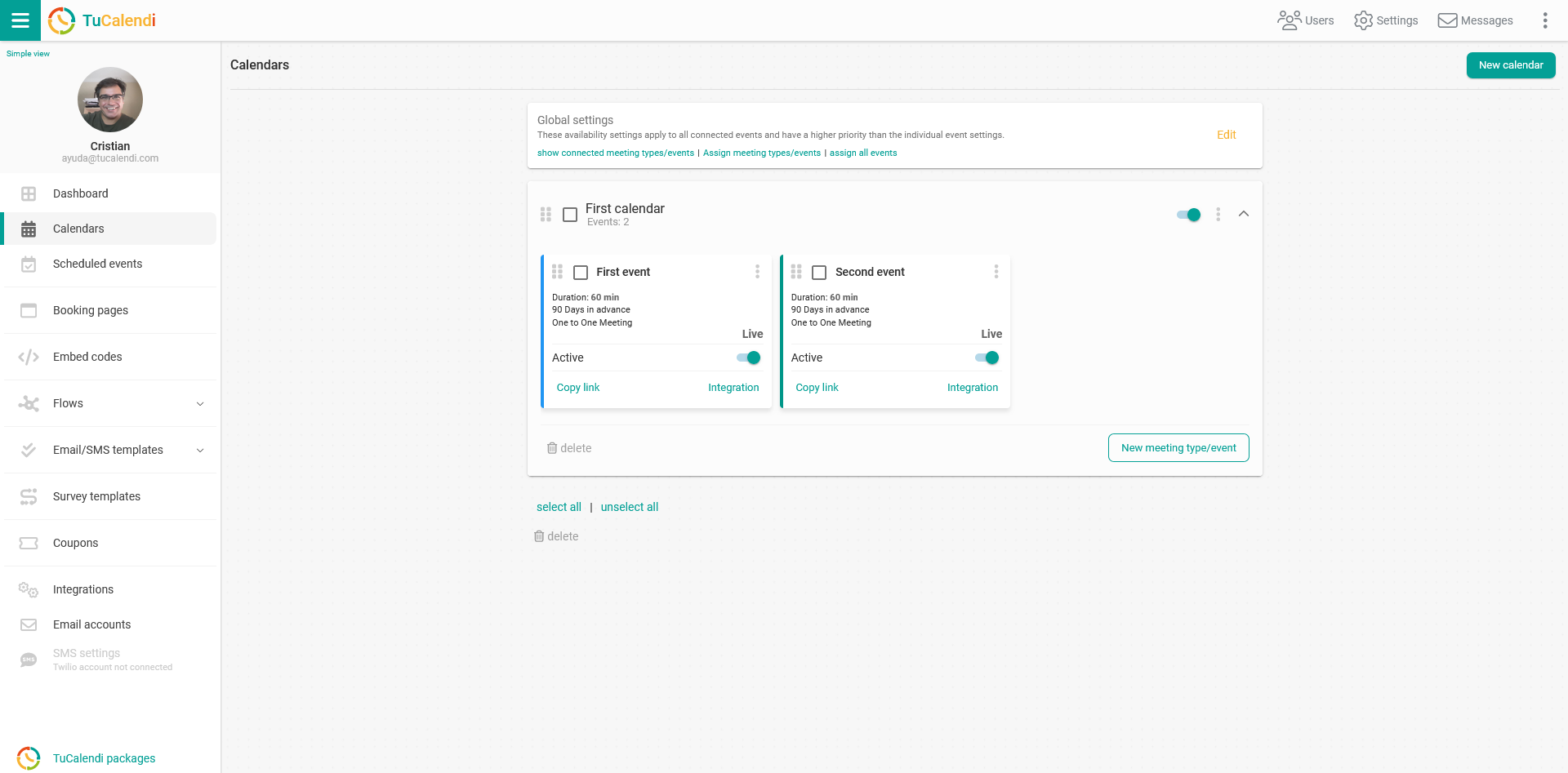
Locate the event for which you want to enable payments and click on the event name.
All the event configuration options will appear in the horizontal menu.
Click on "Payment".
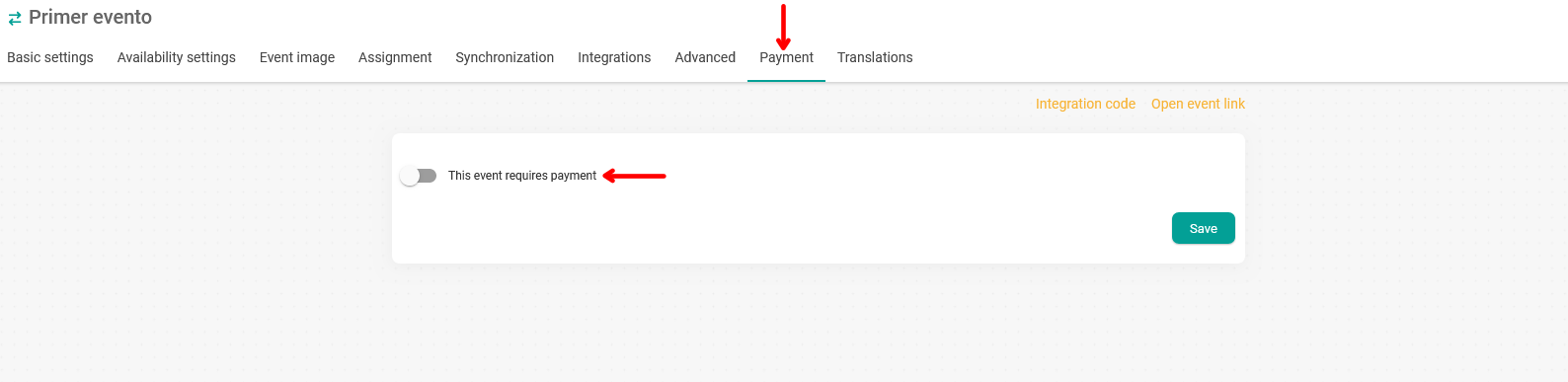
Activate the option "This event requires a payment". In the options that appear, simply choose the currency you're going to charge in, the price you're going to charge per event and your preferred payment gateway.
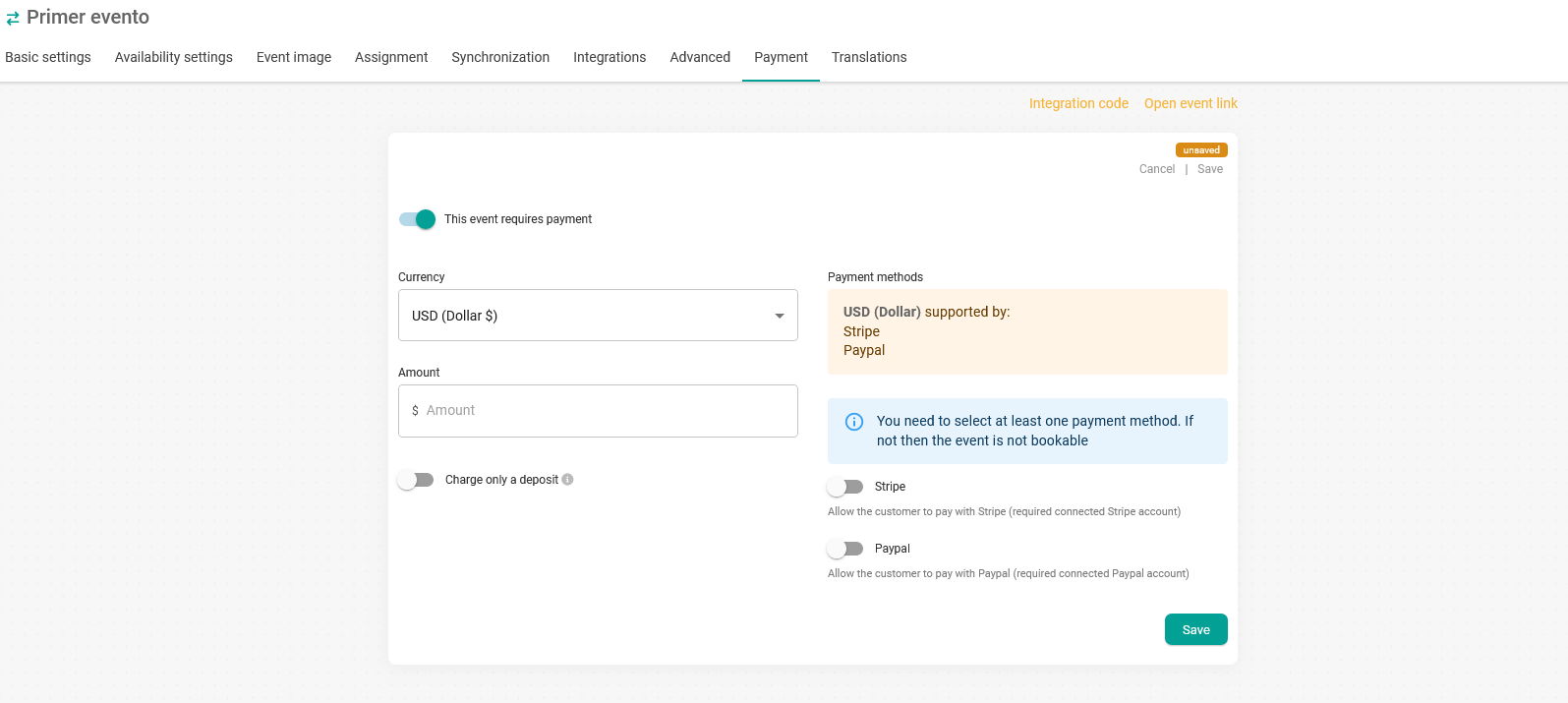
If you don't want to charge the total amount at the time of booking, but only a part of it, activate the option "Charge only a deposit":
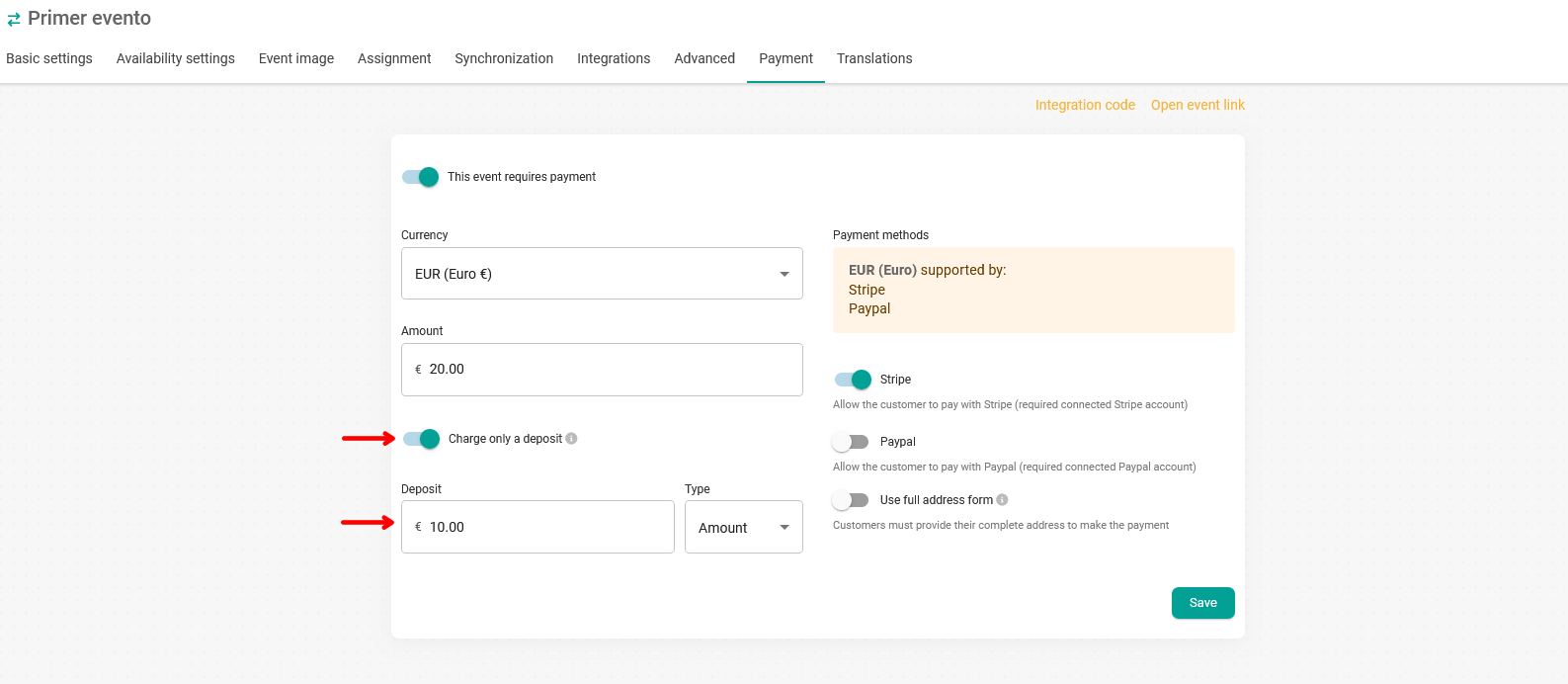
Enter the amount you want to charge and click the "Save" button.
You can set a fixed amount to be charged or a percentage of the total price of the event.
In this example, the price of the event is 20 Euros, but the option "Charge only a deposit" is activated and the requested deposit is 10 Euros.