
Manage the working days and schedules that will be available for each event. You can enable the days you accept reservations, disable days off and define the schedules for each day.
Log in to TuCalendi with your username and password. Go to the "Calendars" option.
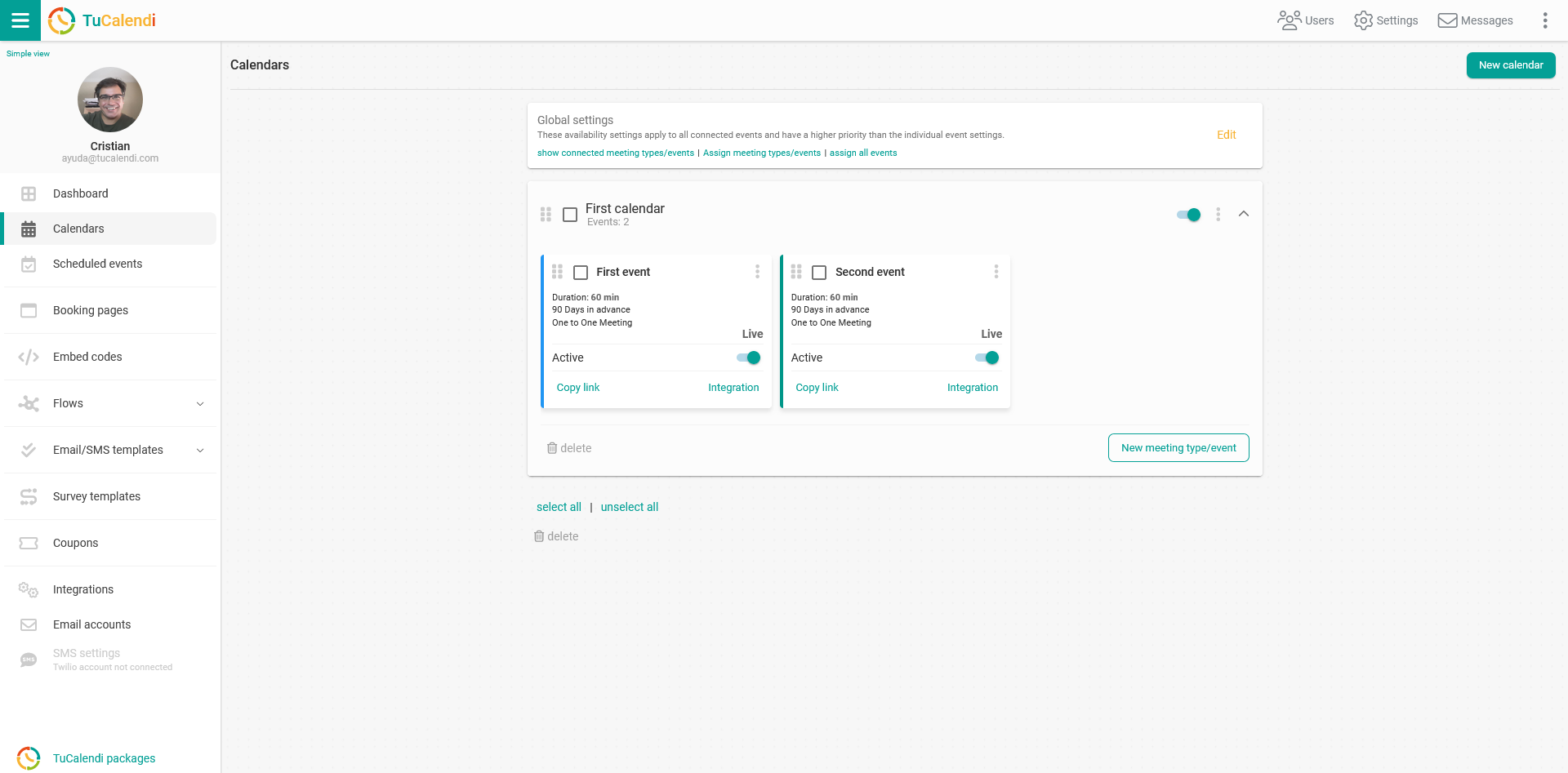
Locate the event for which you want to adjust the availability and click on the event name.
The horizontal menu displays all the event configuration options. Click on the "Availability" block:
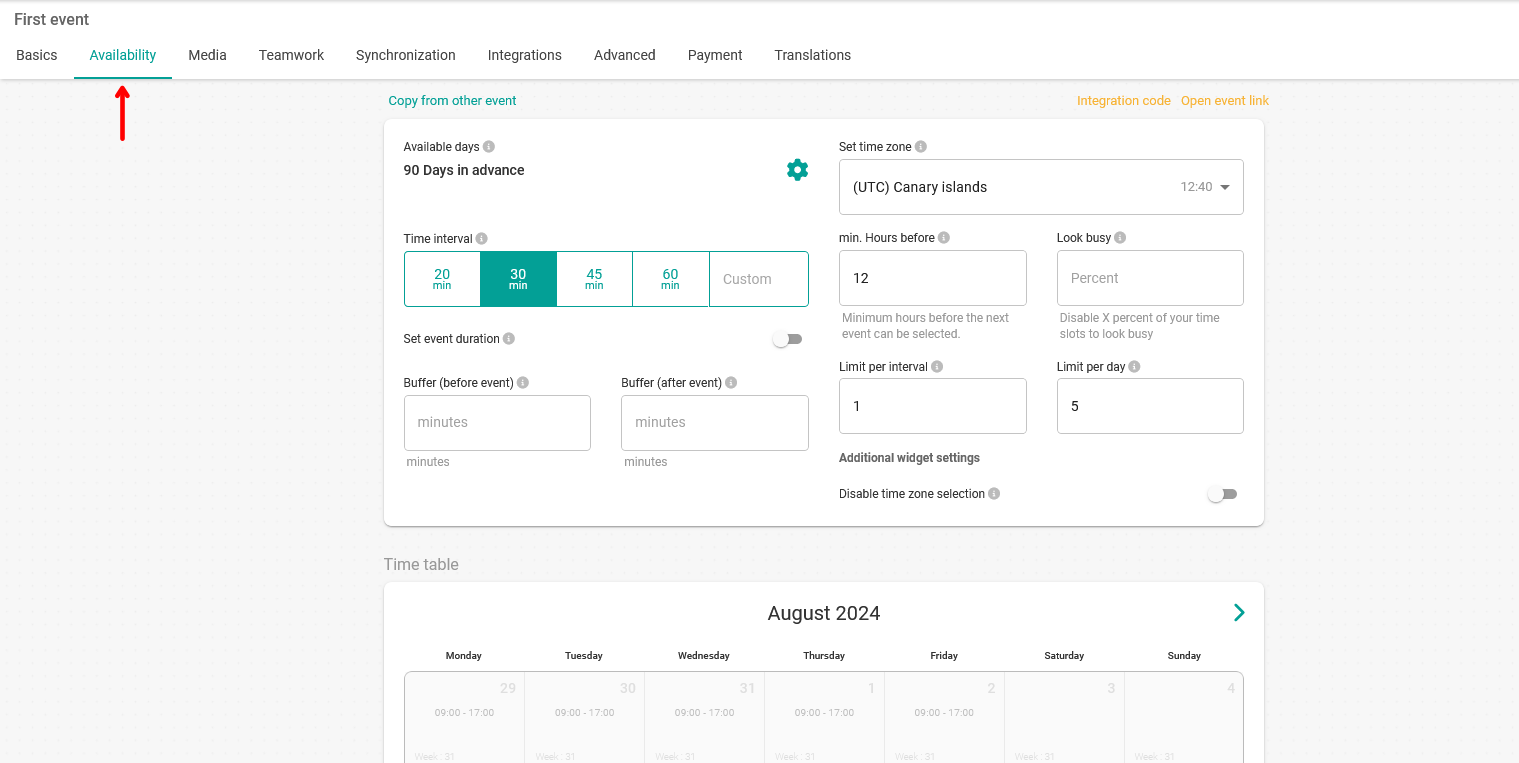
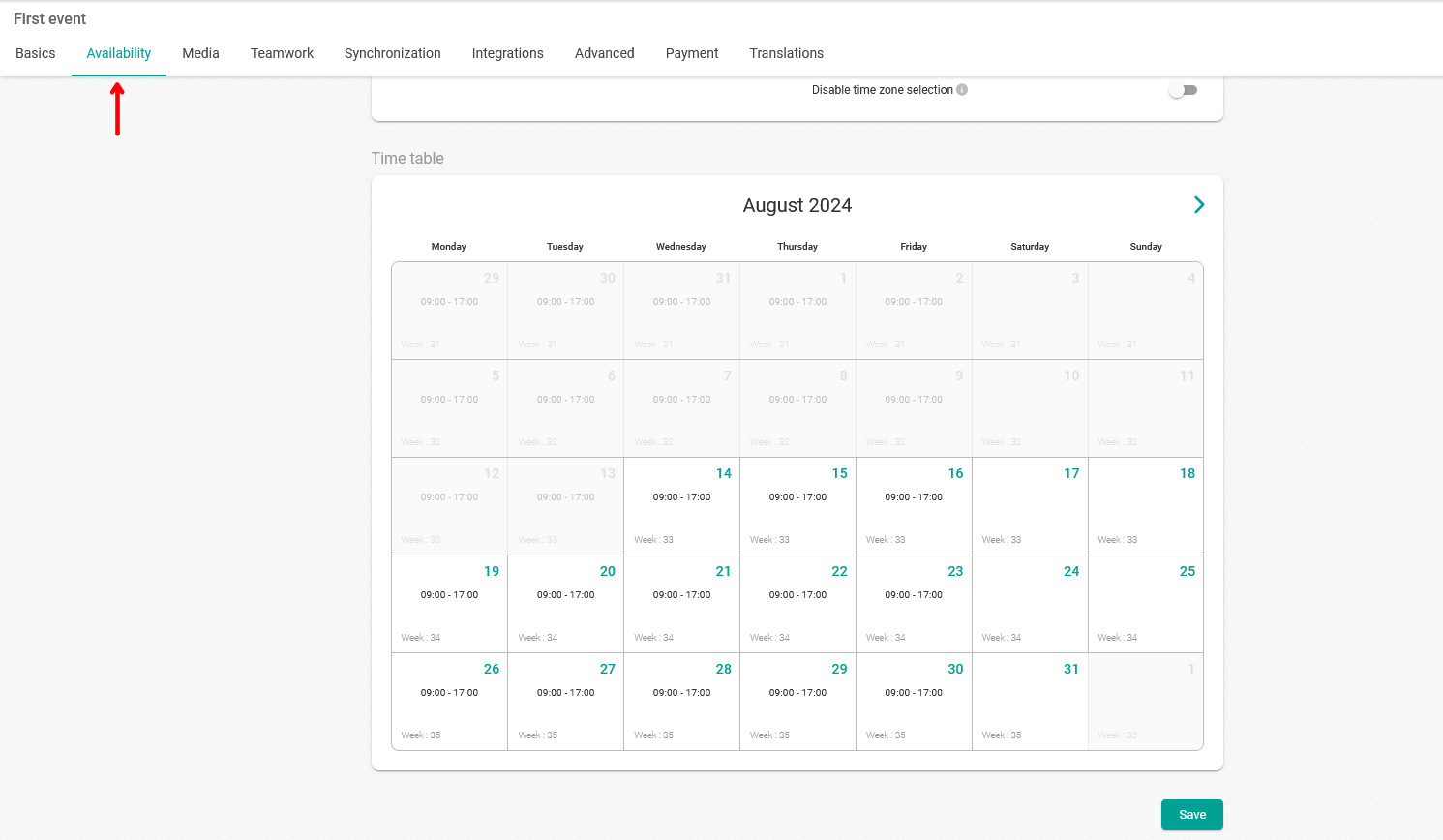
To schedule the availability of days and times, click on the day of your choice in the calendar.
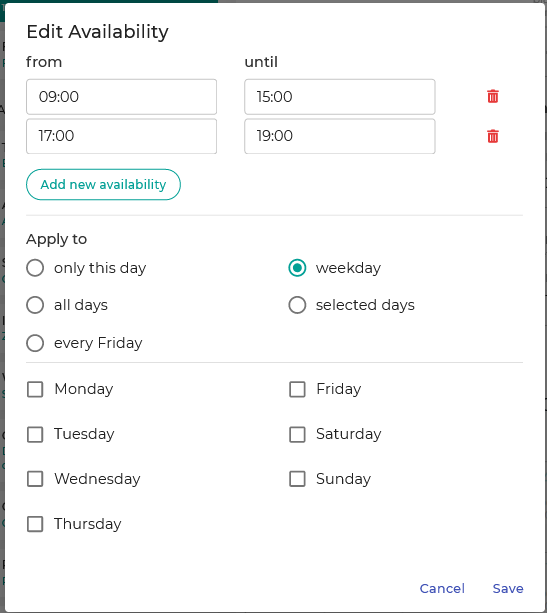
You can be available for the whole day or you can divide the schedule into time slots in which customers can book. In our example, the availability is set in two time slots, from 09:00 to 11:00 and from 17:00 to 19:00. You can arrange the hours as it suits you best.
The schedule can be applied to:
- Only the chosen day.
- All days.
- A specific day of each week. In the image it is "Every Friday".
- Choose weekday:
- Selected days:
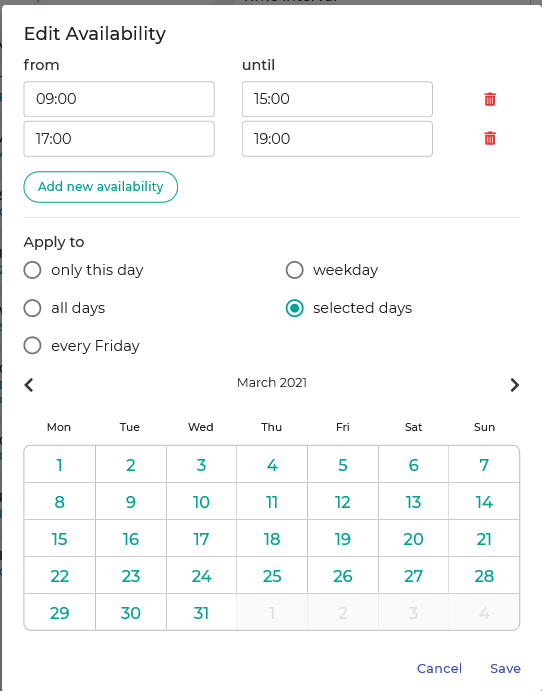
With these options you can customize any event exactly the way you need it. Once you have set the schedule and days, click "Apply" in the pop-up window.
Finally, to save all the availability settings for the event and make it available for your customers to book, click "Save" in the main window.
Keep in mind that you can change the availability of any event at any time and adapt it to any situation.