
After you have integrated Mailbox.org with TuCalendi using CalDAV, you can synchronize the events with Mailbox.org.
Synchronizing TuCalendi events with Mailbox.org is very simple.
Log in to TuCalendi and click on the "Meeting types" option in the side menu.
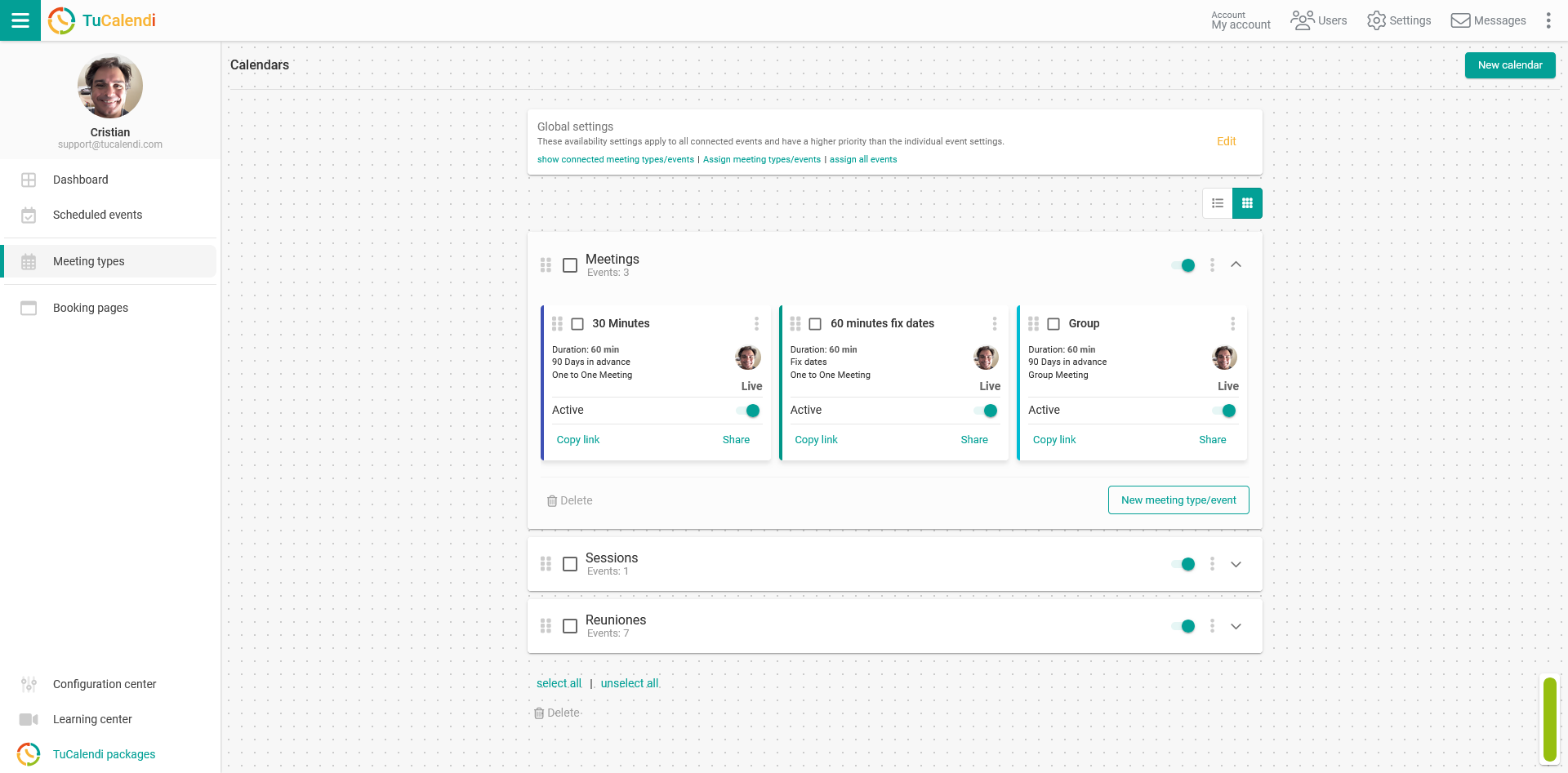
Locate the event you want to synchronize with Mailbox.org and click on the event name.
All the event configuration options appear in the horizontal menu.
Click on the "Synchronization" option.
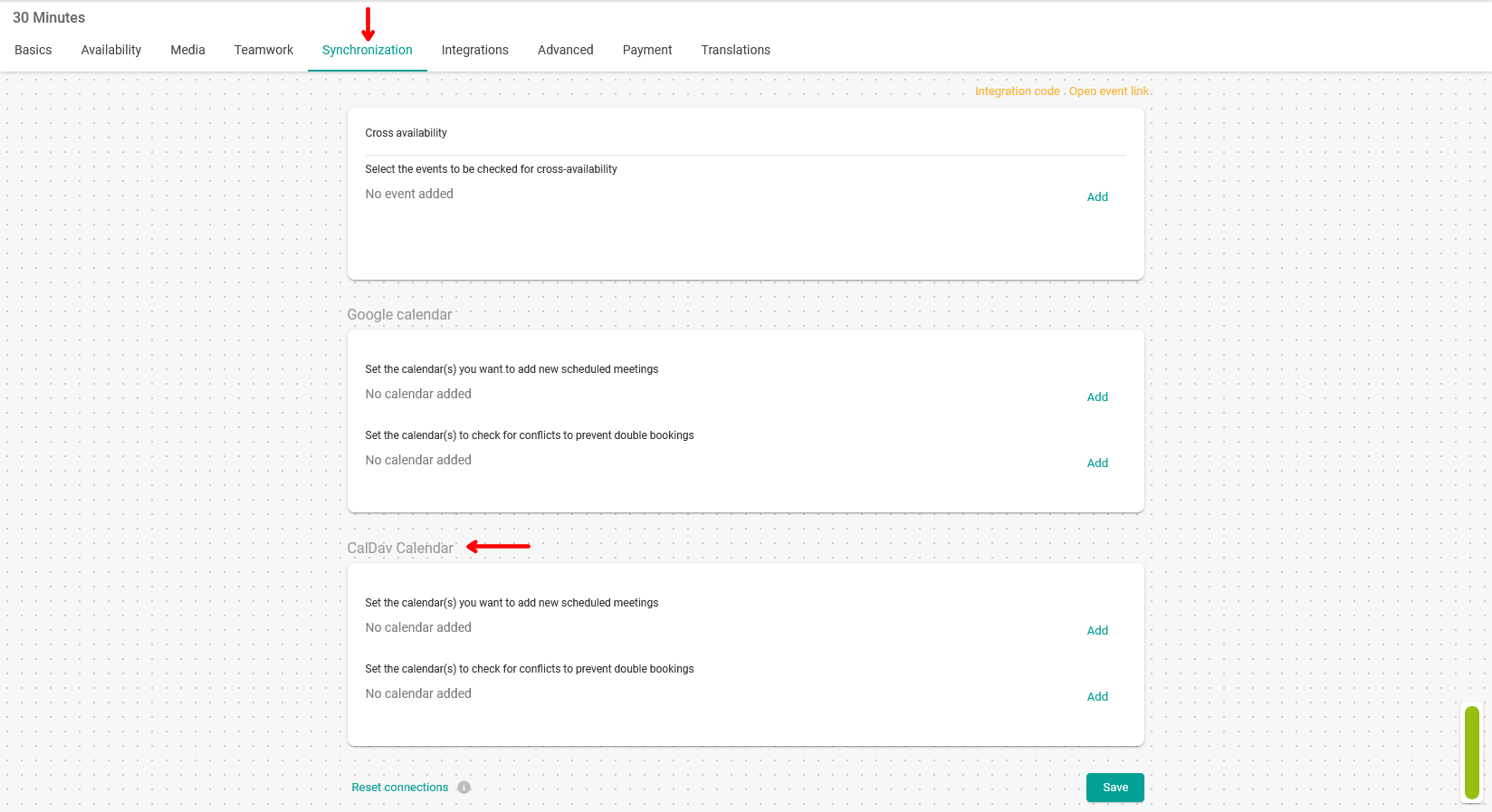
In the "CalDAV Calendar" block, you'll find the options to add the bookings to the Mailbox.org calendar and to set up the bidirectional synchronization between TuCalendi and Mailbox.org to avoid booking conflicts.
Synchronizing Mailbox.org calendars with the event
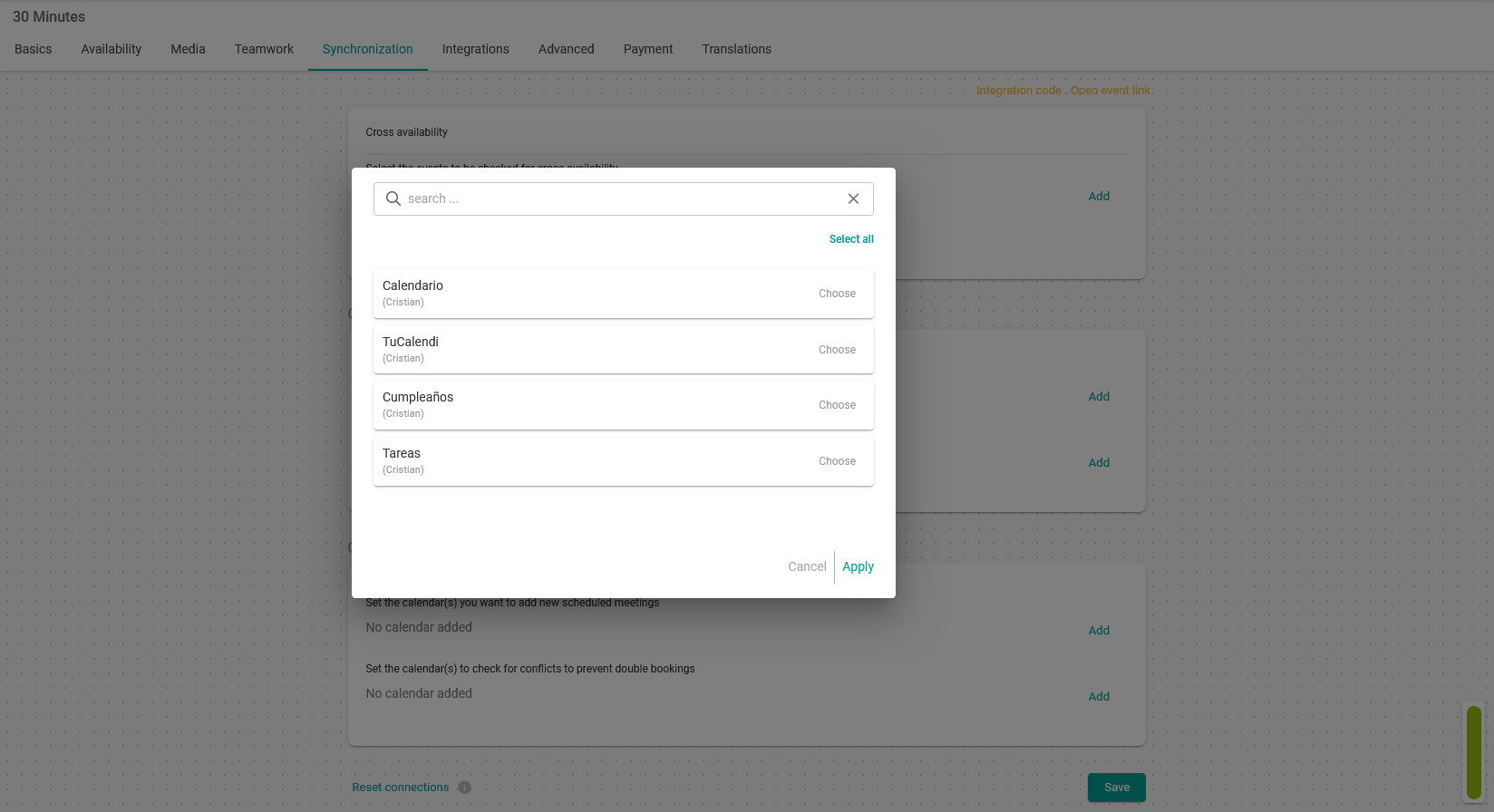
In the first option, click "Add", select the Mailbox.org calendars to which you want to add the bookings made from TuCalendi and click "Apply".
Avoiding conflicts in Mailbox.org and TuCalendi bookings
For the bidirectional synchronization option with Mailbox.org to avoid conflicts in bookings, click on "Add", choose the Mailbox.org calendars with which you want to perform the bidirectional synchronization to avoid conflicts in the bookings made from the TuCalendi calendar and click on "Apply".
When you have checked the options you want, click "Save". The synchronization between the TuCalendi event and the Mailbox.org calendars you have selected will be done.
From now on, when your customers book the event with you from your TuCalendi calendar, it will be added to the Mailbox.org calendar of your choice. If you have added events in Mailbox.org, those times will be blocked in TuCalendi and will not be bookable.