
Once you have set up your domain and the other initial aspects of your booking page, you need to continue adding content to the booking pages to display the content you want on your booking page.
Log in with your TuCalendi username and go to the "Booking pages" option.
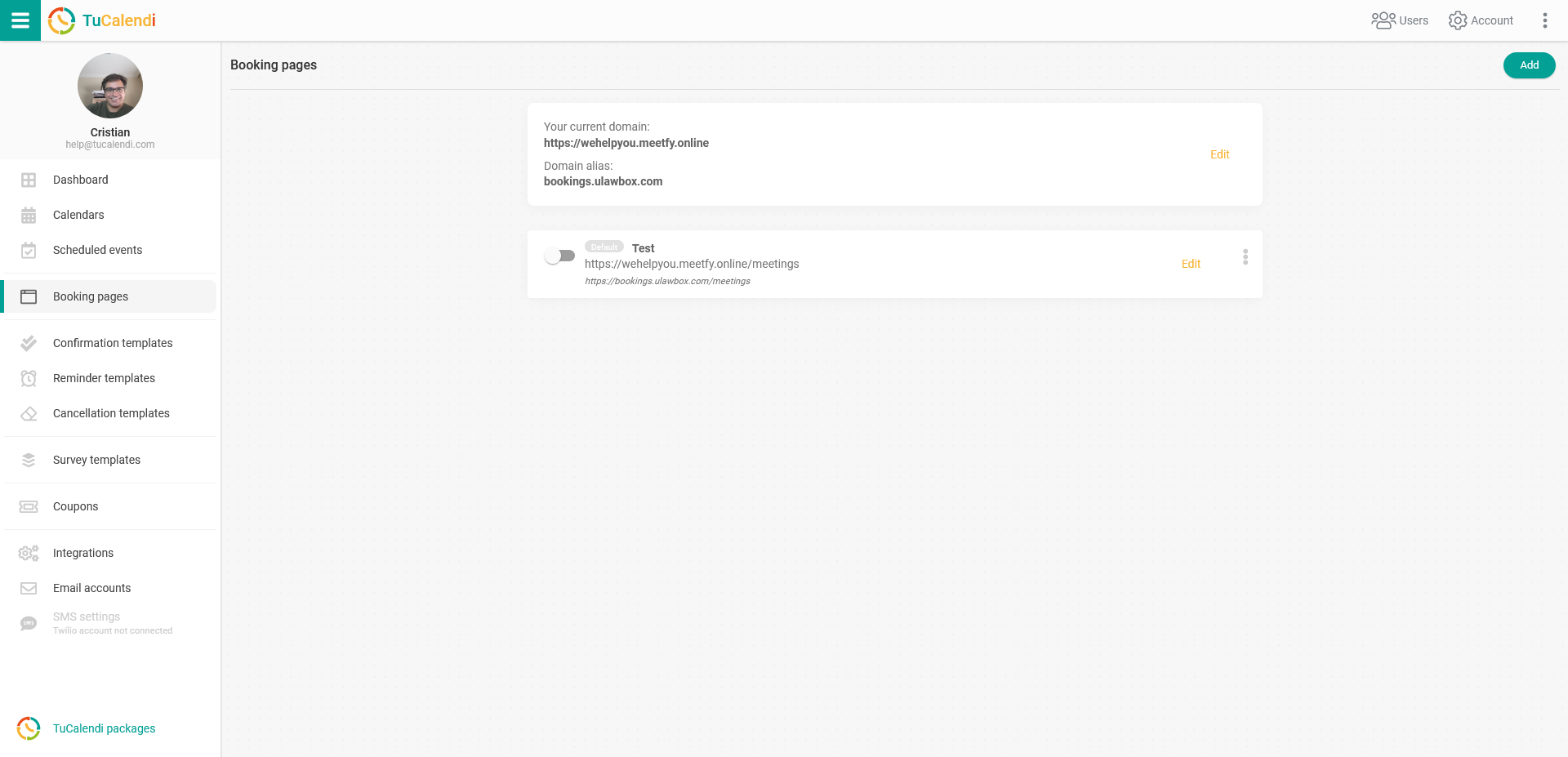
Click on "Edit" on the booking page.
Go to the "Content" tab to see the different content options you can add in each template:
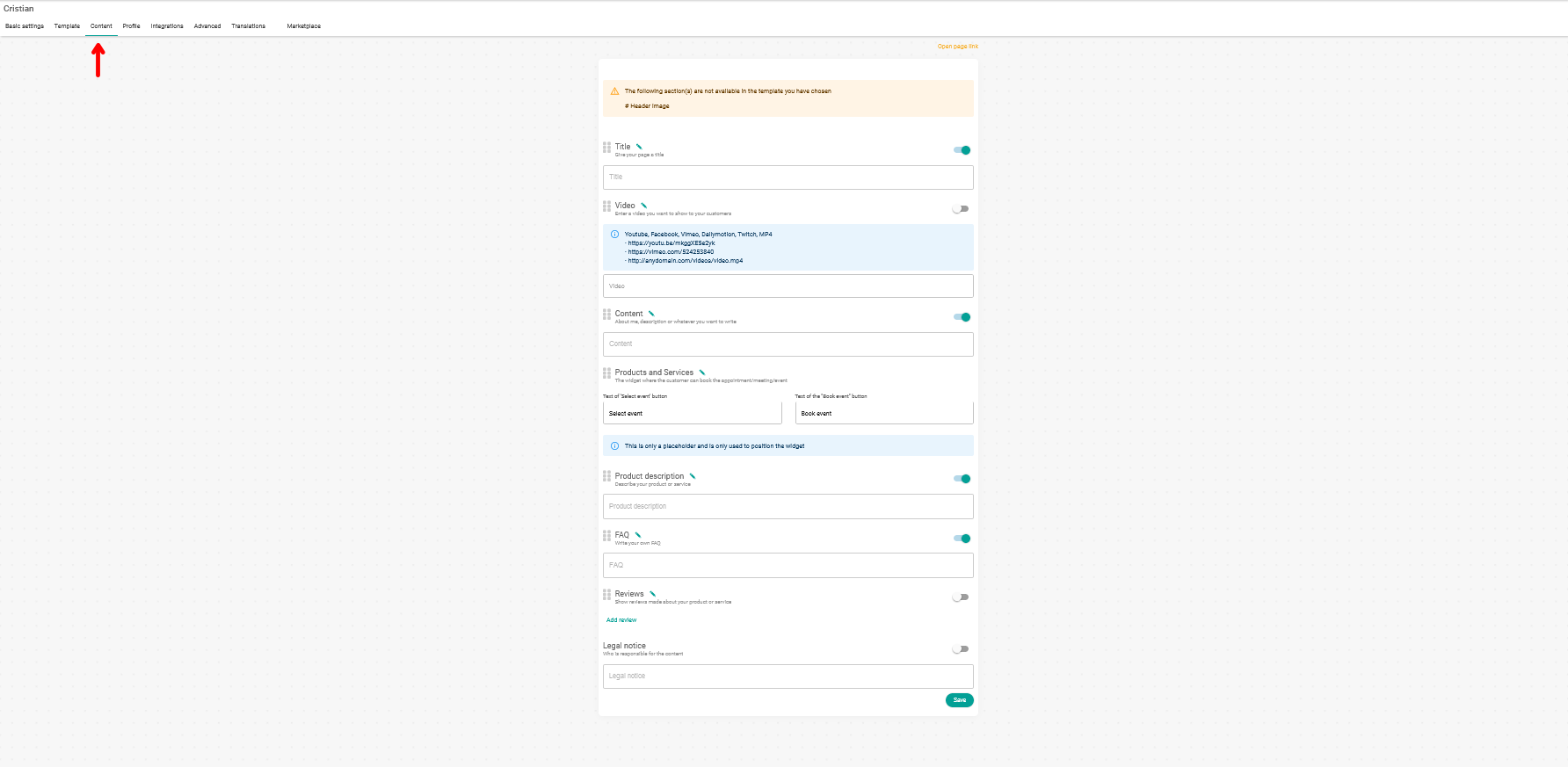
In the template we have selected, all the content fields for the booking page are available. Depending on the booking page design you have chosen, some of the options will not be available.
The content fields you can use are:
- Title: title and short description of your booking page.
- Video: video presentation about you and your services (URL of the video).
- Content: text explaining about you or your services.
- Products and services: the calendar widget that will be displayed on the page so your clients can book with you.
- Product description: description of services or products.
- FAQ: frequently asked questions about you or your services.
- Reviews: add reviews to give your customers more confidence.
- Legal notice: legal terms to inform your customers.
You decide what content you want to show or not by simply activating or deactivating each field:

In addition, you can move each field of the booking page content so that it is displayed in the order you want. To do this, simply click on the six little squares to the left of the field name and drag the box:

To add a review, click on "Add review" in the "Reviews" field and add it in the pop-up window that appears:
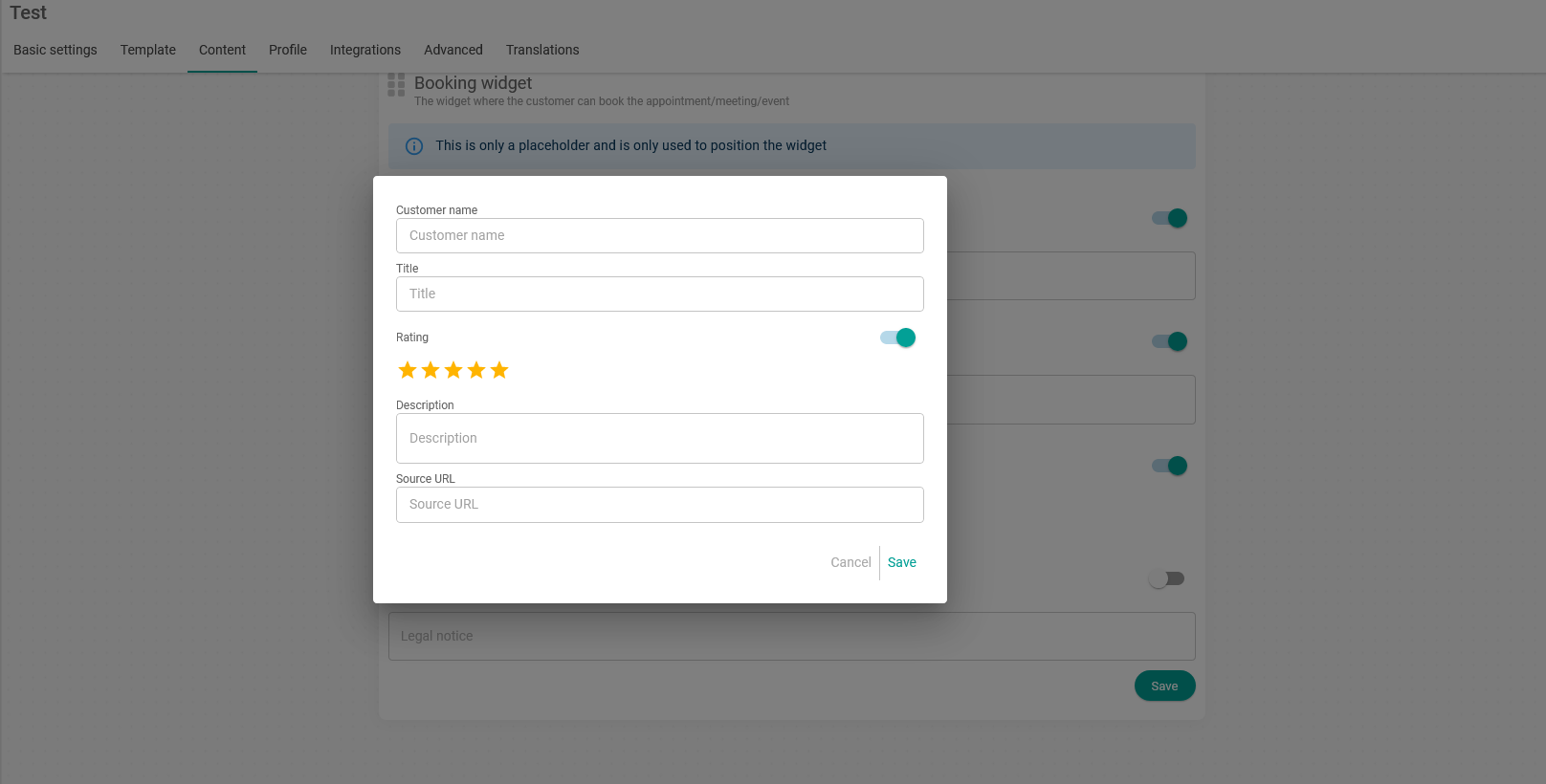
Fill in the fields and click "Save".
When you have completed all the content of the page and chosen what you want to display or hide on your booking page, click "Save".