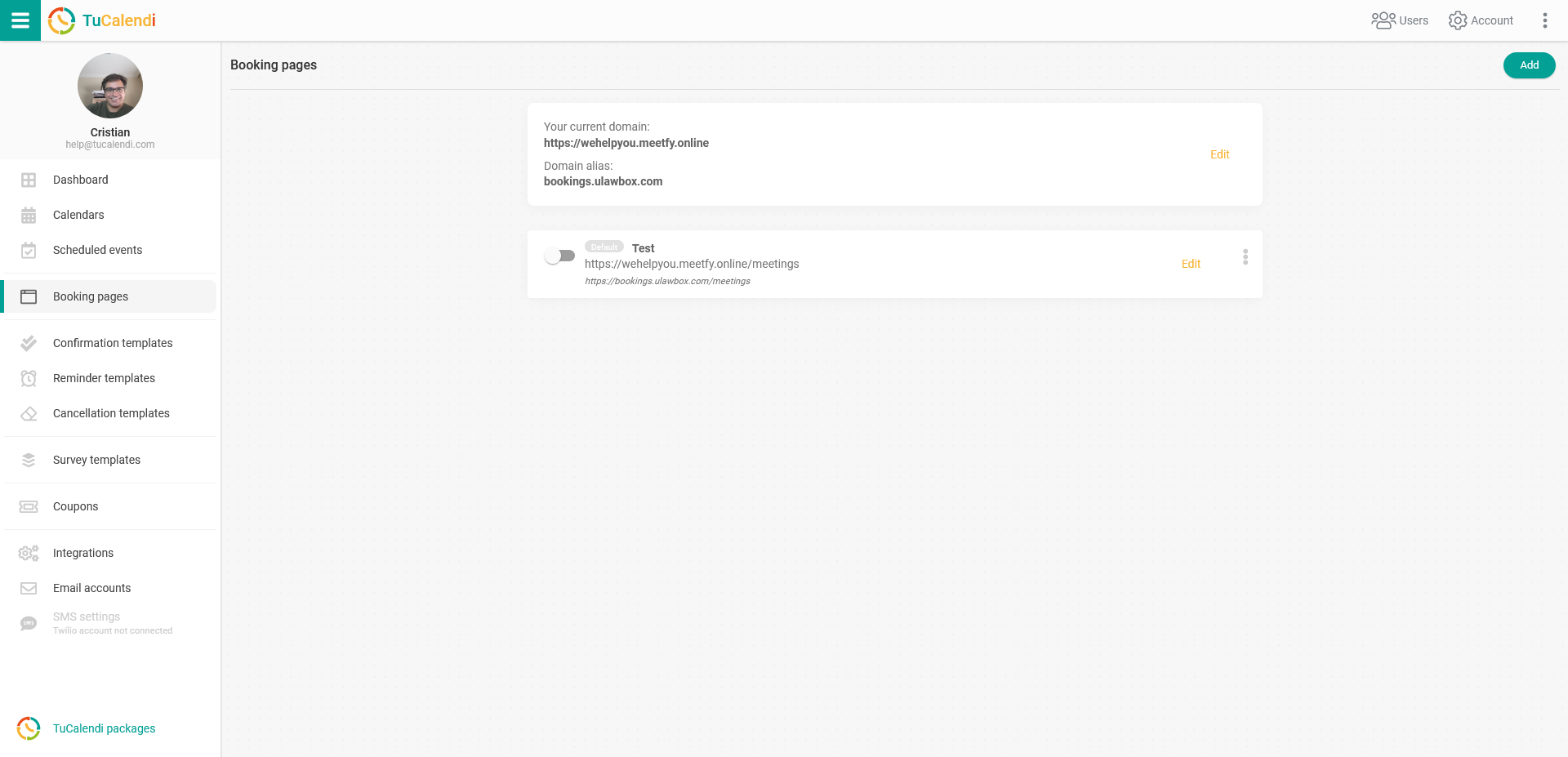
For your booking page to become operational, you need to configure a few basic settings.
Log in to TuCalendi with your username and password. Go to the "Booking pages" option:
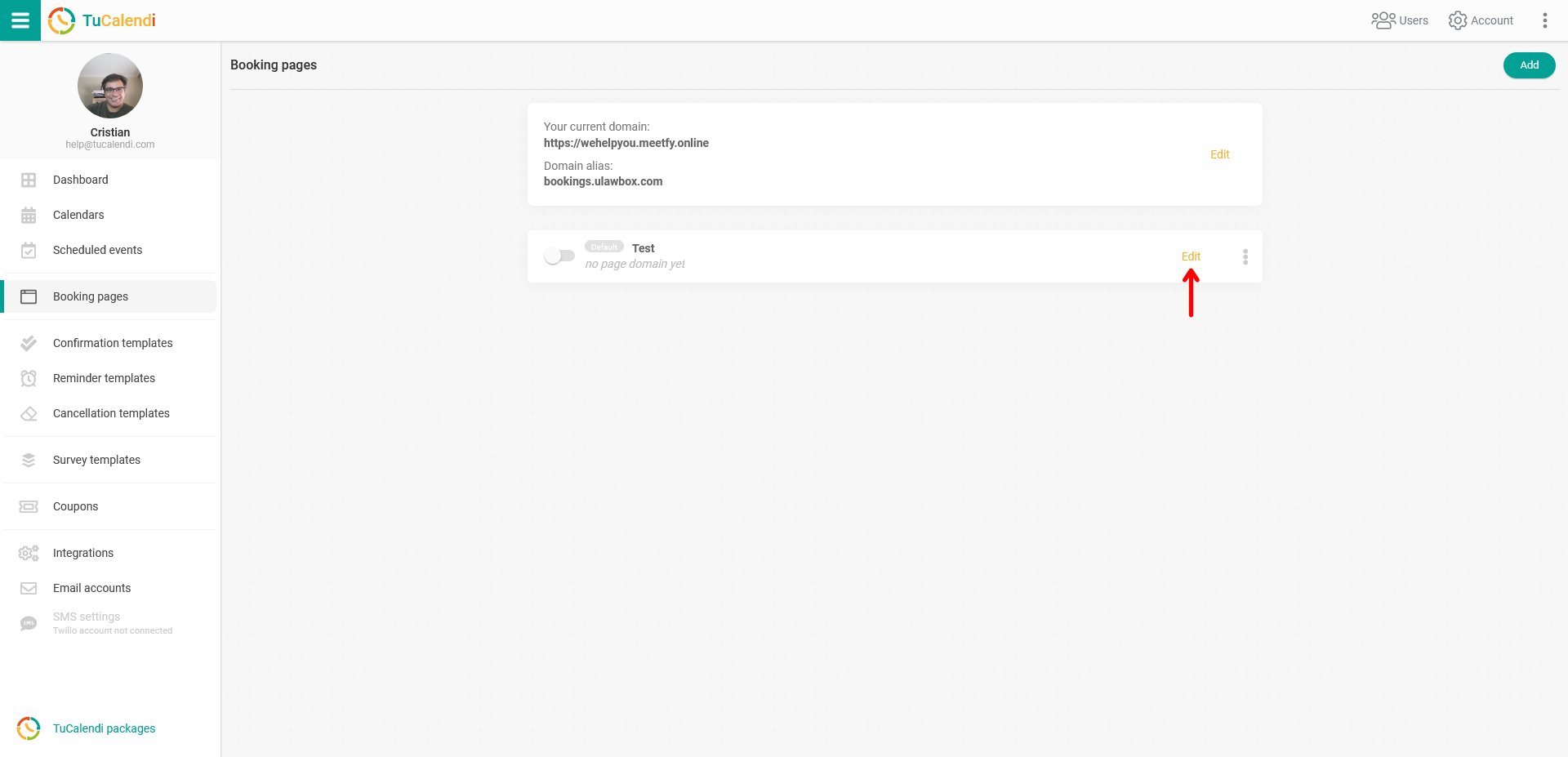
At first, when you haven't set the page path in the basic settings yet, you'll see the message "No page domain yet" on the page you've added. This will change after the first adjustment we're going to make.
Click "Edit" on the booking page to access all the settings options.
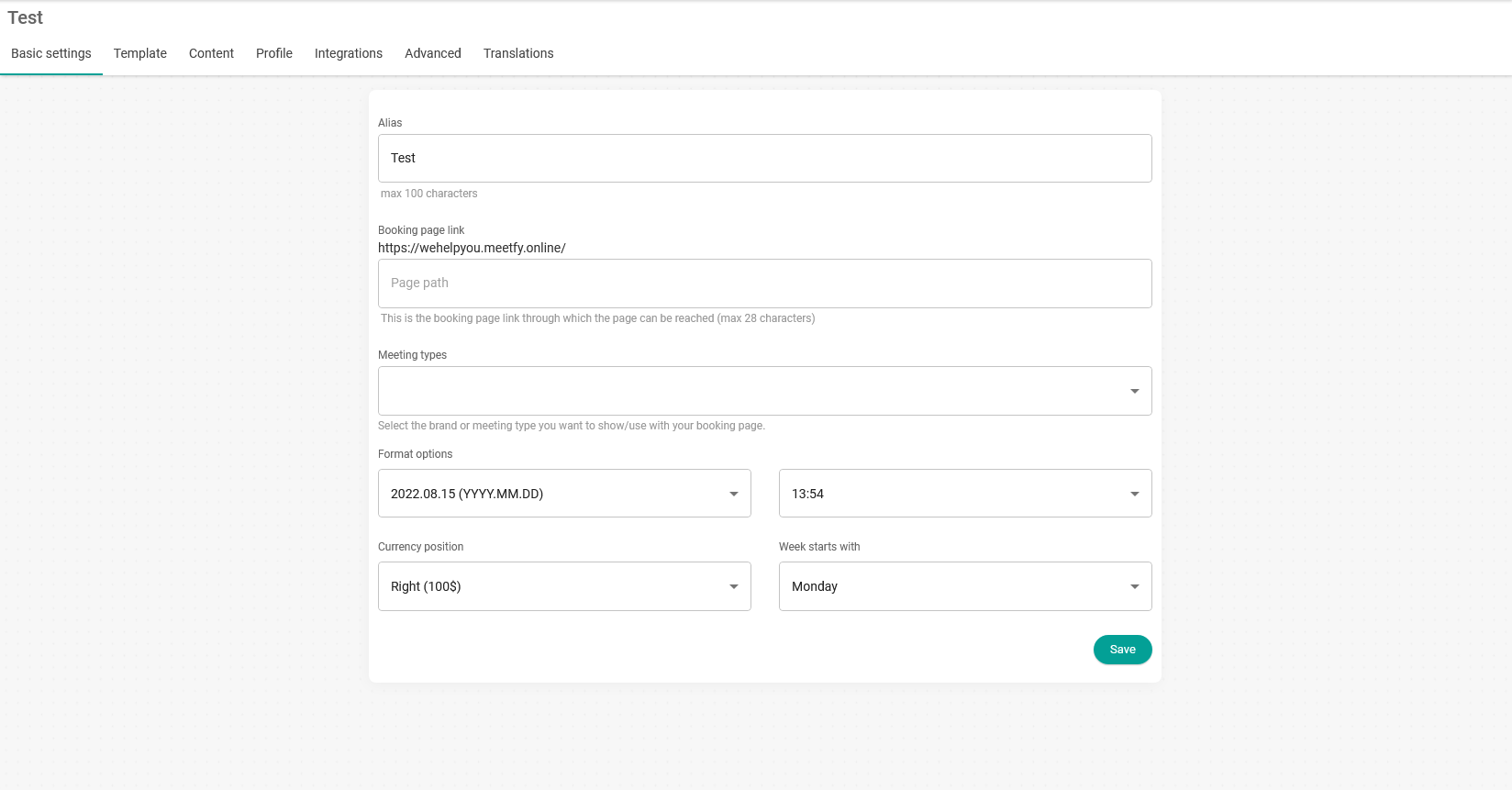
First, you need to set the link to your booking page. In the "Page path" field, enter the name you want to display for the page.
In our example, we want the link to the page to be meetings. Type in the name you want and click "Save":
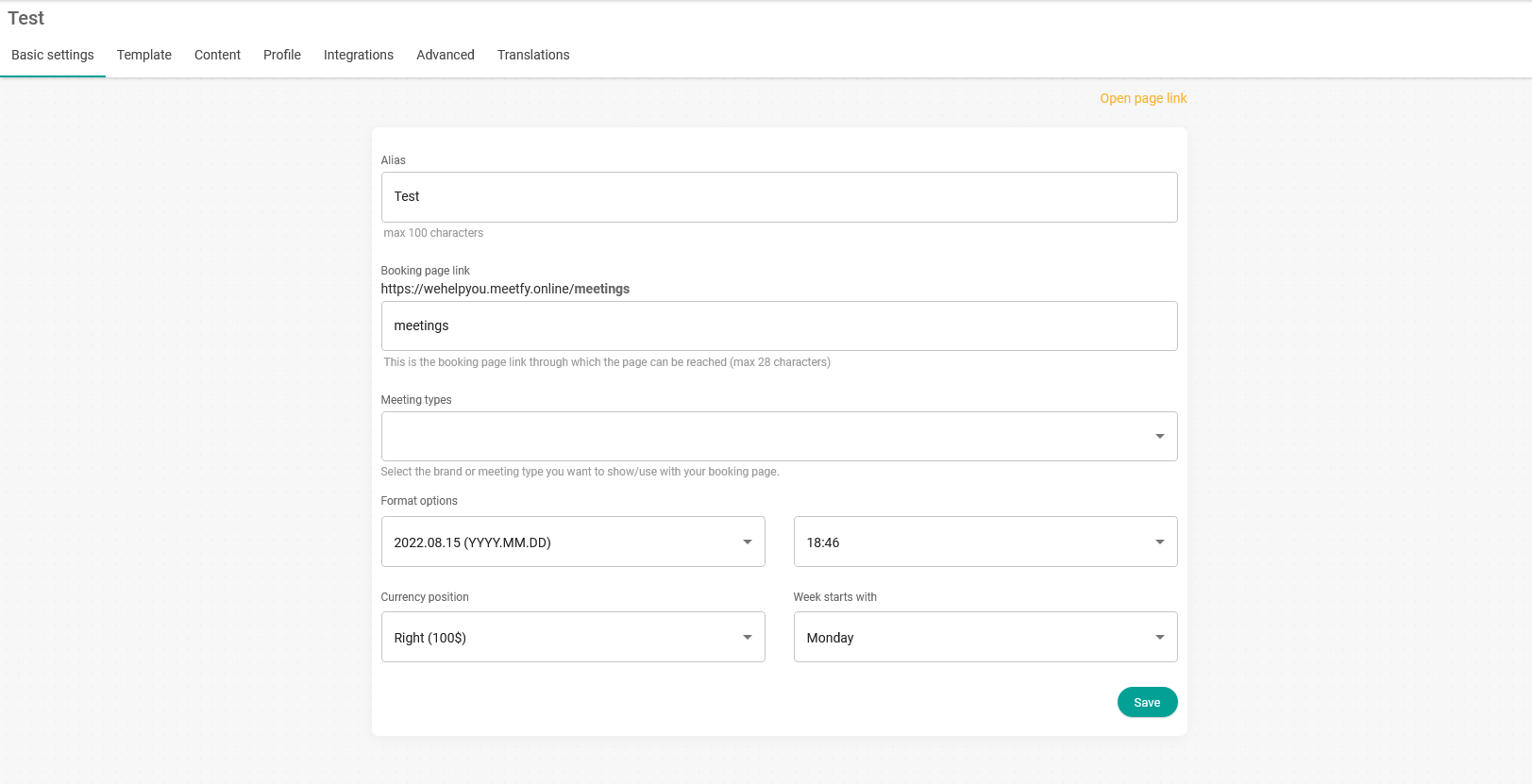
This is the first step, and the path to your booking page has now been set.
When you go back to the dashboard and open the "Booking pages" option in TuCalendi, you'll see the page path displayed, and you can continue editing and configuring your booking page.