
Customization options for booking pages. You can now customize the titles on the booking pages.
In a very simple way, you can set the titles that will appear in the different content fields of your booking page.
Log in with your TuCalendi username and password and go to the "Booking pages" option.
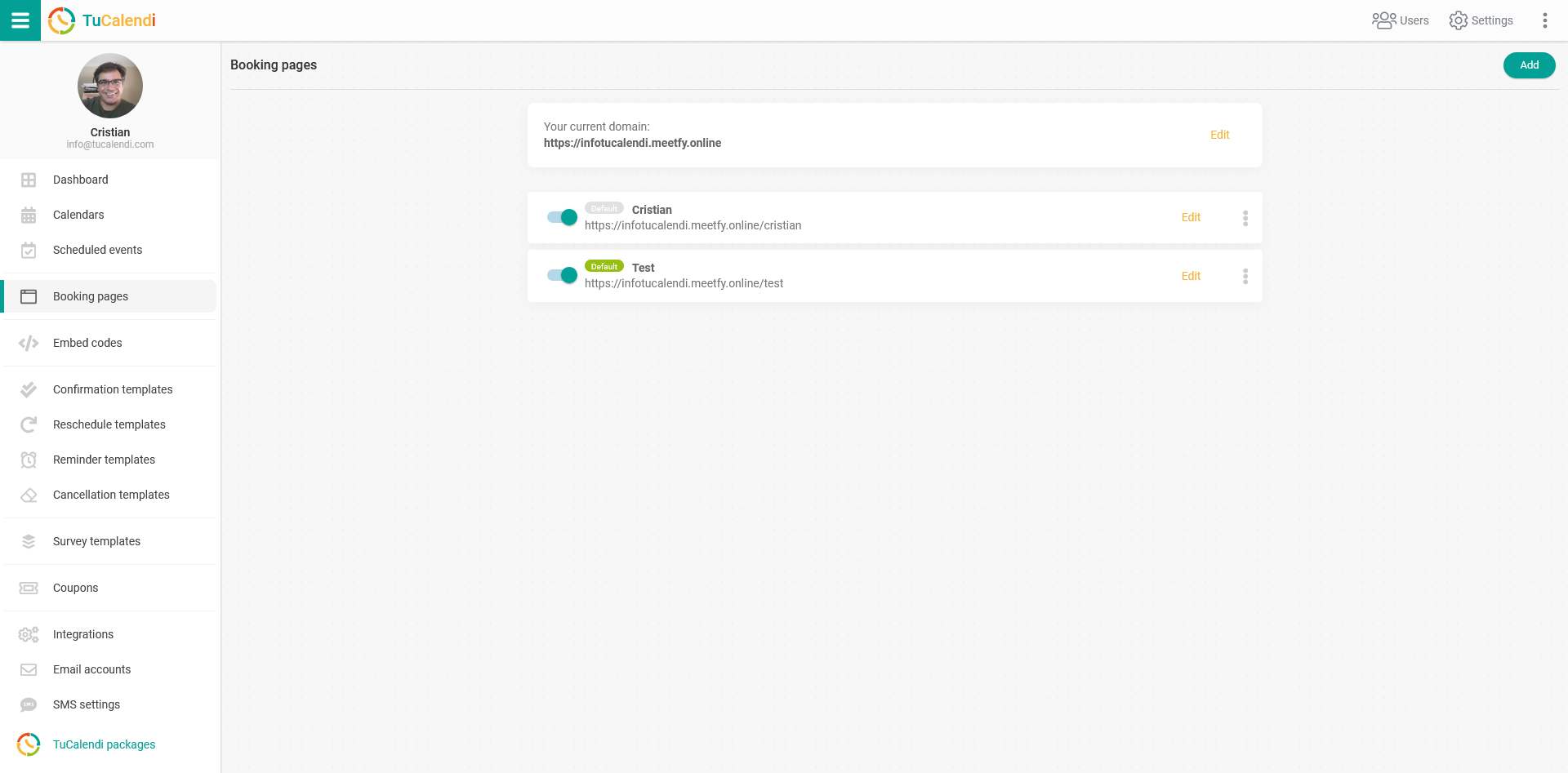
Click on "Edit" on the booking page you want to change.
Go to the "Content" menu item to see the different content options you can add and customize on each booking page:
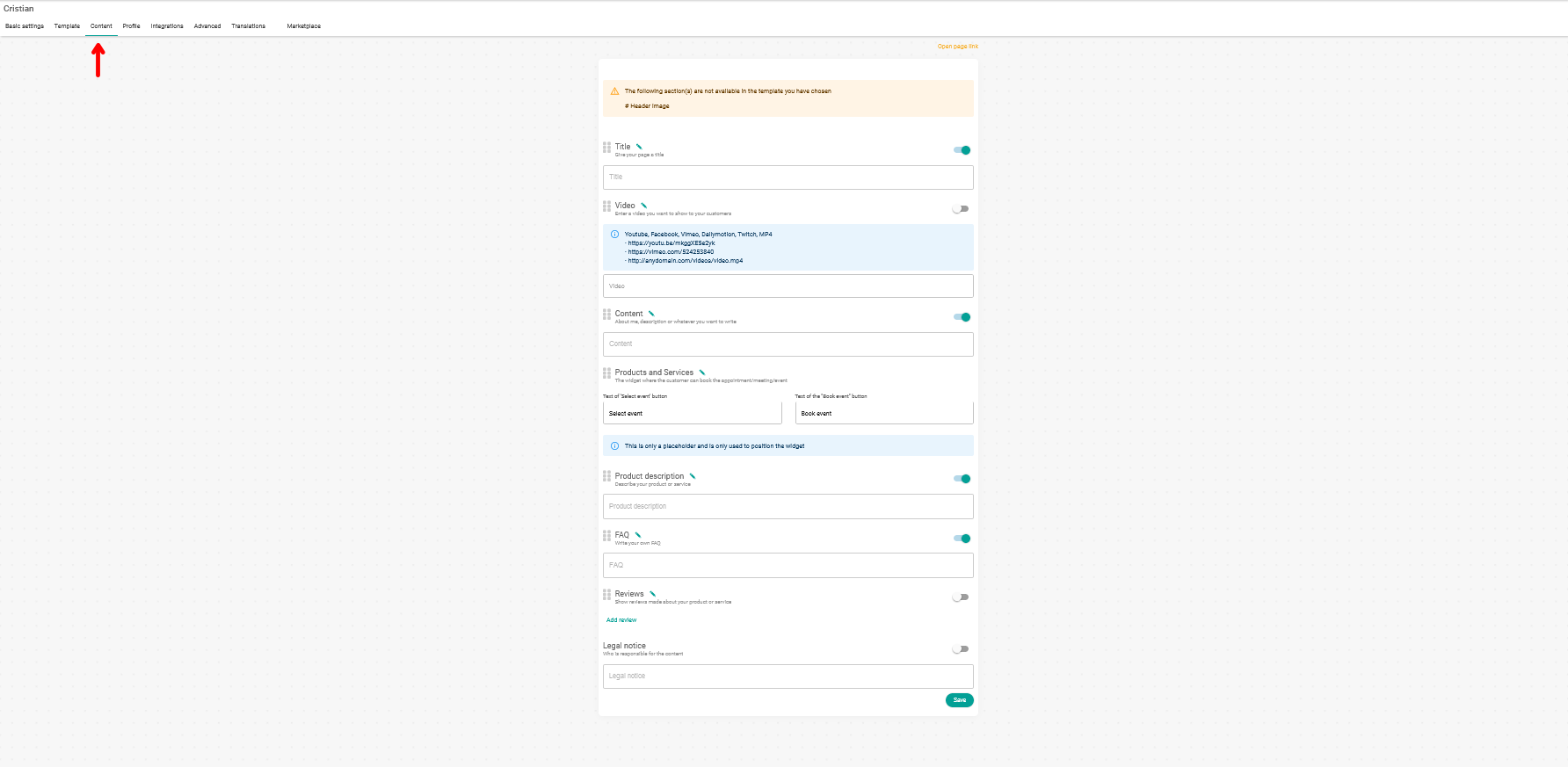
In the template we selected, all content fields are available for the booking page. Depending on the booking page template you have chosen, some of the options may not be available.
The following content is available in the booking page template we use:
- Title: title and short description of your booking page.
- Video: video presentation about you and your services (URL of the video).
- Content: text explaining about you or your services.
- Products and services: the calendar widget that will be displayed on the page so your clients can book with you.
- Product description: description of services or products.
- FAQ: frequently asked questions about you or your services.
- Reviews: add reviews to give your customers more confidence.
- Legal notice: legal terms to inform your customers.
Customize title
Each field has a default name. To change this title/name, click on the "pencil icon" to enter the edit mode.

After clicking on the icon, you can customize the title.

Once you have changed the title, click on the green checkmark to apply the new title or on the red cross to cancel the change.
Customize button texts
Another customization option is the booking widget, which is shown under "Products and Services". Here you can customize the title (as described before) and also the texts shown on the buttons.

Here you can make these changes:
- The button text to select the desired event.
- The text of the button to make the booking.
This way you can change the titles of the content, and for the booking widget you can also customize the button texts in addition to the title, so they best suit your needs.
When you have made the changes and entered all the information you want, just click the "Save" button to make the changes take effect.