
By default, the date format in the confirmation email templates is "YYYY-MM-DD", but you can change it to the format you prefer.
Making this change is very simple.
Log in with your TuCalendi username and password and go to the "Email/SMS Templates" option.
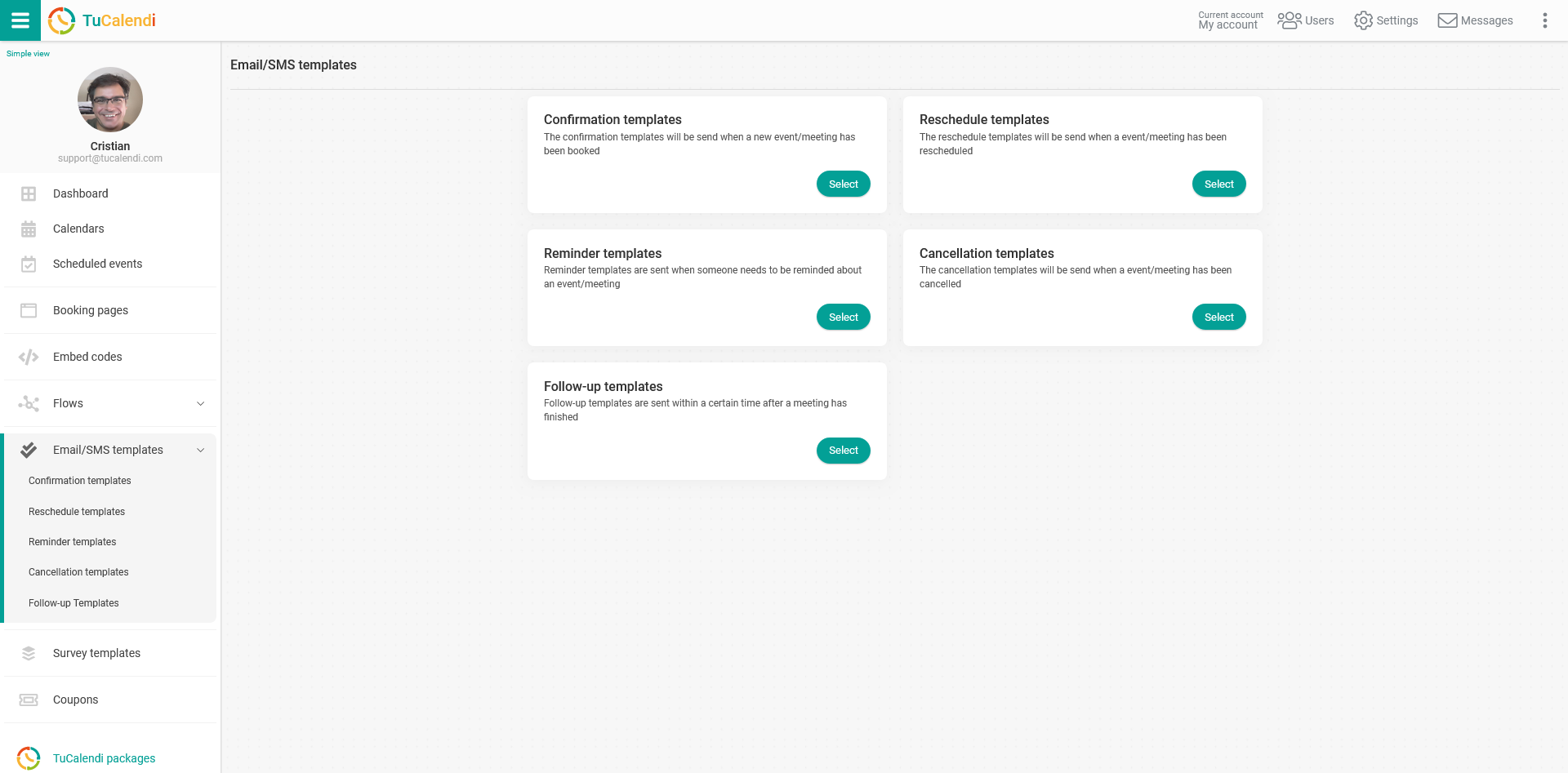
In the "Confirmation templates" option, click "Select":
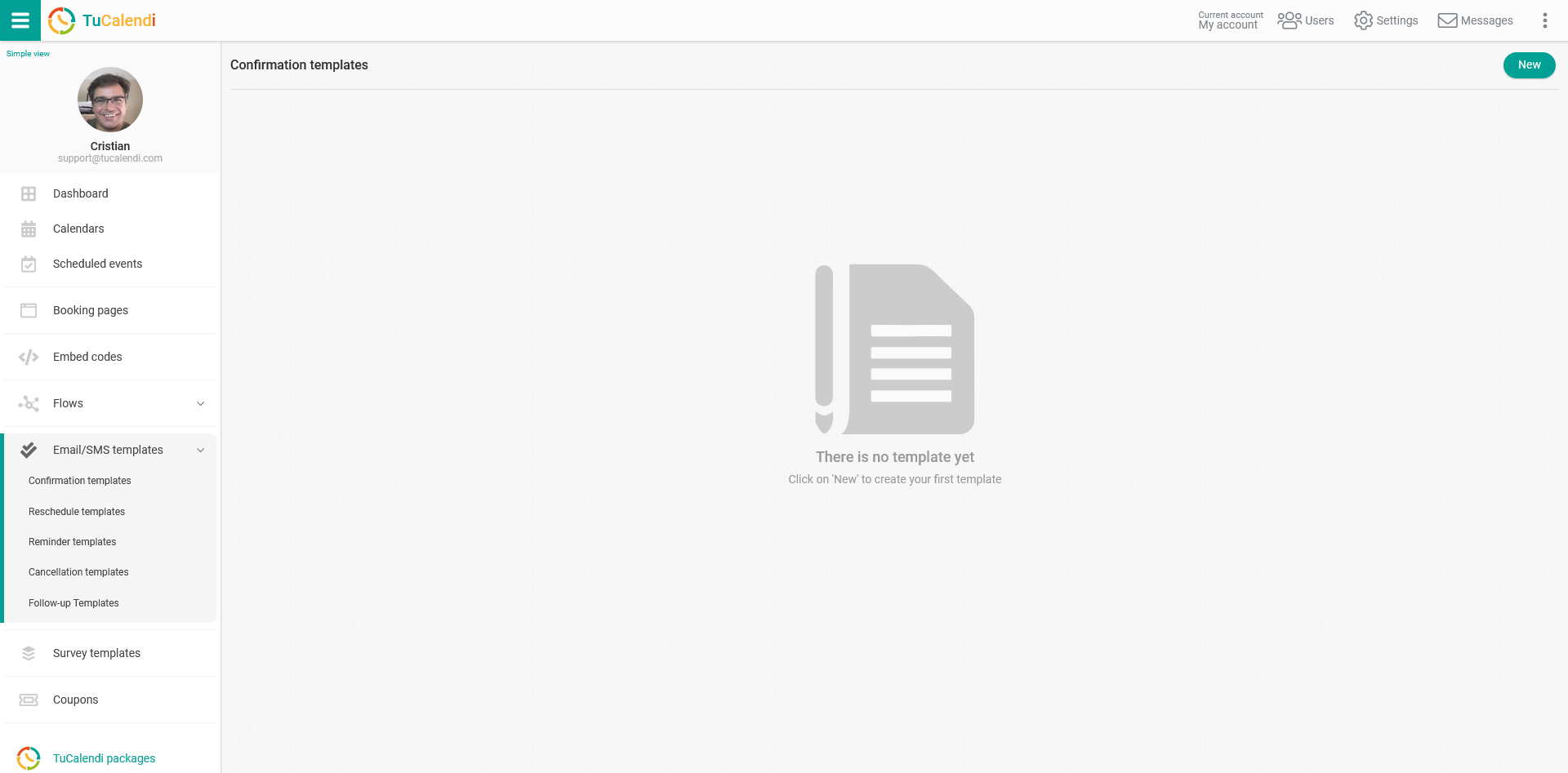
If you haven't created a template yet, click the "New" button and enter the name you want your confirmation template to have:
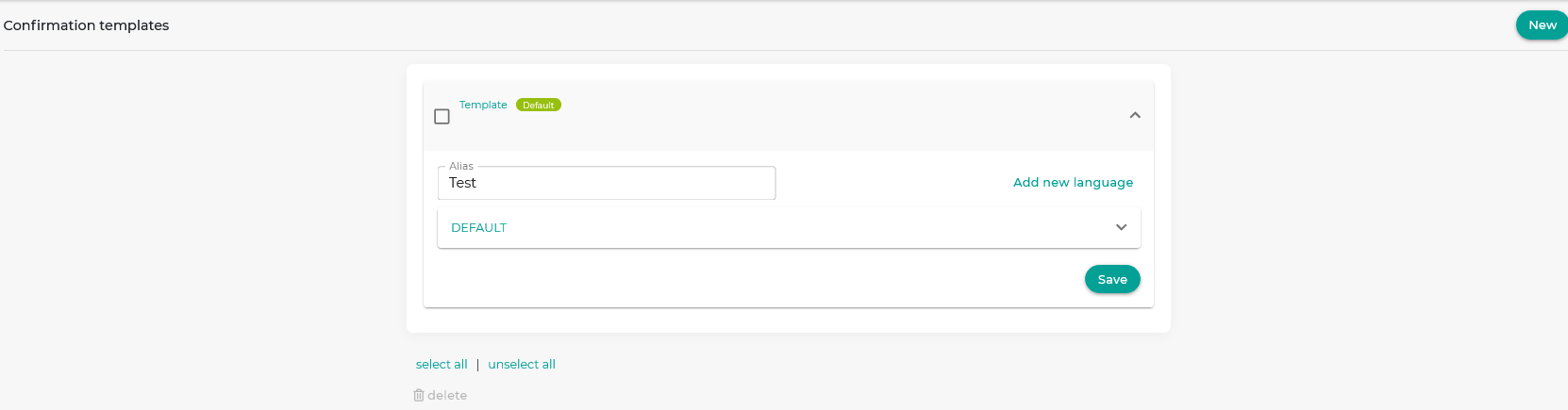
The template starts out empty so you can fully customize it. Click the field called "DEFAULT":
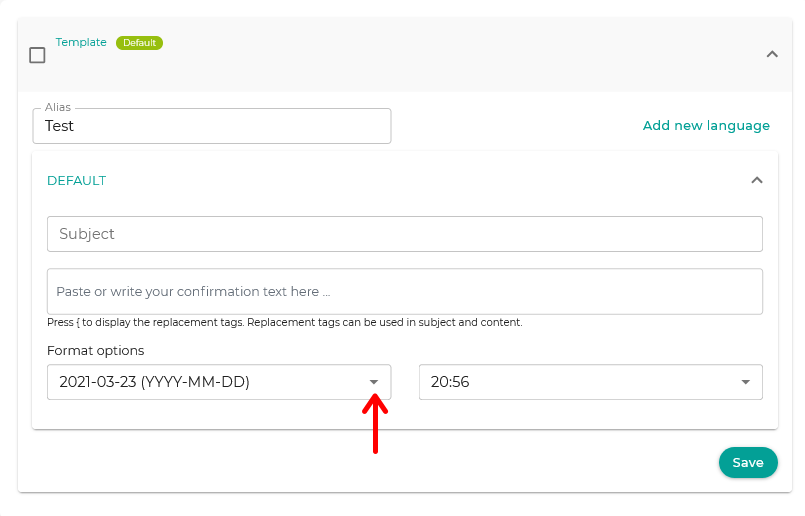
In the "Format Options", click the dates to display the available options.
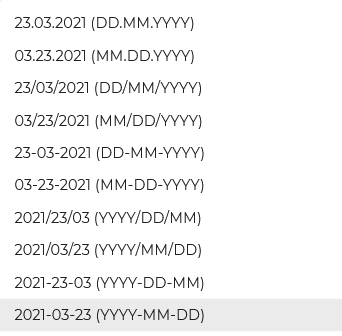
Just select the one you want to appear in your event confirmation emails.
Note that the date format with days and months in text:

only displays days and months in English in the emails your customers receive. If your templates are written in another language and you don't want the date to appear in English in your notifications, choose a date format that uses only numbers.
When you're finished, click "Save" and the date format will be stored in the event confirmation template of your online calendar.