
To give your customers more confidence, it is very important that you can set up your own email account to send notifications when your customers or users book a meeting or any type of event with you in TuCalendi. Let's see how to set up Microsoft email accounts to send booking notifications.
Sometimes configuring Microsoft Outlook or Microsoft 365 email accounts can be somewhat cumbersome and cause errors in the connection tests. For this reason, and in response to requests from many TuCalendi users, we created a solution that makes the process super simple and hassle-free.
The solution we have developed has been verified and approved by Microsoft.
Log in with your TuCalendi username and password. Go to the "Email accounts" option.
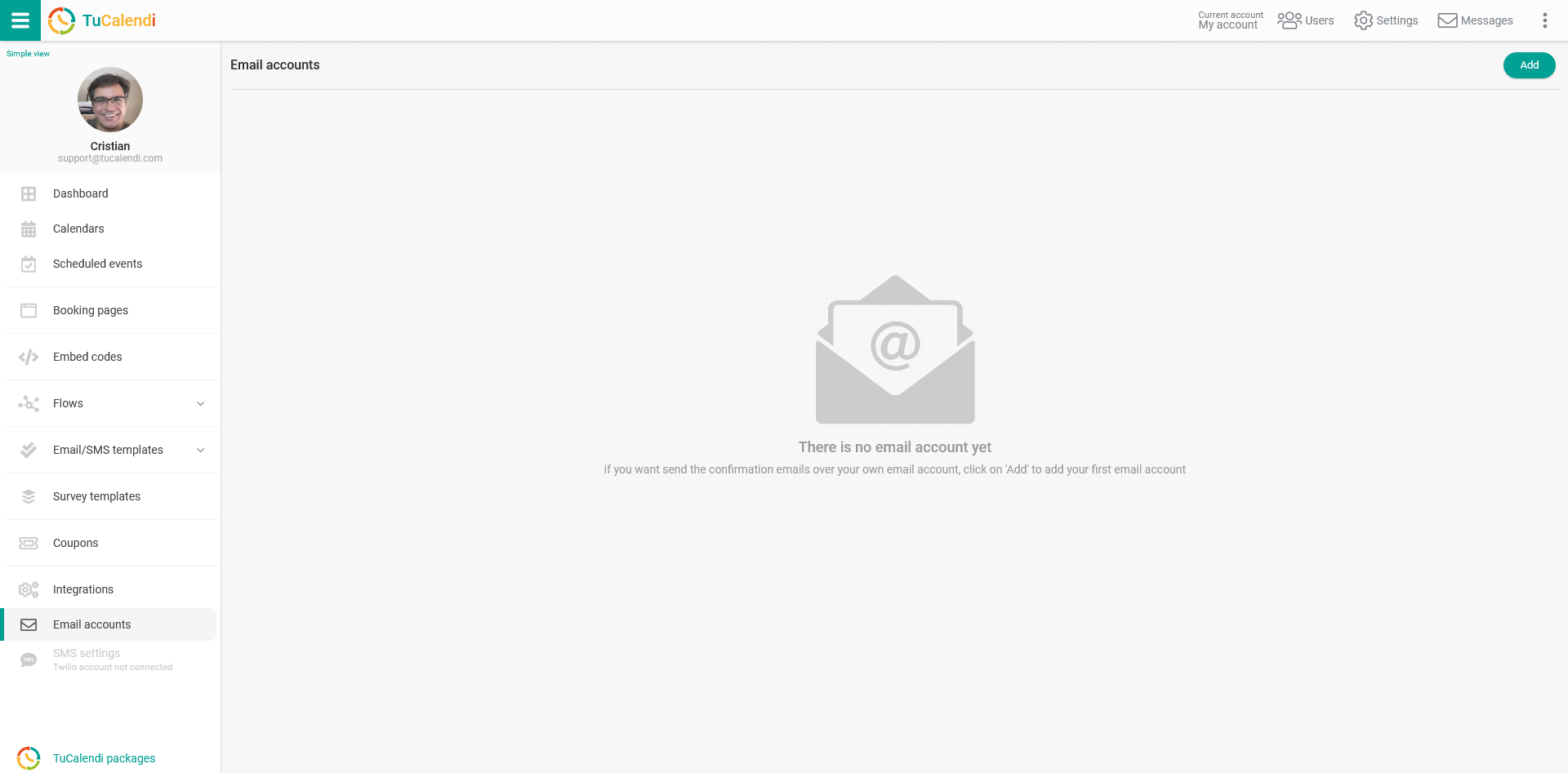
Click "Add" to add your own email account so it can be used to send notifications about your event bookings.
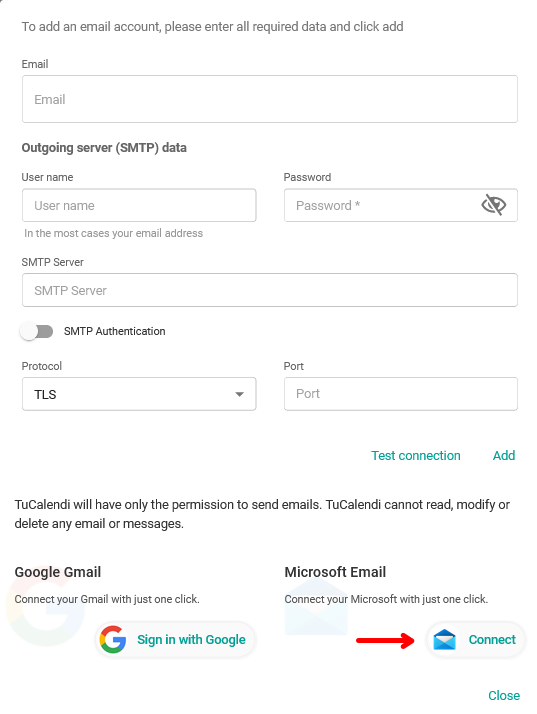
In the "Microsoft Email" section, click the "Connect" button and select the account you want to use.
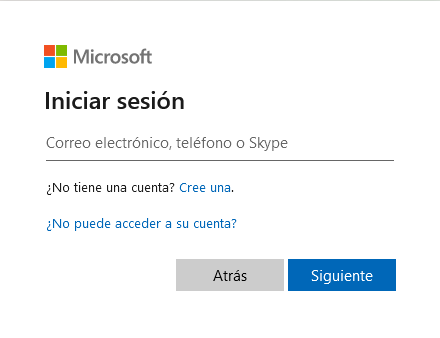
Click "Next" to enter your account password.
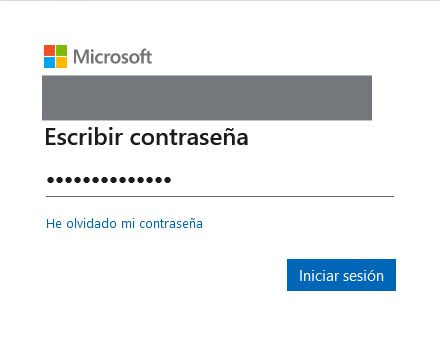
Click "Sign in" to access your Microsoft email account and grant TuCalendi permissions to send notifications using your email account.
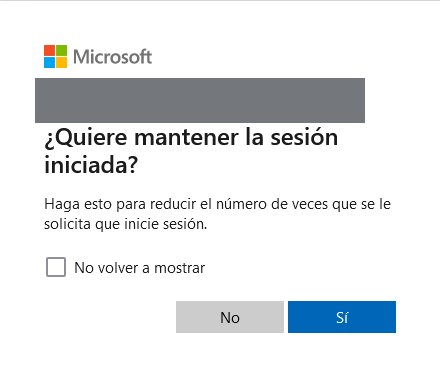
Click "Yes" and your Microsoft email account will be added to TuCalendi, so notifications can be sent from your own email.
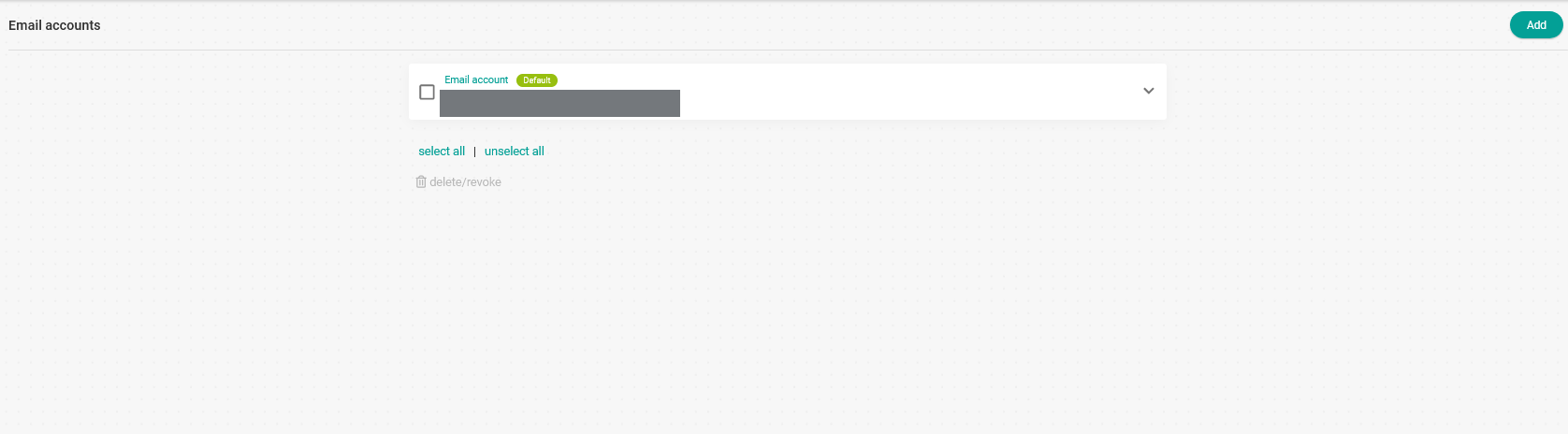
Now you only need to associate the email account with the confirmation, reminder, rescheduling or cancellation notifications for the events you have created.