
With TuCalendi's global settings functionality, you can set days off, vacation periods or holidays at once for all events in the calendars you have created.
The global availability settings apply to all events they have been assigned to and have a higher priority than the individual settings of each event.
Log in to TuCalendi with your username and password and go to the "Calendars" option in the left menu:
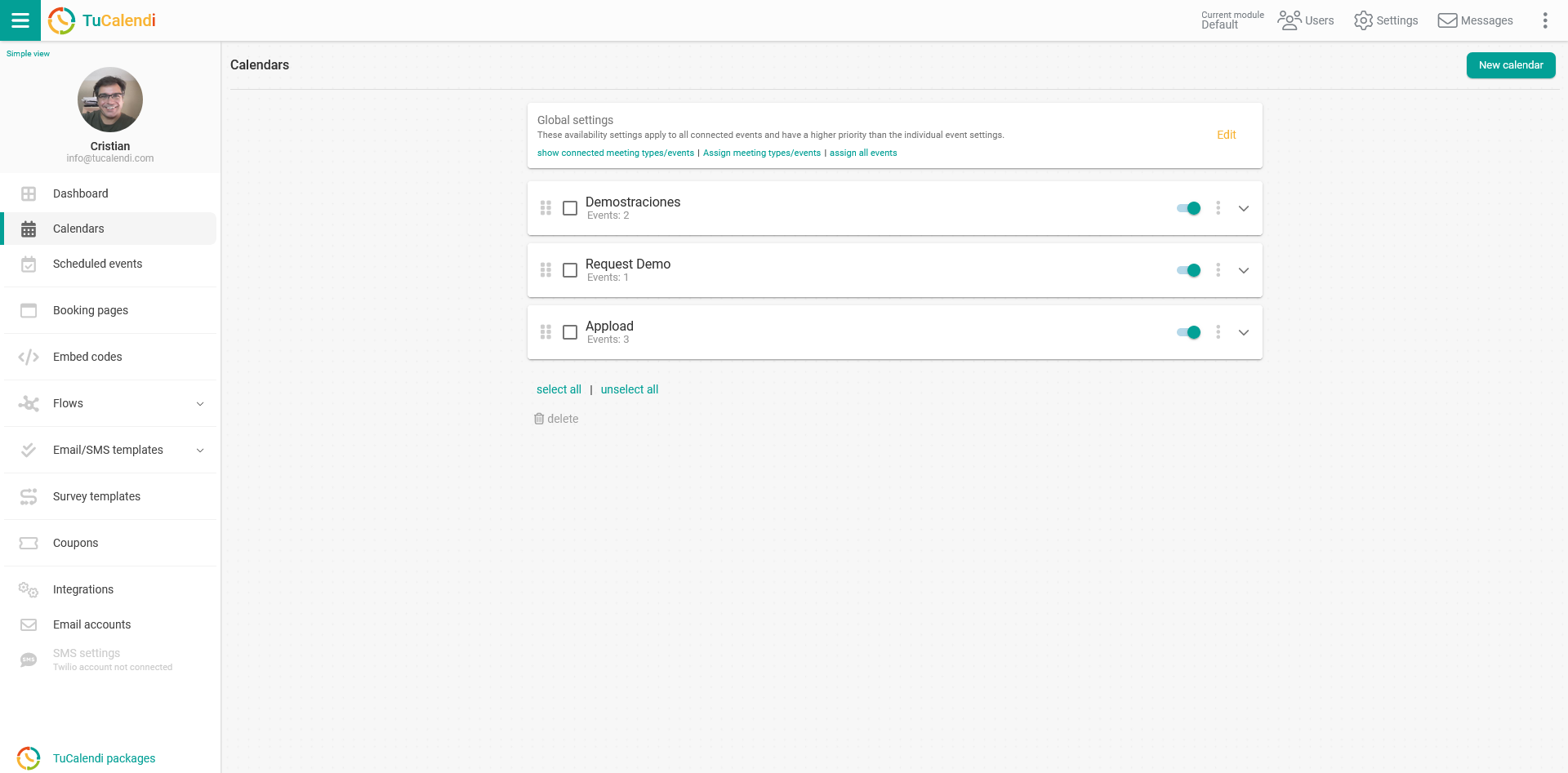
Above the calendars you have created, you will find the "Global Settings" option:

Click "Edit" to access the global settings configuration:

Click "Add" to open the menu with the types of days off that can be included in the global settings for events:
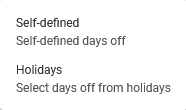
There are two options for days off:
- Self-defined: you define the days off you want to include.
- Holidays: you can choose and add the predefined public holidays of a country or region.
Let's see how to configure both types of days off globally for your events.
Self-defined
Self-defined days off are days off that you can define however you like.
For example: your summer vacation period or your birthday, if you take that day off.
Click the "Self-defined" option in the menu:
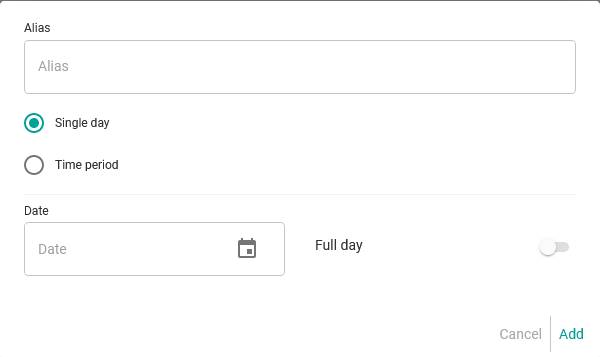
First, give the days off a name to identify them by typing it into the "Alias" field.
Then choose the option "Single day" or "Time period".
For a single day, let's set a birthday:
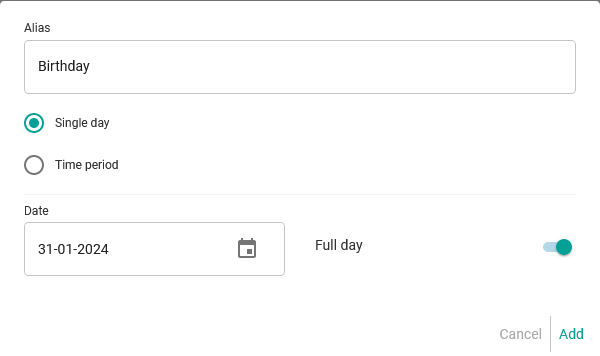
Click "Add".
For a time period, let's set the summer vacation:
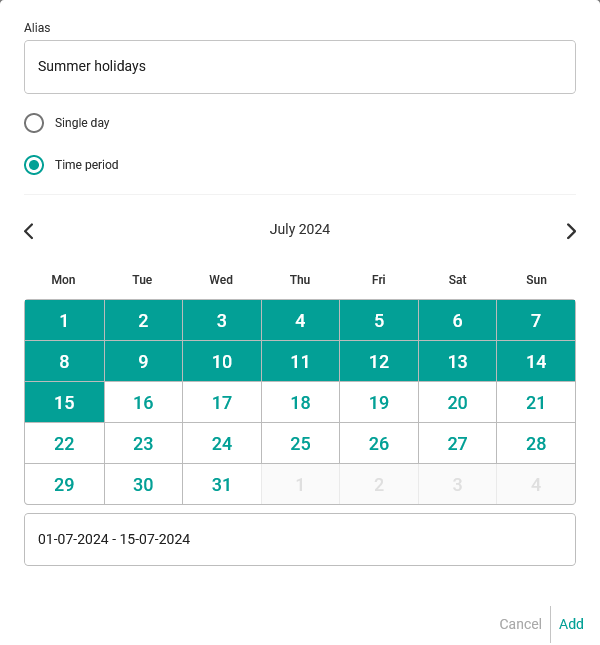
Click "Add".
You will return to the "Global settings for events" screen:

Click "Save" and the days off you have defined will be saved.
To see the days off you have added, just click on the year "2024".
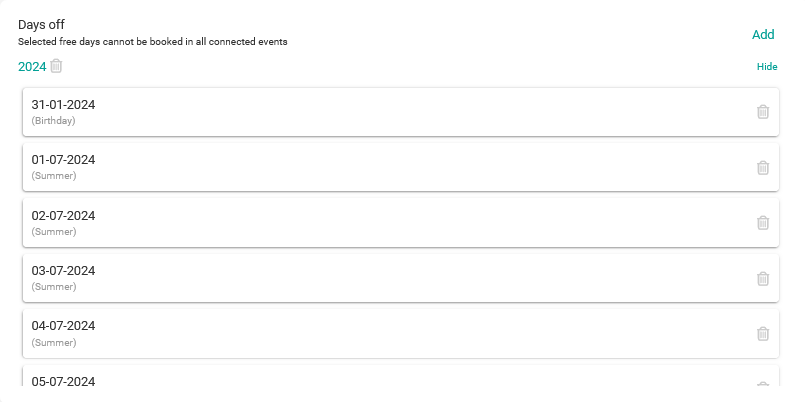
You can edit the days off at any time by adding more days off or deleting days you have previously set.
The last step is to assign the events that should take the days off you have defined into account.
Go back to the "Calendars" menu and, in the "Global settings":
Choose "Assign all events" to apply the global settings to all events you have created in all calendars, or "Assign events" to apply them only to the events you want.
Holidays
Public holidays are days off that are set for a country or region.
Click the "Holidays" option in the menu:
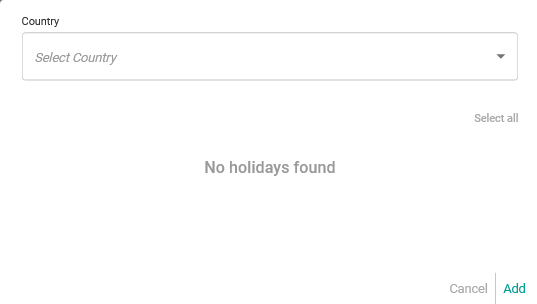
Just choose a "Country" from the dropdown menu and the holidays for the selected country will appear:
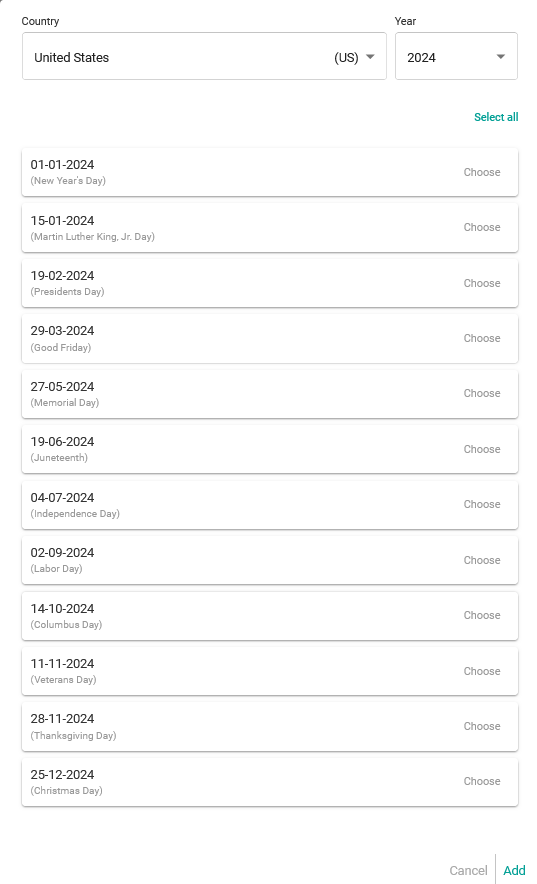
Just choose the days that are public holidays for you and click "Add".
In the country holidays, you will see the days that are public holidays in the whole country, and you will also find the public holidays of a region or community.
Now you need to assign the events that should take the public holidays you have chosen into account.
Go back to the "Calendars" menu and, in the "Global settings":
Choose "Assign all events" to apply the global settings to all events you have created in all calendars, or "Assign events" to apply them only to the events you want.
That's it: you have now set the availability of days off for all your events.