
The scheduling tool TuCalendi lets you confirm appointments and emails via double opt-in.
What is a double opt-in?
With our Double Opt-In option, you can have your appointments/meetings confirmed again by the customer. Once a customer/participant has booked an appointment, they must click a link in the confirmation email they receive to reconfirm their email and meeting. If this does not happen, the booking will be deleted after 2 hours and the time slot will be released again. If the customer confirms, the appointment is finally booked.
Why a double opt-in?
The double opt-in procedure is primarily intended to provide protection against spam and to make sending commercial or unsolicited emails (follow-ups), especially in EU countries, legally secure and GDPR-compliant. According to the GDPR, appointment confirmations and reminders do NOT require a double opt-in procedure, but no advertising or commercial benefit may be visible in these emails. As soon as a follow-up email with commercial benefit is sent to the customer, the customer must first go through the double opt-in process and thus give their consent to receive further emails.
Assign an event with double opt-in
Assigning an event to a double opt-in process is very simple. To do this, click on Flows in the menu and then select "Double Opt-In".
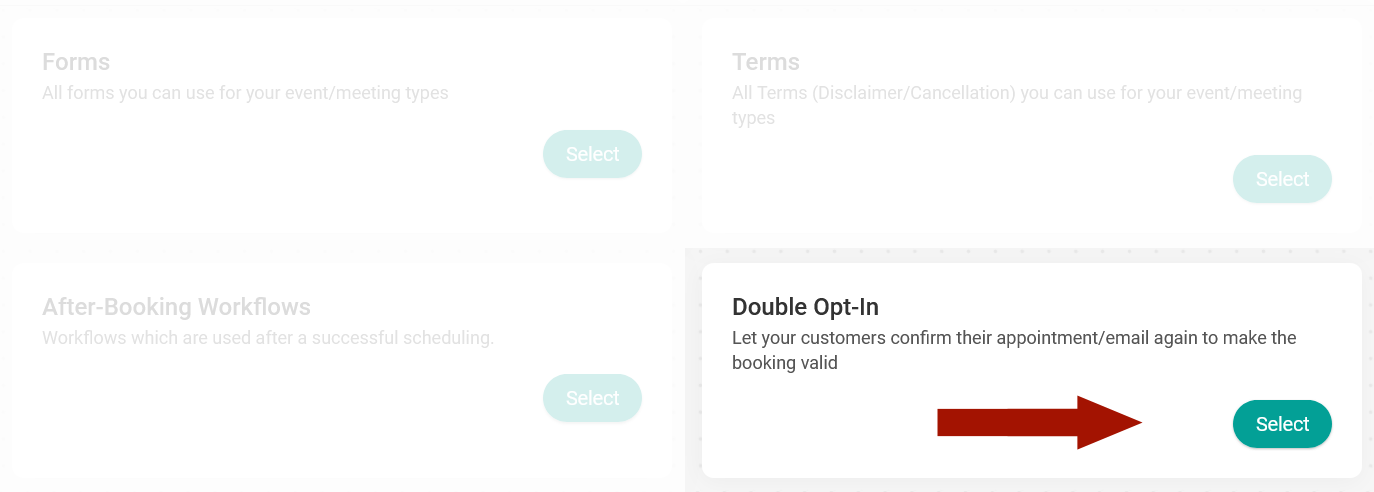
After you have done this, click on "Assign meeting types/events".

Then choose the event(s) you want to assign to the double opt-in process.
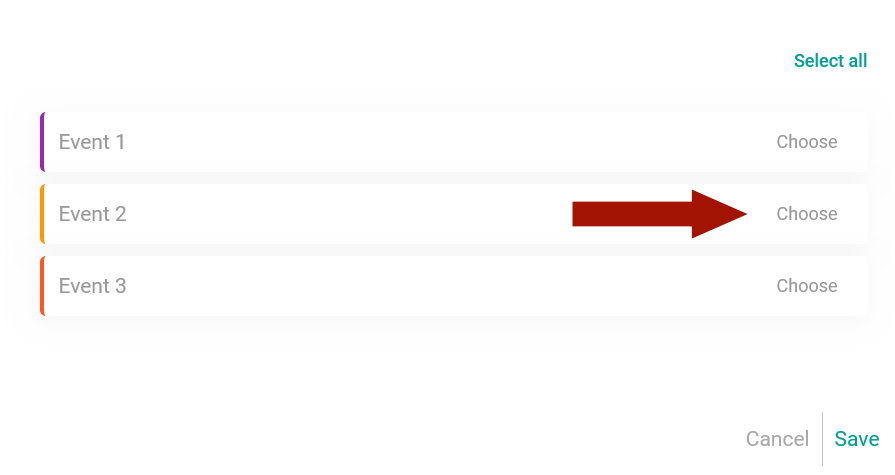
You can select one or more events. Once you have selected the events you want to assign, click on "Save". The event(s) will then be assigned to the double opt-in process. The next step is to add the double opt-in link to the confirmation template.
VERY IMPORTANT: If you assign an event with a double opt-in procedure but the confirmation template does not contain a double opt-in link, the customer cannot confirm the meeting/appointment, the booking is automatically deleted after 2 hours and the time slot is released again.
Integrate the double opt-in link in the confirmation template
In principle, you can integrate the double opt-in link into any confirmation template. As soon as an event without an assigned double opt-in process uses a confirmation template with double opt-in, this area is automatically removed. This way, you don't have to worry about the customer receiving a confirmation link even though they don't need to confirm the meeting/appointment.
The area for the procedure is marked in the confirmation template with [DoubleOptIn] ... [/DoubleOptIn] and the tag for the link is {doubleoptinlink}.
Here is an example:
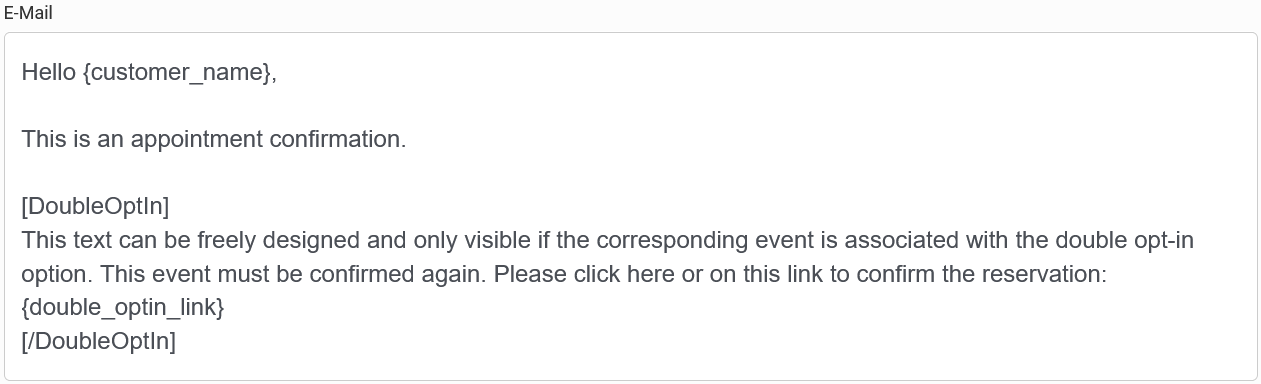
VERY IMPORTANT: Don't forget the tag {doubleoptinlink}, otherwise no confirmation link will be created and the customer will not be able to confirm the meeting/appointment.
Remove double opt-in from an event
You can remove the double opt-in procedure from an event at any time. To do this, go to the double opt-in settings as described under "Assign an event with double opt-in" and click on "remove" for the events that should no longer have a double opt-in. Then click on "Confirm" and the events will be removed from the double opt-in.
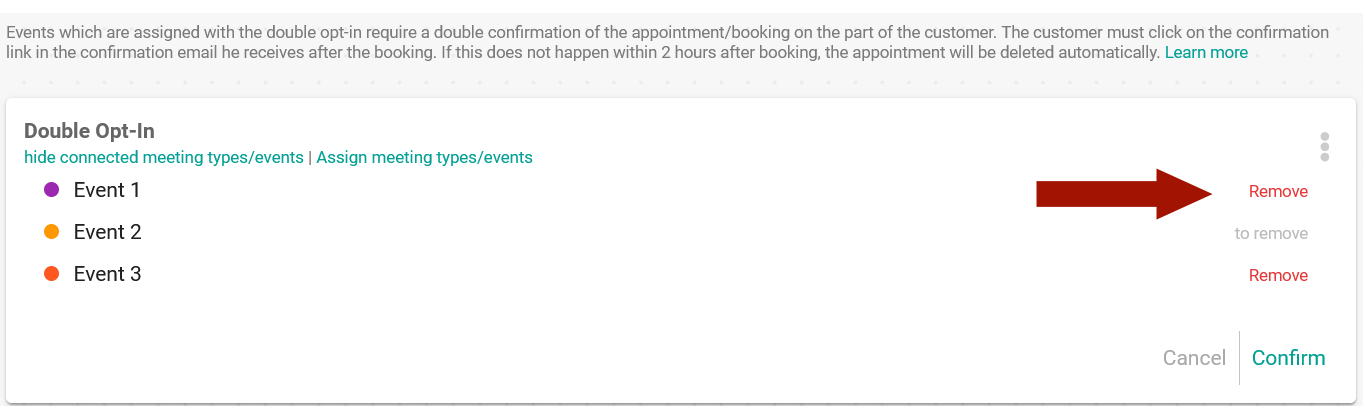
Please note: Bookings made with a double opt-in process that are not confirmed will be automatically deleted after 2 hours.