
If you have created your events in different languages because you offer your services in several languages, it's important that the custom fields you have added to the form flow are also translated so that everything appears correctly in the widget.
Translating the form fields should be done after you have created the form flow, and it's very simple.
Log in to your TuCalendi account and go to the "Flows" option in the side menu:
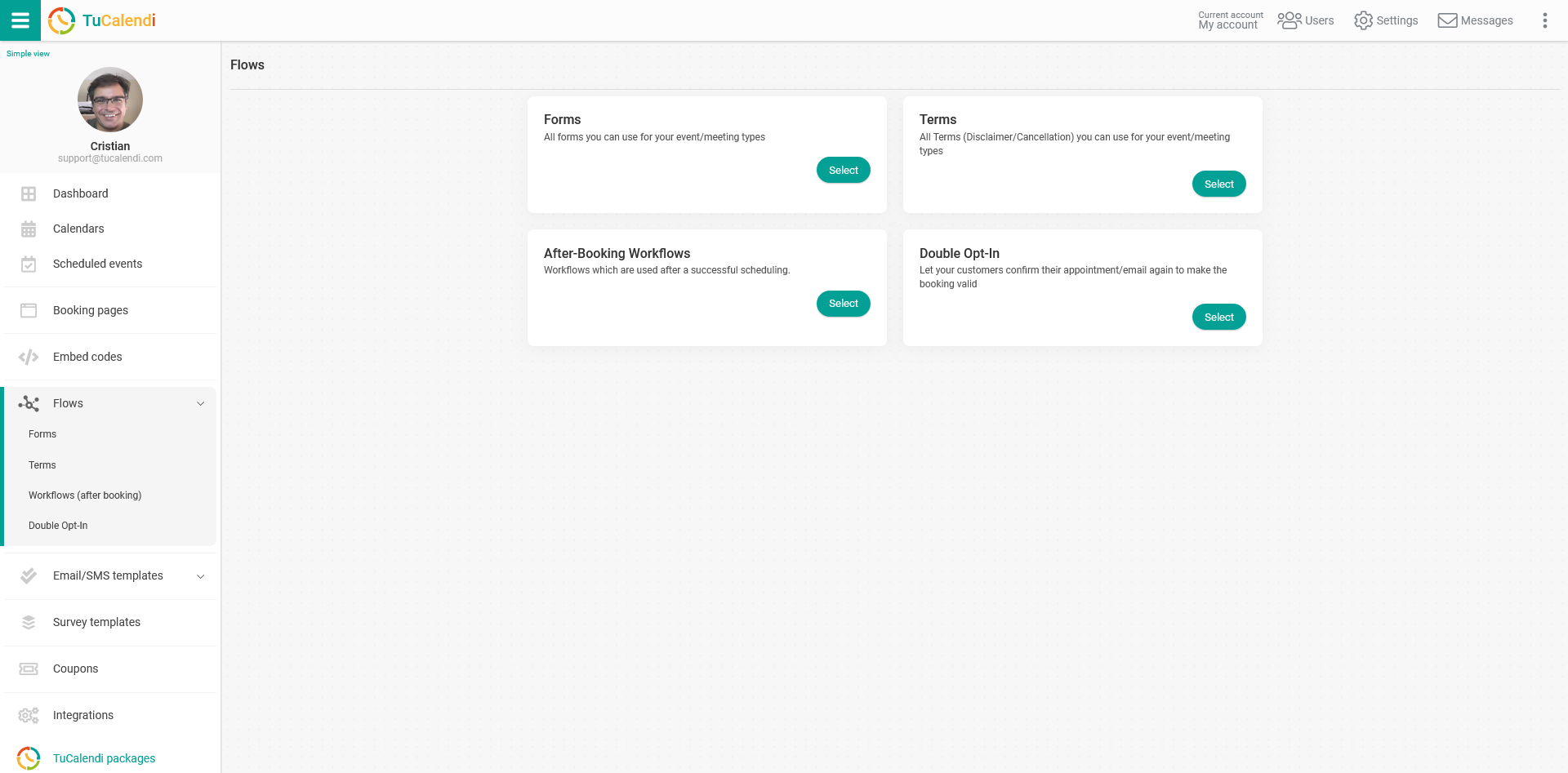
Under the "Forms" option, click on "Select" and you will see the form flows you have created:
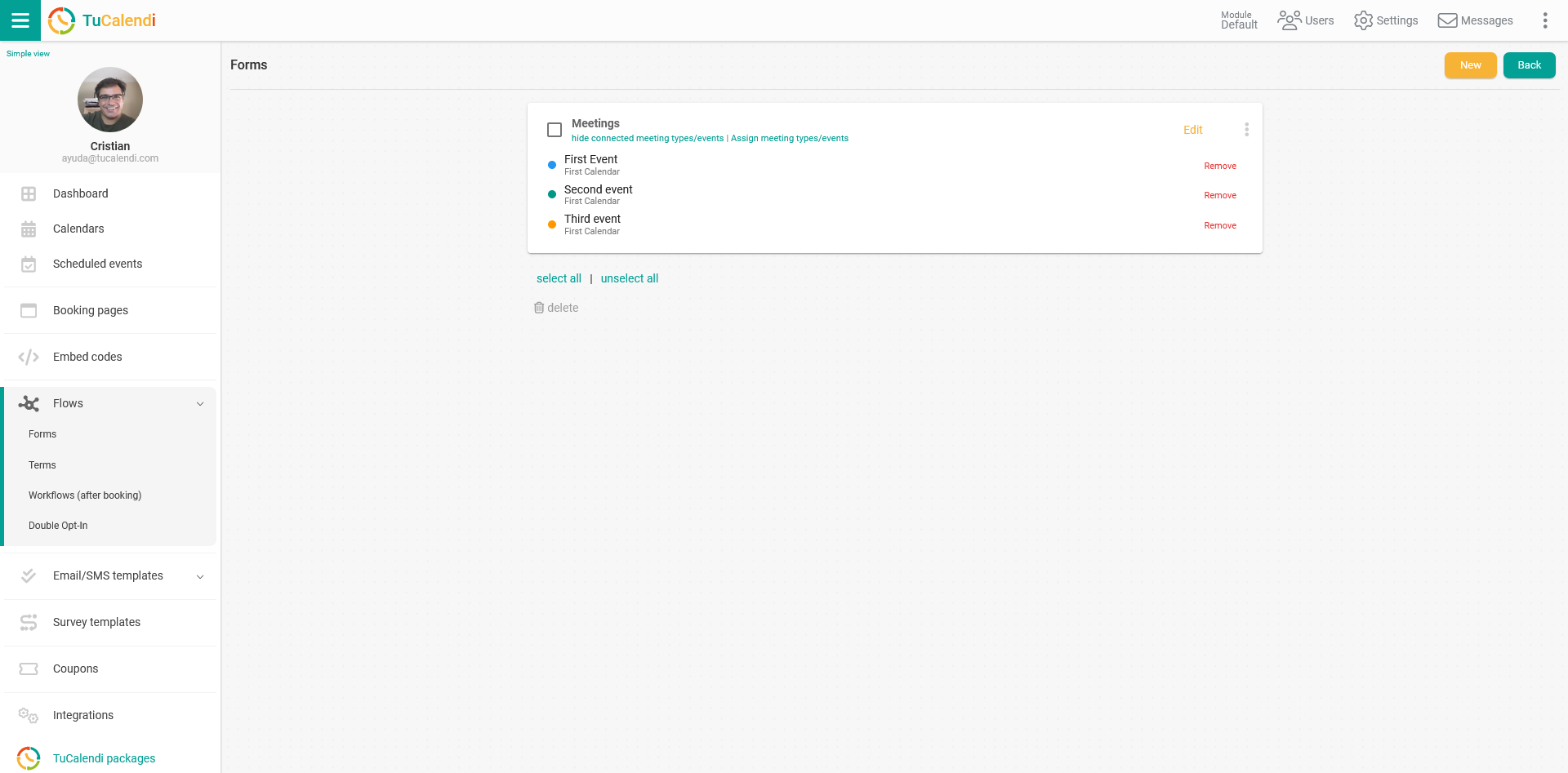
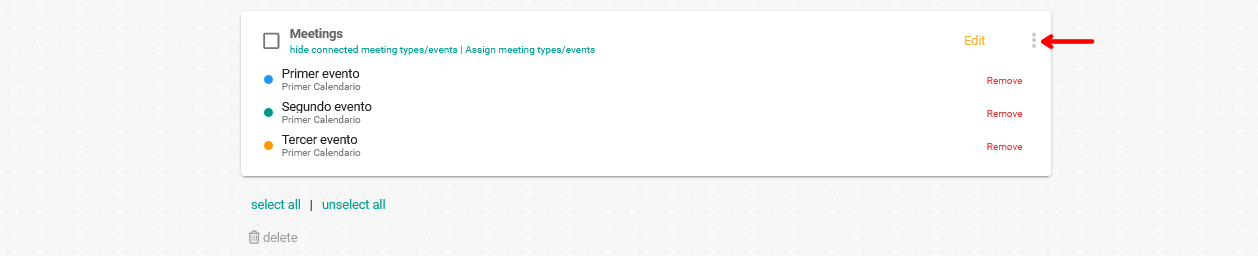
On the form flow you want to translate, click on the three vertical dots:
This displays the menu with the form flow options:
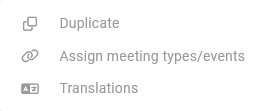
Click on "Translations" to translate the custom fields you have added to the form:

Click on "Add new language" and select the language you want to add from the list:
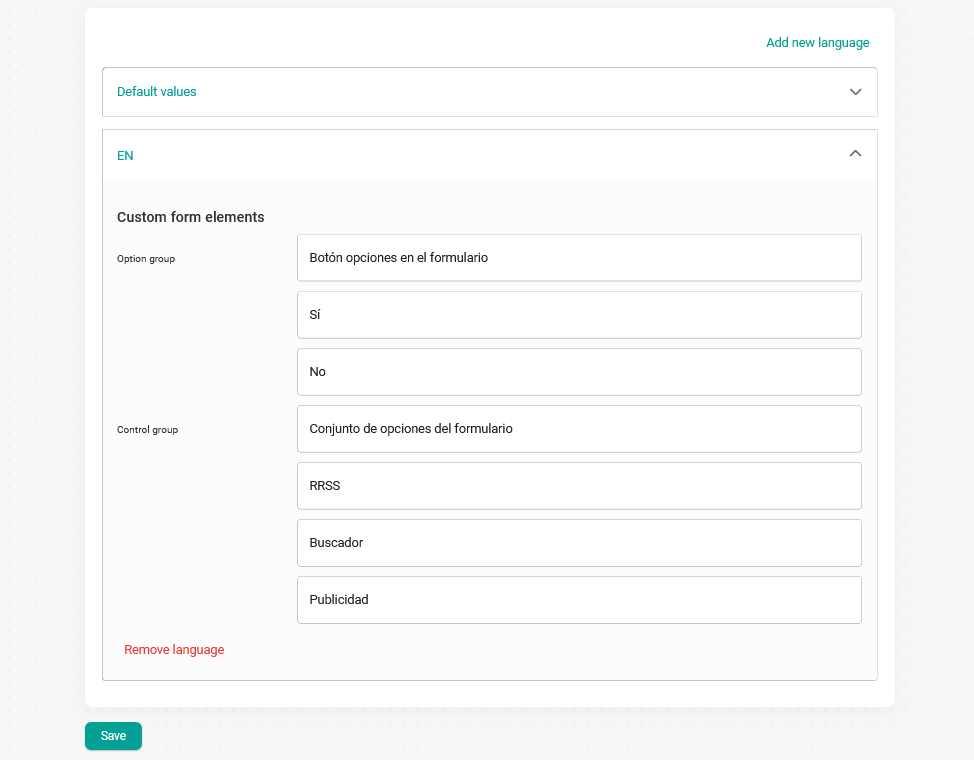
The custom fields that the form has in the original language will be displayed. In our case they are in Spanish, and we want to have them in English as well.
You only have to translate the texts and click on "Save":
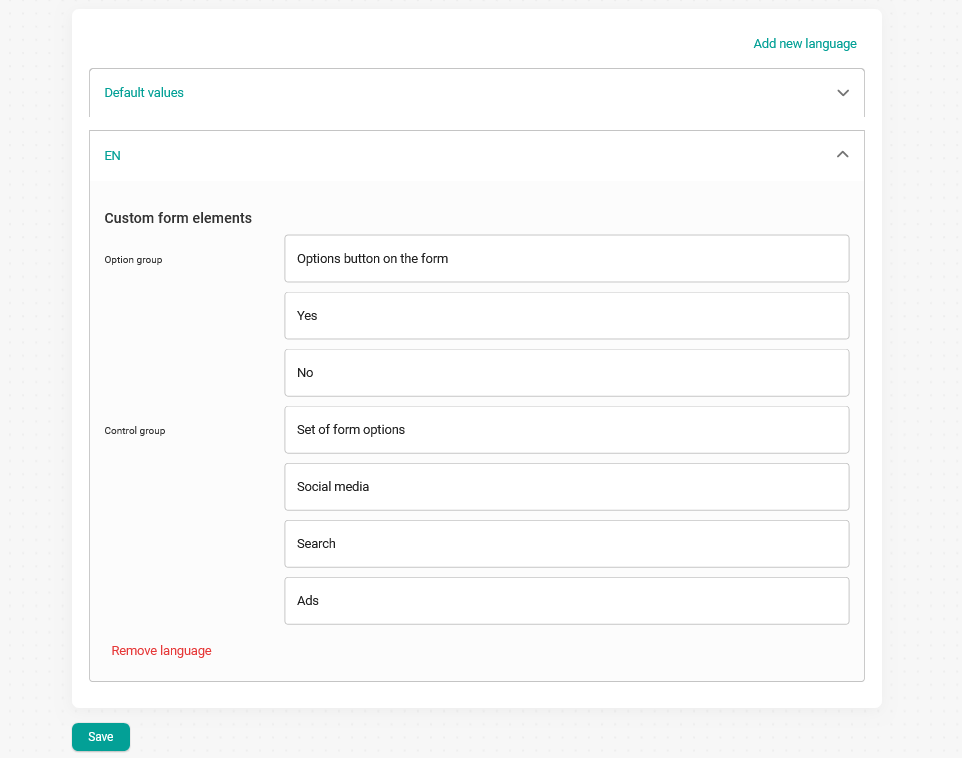
From this moment on, when your customers open the widget, everything will be displayed in the chosen language, including the custom fields of the form.