
If you are a Microsoft user, you can integrate Outlook Calendar with TuCalendi to synchronize the meetings, appointments or events your customers book through TuCalendi with your Outlook Calendar.
TuCalendi needs the permission of the Microsoft account owner to access Outlook Calendar. We have prepared a very simple process to integrate Outlook Calendar and TuCalendi.
NOTE: To integrate with Outlook Calendar, you need to have an Outlook account.
Log in to TuCalendi with your username and password. Choose the "Integrations" option.
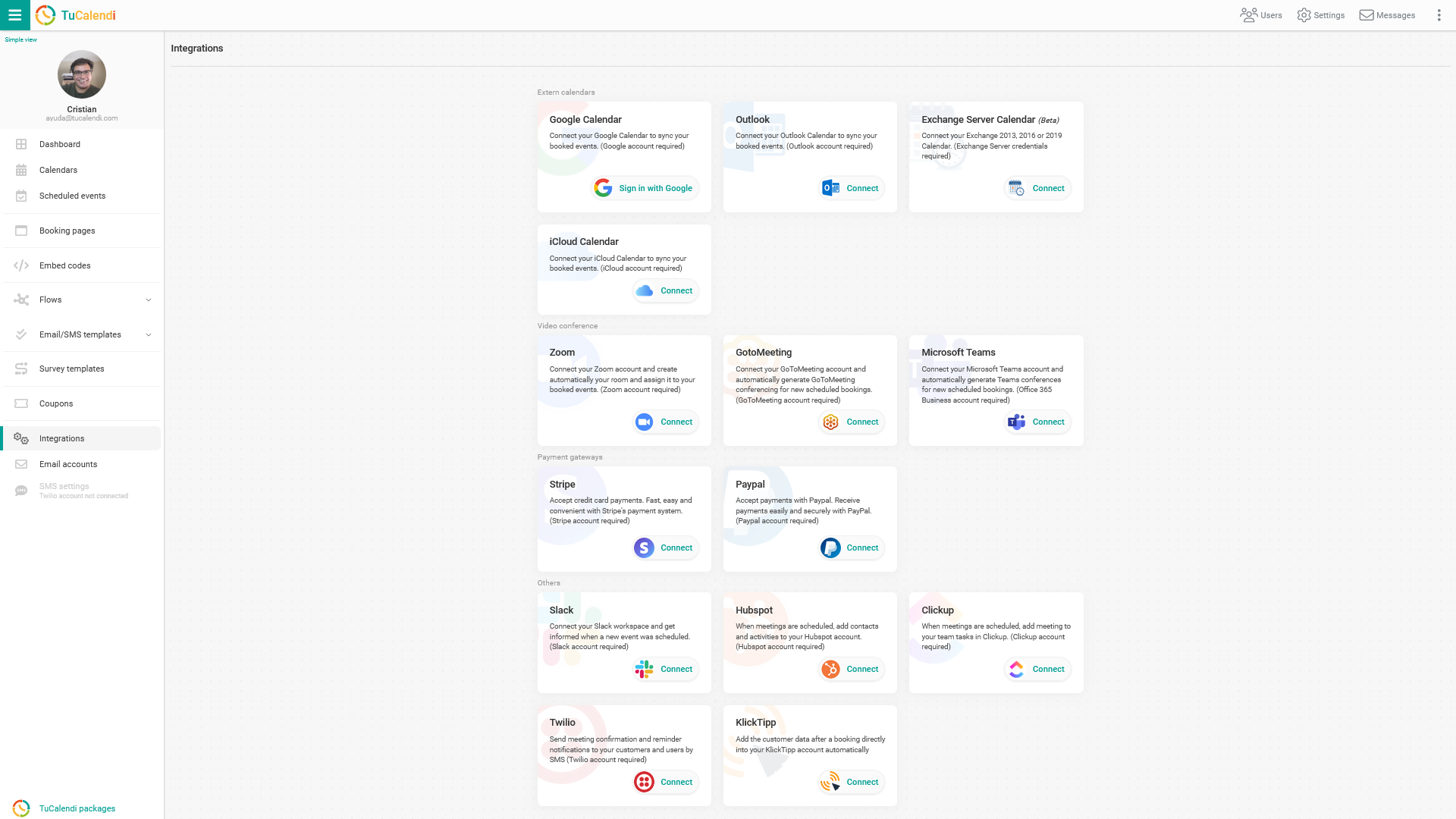
Integrate with Outlook Calendar
Go to the "Outlook" integration option.

We have added a new feature to the Outlook Calendar integration: now, in the same TuCalendi account, you can integrate up to three different Outlook Calendar accounts and synchronize events with different Outlook calendars.
To integrate with Outlook Calendar, click "Connect" and you will be taken to the Microsoft sign-in page. Enter your Outlook account information and allow Outlook Calendar to be integrated with TuCalendi.
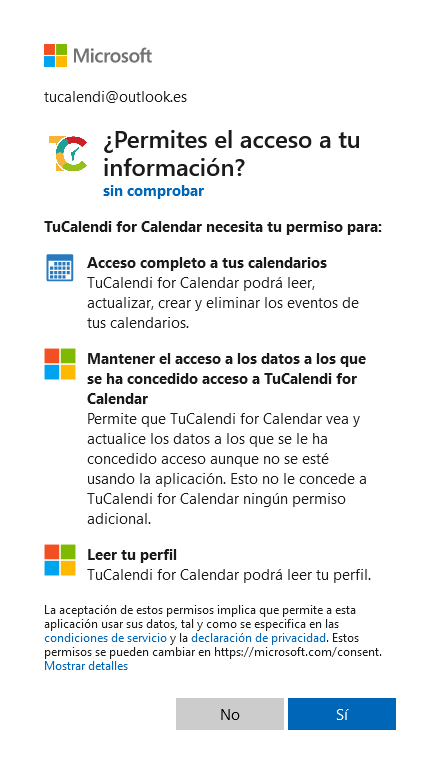
By accepting the integration permissions between TuCalendi and Outlook Calendar, you make sure that every time a customer schedules a meeting with you or confirms attendance at any event you organize, the event is created in Outlook.
Disconnect Outlook Calendar
At any time, if you decide not to continue with this integration, you can revoke the permissions and disconnect TuCalendi from Outlook Calendar.

To do this, just click "Revoke".
IMPORTANT: Once you have integrated Outlook Calendar with TuCalendi, you must connect the events you want to synchronize.