
Integrate Zoom in TuCalendi so you can hold virtual meetings, webinars, online consultations or any other event. Your meeting room is ready from the moment an event is booked in TuCalendi.
We have prepared a very simple process for you to integrate Zoom in TuCalendi.
Log in to TuCalendi with your username and password. Select the option "Integrations" in the left main menu:
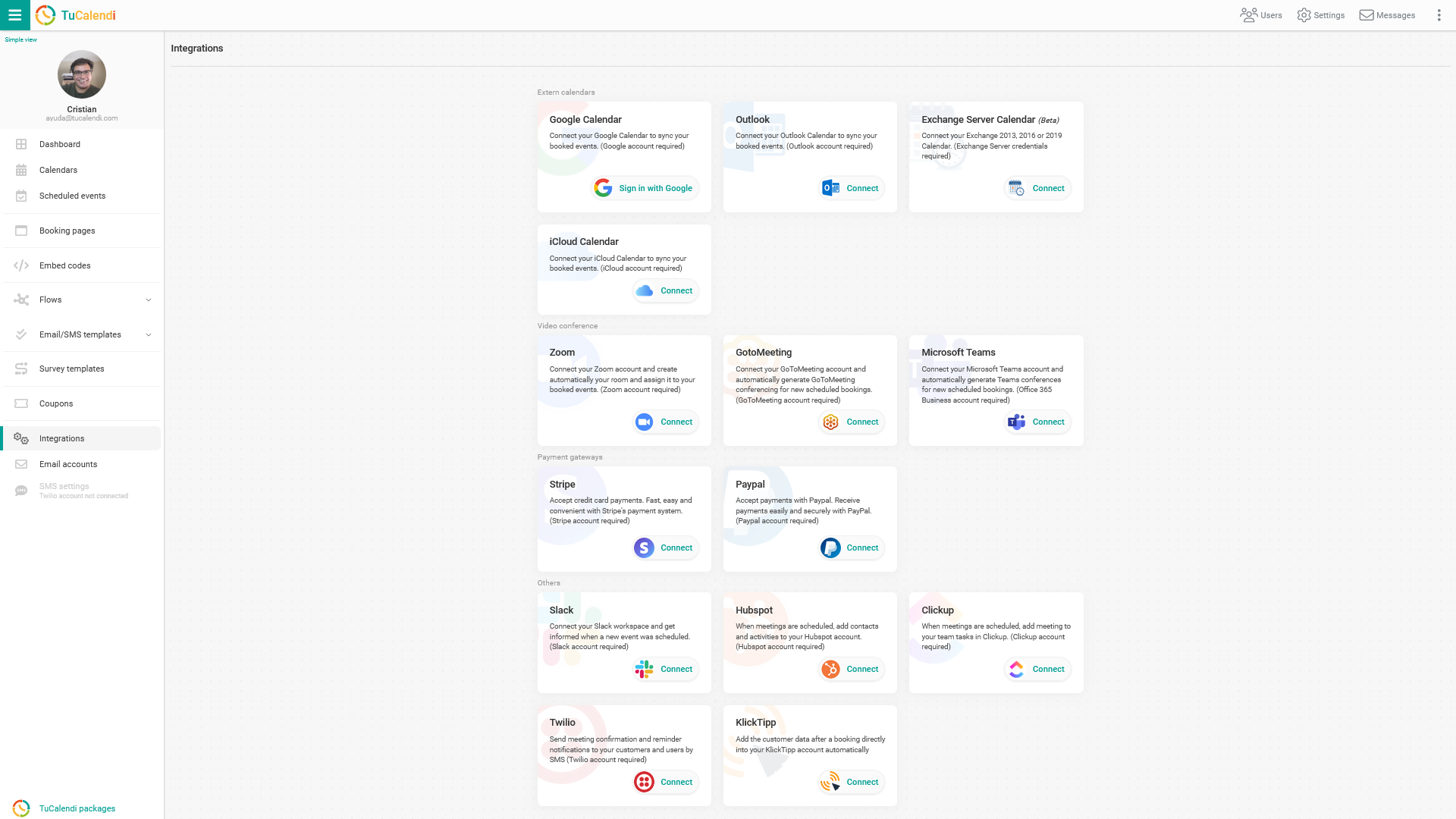
Connect Zoom
Find the option for connecting to Zoom.
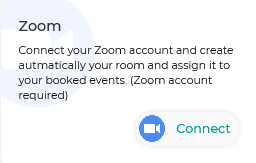
To integrate Zoom, click on "Connect". You will be taken to the Zoom confirmation page, where you grant the necessary permissions that allow the connection between TuCalendi and Zoom. Once you allow the integration, your Zoom account is connected to TuCalendi, and every time a new event with an associated video conference is scheduled, the meeting room will be created automatically in Zoom.
Use Zoom
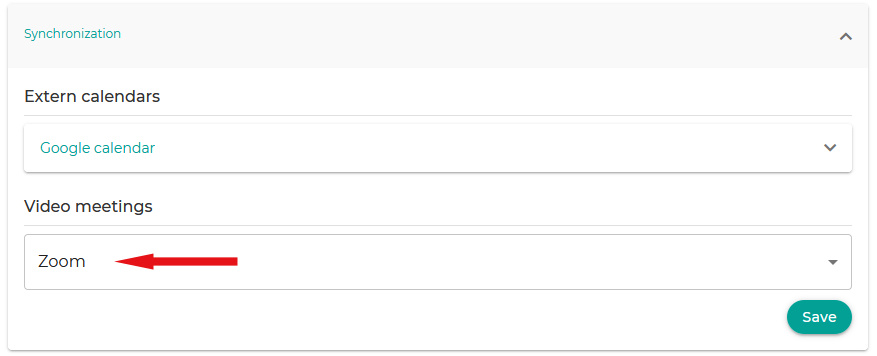
Once you have successfully connected Zoom, go to your event settings and, under "Connect and synchronization", select Zoom as your video conference platform.
Integration into the calendar
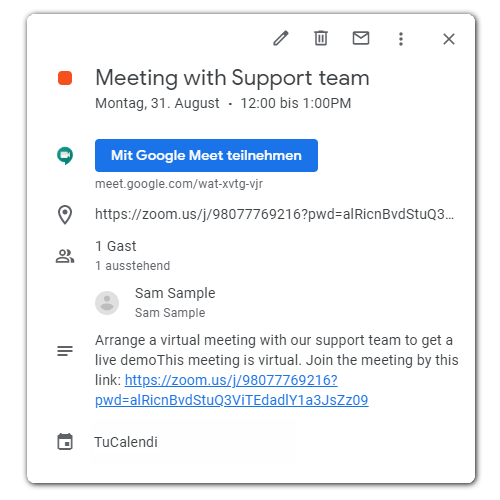
When a new event is booked, the Zoom link is automatically added to your event in Google Calendar (if you have a Google Calendar connected).
Disconnect/Uninstall Zoom
You can revoke TuCalendi's connection to Zoom at any time.
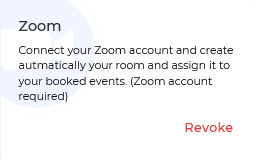
To disconnect Zoom, simply click the "Revoke" button.
You can also uninstall TuCalendi from the Zoom control panel. Follow these steps:
- Log in to your Zoom account and browse the Zoom App Marketplace.
- Click Manage > Installed Apps or search for the TuCalendi application.
- Click on the TuCalendi application.
- Click Uninstall.
TuCalendi does not collect or retain any data through your Zoom integration. The Zoom integration is only needed to create a Zoom room or webinar for your meetings.
Problem solving
If you have problems with the Zoom integration, contact us at help@tucalendi.com, use the subject "Zoom Integration" and share the error message you are receiving.
Once you have integrated Zoom in TuCalendi, you can connect Zoom to any of your events.
NOTE: A Zoom account is required to set up the Zoom integration.
Support: If you have any questions or need help, our support team is at your disposal. Simply send your request to help@tucalendi.com and our team will respond within 24 hours.