
In addition to the configuration options of a marketplace entry that we have seen in other tutorials, the two most important aspects to make your services known are the title and the description of the entry.
It is essential to specify the title and description of the marketplace entry so that all potential clients know what you do and decide to book an appointment with you.
Let's see how to add the title and description to the marketplace entry.
Log in with your username and password to TuCalendi. Go to the "Booking pages" option:
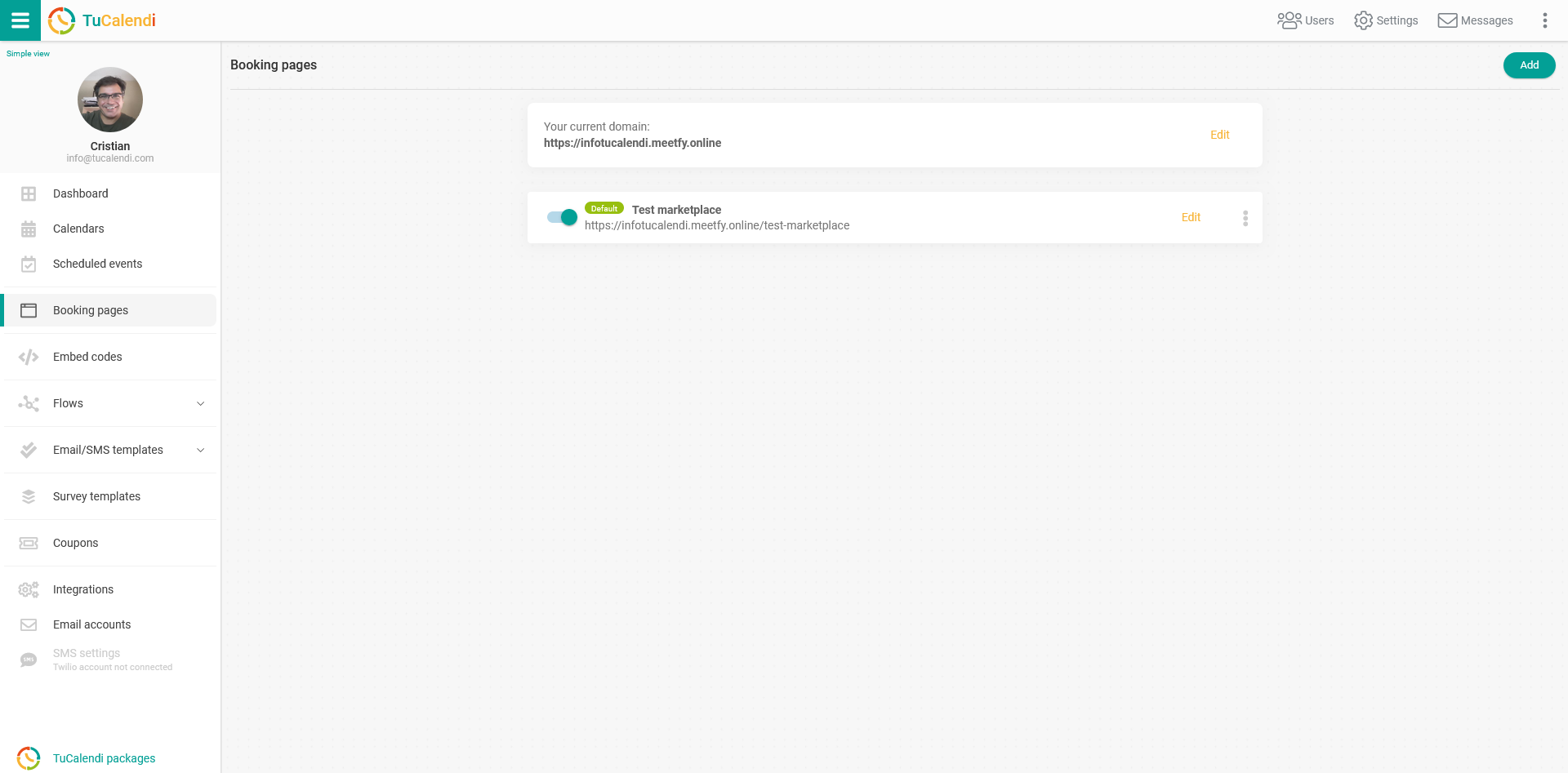
To configure the marketplace entry, locate the booking page you want to publish in the marketplace and click "Edit".
In the horizontal menu of the booking page, all the configuration options appear.
Click on "Marketplace":
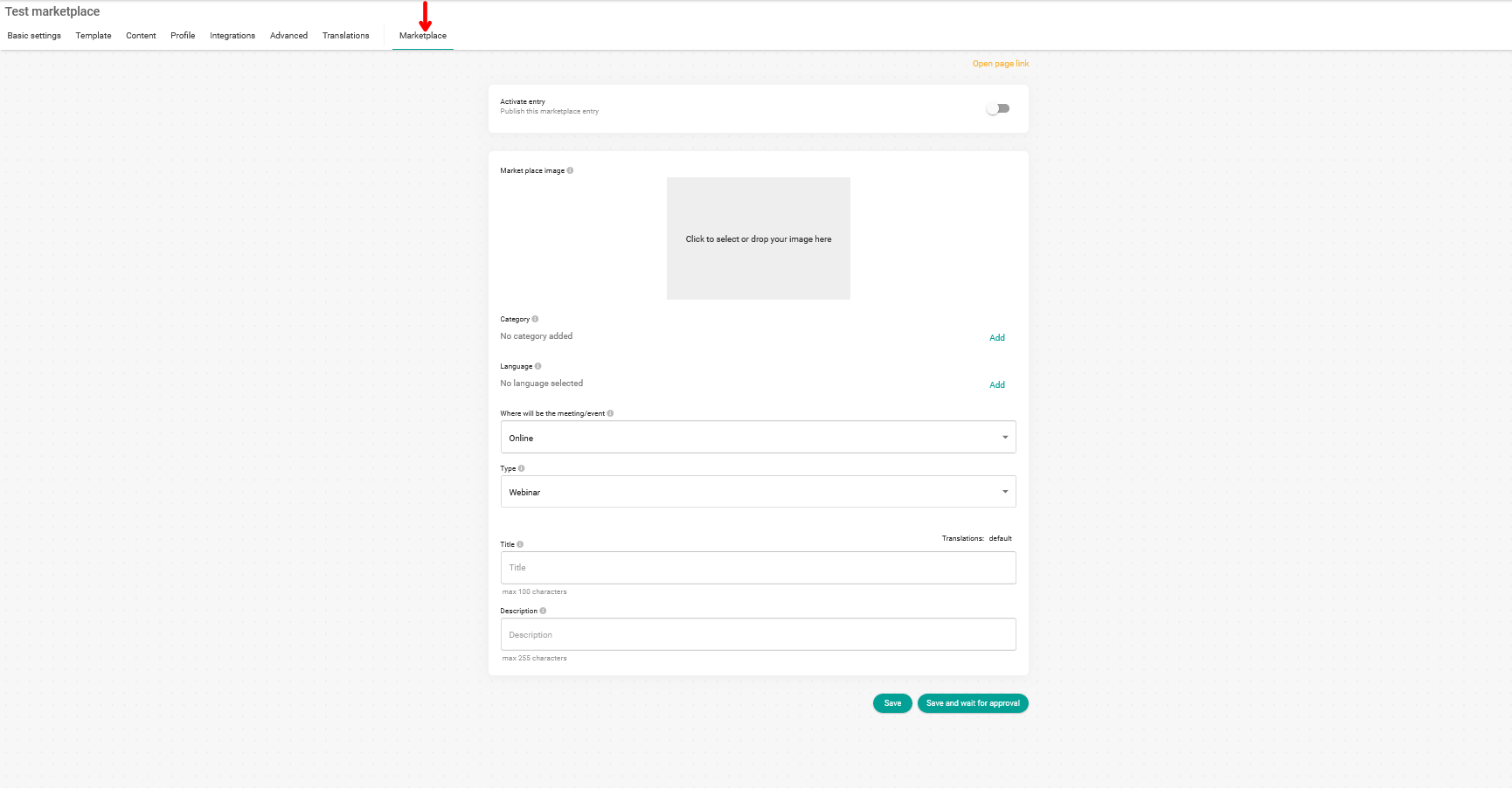
Title
In the "Title" field, write an attractive text to make yourself known:

Please note that the title can have a maximum of 100 characters.
Description
In the "Description" field, clearly describe the services you offer and what potential customers can expect when booking an appointment with you.

Please note that the description of the entry can have a maximum of 255 characters.
Translations
Since you may offer your services in several languages, you can use the automatic translation we offer. Using artificial intelligence, both the title and the description will be translated into the language you have chosen.
After you have written the title and description of the entry, go to the "Translations" option located at the top right of the title field:

Clicking it will display the languages available for automatic translation:
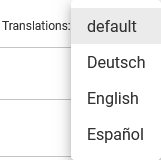
Select the language into which you want to translate the title and description of the entry you are creating.
The option to automatically translate into the chosen language will appear. Click on "Auto translate":

And just like that, you will have the title and description of the entry translated into the language you have selected.
As the automatic translation is done by artificial intelligence, it may use a word or expression different from the one you would use. We advise you to check the translation and modify it if necessary.
The automatic translation is done individually for each chosen language. If you want to use automatic translation for several languages, you need to do it one by one.
Click on "Save" if you have not yet finished configuring the marketplace entry, so you do not lose the changes you have made.
If you already have all the information for the marketplace, you must activate the entry:

Click on "Save and wait for approval" so our team can check the entry and activate your presence in the marketplace.
The approval of a new marketplace entry can take up to 24 hours after the request.