
Contacts make it easy to manage the customers you're meeting with, see their scheduling history and book follow-up engagements directly from TuCalendi's online application.
Create a contact
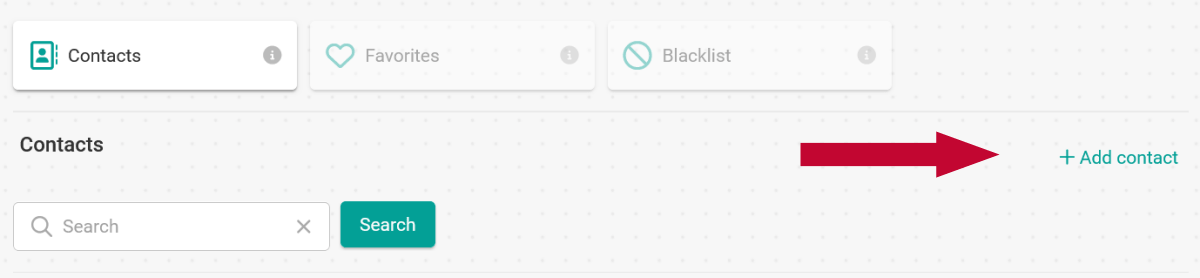
To create a new contact, click on Add contact. A popup will open where you need to enter the customer's details. As soon as you have finished, simply click on Save and the contact will be added to your list.
Edit a contact
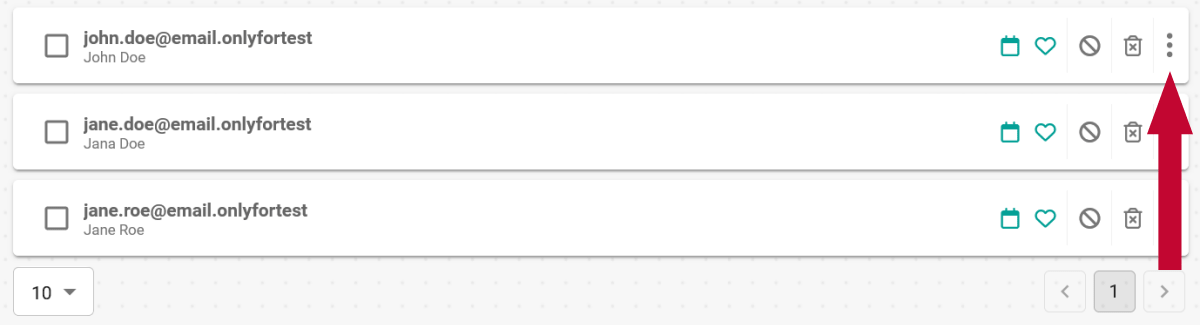
To change the information of your contact, click on the menu in the list and then on Edit.

Delete a contact
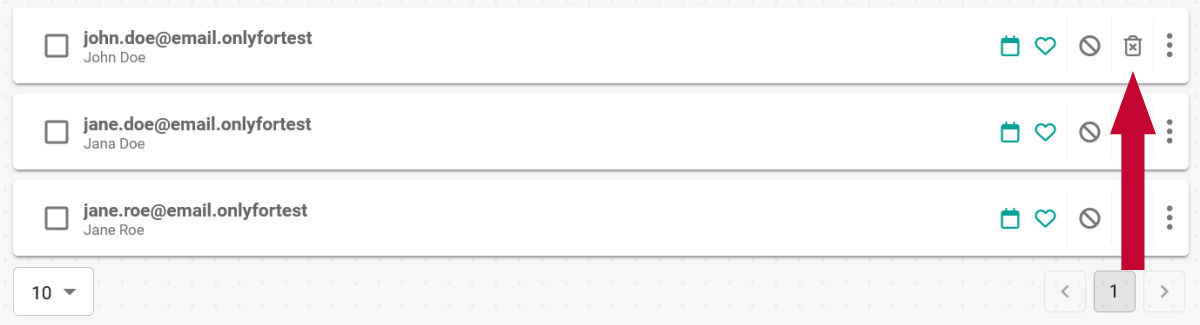
You can delete your contacts at any time by simply clicking on the delete icon. Important: A deleted contact cannot be restored.
Block or Unblock a contact
With our blacklist you have the option of blocking or unblocking your contacts. Blocked contacts will no longer be able to book anything or make an appointment with you. Only when the contact is unblocked will they be able to make bookings again.
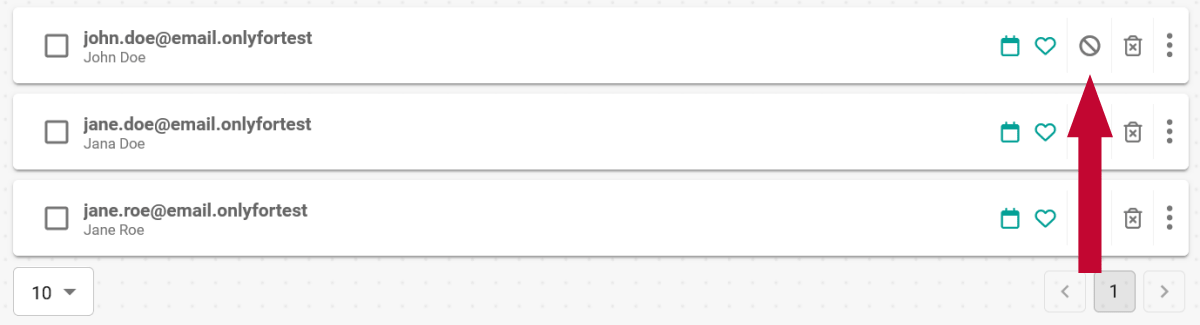
To block a contact, just click on the block icon:
To see which contacts you have blocked, simply open the blacklist:
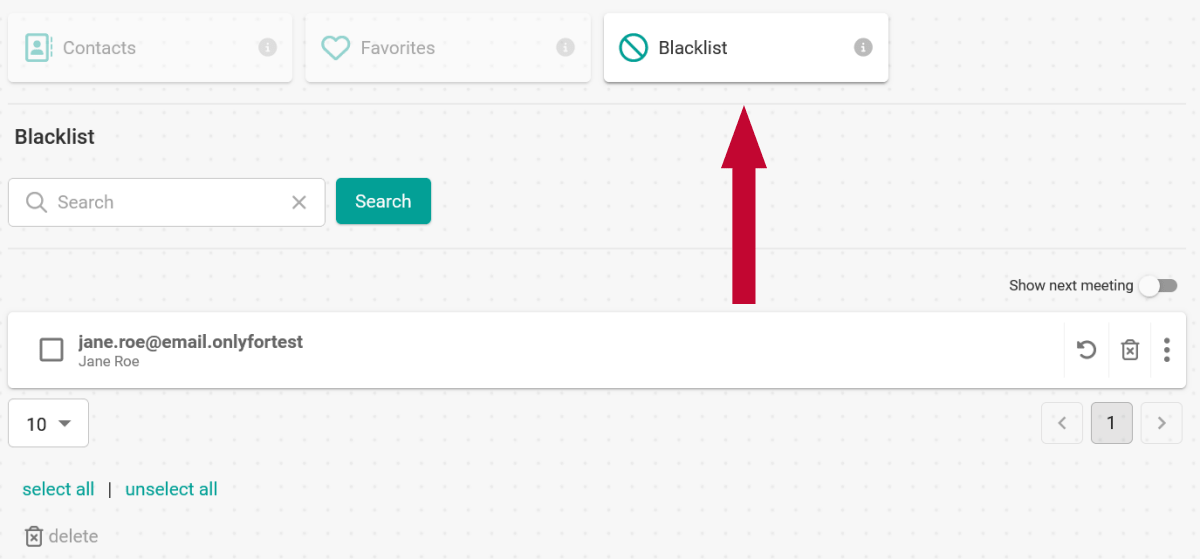
To unblock a contact, click on the unblock icon:

Favorite a contact
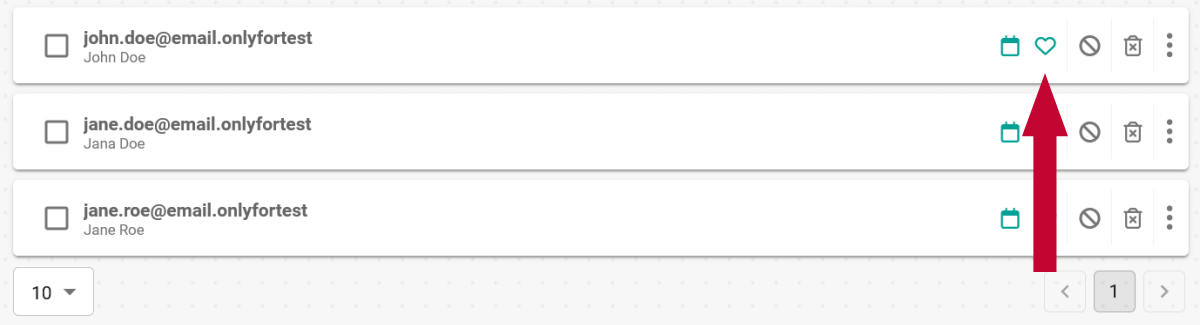
You can also favorite your contacts. This way you know, for example, which of your contacts make frequent bookings, or you can find them more easily. To save a contact as a favorite, simply click on the heart icon. If you click on the icon again, the contact will be removed from your favorites.
Booking history of a contact
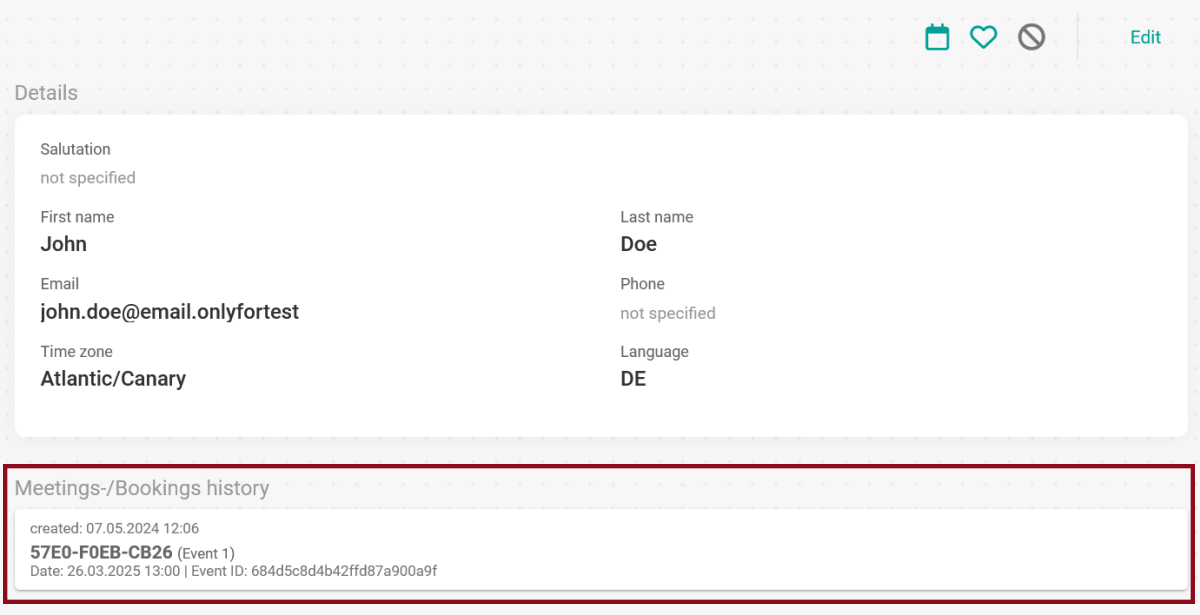
Open the details of the contact and you will see the Booking history section. There you can track when and how often this contact has already made a booking.

Show next meeting
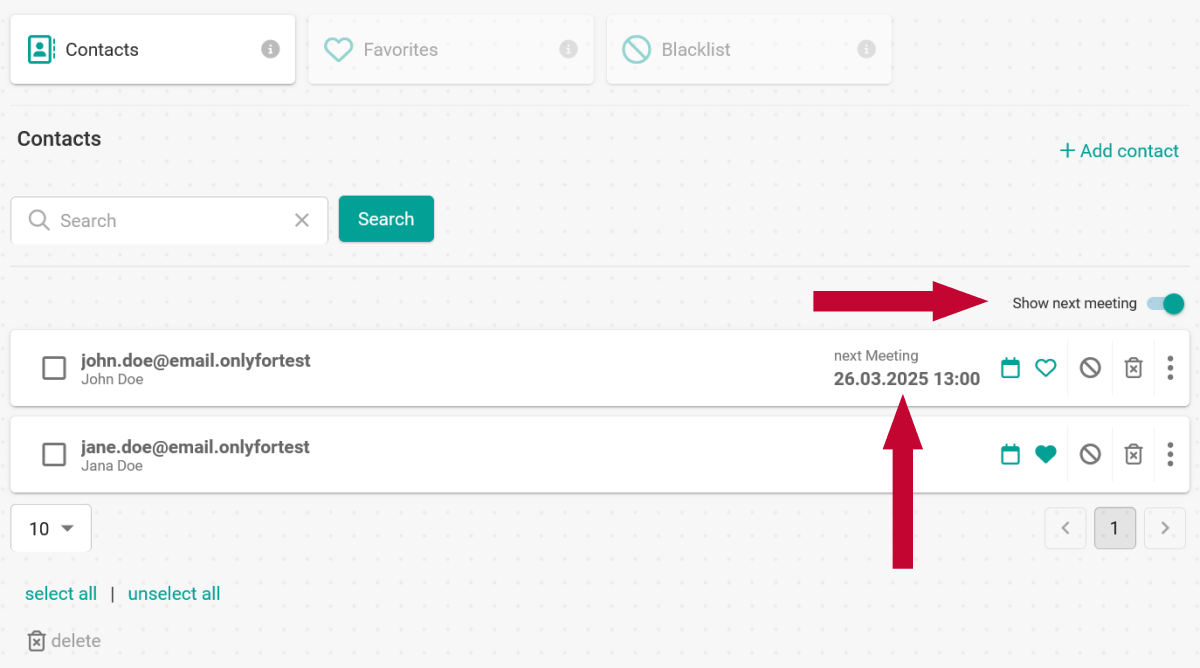
You can also use the list to see when you have your next meeting with a contact. To do this, activate or deactivate the Show next meeting option. If this option is activated, you can see in the list when you have your next meeting and with whom.
Book a meeting/event
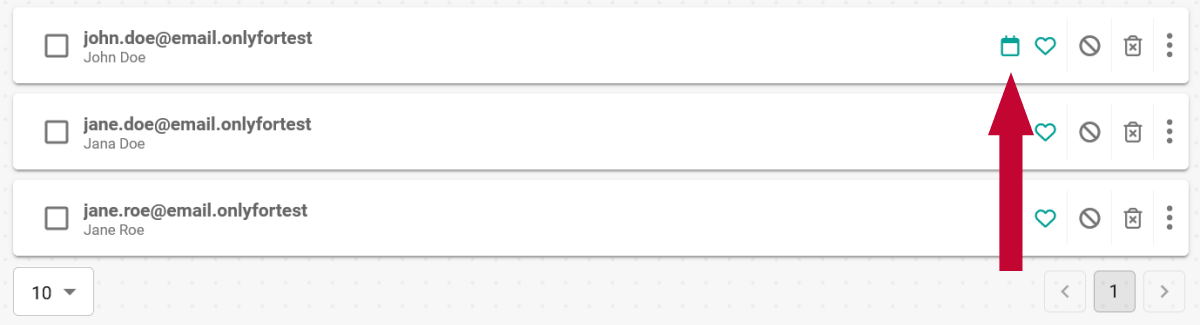
From the contact list, you can quickly and easily book a meeting or event for this contact. Simply click on the calendar icon. Then select the event you want to book and voila, you're done.
This is a fee-based module and is available for all plans. Please check the price on our pricing page.