
To apply permissions to users, start by activating the role system and adding users to system groups.
System groups are the predefined groups in TuCalendi, so you cannot create or delete groups. In the system groups, you can only add or remove the users that belong to each group.
Log in to TuCalendi with your username and password. In the upper right corner, click on the three vertical dots to open the menu.
In the menu, select "Role system/permissions":
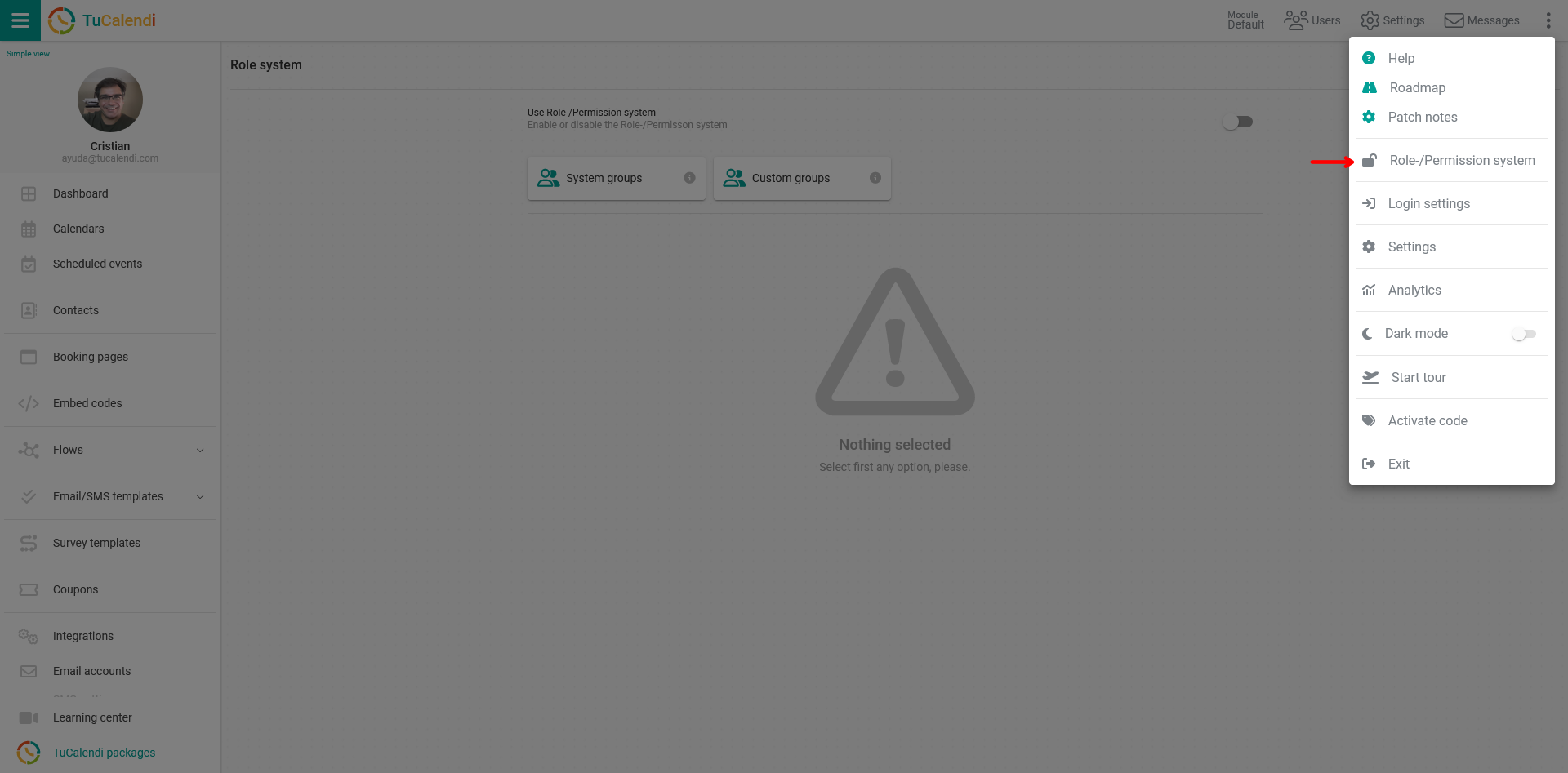
By default, the role system is disabled. If you want to use the role and permission system, you must enable it.
Activate role and permissions system
In the "Use the role/permission system" field, turn on the option so that the role system starts working.
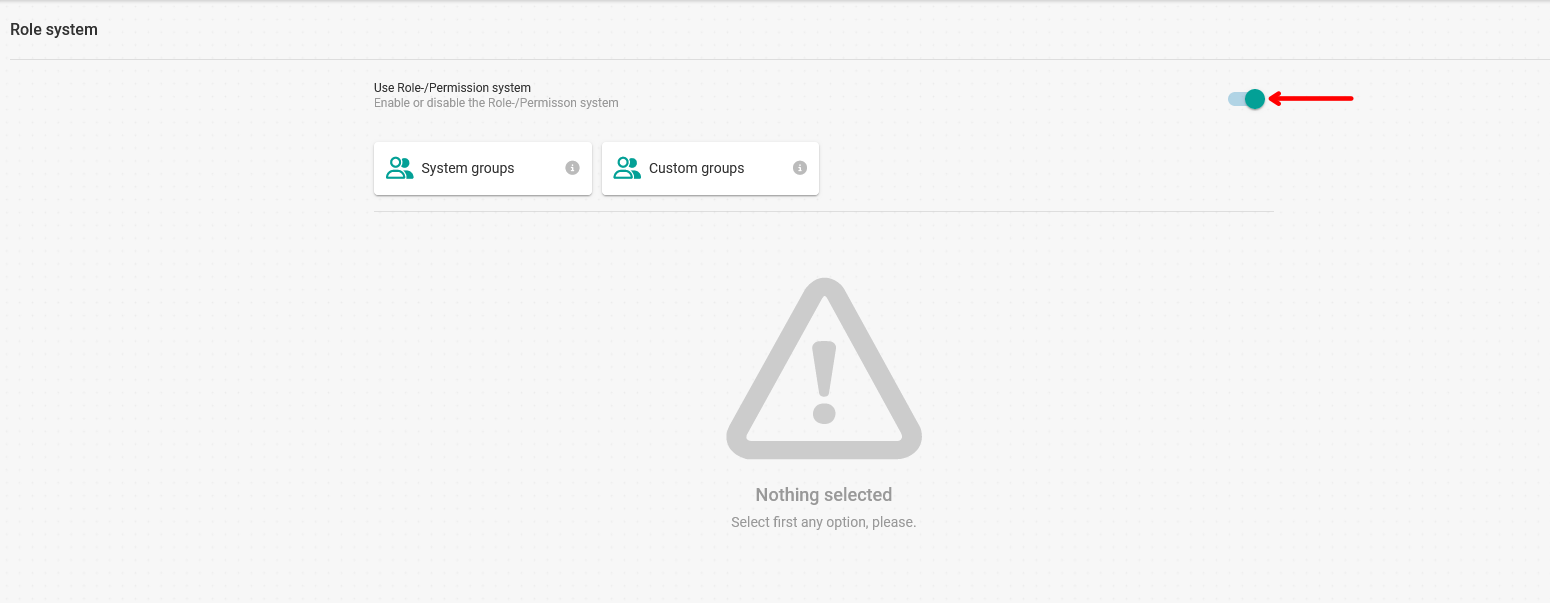
Once the role system is active, click on "System groups":
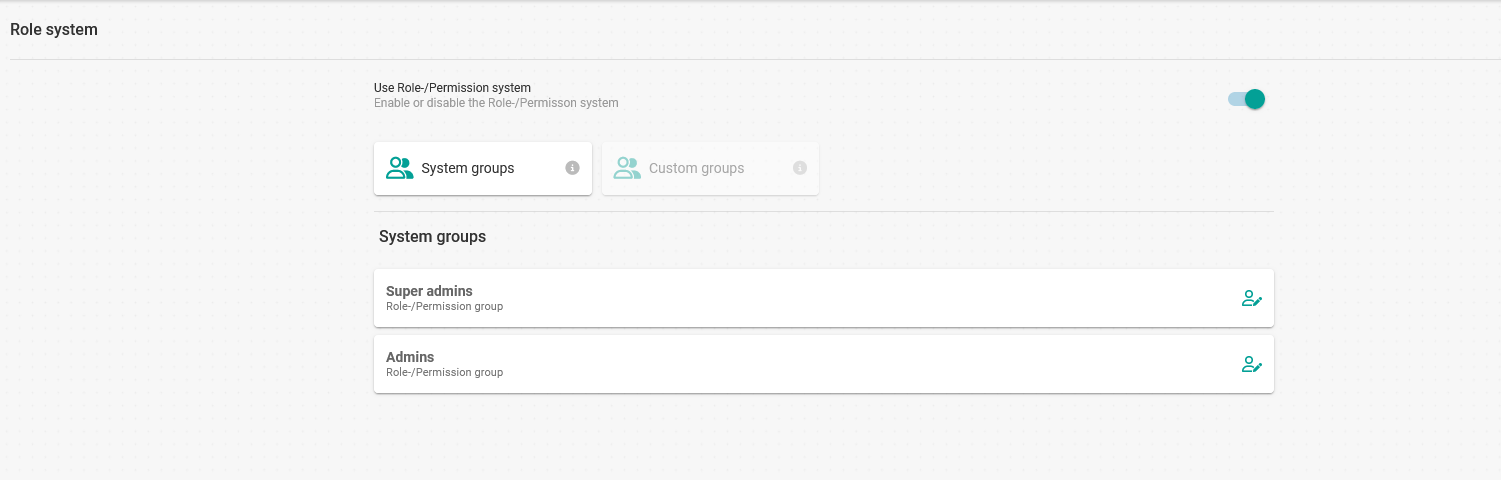
The available system groups are displayed.
Super admins
Users in this group have the same privileges as the account owner, except that they cannot delete the account.

To add users to this group, click on the "User icon":

Then click "Add user" to select the users who will be Super admins:
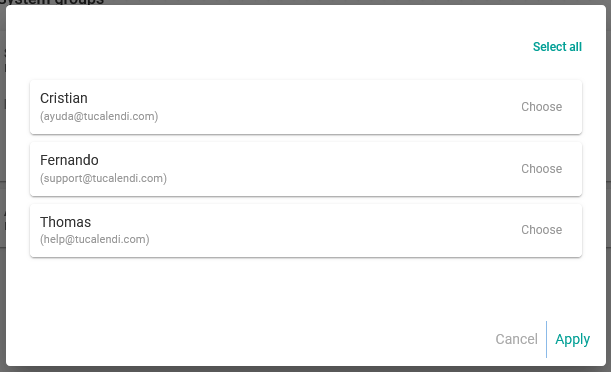
Choose the users and click "Apply".
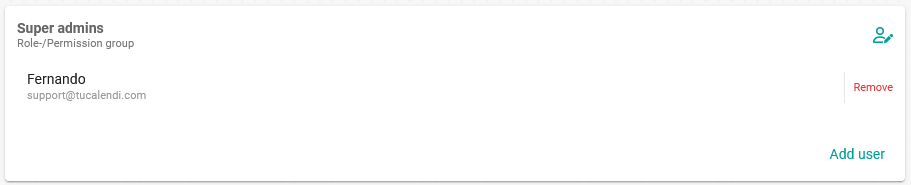
The user "Fernando" has been added as super admin.
Admins
These users can manage all TuCalendi functions and features, except account settings.

To add users to the Admins group, click on the "Users icon":

Then click on "Add user" to select the users:
Choose the users and click "Apply".
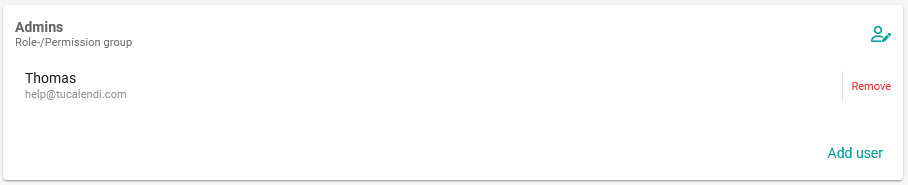
The user "Thomas" has been added as admin.
That's how you add users to the system groups.
If you want to remove a user from the system groups, just go to the corresponding group and click "Remove" on the user you want to remove from the group.