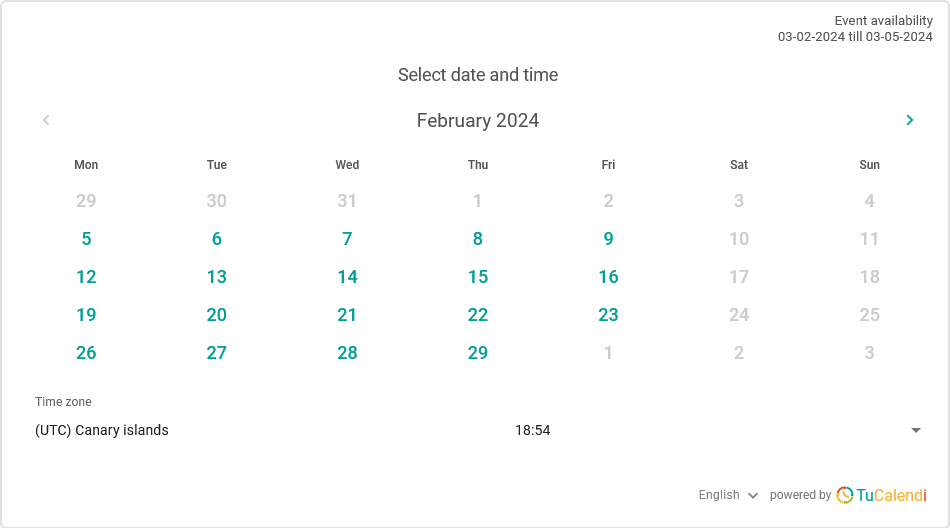
One feature of the widget appearance that influences the layout is the option to display the left column of the widget.
Many TuCalendi users prefer this option because, although it shows less information, it has a cleaner design.
To show or hide the left column of the TuCalendi widget, you need to access the widget appearance.
Choose your favorite or custom template for your widget.
Click on the "Show left column" field:
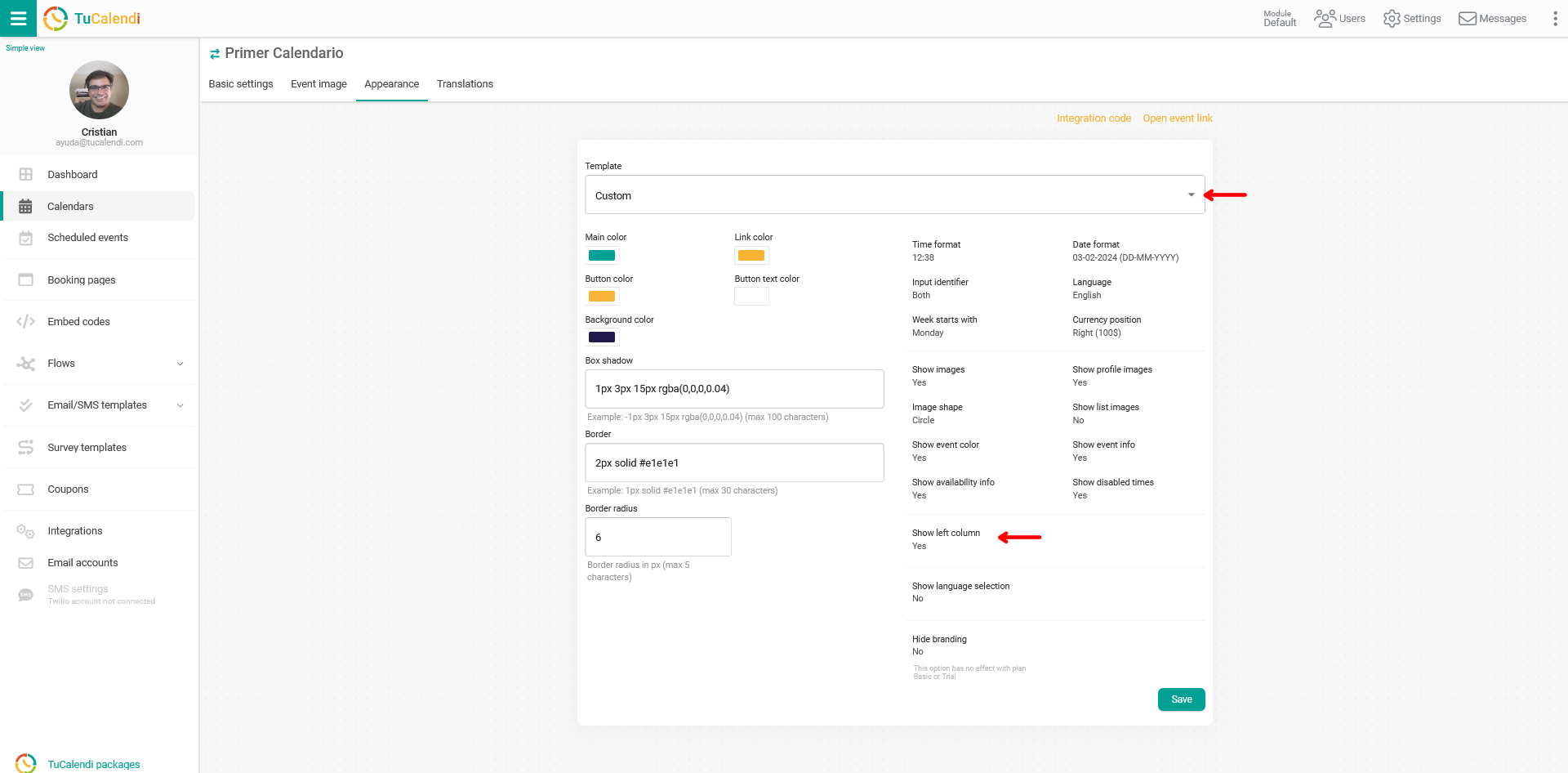
By default, this option is set to "Yes" because the widget is divided into two columns and both are visible.
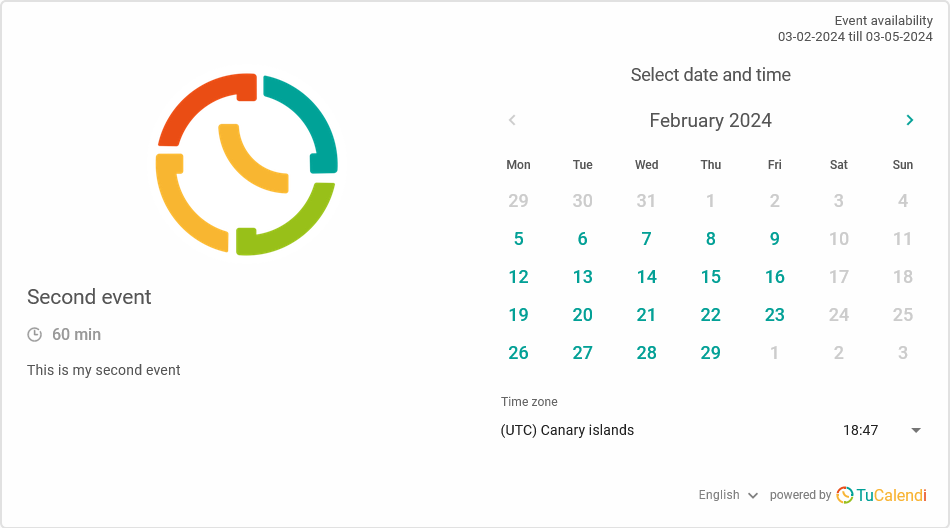
By selecting "No" in the "Show left column" field, you can change certain aspects of how the widget is displayed.
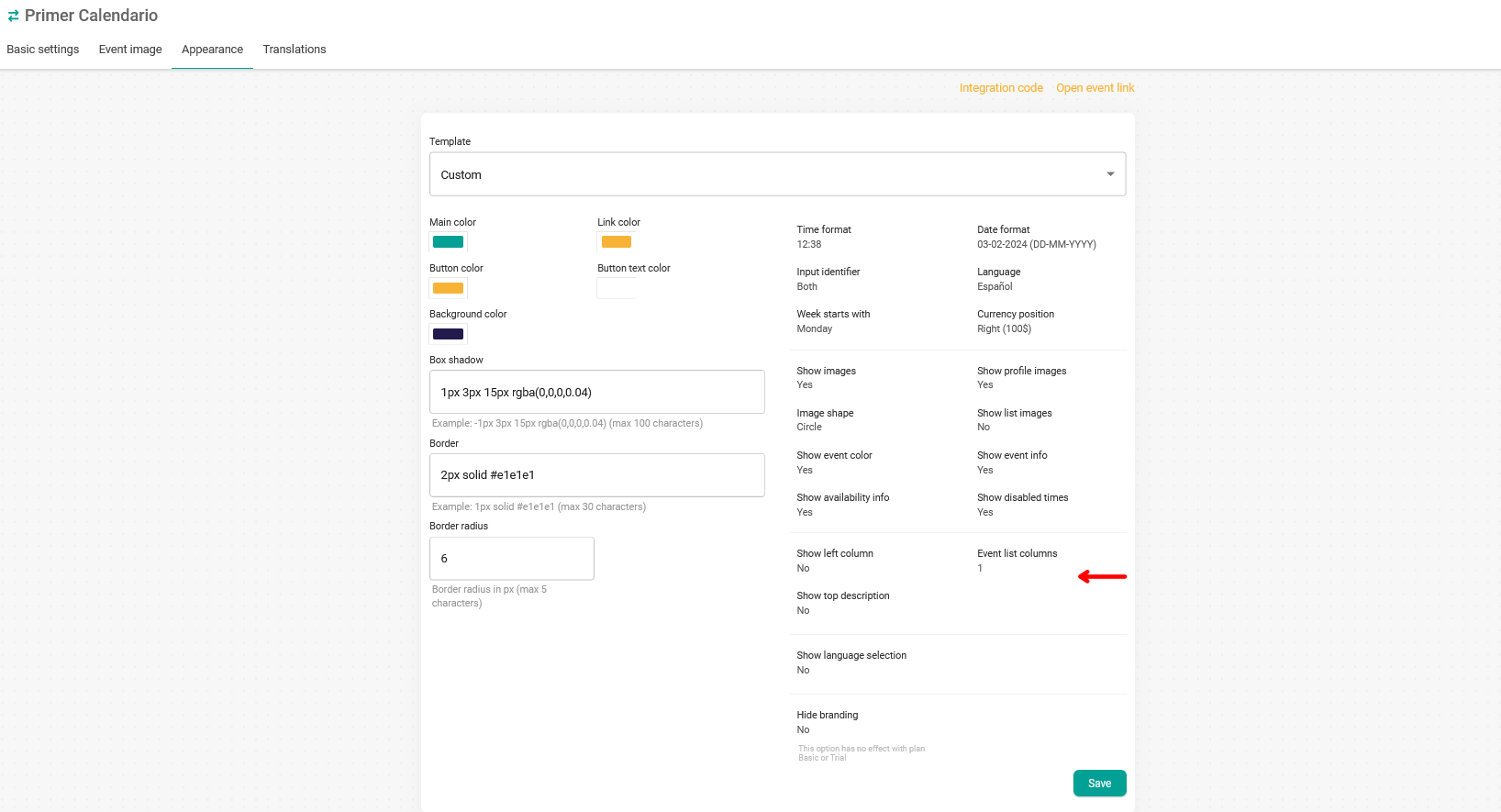
- Event list columns. You can specify the number of columns in which the calendar events will be displayed.
- Show top description. You can decide whether to show the event description or not. When you choose "Do NOT show the left column of the widget", the event description is hidden by default, but you can choose to make it visible.
This is how the widget looks when the left column is not shown: