
Adding extra time after an event is a very useful feature to adapt your availability and get the most out of your time.
Adding extra time after an event lets you optimize your working hours, while giving you some time between each meeting or appointment to prepare for it, enjoy a short break or extend a meeting without overlapping with the next one, so your customers don't have to wait for you.
Setting a time buffer or adding extra time after an event can be done very easily in TuCalendi.
Log in to TuCalendi with your username and password. Go to the "Calendars" option.
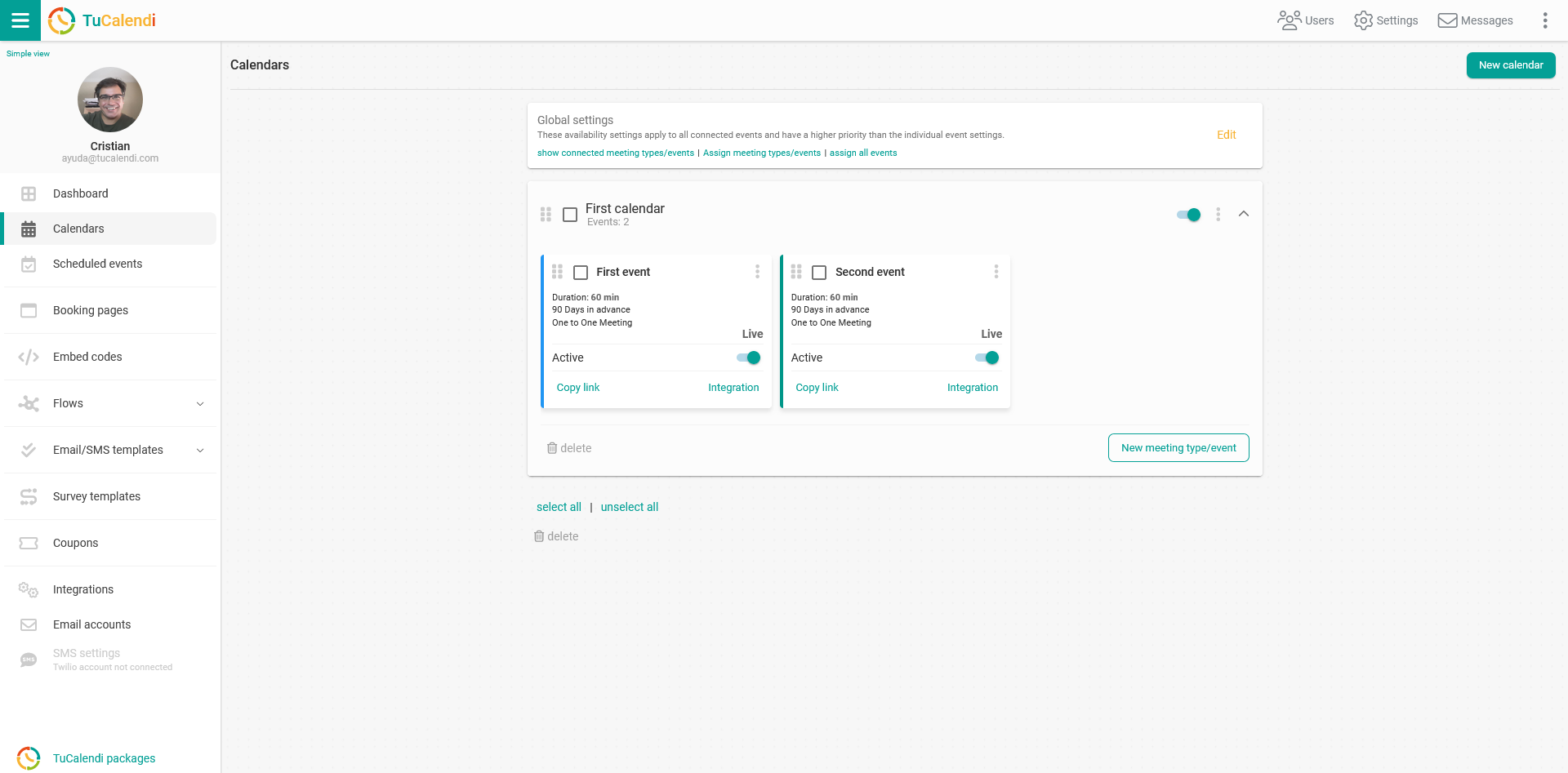
Locate the event whose buffer time you want to modify and click on the event name.
All the event configuration options appear in the horizontal menu.
Click on the "Availability" option.
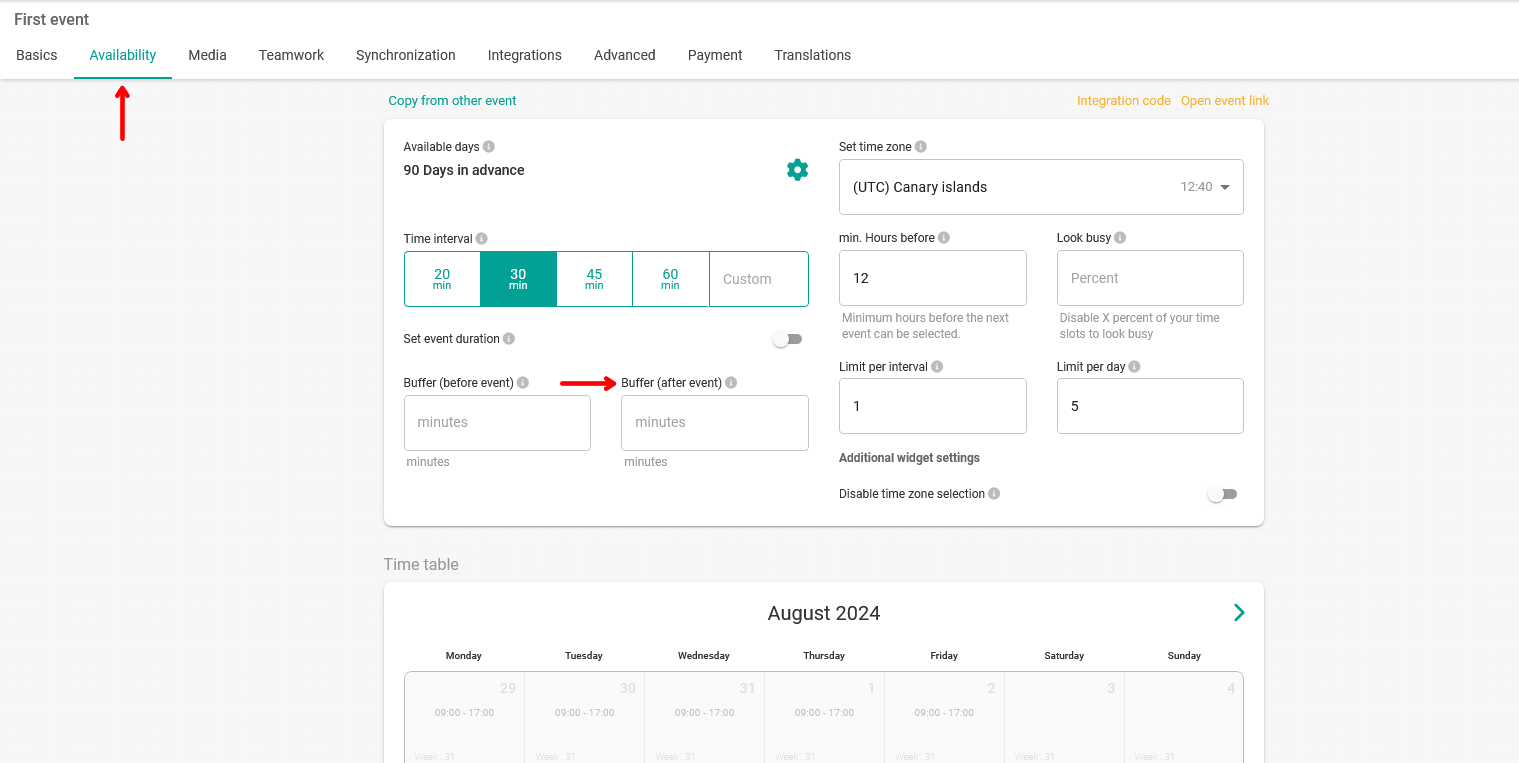
In the "Buffer (after event)" field, set the extra time between meetings.
When you have made your changes, click on "Save".
As an example, you could set the following parameters:
Time interval = 60 minutes. This defines how often events can start.
Event duration = 60 minutes. This is the duration of the event.
Time buffer = 0 minutes. The extra time defined for the event.
With this configuration, your customers will be able to book with you during your available time every 60 minutes. The meeting will last 60 minutes and you will have an extra time of 0 minutes.