
In this tutorial we will guide you on how to set up time buffers in your TuCalendi events and show you how a time buffer works in events.
The first thing you may be wondering is what a time buffer is.
What is a time buffer
A buffer is extra time that can be added before and after the availability of a TuCalendi event. It is a very useful event configuration option if you want to set aside time to prepare yourself between meetings or the time you may need to travel for business visits to your customers.
Now that you are clear on what a time buffer is, let's see how to set time buffers in events.
How to set time buffers
Log in to TuCalendi with your username and password. Go to the "Calendars" option in the side menu:
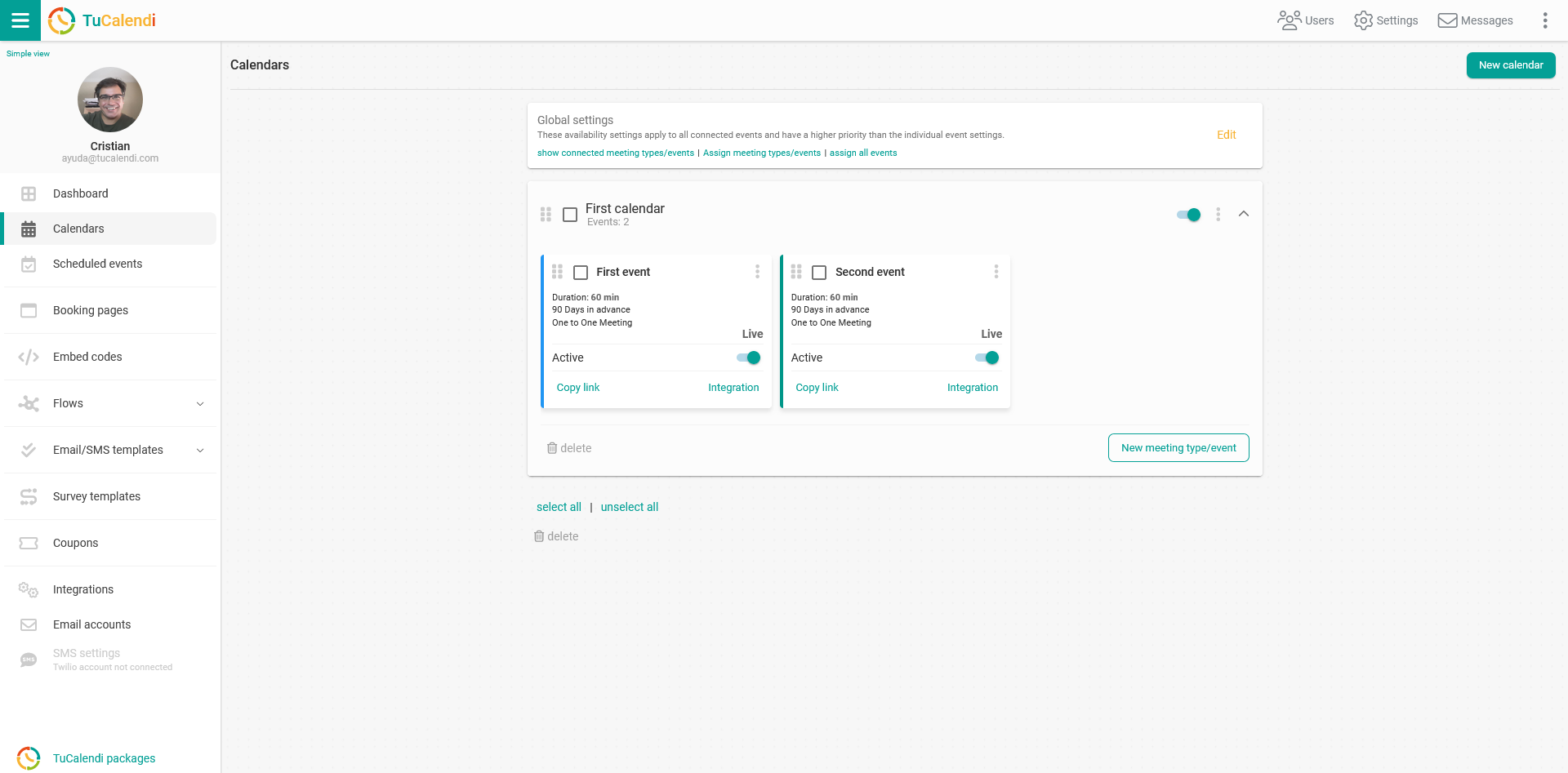
Locate the event you want to set time buffers for and click on the event name.
In the horizontal menu, all event configuration options are displayed.
Click on "Availability settings":
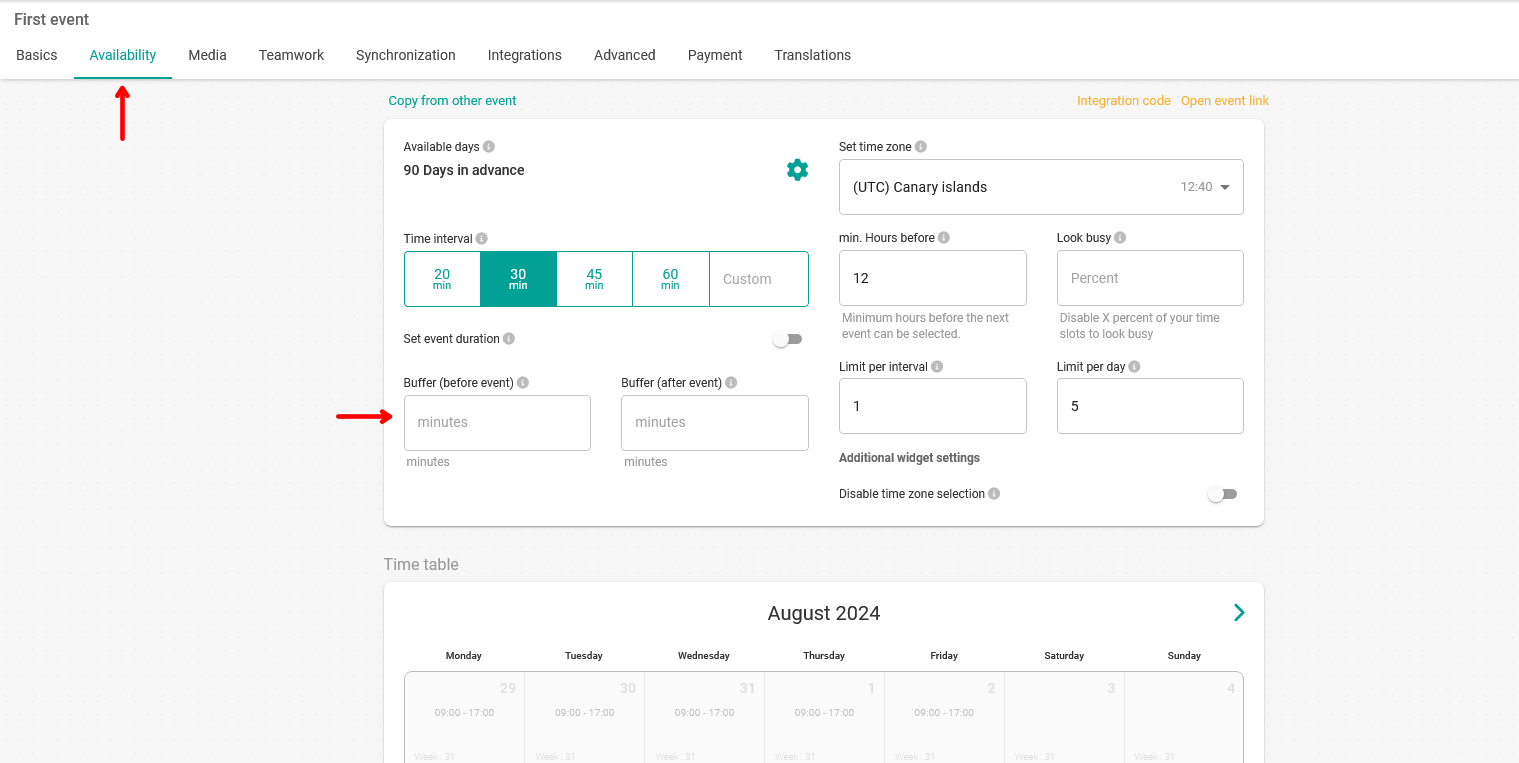
In TuCalendi you can set two buffers:
- Buffer before event: additional time to be added before the event.
- Buffer after event: extra time to be added after the event.
You can set a time in minutes in both buffers simultaneously or set the time in minutes in only one buffer.
Note that if you leave the buffer fields blank or enter "0 minutes", the event will not have any extra time before and/or after the event.
When you have entered the buffer time, click on "Save" to make this parameter work in the event bookings.
As an example, in an event with a duration of 30 minutes we set a buffer before of 10 minutes and a buffer after of 10 minutes:
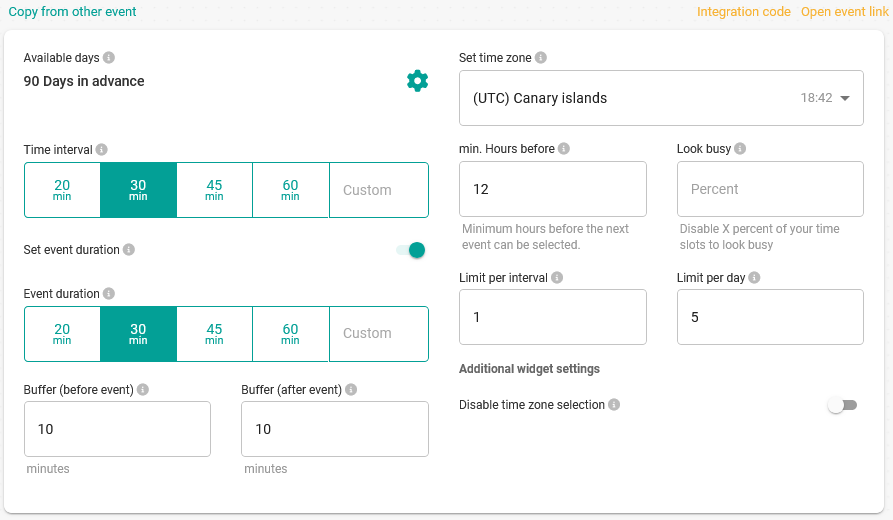
This means that the slot the event will occupy is 50 minutes.
How buffers work
The buffers before and/or after an event are only taken into account for bookings made in TuCalendi events. However, if you have synchronized the event with an external calendar such as Google Calendar and you have other events added to your external calendar, TuCalendi's time availability will take into account that the event has buffers.
This means that the time buffers cannot overlap with the events in your external calendar.
In the example of a 30 minute event with time buffers of 10 minutes before and after, the total time needed for this event is 50 minutes.
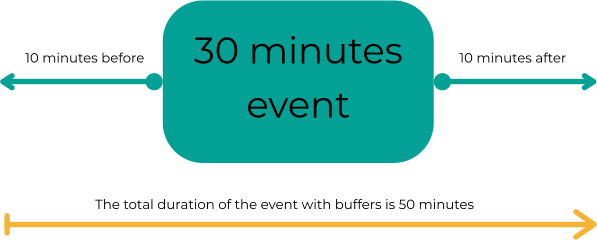
Even if the event duration is 30 minutes, a total of 50 minutes of free time is needed to show the time slot as available in TuCalendi for the customer to book.