
After integrating TuCalendi with Outlook Calendar you can connect each event to Outlook Calendar so that they are synchronized. This way, when a client schedules a meeting with you from TuCalendi, it will be included in your Outlook Calendar.
Log in to TuCalendi with your username and password. Go to the "Calendars" menu option:
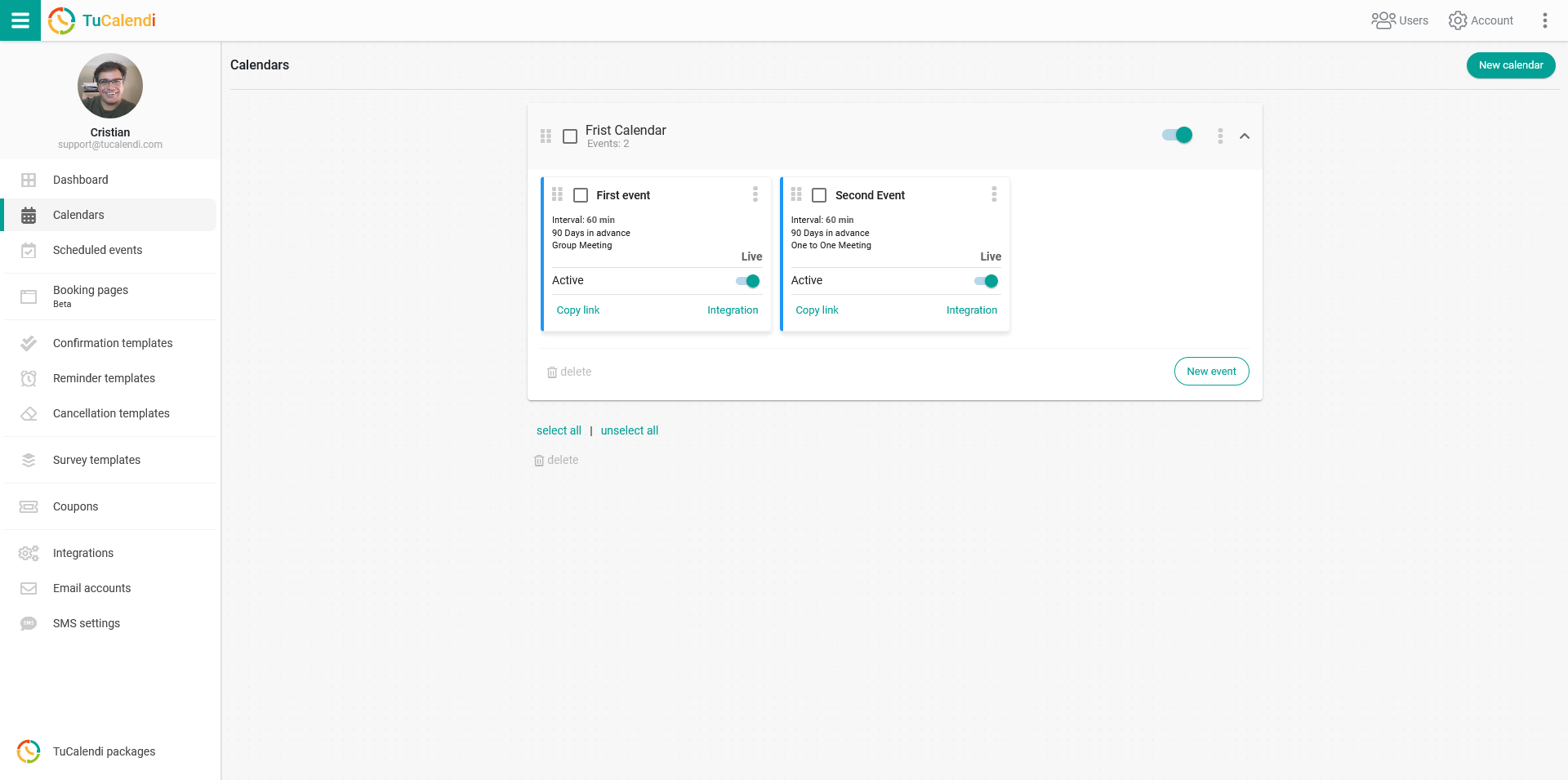
Locate the event you want to connect to Outlook Calendar and click on the event name.
In the horizontal menu, all event configuration options appear.
Click on "Synchronization".
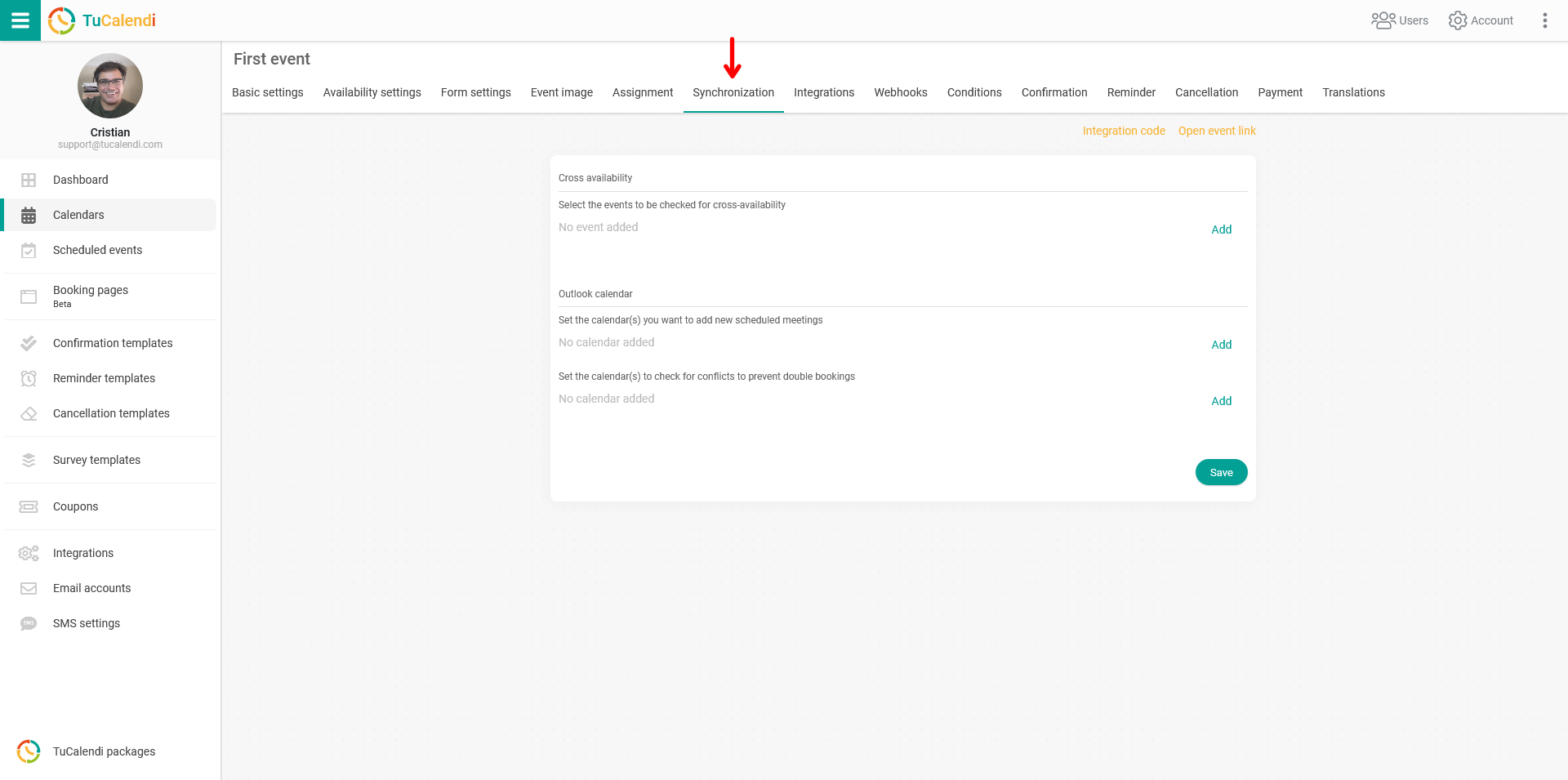
In the "Outlook Calendars" block, under the "Select the calendars you want to add a new scheduled meetings" option, click on "Add" to display your calendars. Check the ones you want to be synchronized.
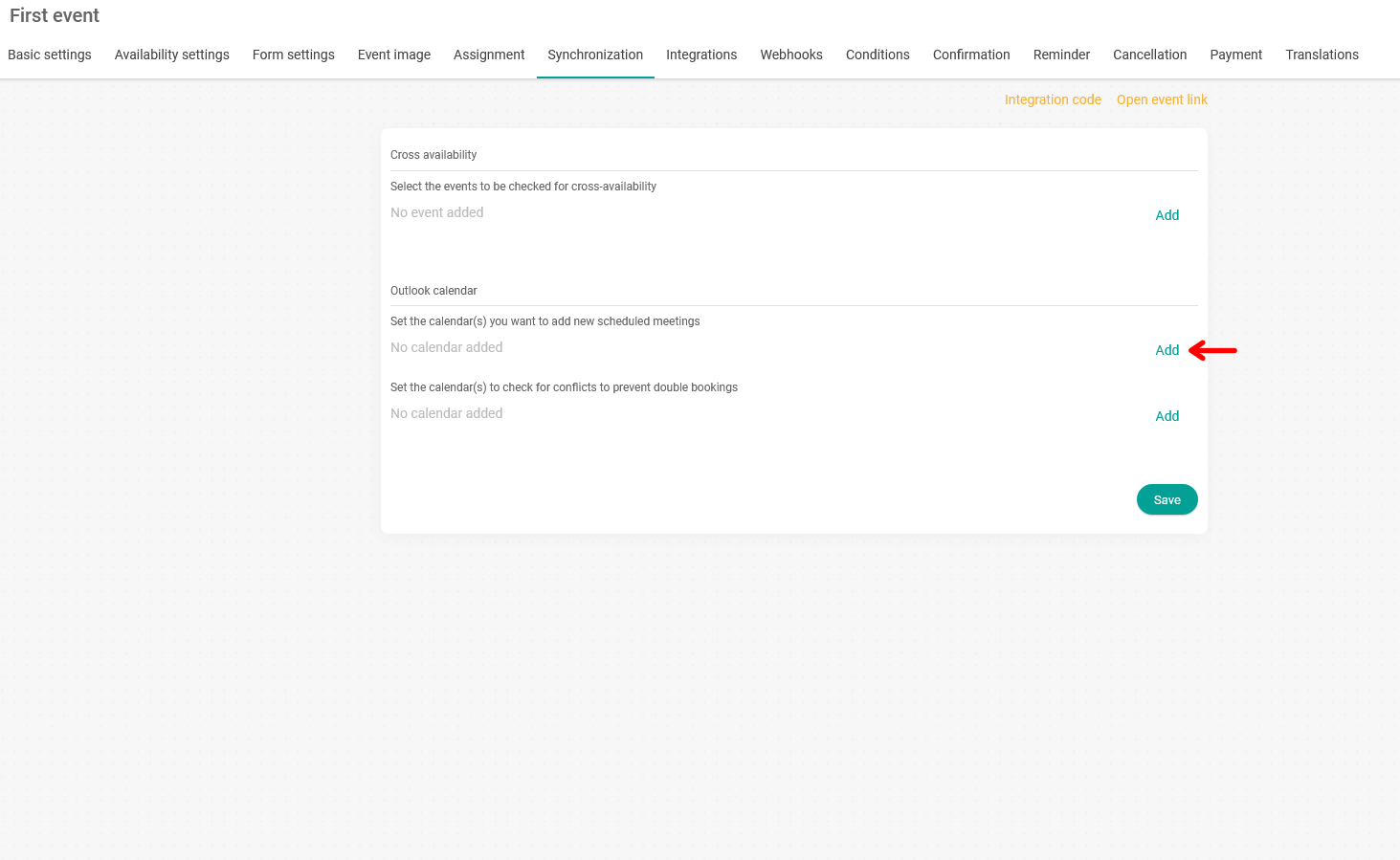
When you have checked the desired options, click "Save" and the synchronization will be done.
From now on, any event that your clients schedule with you through TuCalendi will be reflected in Outlook Calendar.