
After you have integrated TuCalendi with your Zoom account, you can connect events that need a virtual meeting to Zoom, so that the room is created automatically and you can hold the virtual event.
Connecting events is very simple. Log in to TuCalendi with your username and password and go to the "Calendars" option.
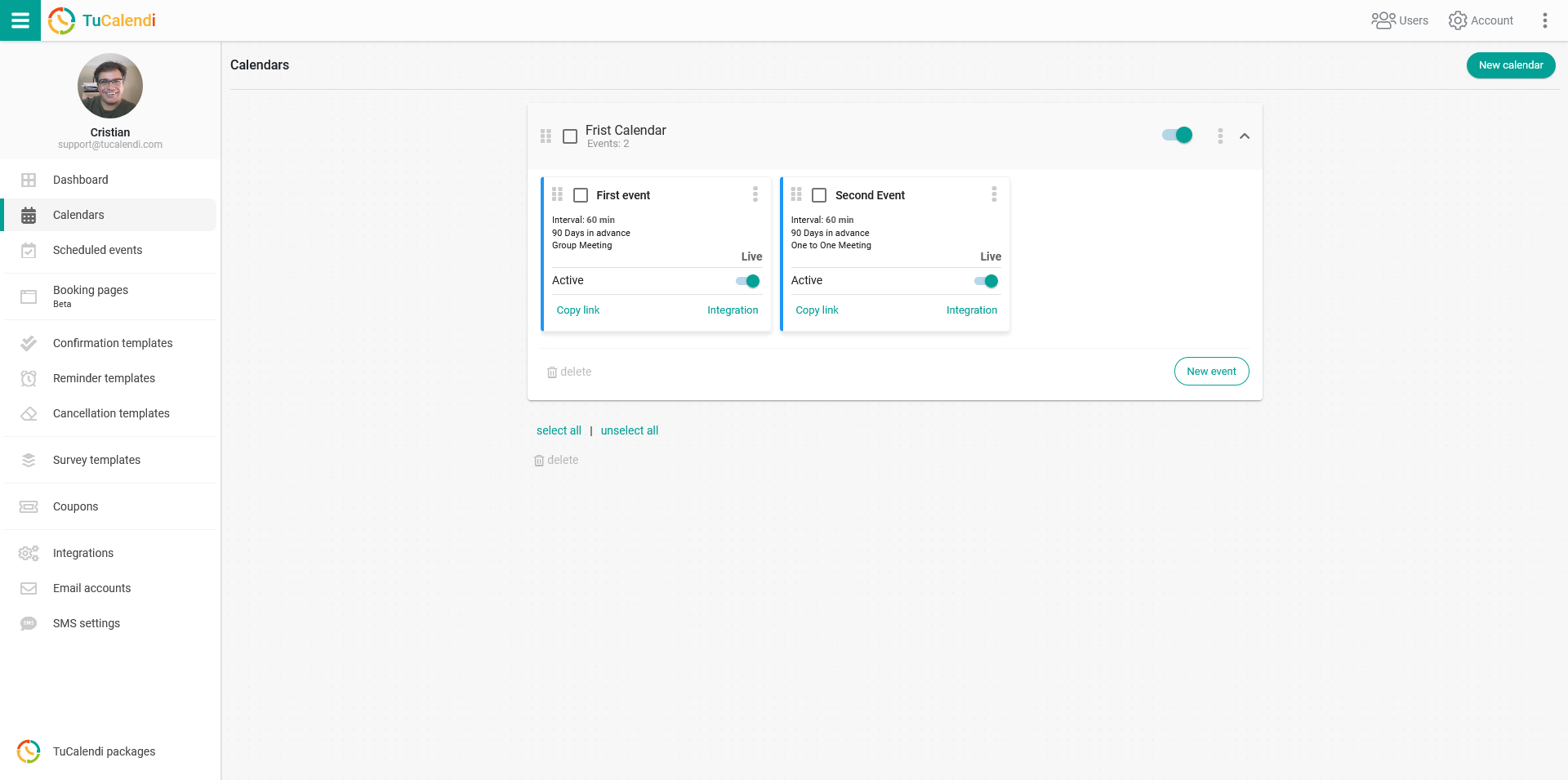
Find the event you want to connect to Zoom when your clients schedule it with you or your team, and click on the event name.
All the event configuration options appear in the horizontal menu.
Click on "Integrations".
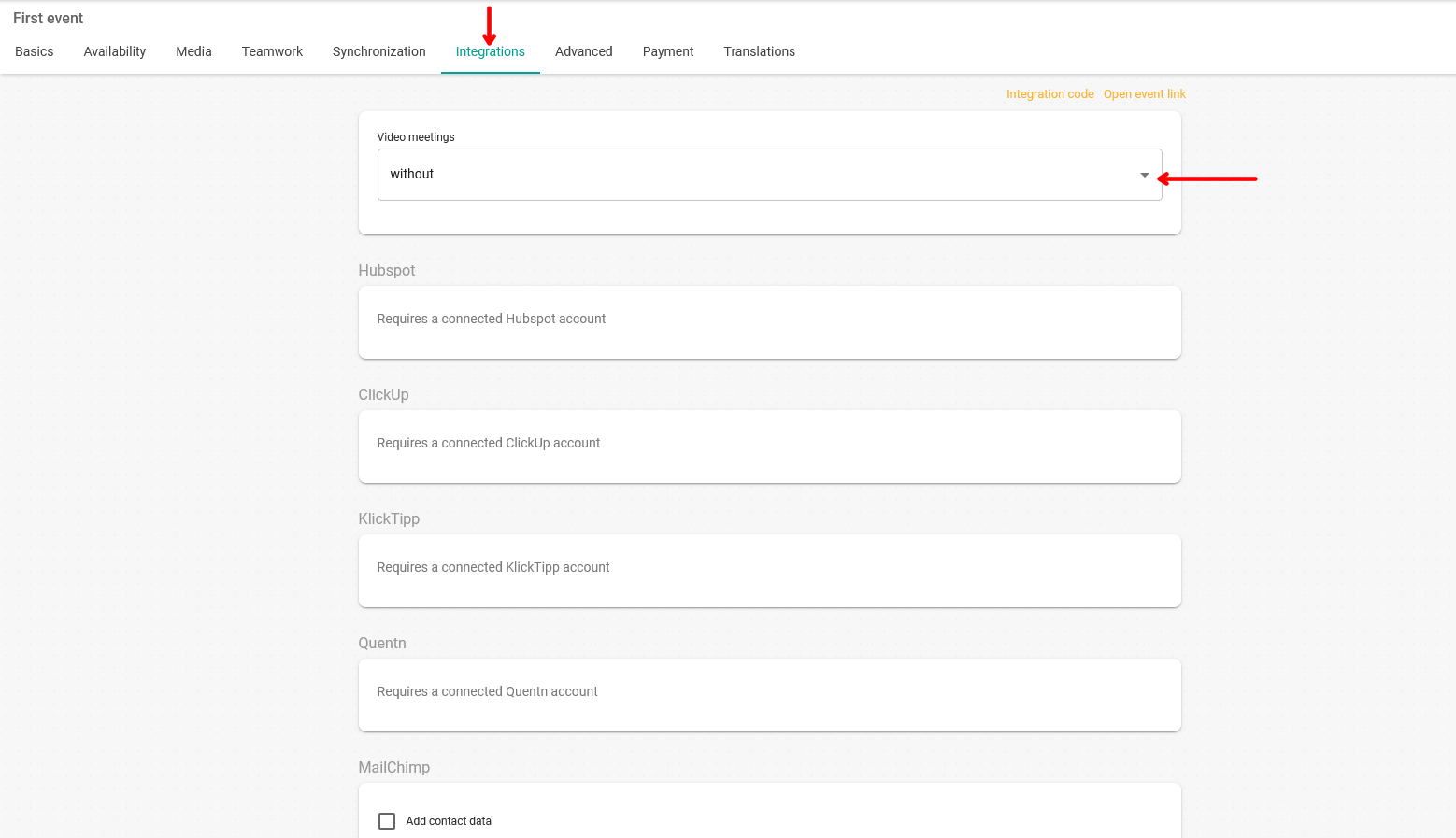
In the "Video meetings" block you'll find the Zoom option. Just select it.
Once you've done that, click "Save" and the connection to your Zoom account will be made.
From now on, for any meeting, appointment or webinar of this TuCalendi event type that your clients schedule with you or your team, the room will be created in Zoom and they'll be able to join it through the corresponding link.
REMEMBER: Before connecting the event with Zoom, you must have integrated TuCalendi with Zoom.