
The bidirectional synchronization of an event with Microsoft Exchange Calendar and TuCalendi means that any booking your customers make from the TuCalendi online calendar is added to Exchange Calendar. In addition, if you manually add an event to your Exchange Calendar, the system checks the time availability of the events you have in TuCalendi for which you have enabled the option to avoid conflicts in the reservations. If the times coincide, the possibility of booking at those times in your online calendar is removed.
Enabling this feature of TuCalendi is very simple.
After the integration of TuCalendi with Microsoft Exchange Calendar is done, you need to connect the events and add the calendar to the functionality to avoid booking conflicts.
Log in to TuCalendi with your username and password. Access the "Calendars" option.
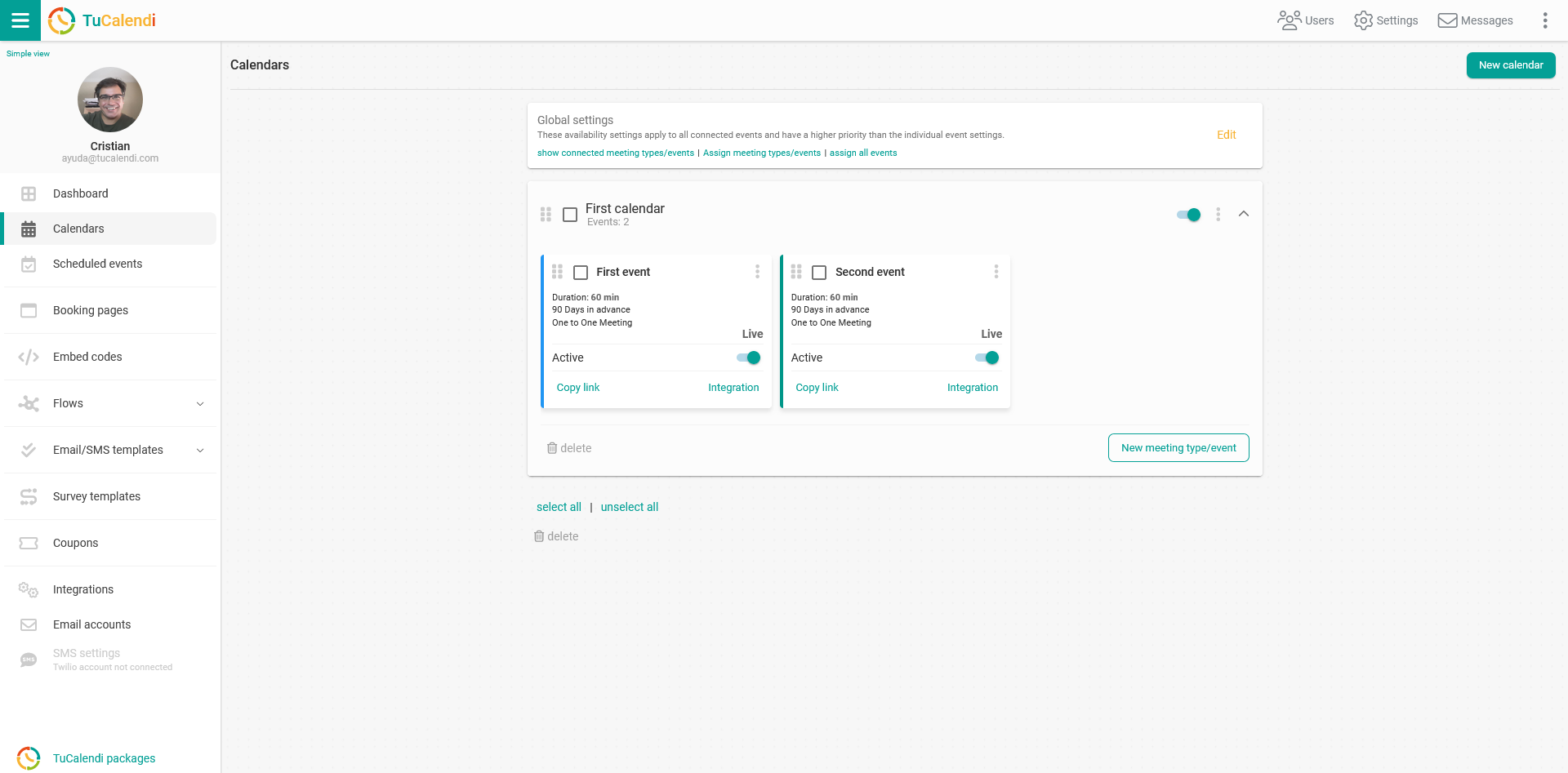
Locate the event you want to connect to Microsoft Exchange Calendar and click on the event name.
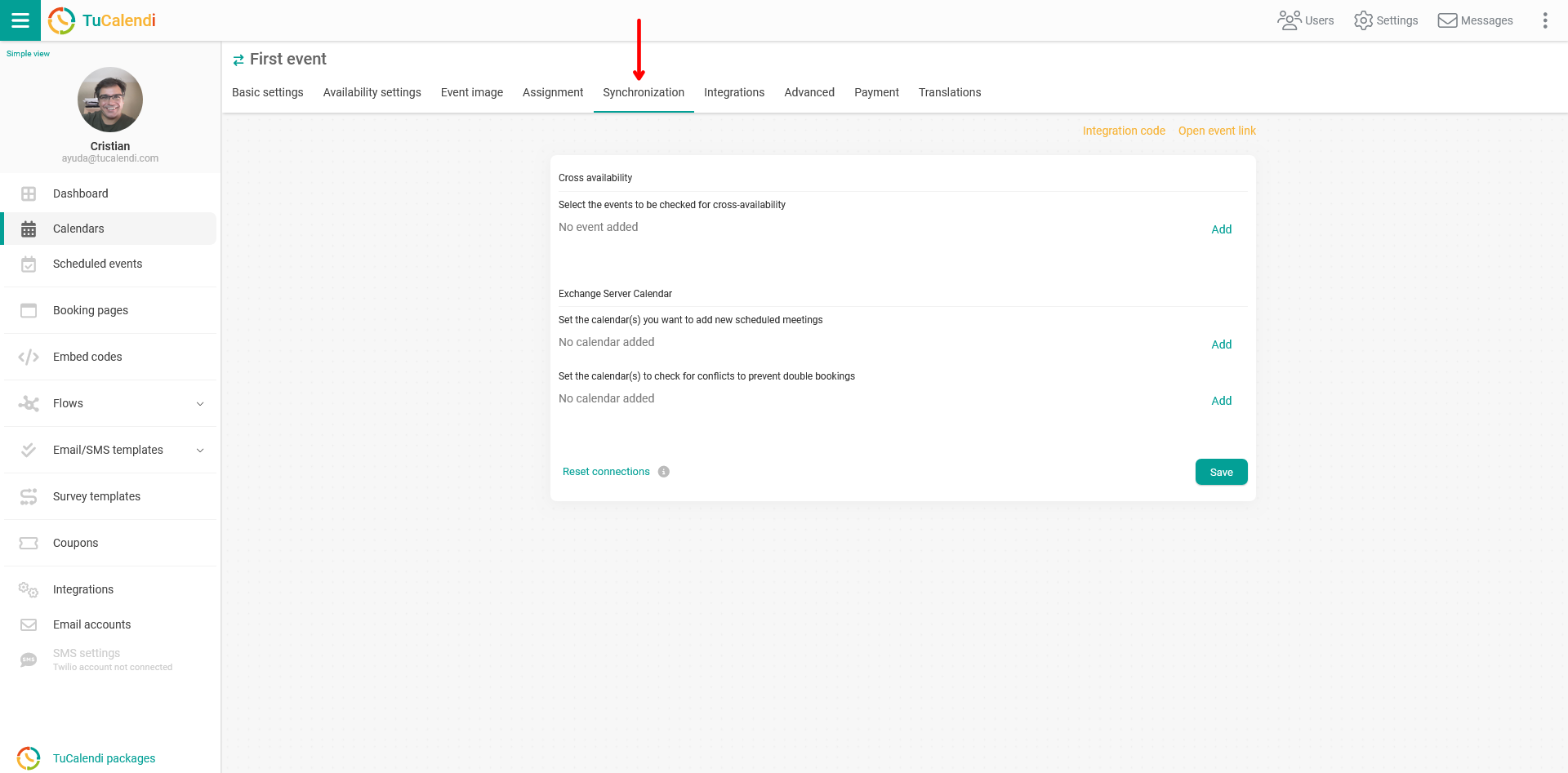
All the event configuration options appear in the horizontal menu.
Click on "Synchronization":
In the "Exchange Server Calendar" block, look at the "Set the calendar(s) to check for conflicts to prevent double bookings" field and click "Add" so that the calendars associated with your Microsoft Exchange Server account are displayed and you can select them.
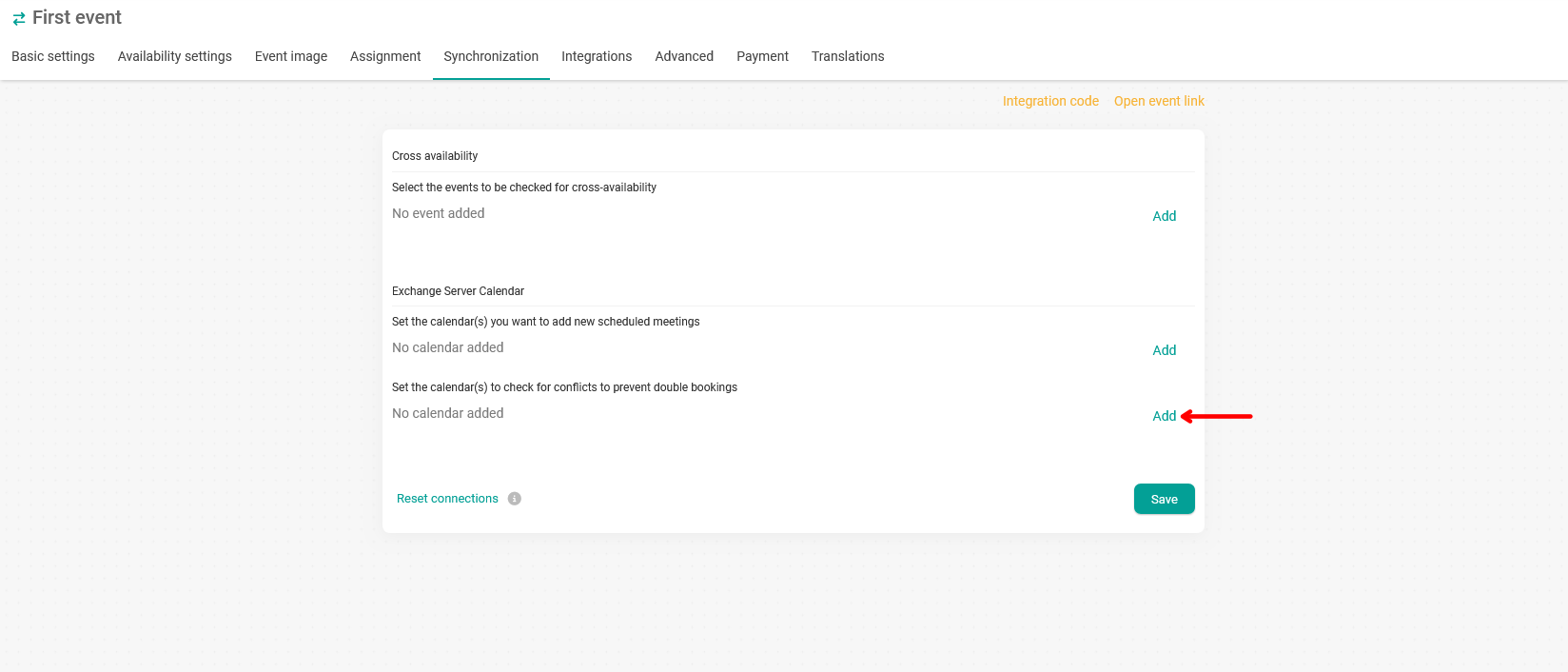
This deactivates the times that have been taken in Microsoft Exchange Calendar.
Once you have added the corresponding calendars, click "Save" and the bidirectional synchronization between Microsoft Exchange Calendar and TuCalendi will be operational.