
With TuCalendi you can add the double opt-in link to your confirmation templates.
With the double opt-in option you make sure that bookings must be confirmed by the customers who made them. Once a person has booked an appointment, they must click the link in the confirmation email they receive to confirm their email address and the booking.
If the customer does not complete the second confirmation, the booking will be deleted after 2 hours and the time slot will be released again.
Log in to TuCalendi with your username and password. Go to the "Email/SMS Templates" option:
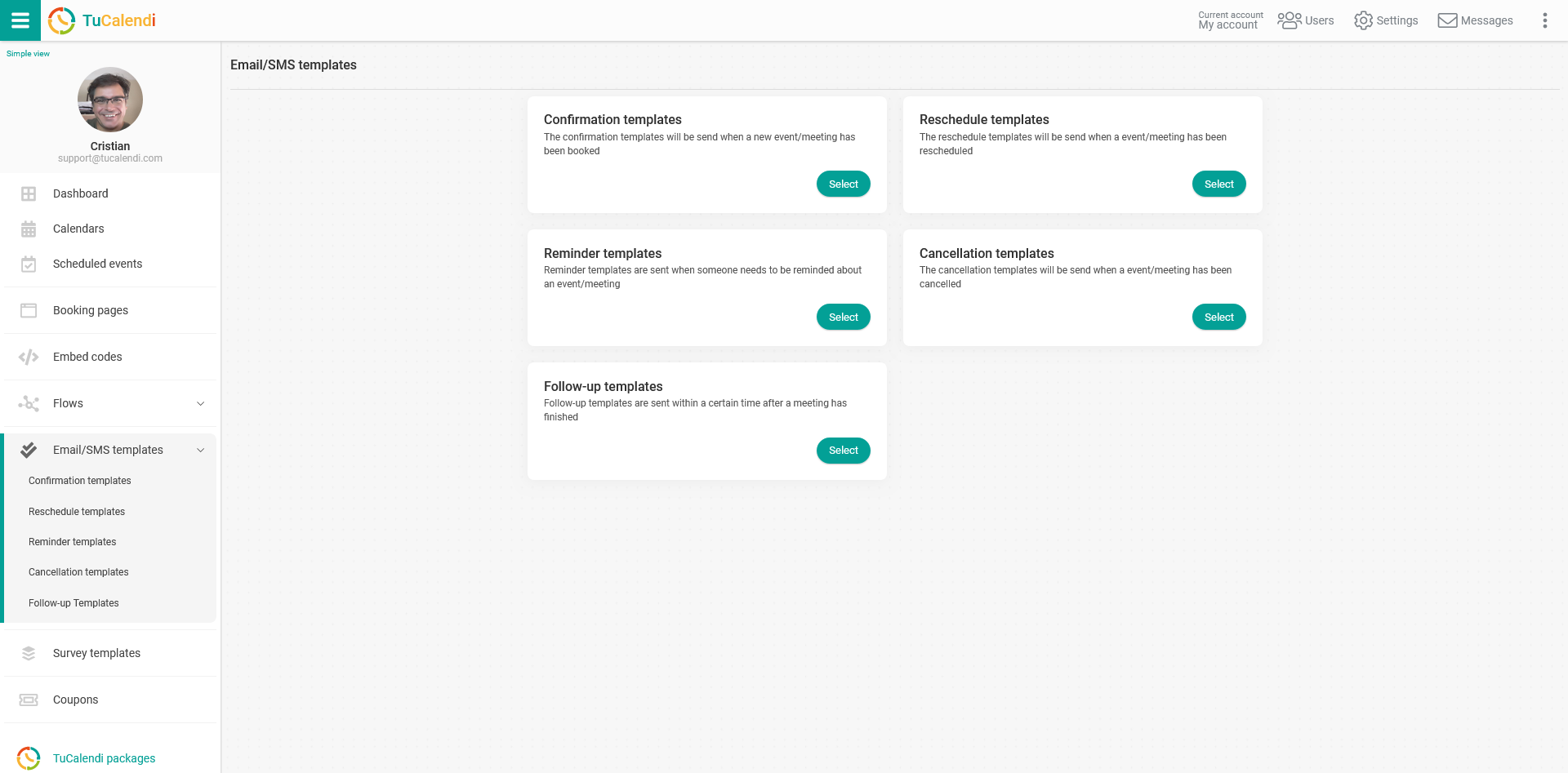
Click "Select" in the "Confirmation Templates" option:
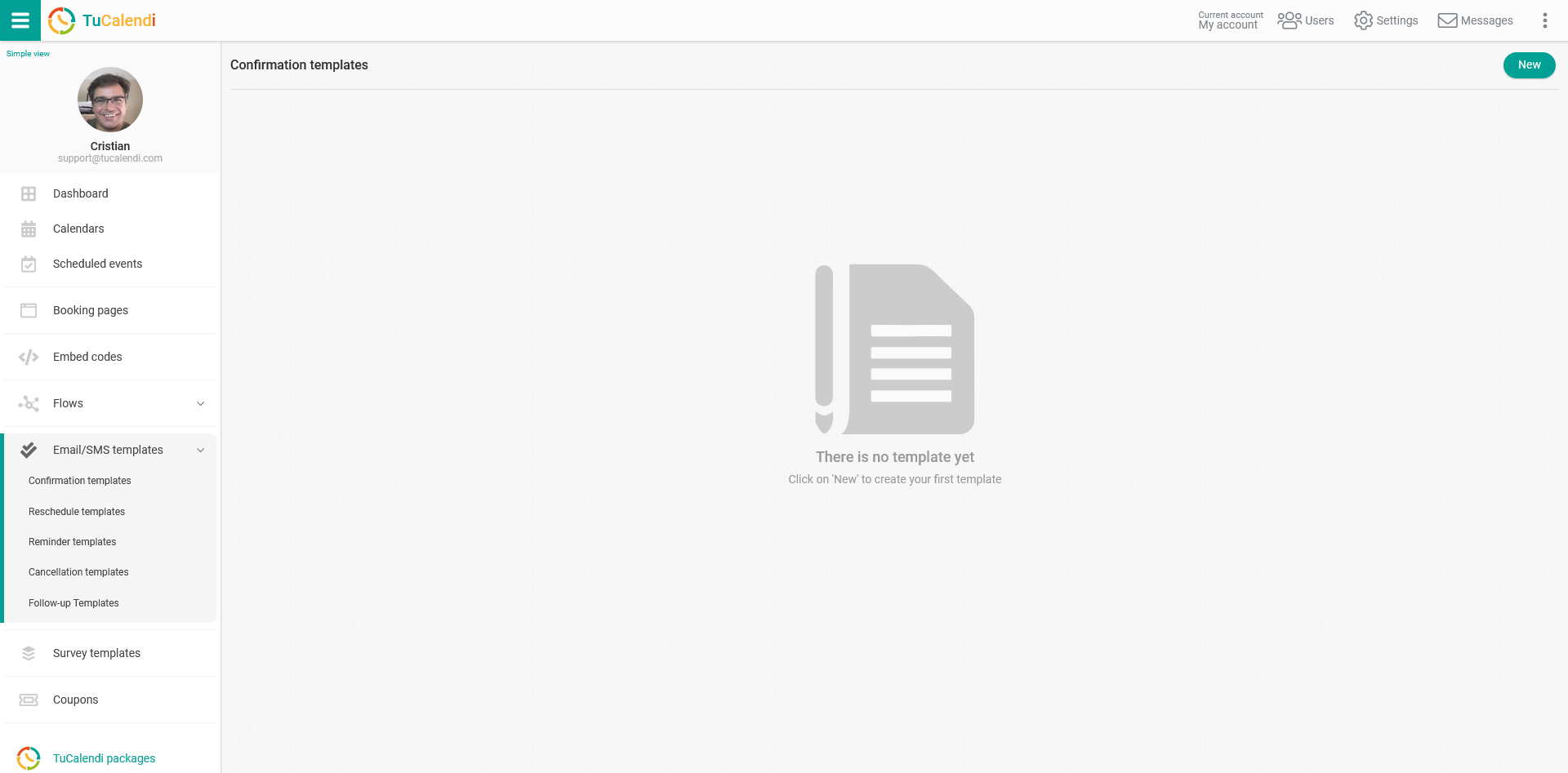
If you have not created any confirmation template yet, click the "New" button and enter the name of the template to start creating it.
If you have already created a template and need to modify it, just click the template you want to modify.
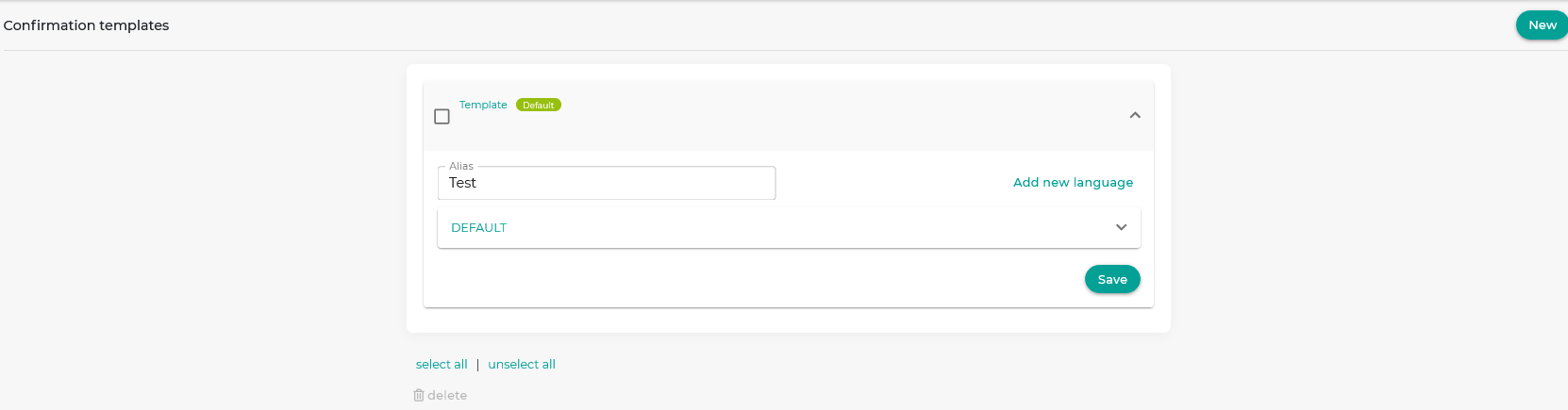
If it is a new template that you are creating from scratch, as in this tutorial, the template will be empty so you can fully customize it.
To begin, click the "DEFAULT" field:
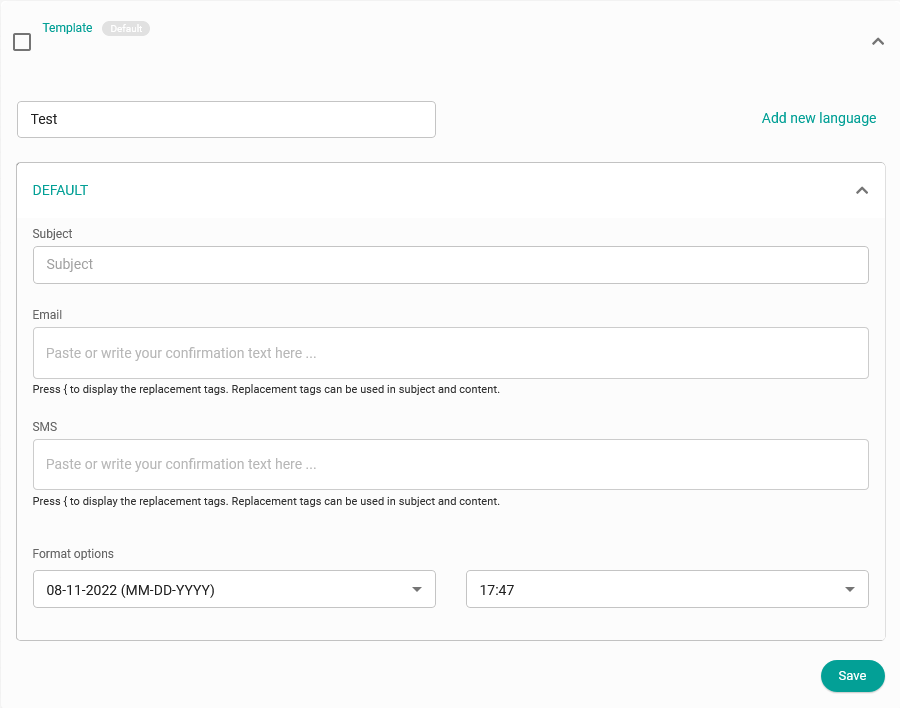
Clicking the "Email" field opens the editor, where you can write the booking confirmation notification and include the various replacement tags available in TuCalendi. To make it even easier, we have added the "Double Opt-in" option to the editor toolbar.
The Double Opt-in feature is only available in confirmation templates.
Click "Double Opt-in":
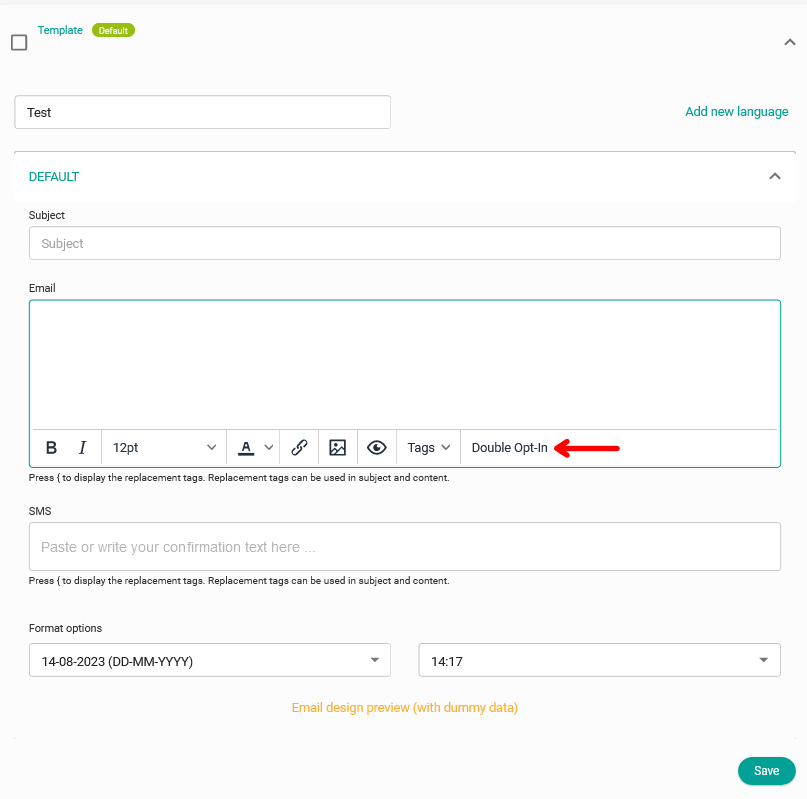
Type the text you want your confirmation template to contain and click "Double Opt-in" to include this feature in the template as well.
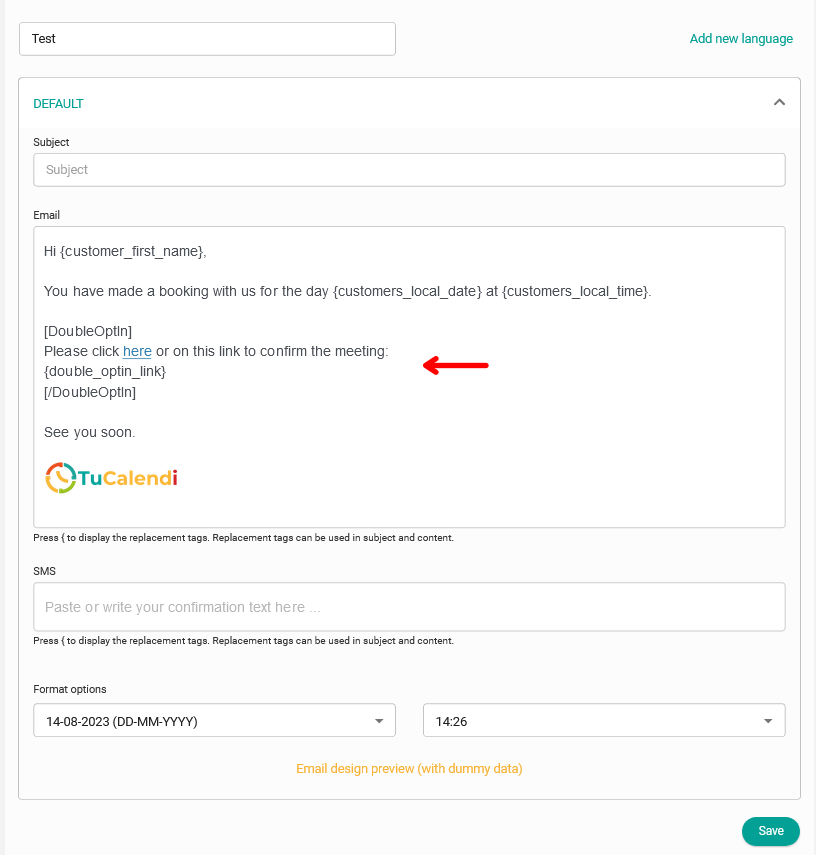
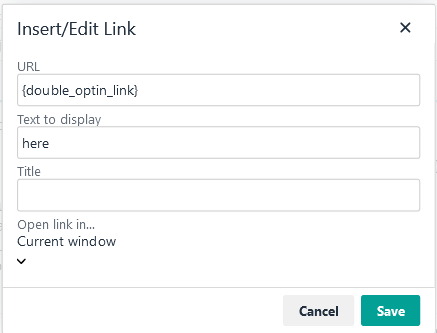
If you do not want the long double opt-in confirmation link to be displayed, you can include the {doubleoptinlink} tag in a linked text. To do this, just select the text, click the insert link option in the editor toolbar and add the tag as the URL.
You can customize the default text that appears in the confirmation template with the double opt-in function.
When you have finished customizing the confirmation template, click "Save". Add the "Double Opt-in" flow, and your customers will need to confirm the booking from the confirmation email they receive when they book an appointment with you.