
We have added a new option to the event confirmation and reminder templates: you can now add images to your email templates. You will see this option when you write your confirmation or reminder templates.
Log in with your TuCalendi username and password. Go to "Email/SMS templates":
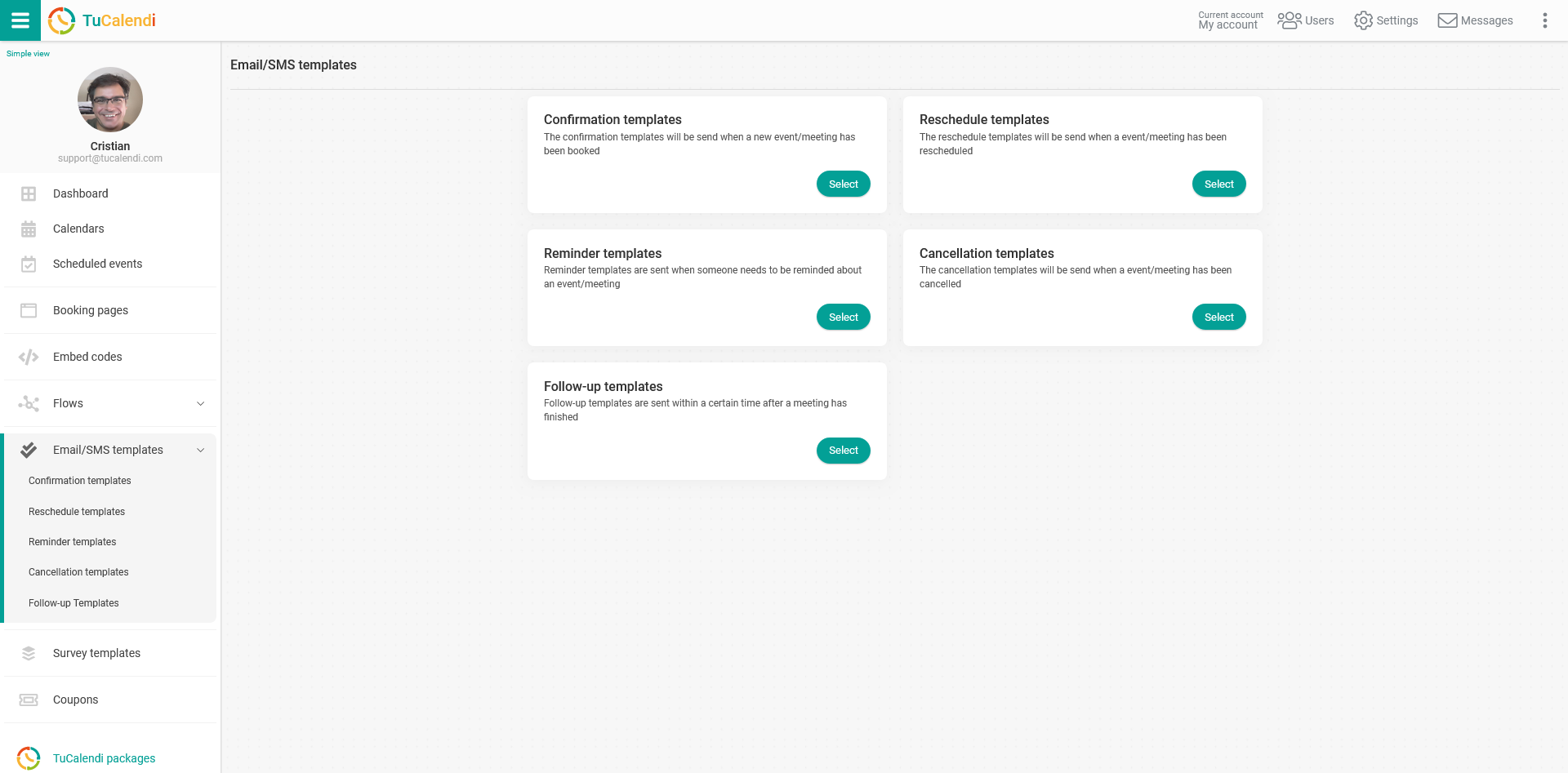
In this tutorial, we will use the "Confirmation Templates" as an example:
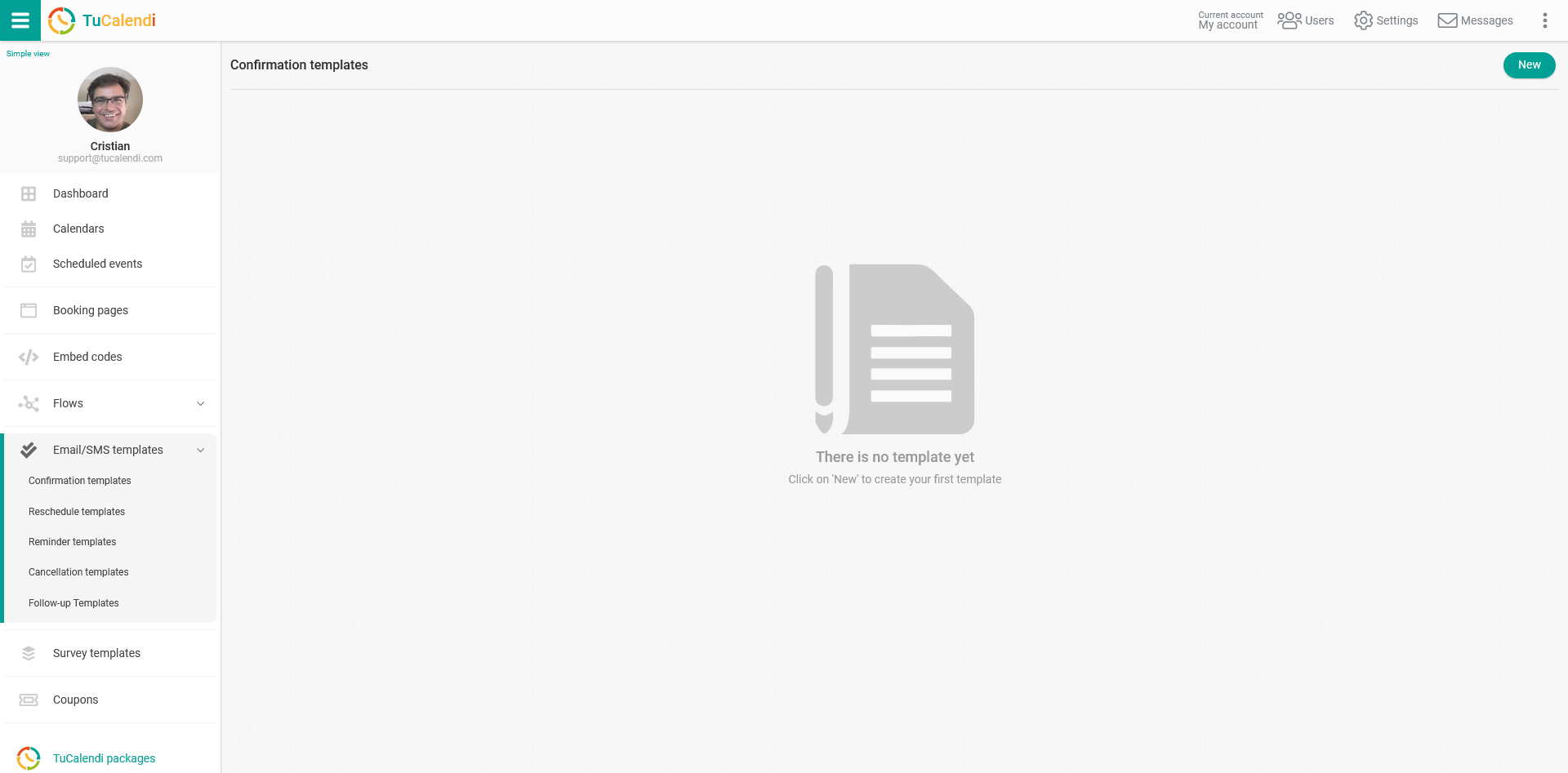
The process is exactly the same for all other templates. You just have to select the templates you want to create.
If you have not created a confirmation template yet, click the "New" button and enter the name you want to give the template.
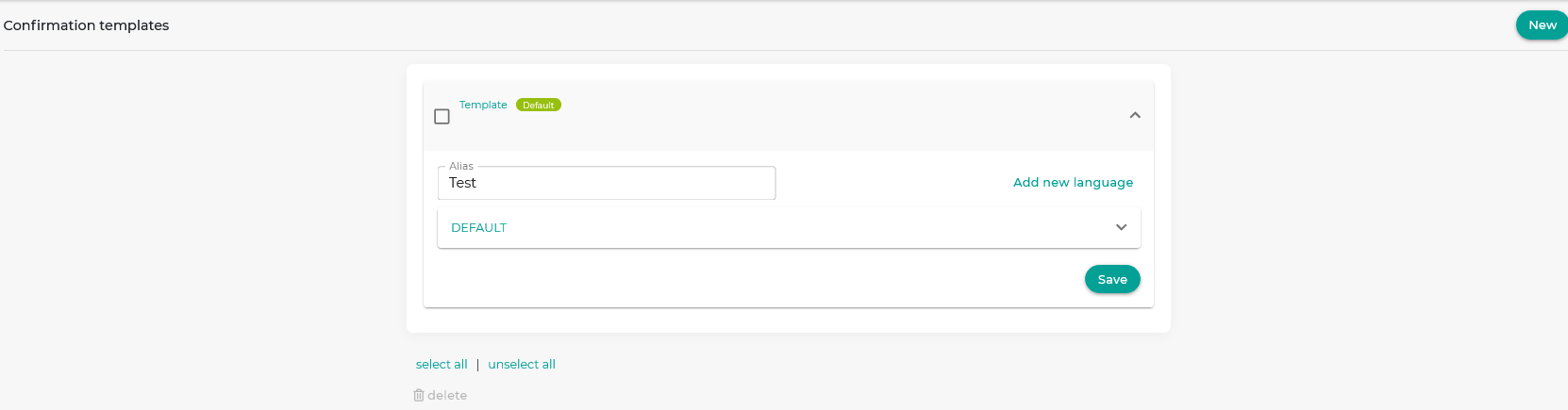
The template starts out empty so you can fully customize it. Click the "DEFAULT" field:
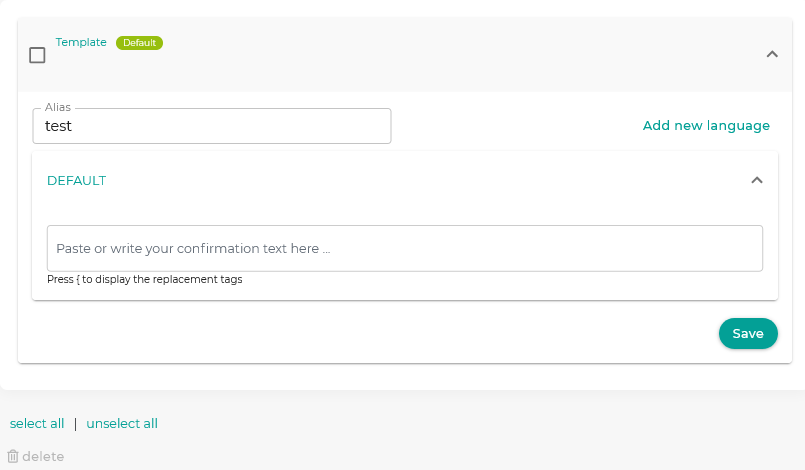
Clicking the "Paste or write the confirmation text here..." box opens the editor, where you can write the notification and add the image of your choice.
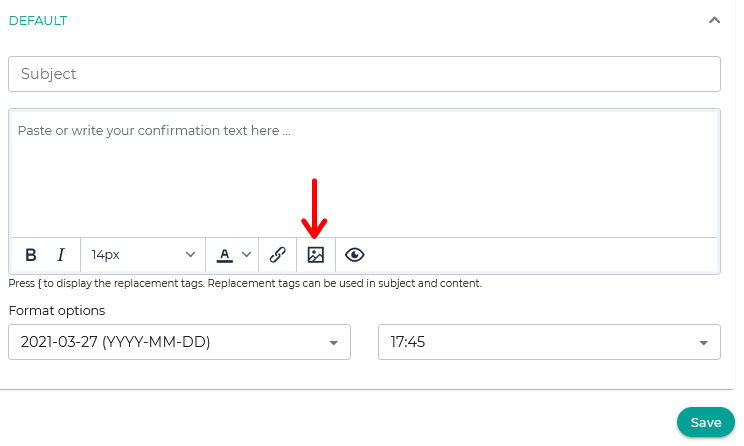
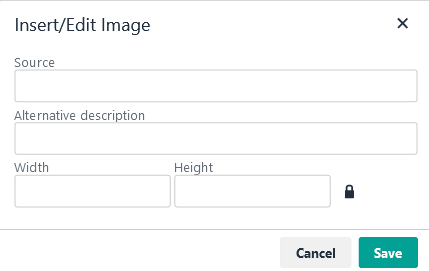
Click the insert image icon and enter the image source (the URL of the image), the description you want the image to have and its dimensions, then click "Save".
Once your template looks the way you want:
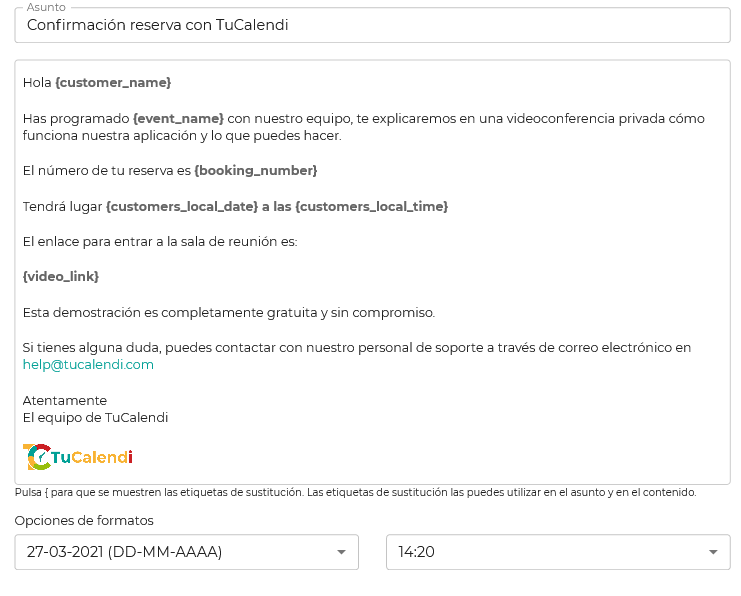
Click "Save" and your template will be stored, so you can start using it in your online calendar event confirmations.
The process for reminder templates is the same. You just need to open the "Reminder Templates" option.