
You always want to stick to the schedules set in advance. However, sometimes, for different reasons, clients need to reschedule a meeting or event they have booked with you. This option should always be available to meet the needs of your customers.
You can reschedule a meeting very easily from the TuCalendi control panel.
You can also reschedule a meeting from the TuCalendi App.
Once you have logged in to TuCalendi with your username and password, click on the "Scheduled Events" option.
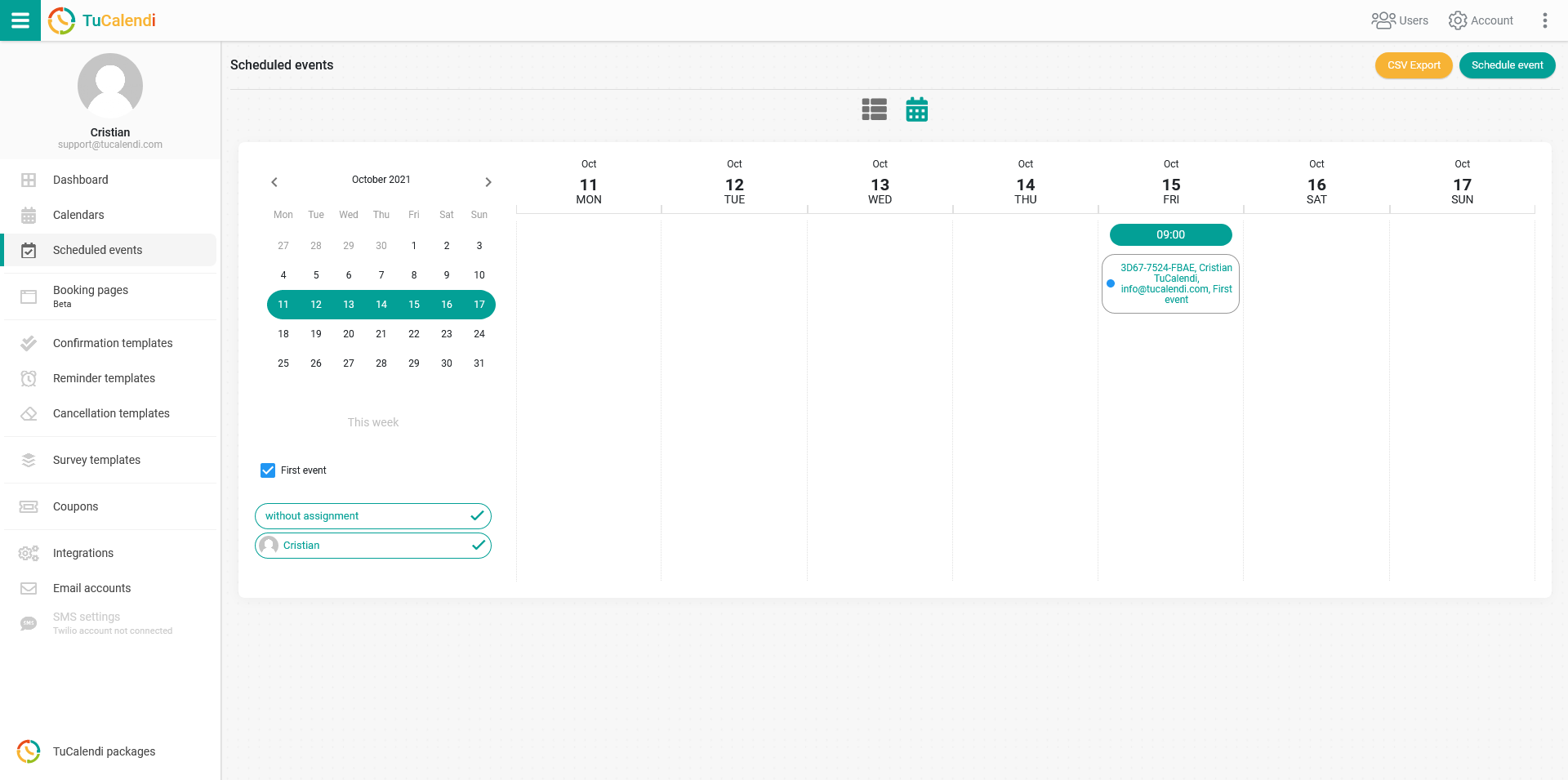
Find the event you want to move to another time or date. Click on the event to open the event details:
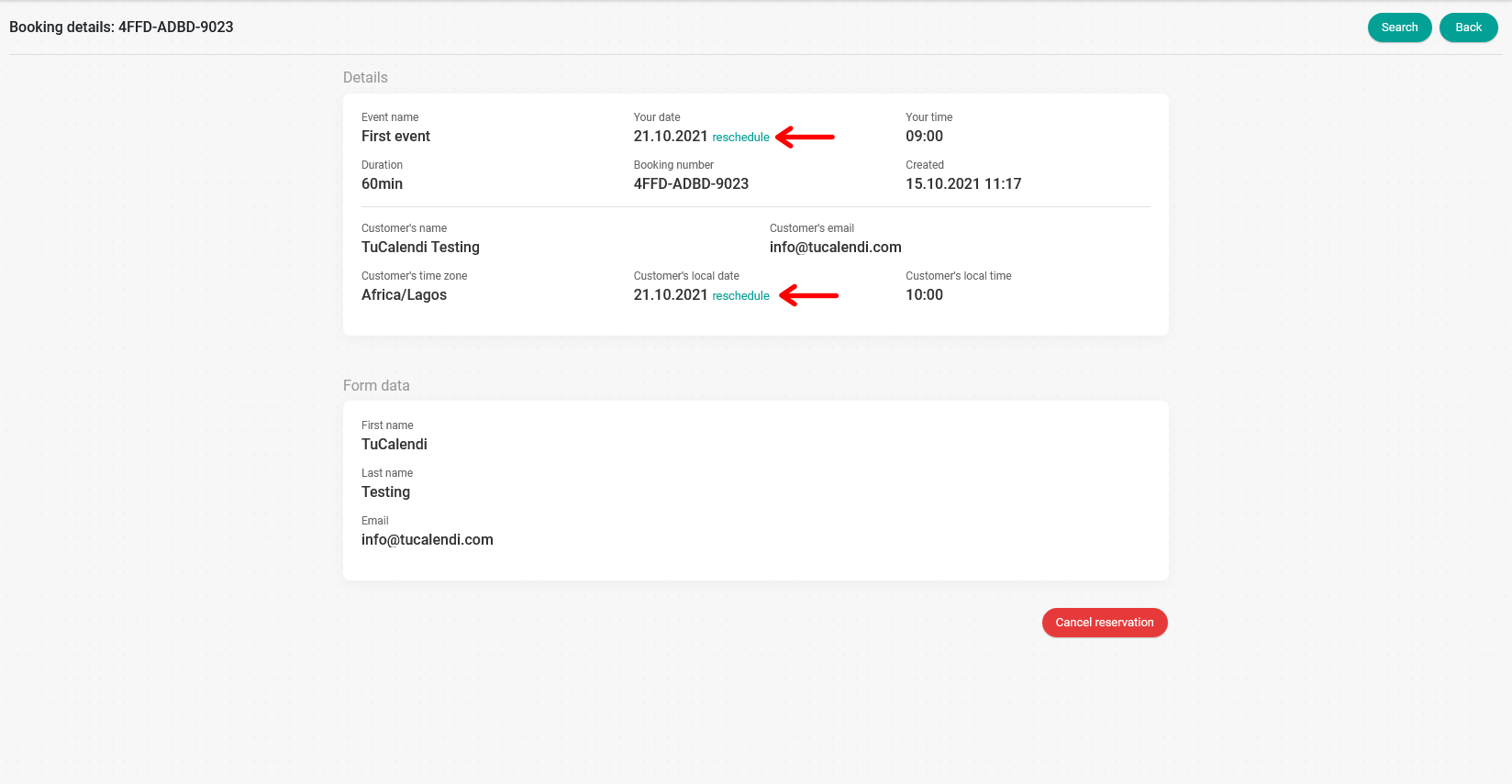
Next to the current date of the event, you will find the option to reschedule. Click on "Reschedule".
A window will open where you can enter the new date and time that suits the client.
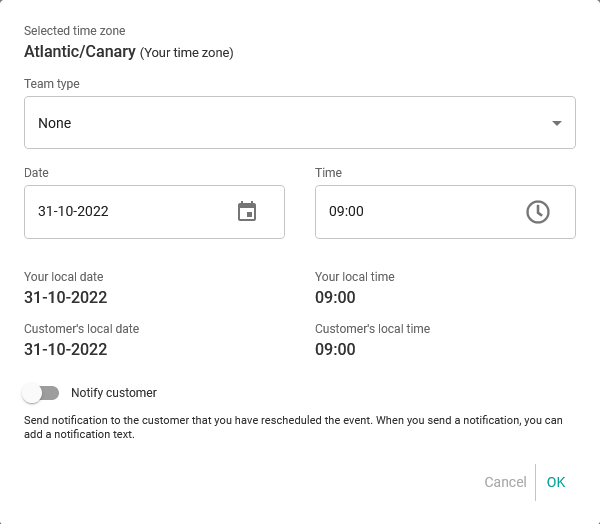
Whenever you can adapt to the customer's needs, set the new time and date the customer requested.
If you want the customer to receive a notification with the new schedule, activate "Notify customer" and select the reschedule template you created previously.
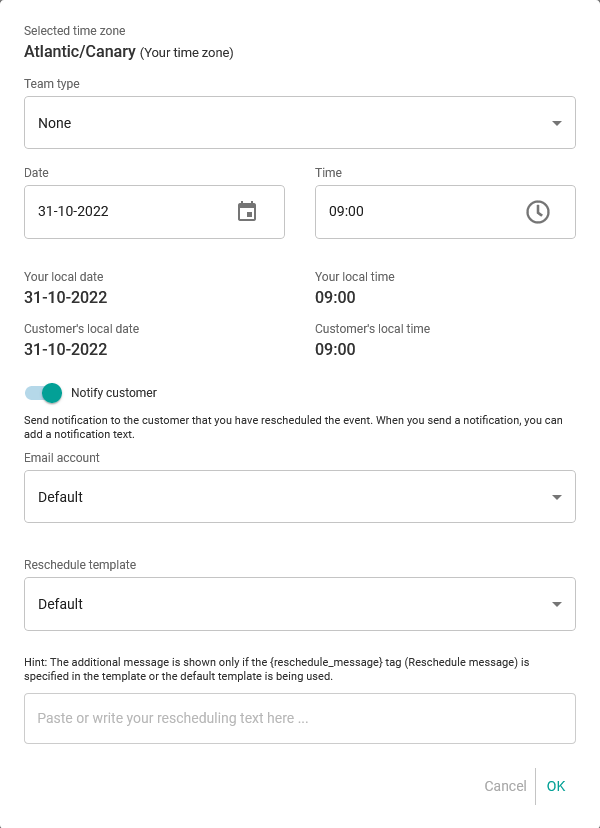
Click on the "Reschedule template" field to select the template you want to send. If you have included the {reschedule_message} tag in the template, you can also write an additional message in the notification.
When you are done, click "OK". The rescheduling will be completed and the customer will receive a notification with the change.
This sets a new time or date for the event and updates the calendar.
You can make this type of change as many times as you want.