
By setting up the reschedule templates you can customize the notifications your customers receive when a rescheduled booking is made.
In this tutorial you will see how to create the email that is sent to your customers when a meeting, appointment or any other event they have organized with you or your team is rescheduled.
Log in with your TuCalendi username and password and go to the "Email/SMS Templates" option.
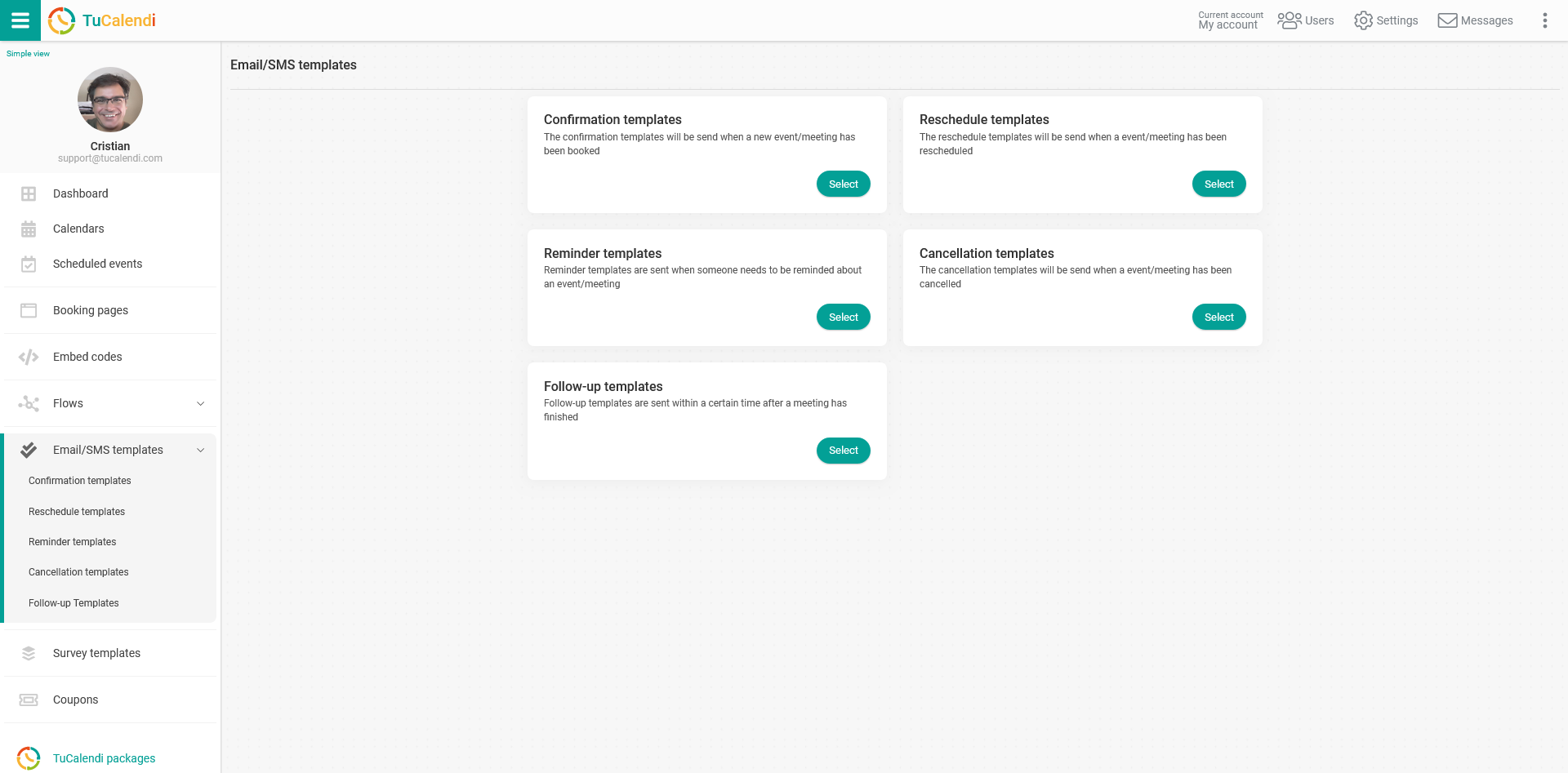
In the "Reschedule templates" option, click on "Select":
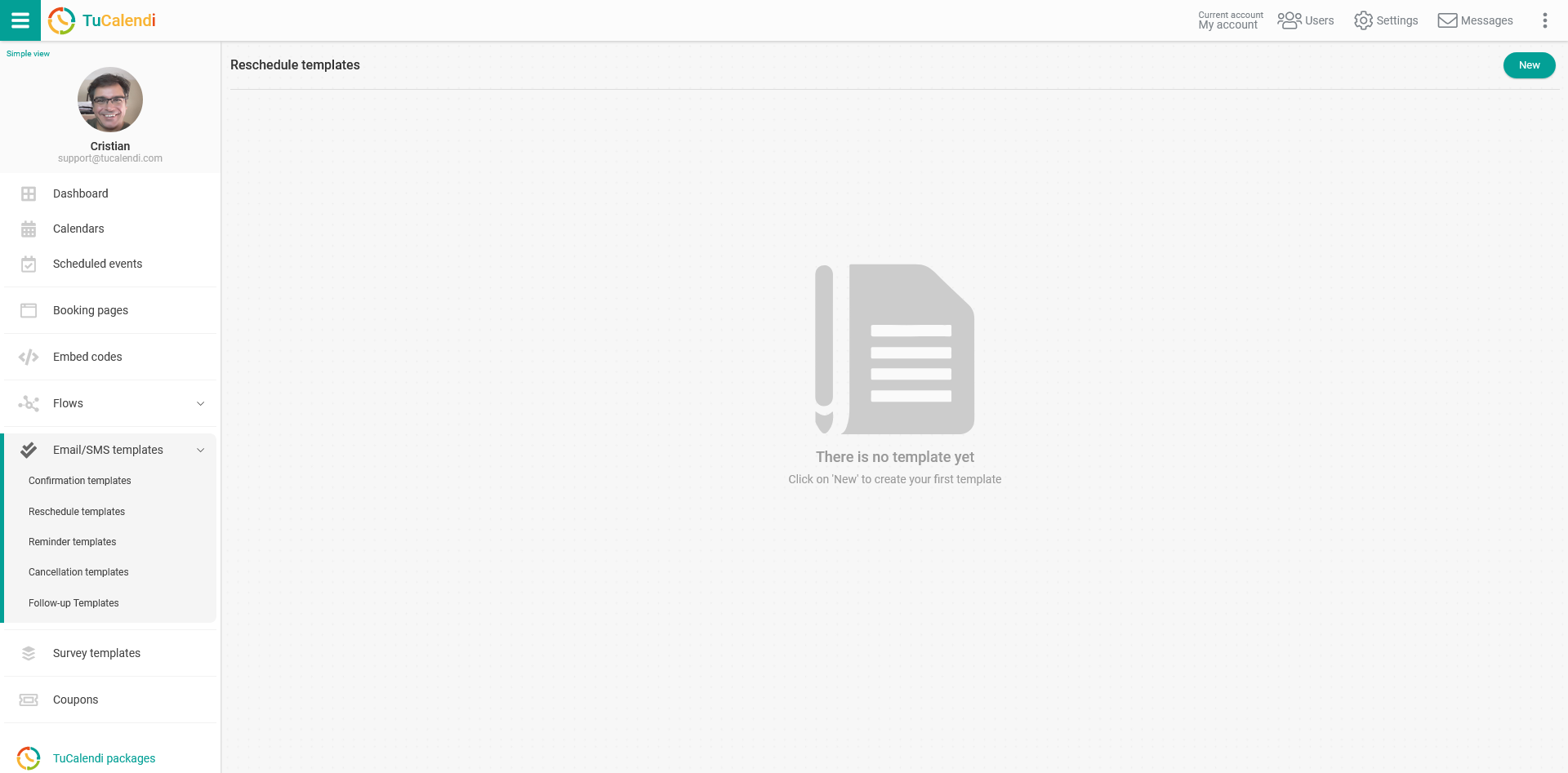
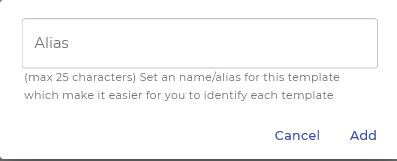
Click on the "New" button and enter the name you want to give to the reschedule template you are going to create:
Initially the template is blank so that you can fully customize it.
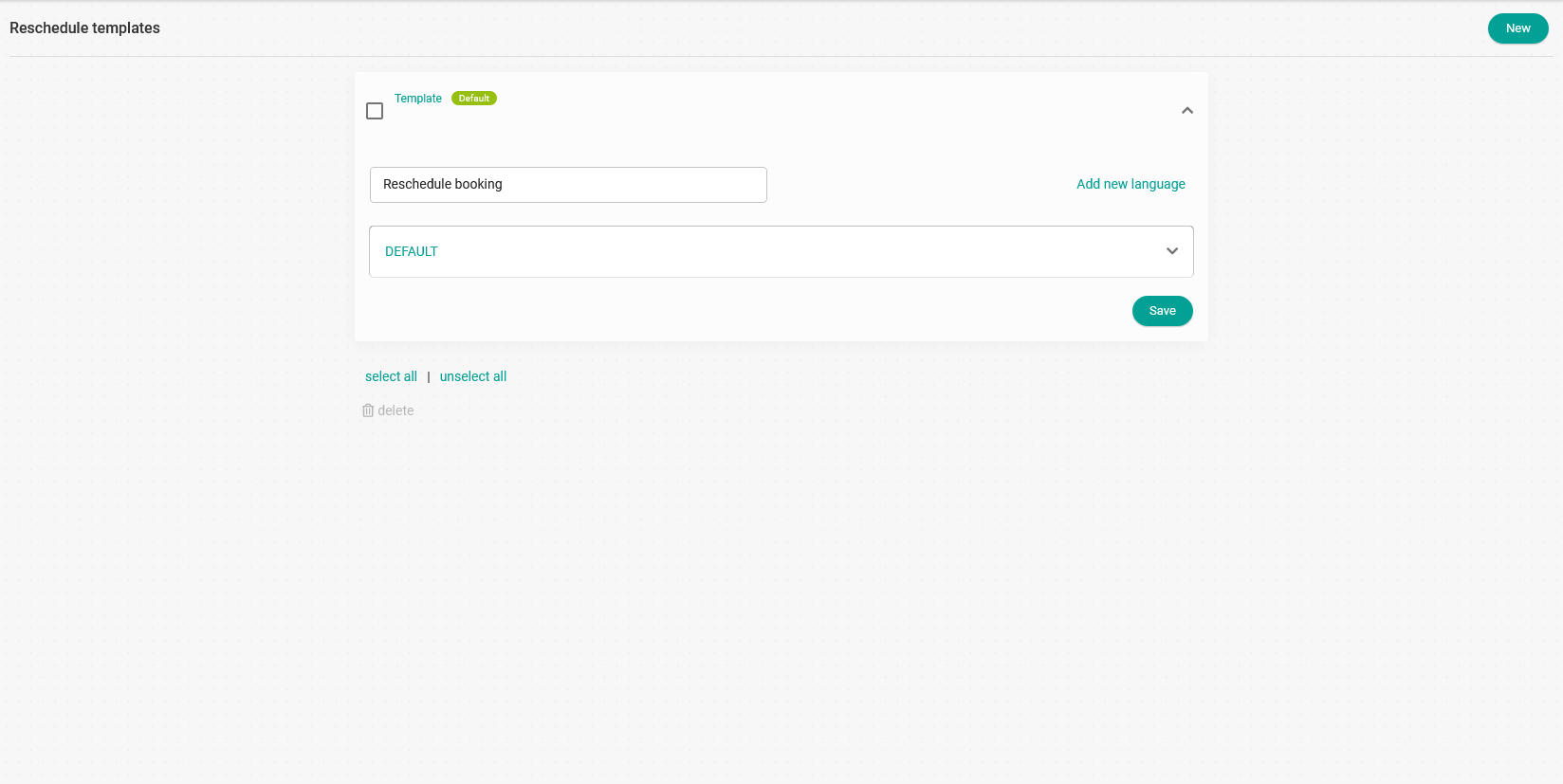
Click on the "DEFAULT" field to start configuring the reschedule template.
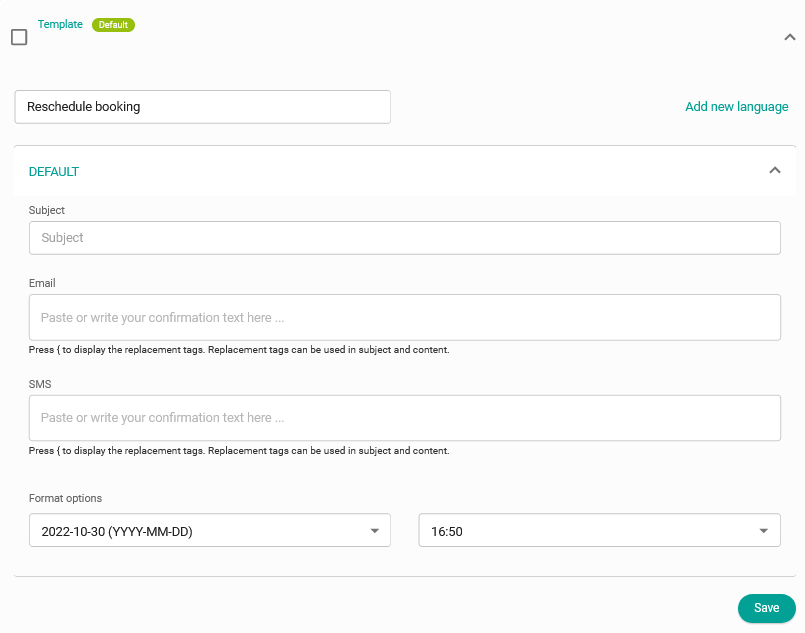
In the "Subject" field you can enter the subject of the email your customers will receive when the booking is rescheduled.
Clicking on the "Email" field opens an editor where you can write the reschedule template.
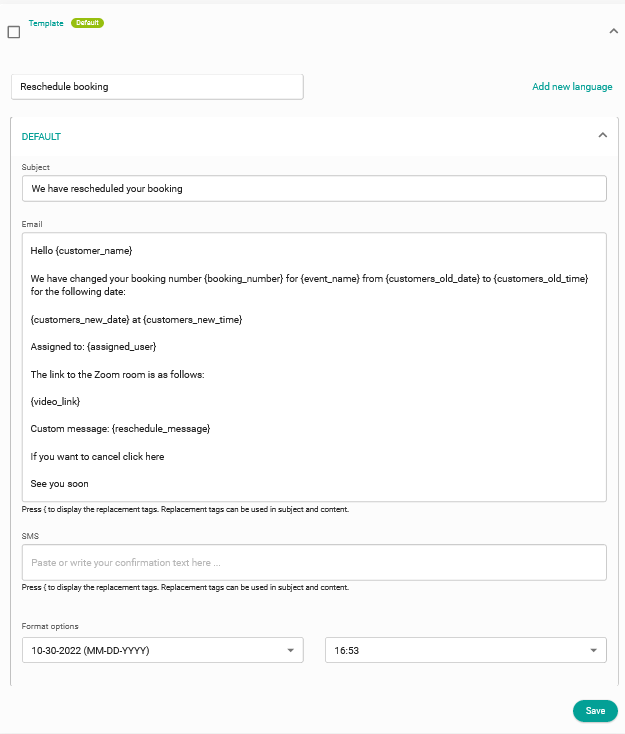
You can use the so called replacement tags available for reschedule templates. With this option, the information in the emails will be dynamic and personalized for each customer. To see the tags, just type the character { and the list of tags will be displayed for you to choose from.
Certain replacement tags are only valid for reschedule templates.
Finally, click on "Save" and your template will be stored, so you can start using it whenever you need to reschedule a booking your customers have made.
NOTE: You can have the template in different languages. Just click on "Add new language" and create the template in the languages you want.