
With TuCalendi, it is possible to schedule a meeting manually. We implemented this option for a simple reason: several users requested it.
They told us that sometimes end customers were not able to access the booking page and ended up calling by phone to arrange the meeting or book the event.
They needed everything to be unified in one place. It was a necessary feature, so we developed it.
Scheduling a meeting manually is a simple process.
Once you have logged in with your username and password, you will enter the TuCalendi Dashboard.
In the "The next booked events" block, you will find the "Schedule event" button. Click on this button.
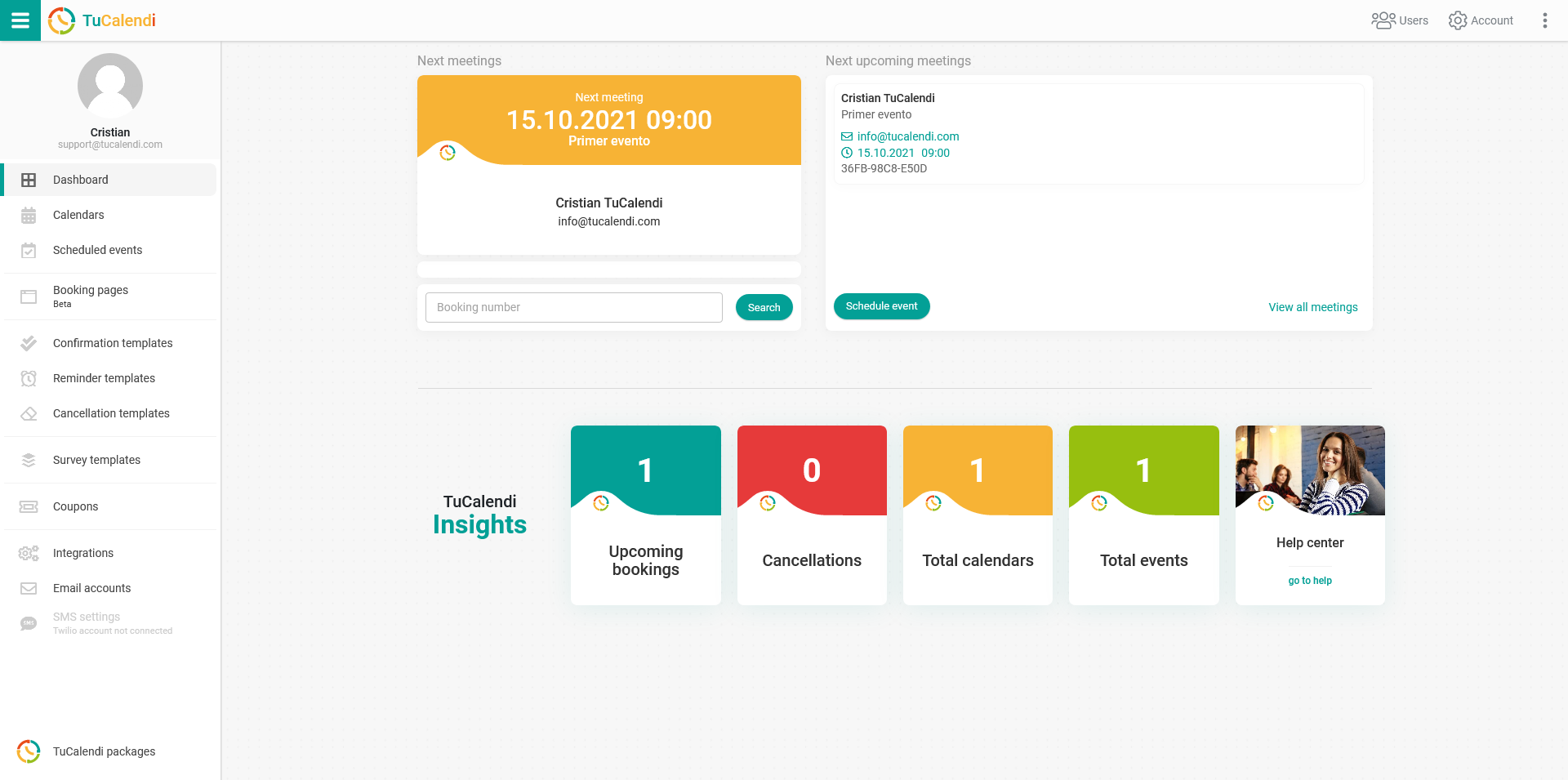
You will be taken to the page where you can schedule the event manually. In a few simple steps, you will have created the booking manually:
- Select the event.
- Indicate the time zone where the customer is located.
- Choose the date your client requests and select the time they want.
- Enter the information requested in the event form.
IMPORTANT: You have to indicate the time zone where the customer is located to avoid confusion with the booking times.
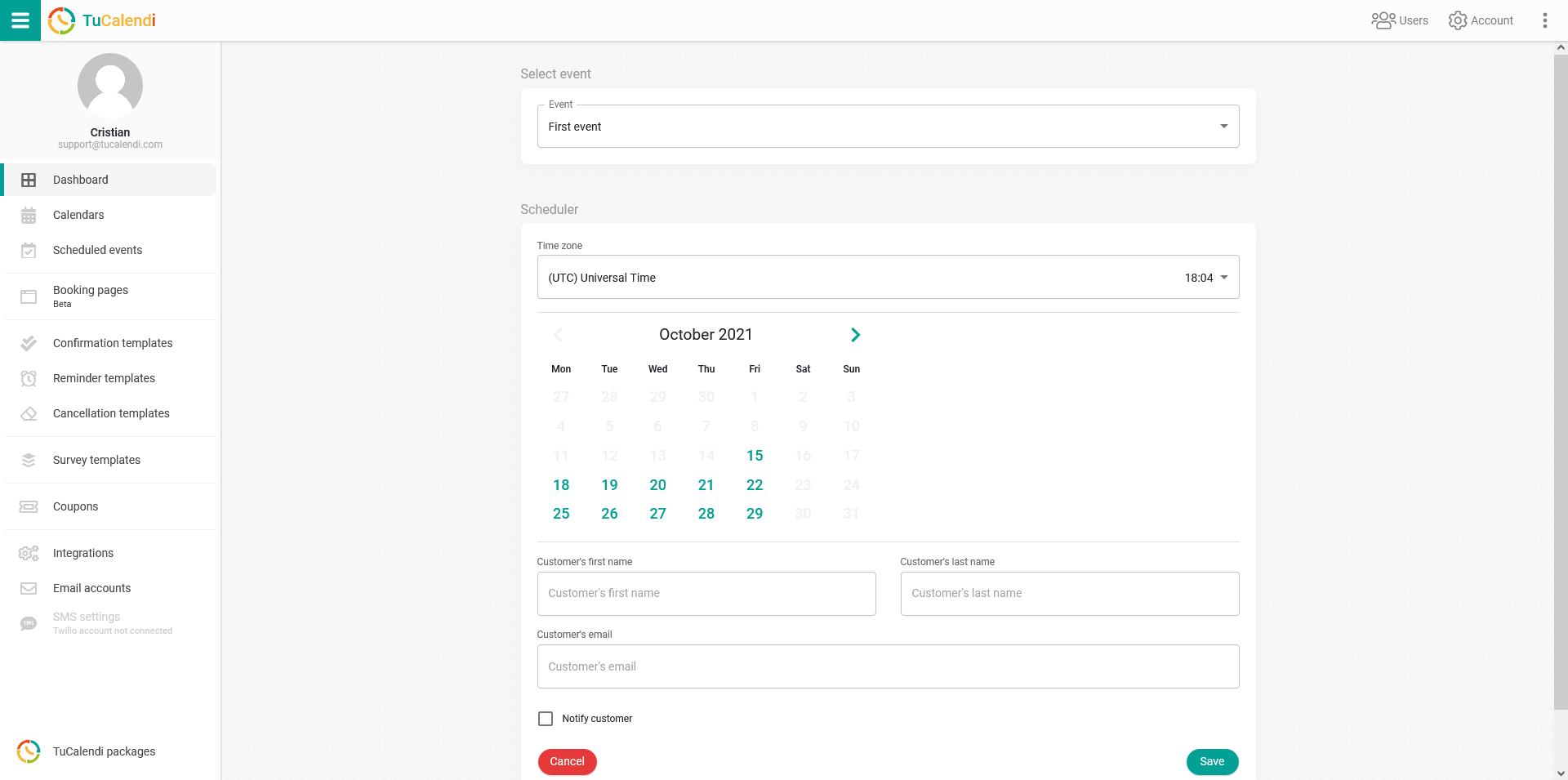
Check the "Notify customer" box to have notifications emailed to the customer and click "Save".
By accessing the "Scheduled events" option, you will also find the option to "Schedule event".