
For a form flow to be operational, it must have the events you want to use it with assigned to it.
IMPORTANT: The same event cannot be assigned to two different form flows.
After creating a form flow, you need to continue by assigning the events.
Log in to TuCalendi with your username and password. In the side menu, click on "Flows":
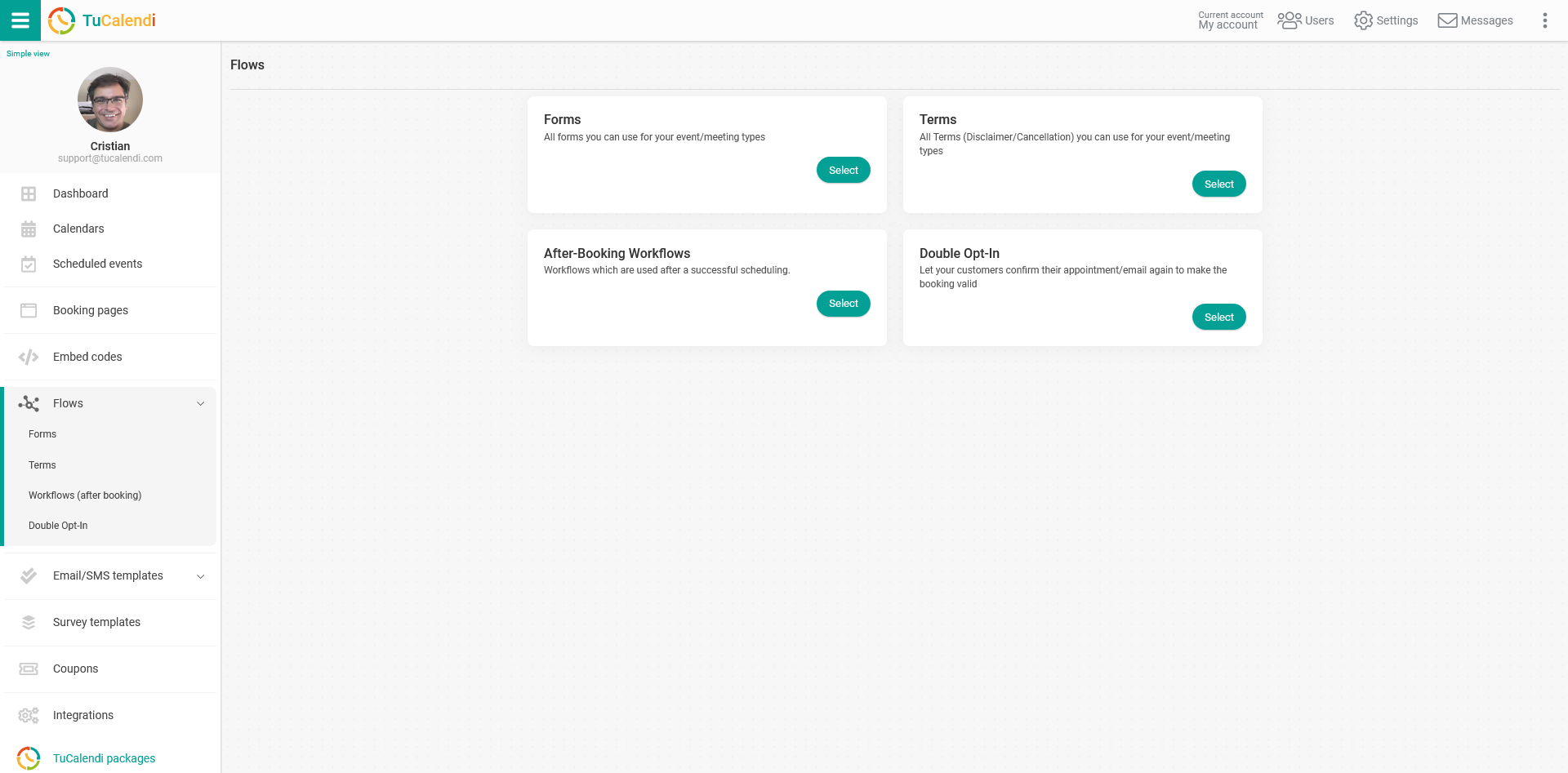
In the "Forms" option, click on "Select":
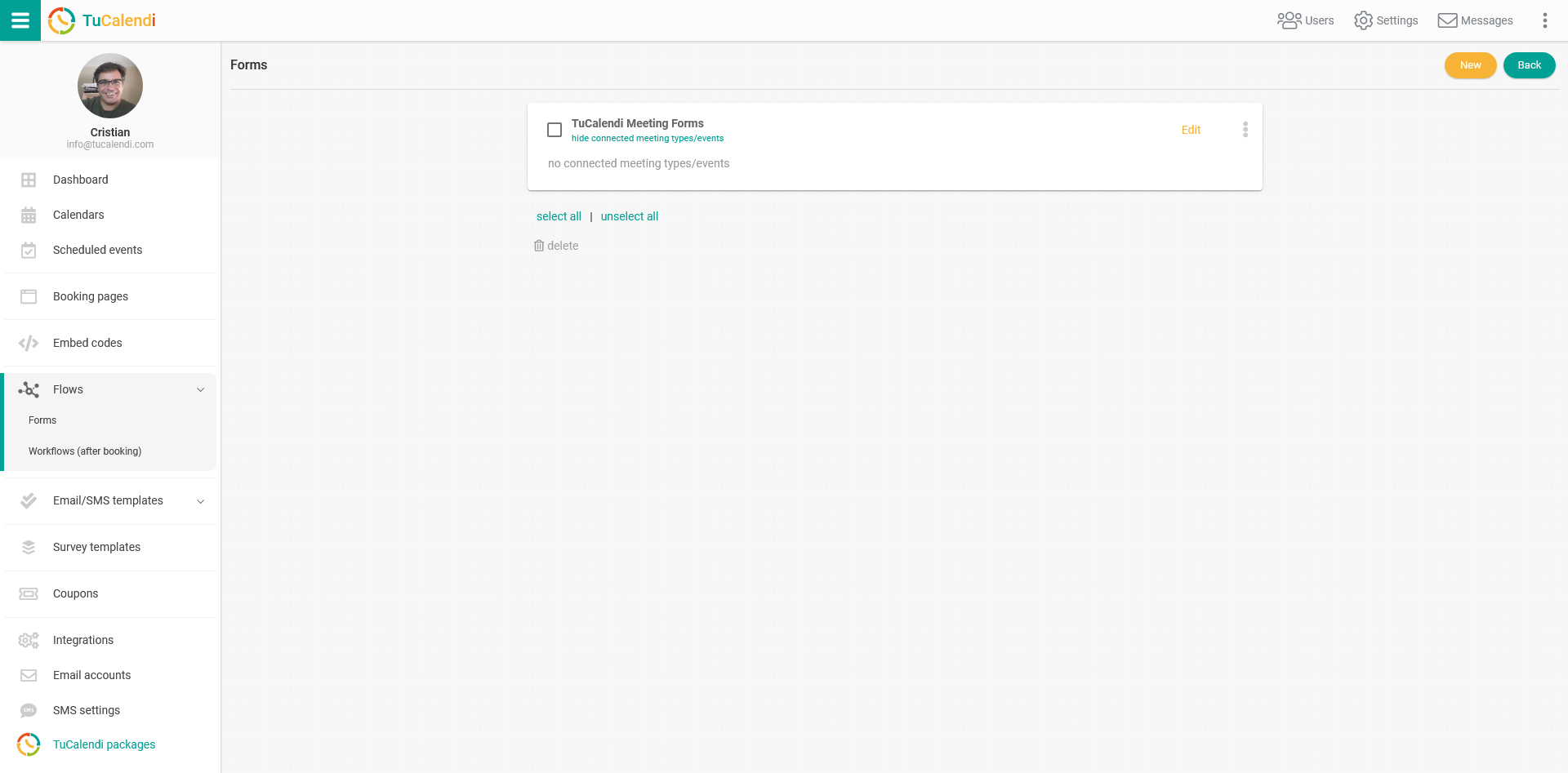
Since you have previously created a form flow, it appears in the list. However, for the form flow to be operational, you must associate the events where the created form will be displayed when the end customer makes a reservation.
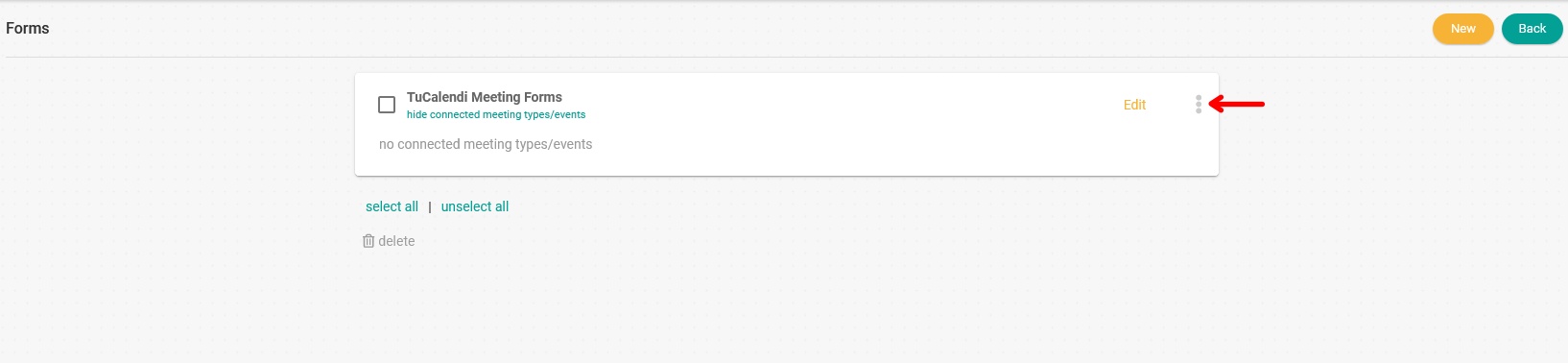
Click on the three vertical dots:
The flow options menu will be displayed:
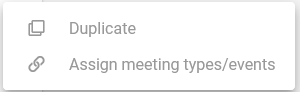
Click on "Assign meeting types/events" and the complete list of events you have created in your calendars will appear. You only need to select the events you want to use this form flow with:
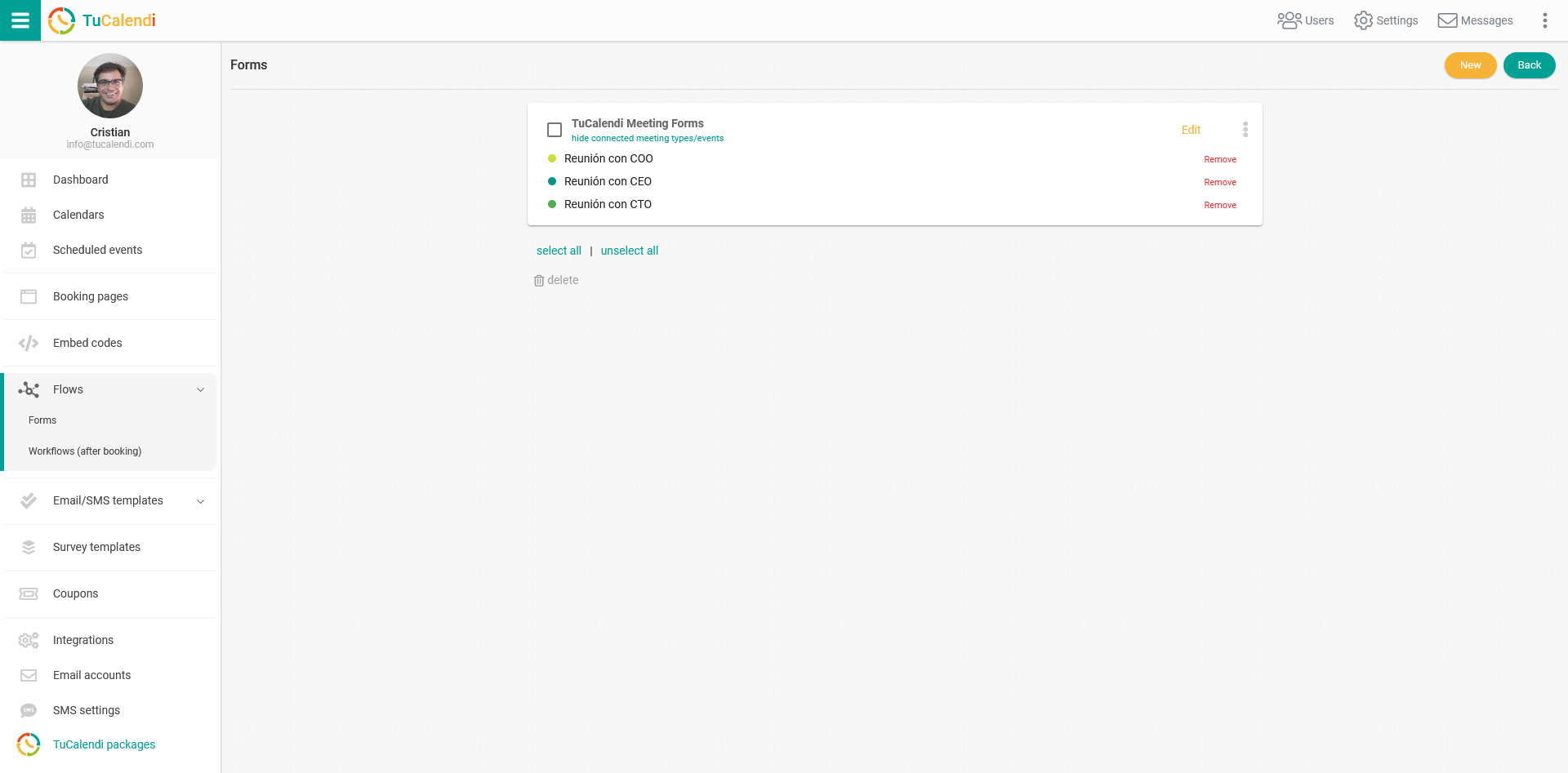
In this case, you want the form you created to be displayed in the three events you selected. Here they appear as events connected to the form flow.
From this moment on, when someone books a meeting for any of the events assigned to the form flow, they will have to fill in the form.
At any time, you can add or remove events assigned to a form flow.