
In TuCalendi we have developed the double Opt-In flow for cases where your customer needs to give a double confirmation of the reservation they have made.
Creating the flow for the double Opt-In is very simple, as you only need to assign to the flow the events that require double confirmation.
Log in to your TuCalendi account with your username and password. In the side menu, click on "Flows":
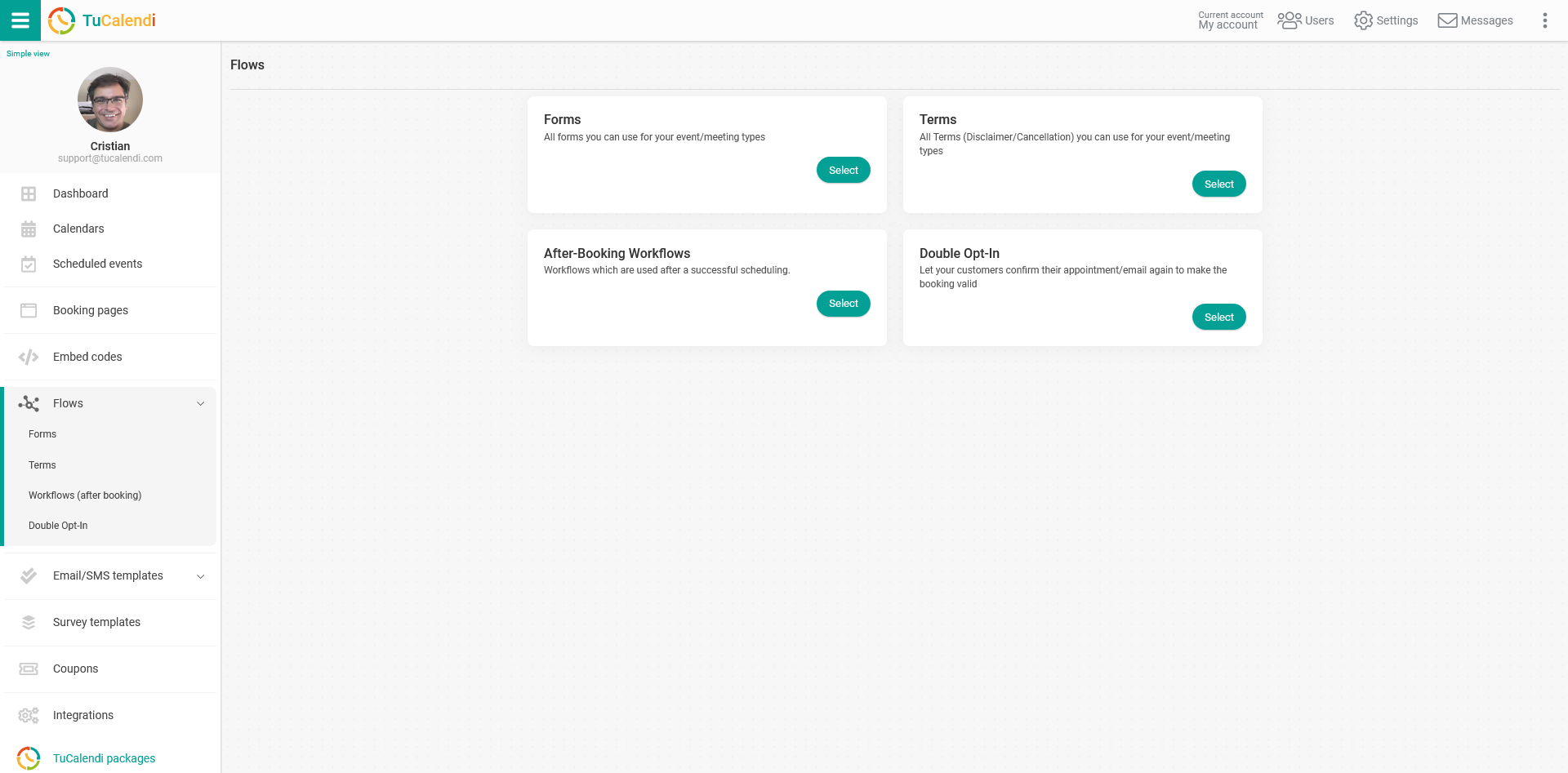
In the "Double Opt-In" option, click on "Select":
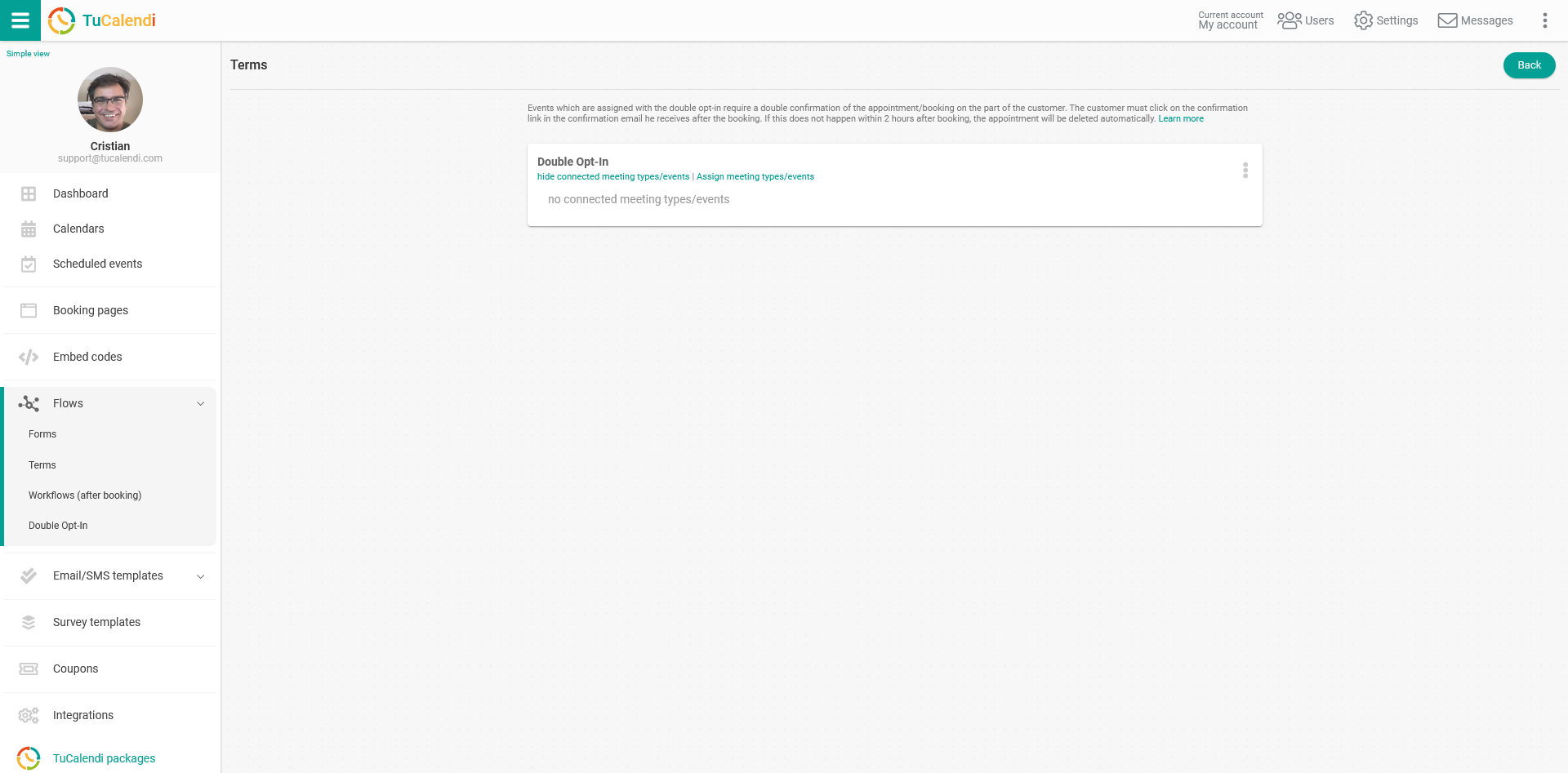
We have developed this flow so that you only need to choose the events that require a double confirmation of the booking.
Click on the three vertical dots:

The menu with the Double Opt-In flow options will be displayed:
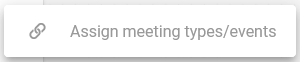
Click on "Assign meeting types/events" and the complete list of events you have created in your calendars will be displayed. You only need to select the events that need a double Opt-In confirmation and click on "Save".
This assigns the events to the double Opt-In flow.
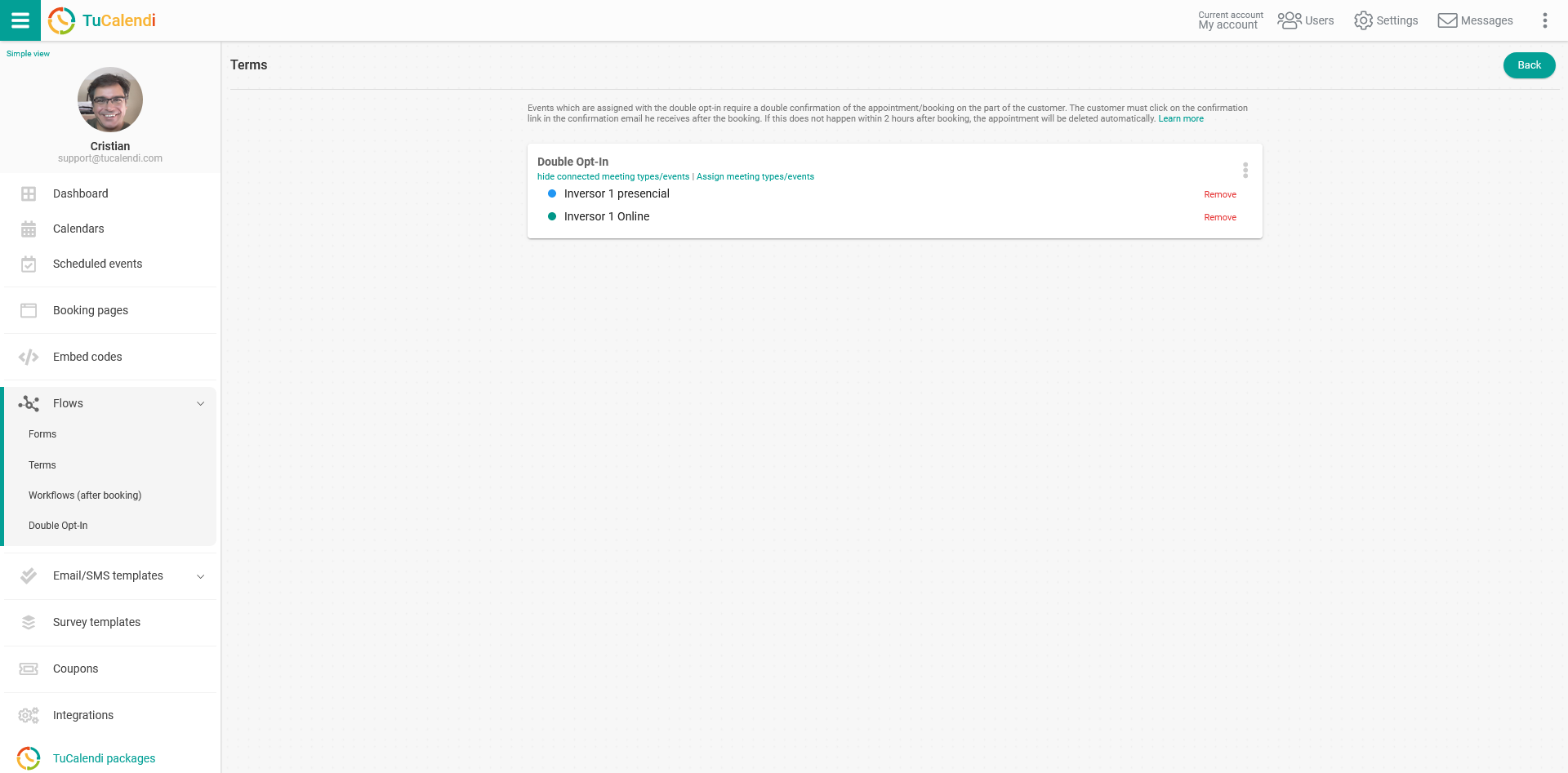
For the double Opt-In process to be fully operational, you must add the double Opt-In link in the confirmation template.
IMPORTANT: If you assign an event with a double Opt-In procedure but the confirmation template does not contain a double Opt-In link, the client will not be able to confirm the appointment. The booking will be automatically deleted after 2 hours and the time slot will be released again.