
When you have created a workflow and you need to create a new one with the same triggers and only change some actions, for example using different email templates, you don't have to create the workflow from scratch: you can duplicate an existing workflow.
Note that the same event cannot be in two different workflows.
Let's see how to duplicate a TuCalendi workflow.
Log in with your TuCalendi username and password. Go to the "Workflows" menu:
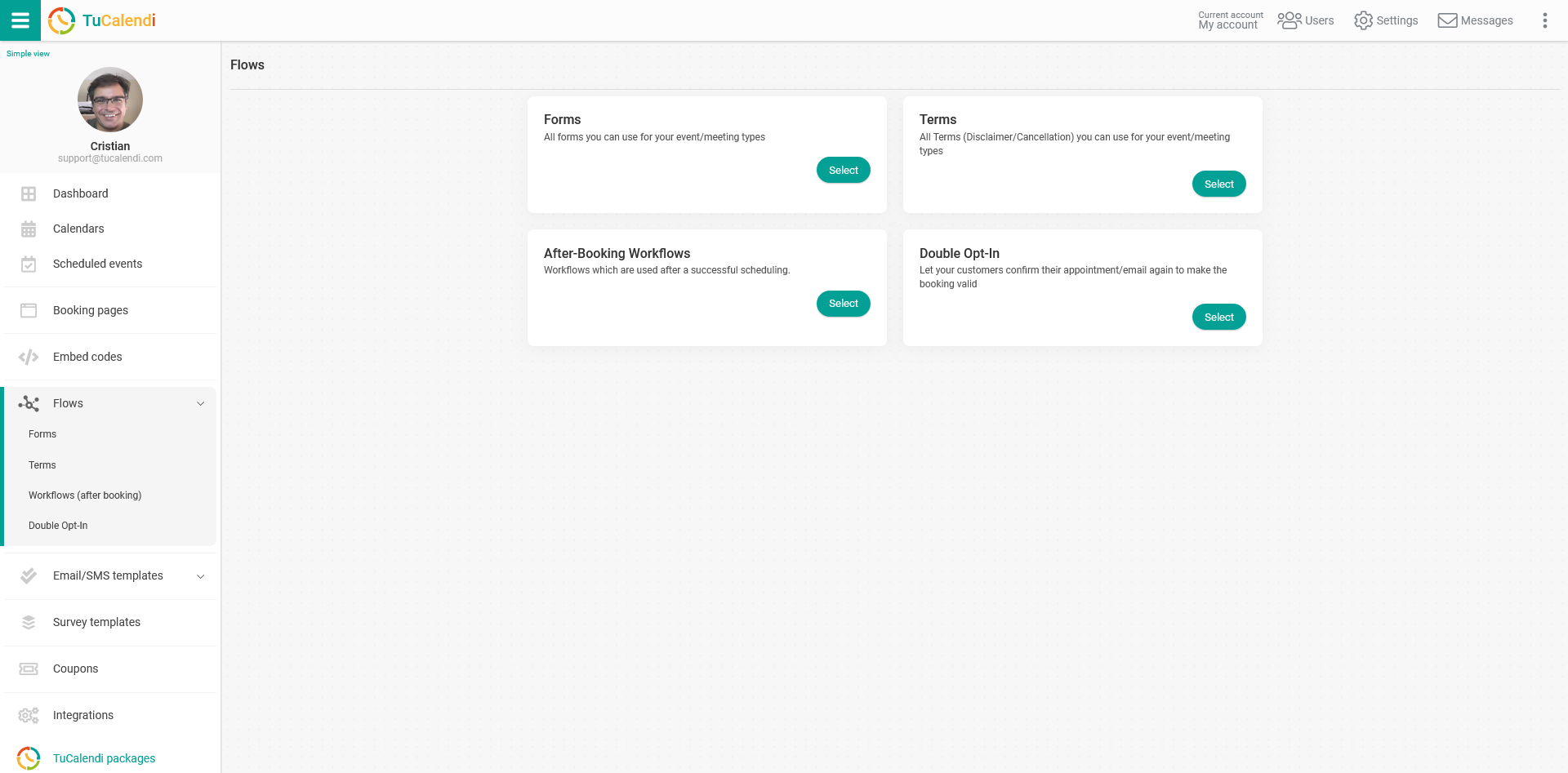
Under the "Workflows (after booking)" option, click on "Select".
Since you have already created a workflow, you will see the ones that are available:
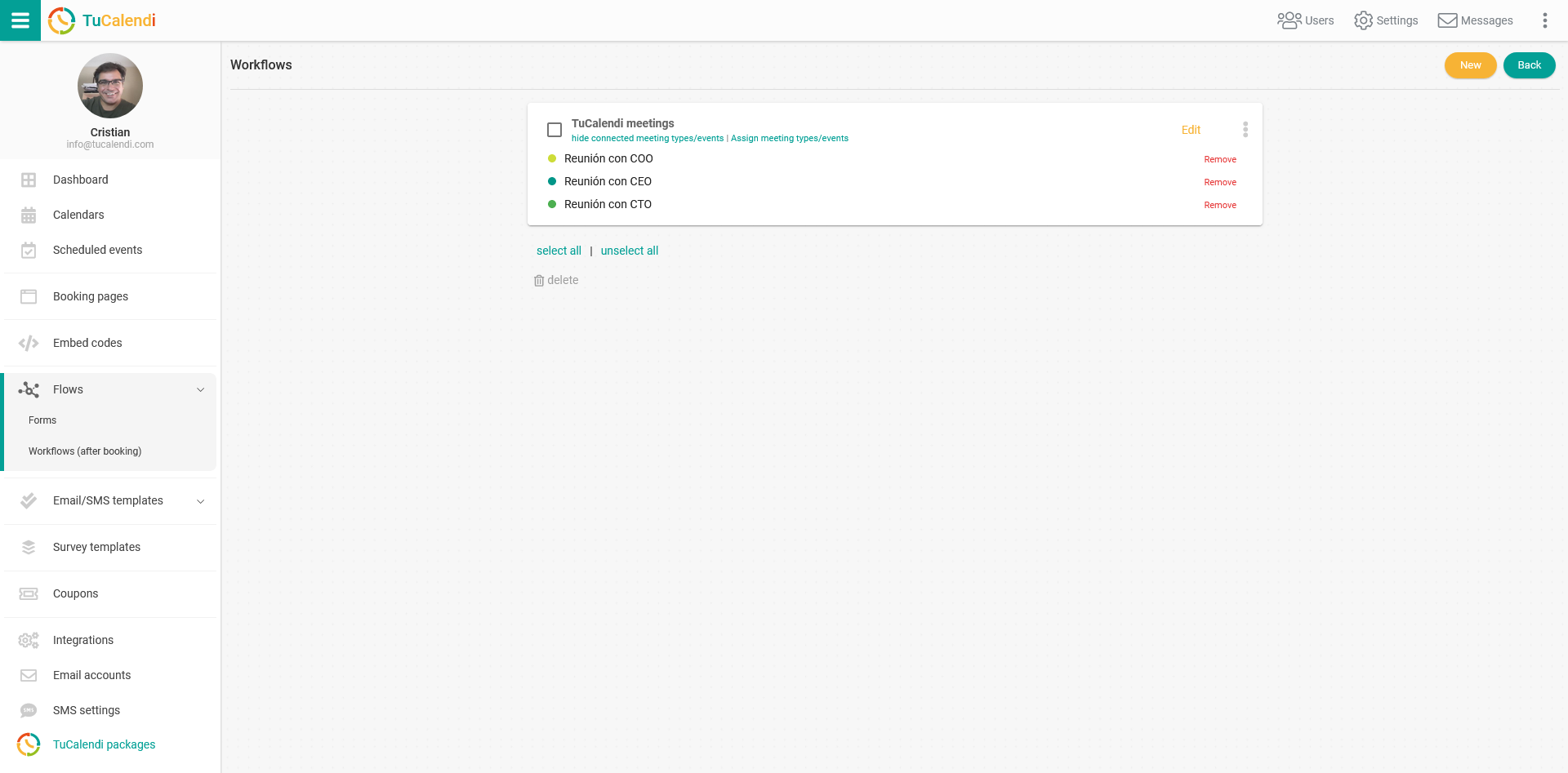
Click on the three vertical dots of the workflow you want to duplicate:
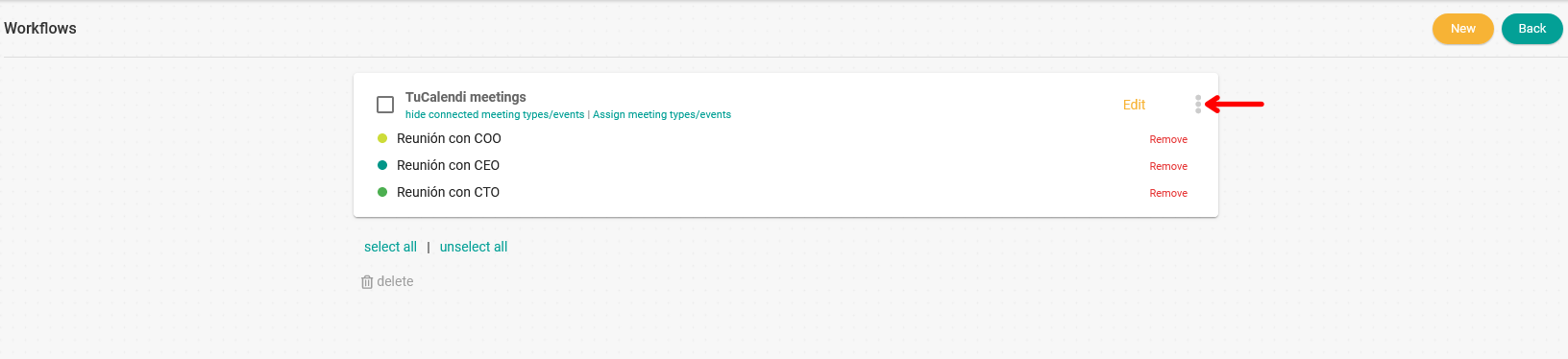
The options menu will be displayed:

Click on "Duplicate" and give the duplicated workflow a name:
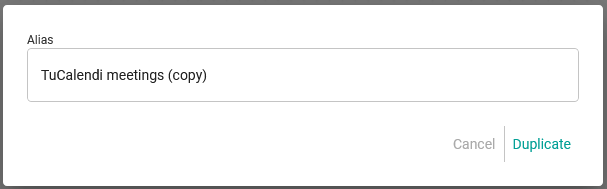
Once you have entered the name, click on "Duplicate".
This will duplicate the original workflow, and the new one will appear in the list of available workflows.
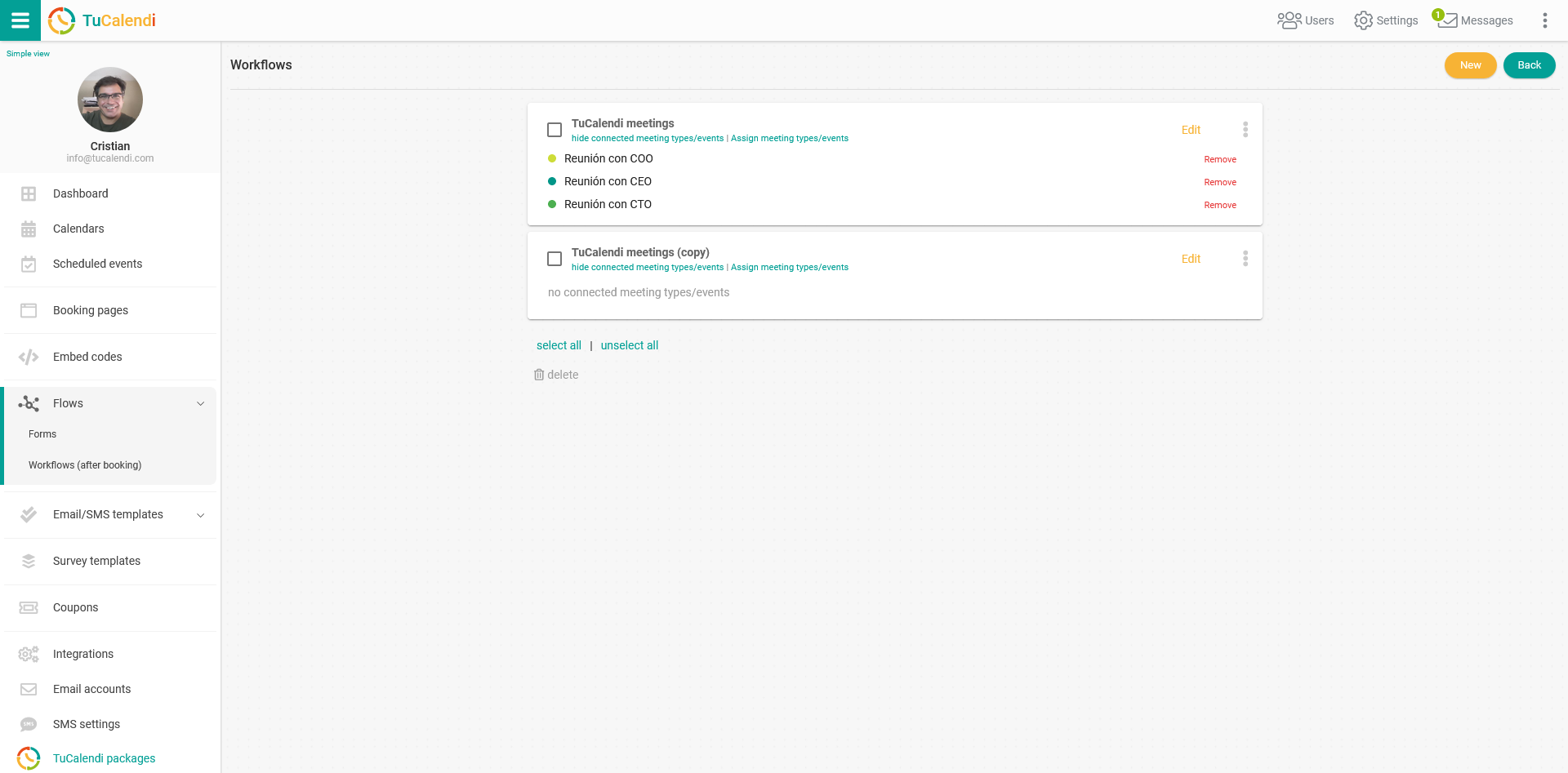
The duplicated workflow appears without assigned events because the same events cannot be in two workflows.
Now edit the workflow to make the changes you need and then assign the corresponding events to the new workflow.