
With the new workflow feature, you can continue to use webhooks to send real-time data about confirmed, rescheduled or cancelled bookings from TuCalendi through the URL that platforms like Zapier or Pabbly Connect provide, so you can connect TuCalendi with thousands of applications.
Let's see how to send a webhook from a workflow. As an example, in this tutorial we will send a webhook when a booking has been made.
We will edit an existing workflow and add a new action that sends a webhook when a booking has been confirmed.
Log in with your username and password to TuCalendi. Go to the "Flows" menu:
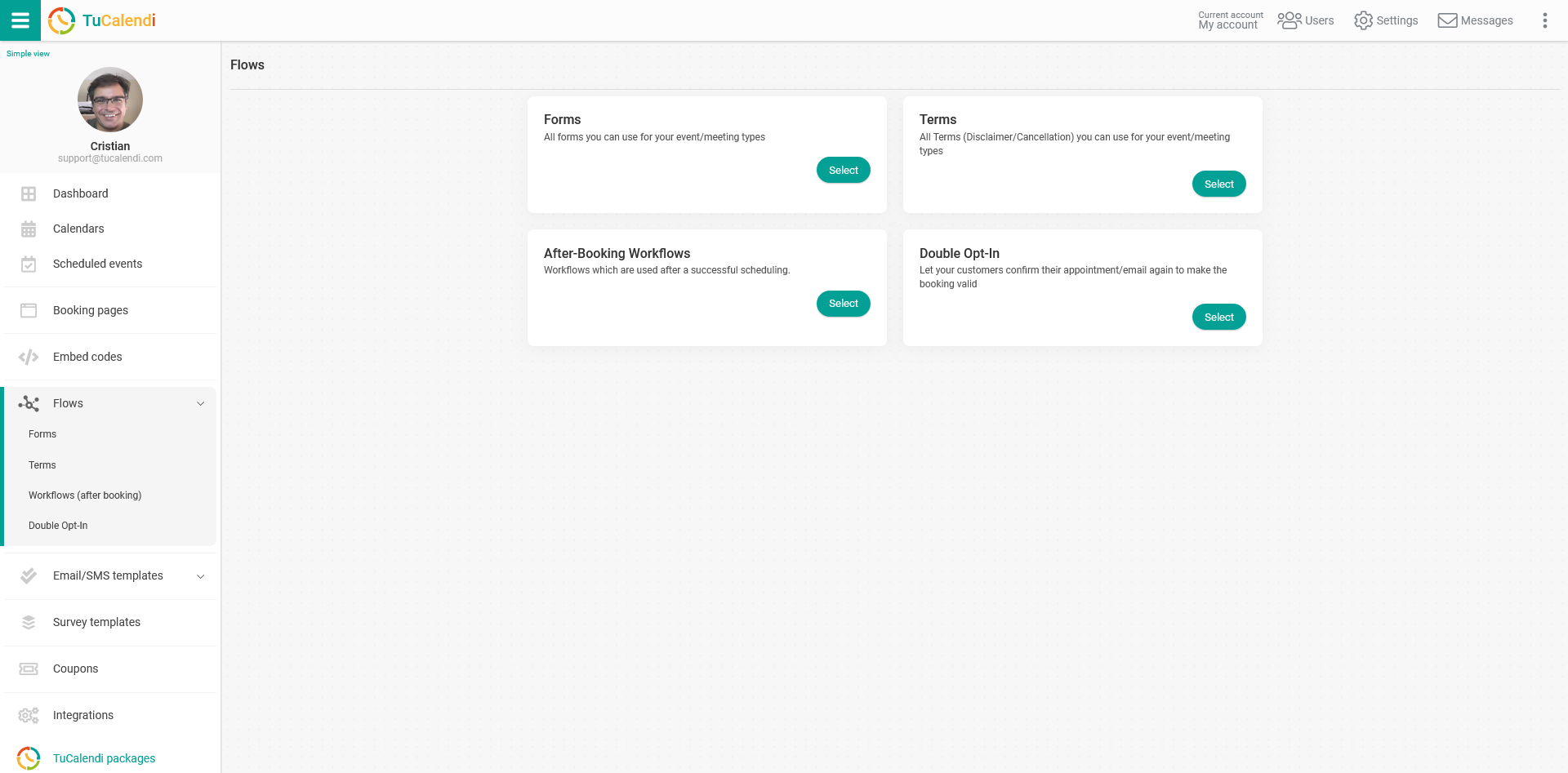
Under the "Workflows (after booking)" option, click "Select" and the workflows you have created will be displayed.
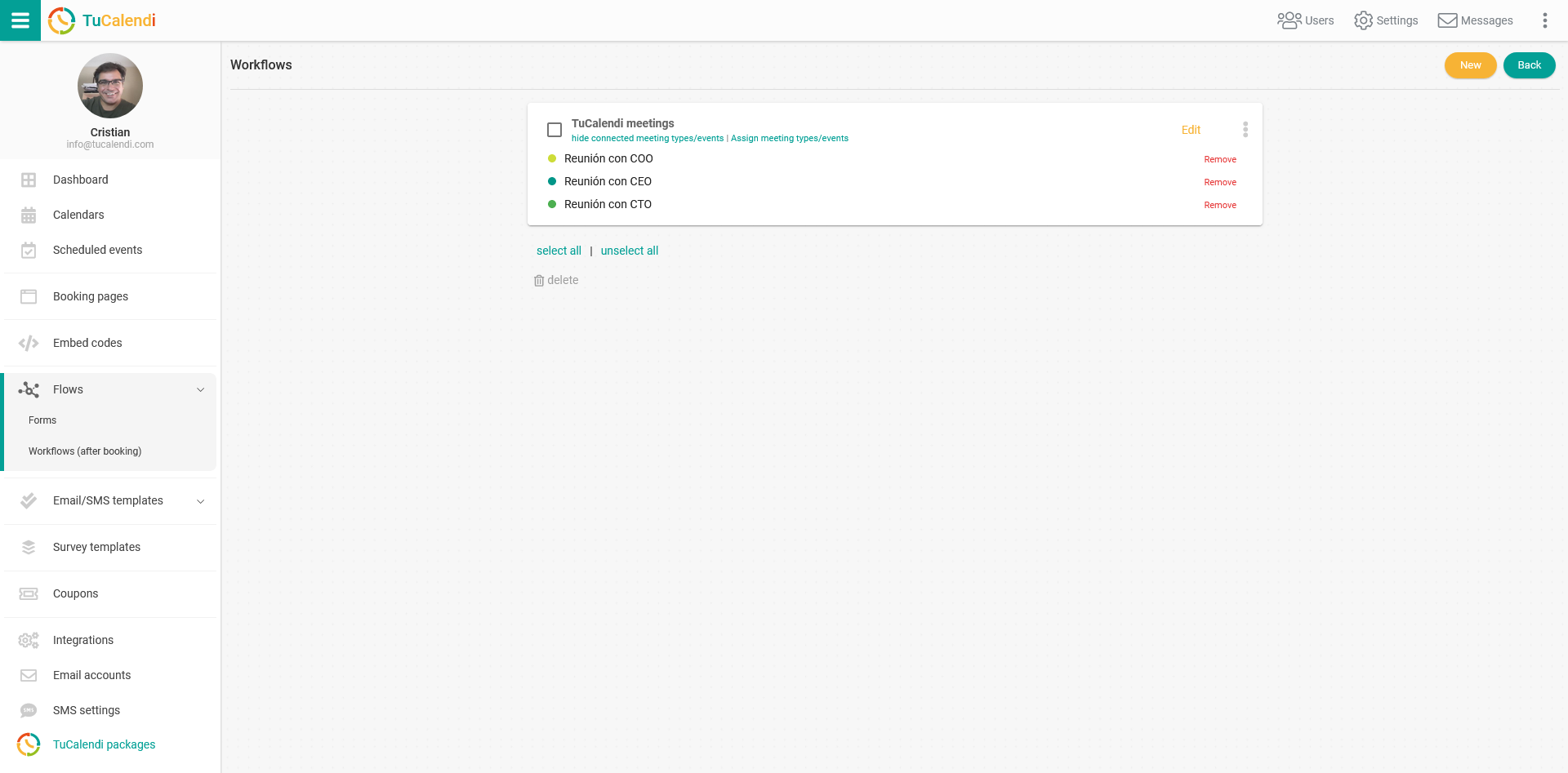
Click "Edit" on the workflow you want to modify by adding a new action to send a confirmation webhook.
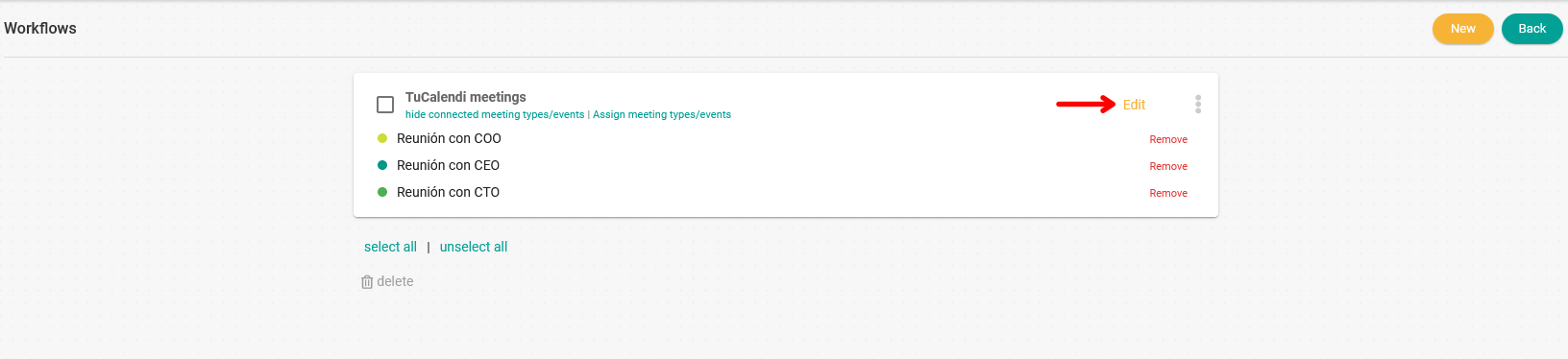
The workflow will be displayed in its current state and you can add the new action suggested for this workflow.
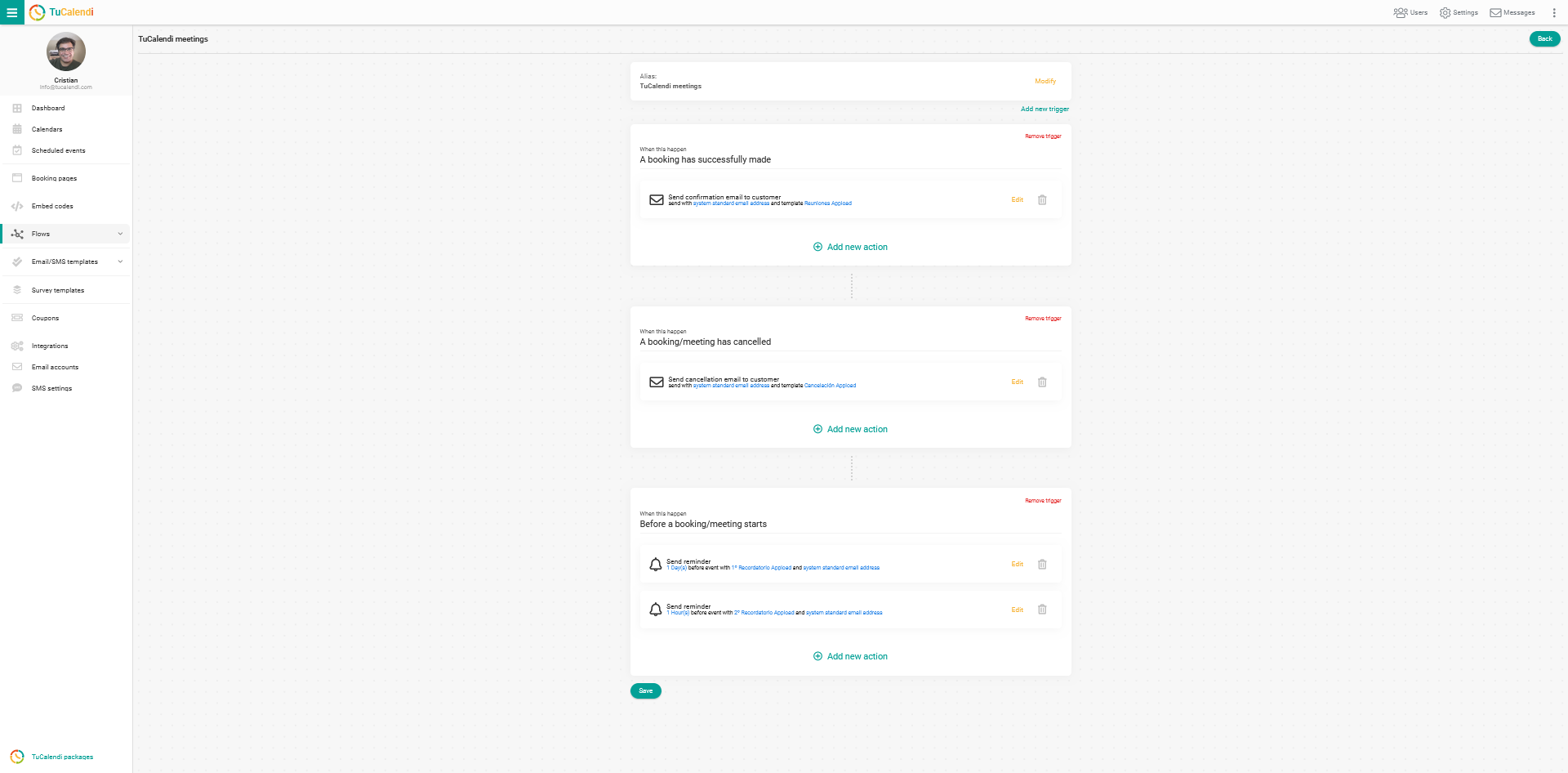
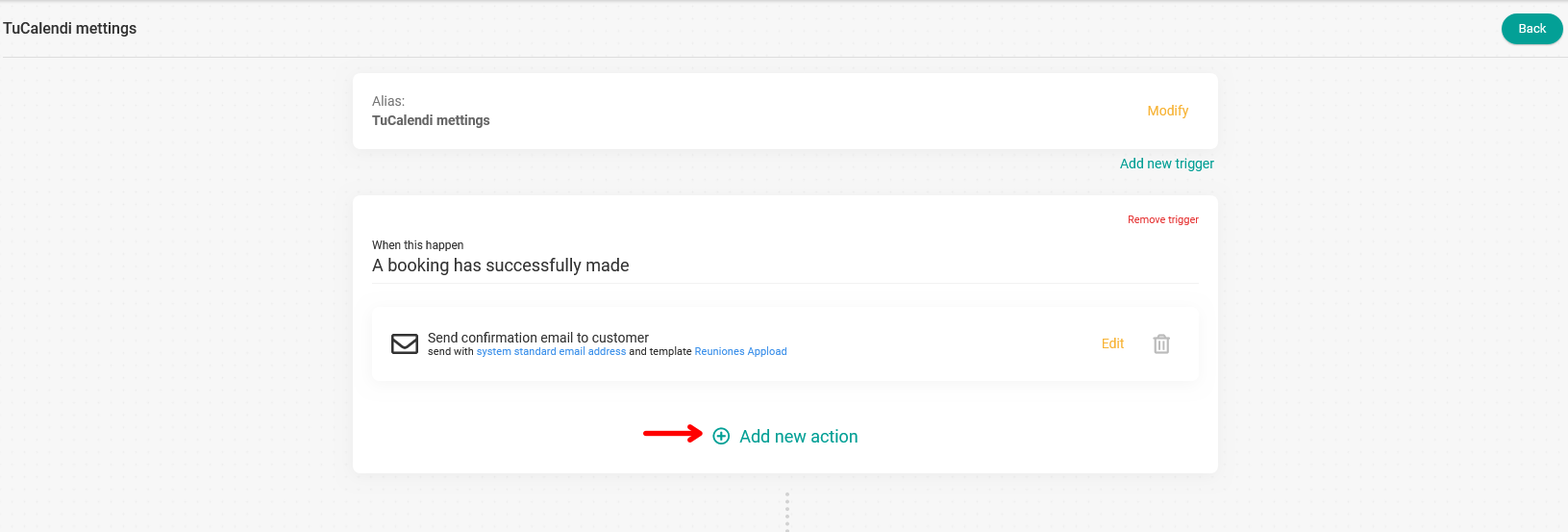
In the trigger "A booking has successfully made", we will add a new action that sends a confirmation webhook.
Click "Add new action" in this trigger:
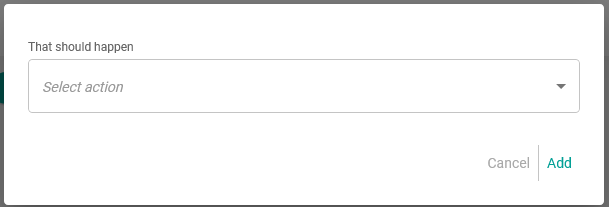
This lets you choose what should happen:
From the drop-down menu, select the action:
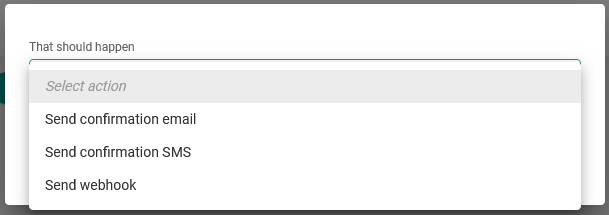
Since you want a webhook to be sent when the customer has made a booking, select the action "Send webhook":
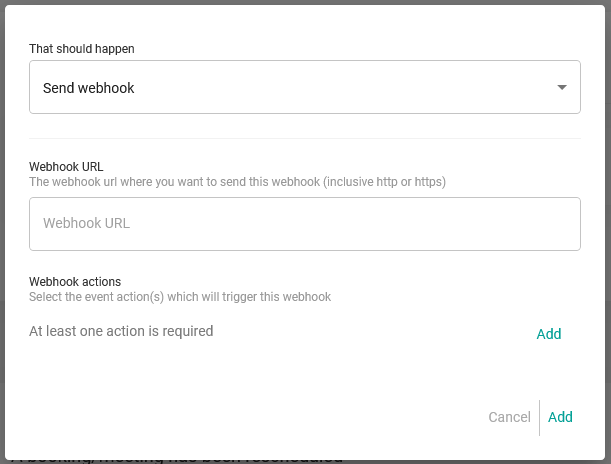
Enter the webhook URL that you get from automation platforms such as Zapier or Pabbly Connect.
You must also add the webhook action:

Choose the corresponding webhook action, in this case "booking.created", and click "Add":
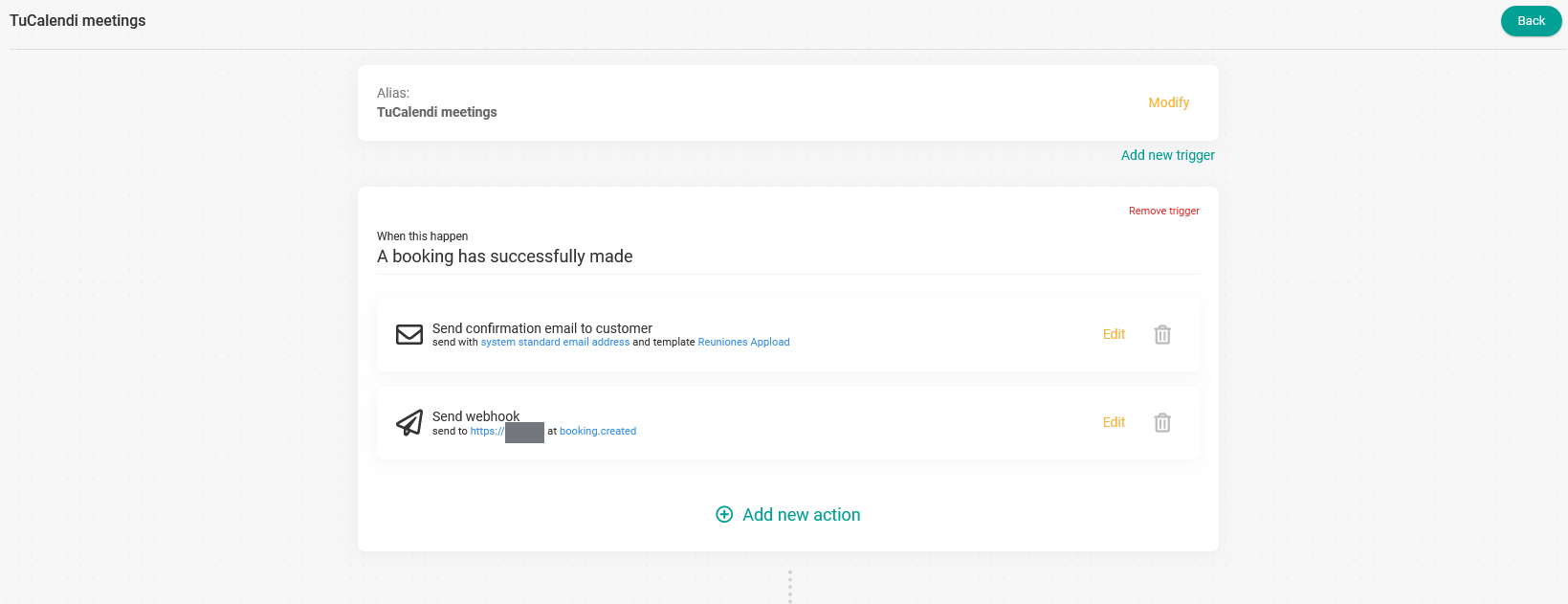
This way, you have added a second action to the trigger called "A booking has successfully made", and when a customer makes a booking with you, two actions will occur:
- The confirmation email will be sent to the customer's email address.
- The webhook "booking.created" will be sent to the specified URL.
The final action of the webhook will be whatever you have automated in the external platform when you receive a new booking.
When you have finished modifying the workflow, or after each step, click "Save" to make the changes in the workflow operational.