
To get the Live Client ID and the Secret Key from PayPal, you need a PayPal account.
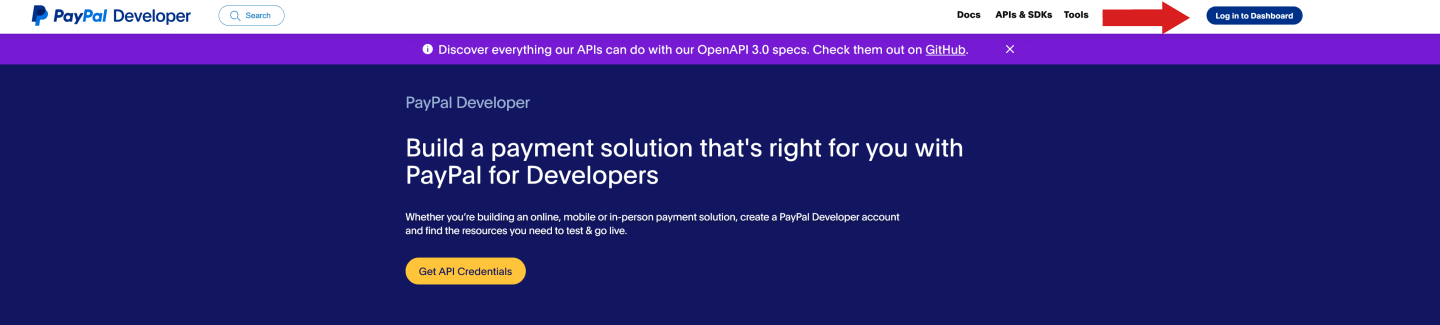
Step 1: Open the following website https://developer.paypal.com and click on "Log into Dashboard".
Switch to Live mode
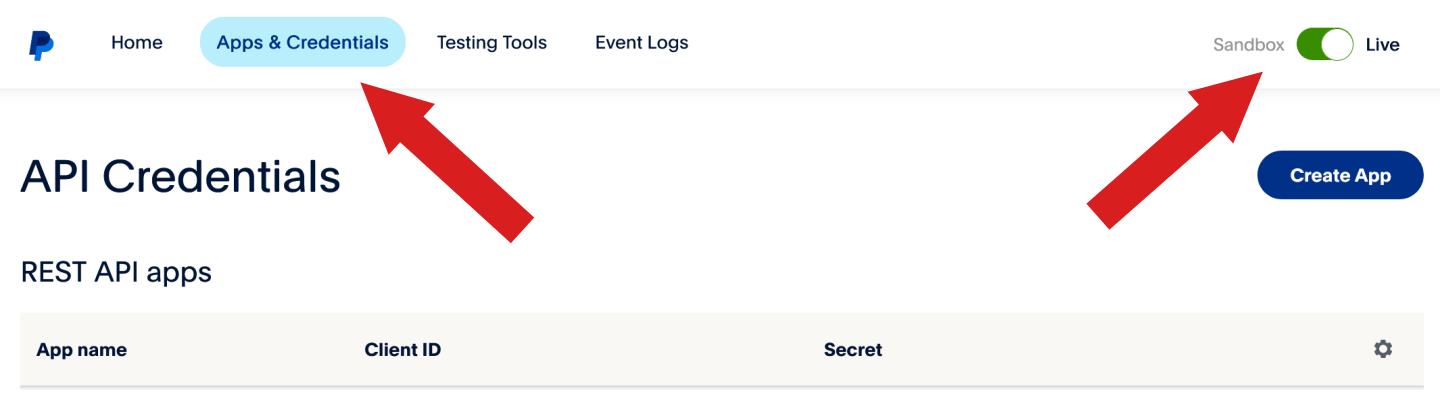
Step 2: After you have logged in with your PayPal credentials, click on "Apps & Credentials" and then switch from "Sandbox" to "Live".
Create PayPal App
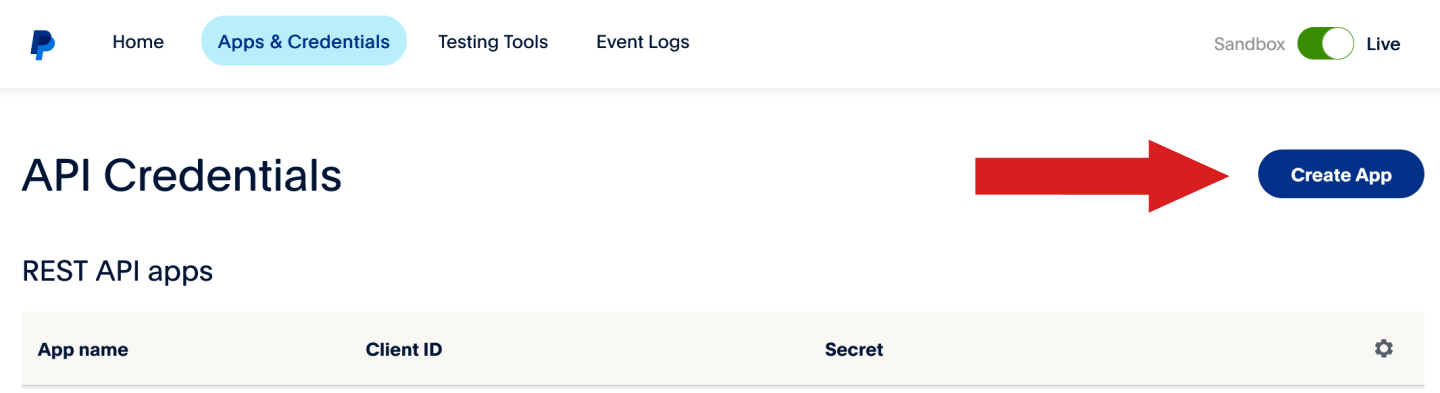
Step 3: After you have switched to the Live mode, click on "Create App".
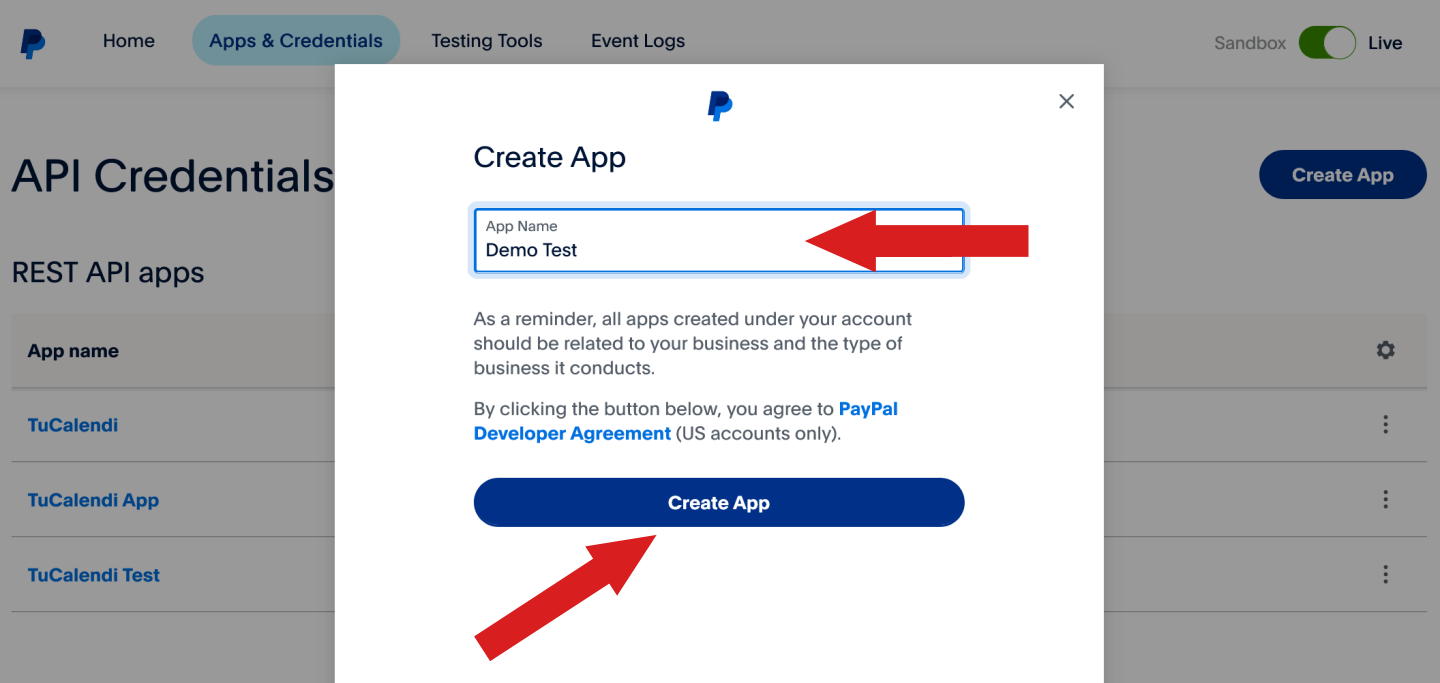
Step 4: Give your PayPal app a name and click on "Create App".
PayPal Live App Client ID and Secret Key
Step 5: As soon as the app is created, the details of the app you just created will open. You should now see the Client ID and an option (Show) below it to see the Secret Key.
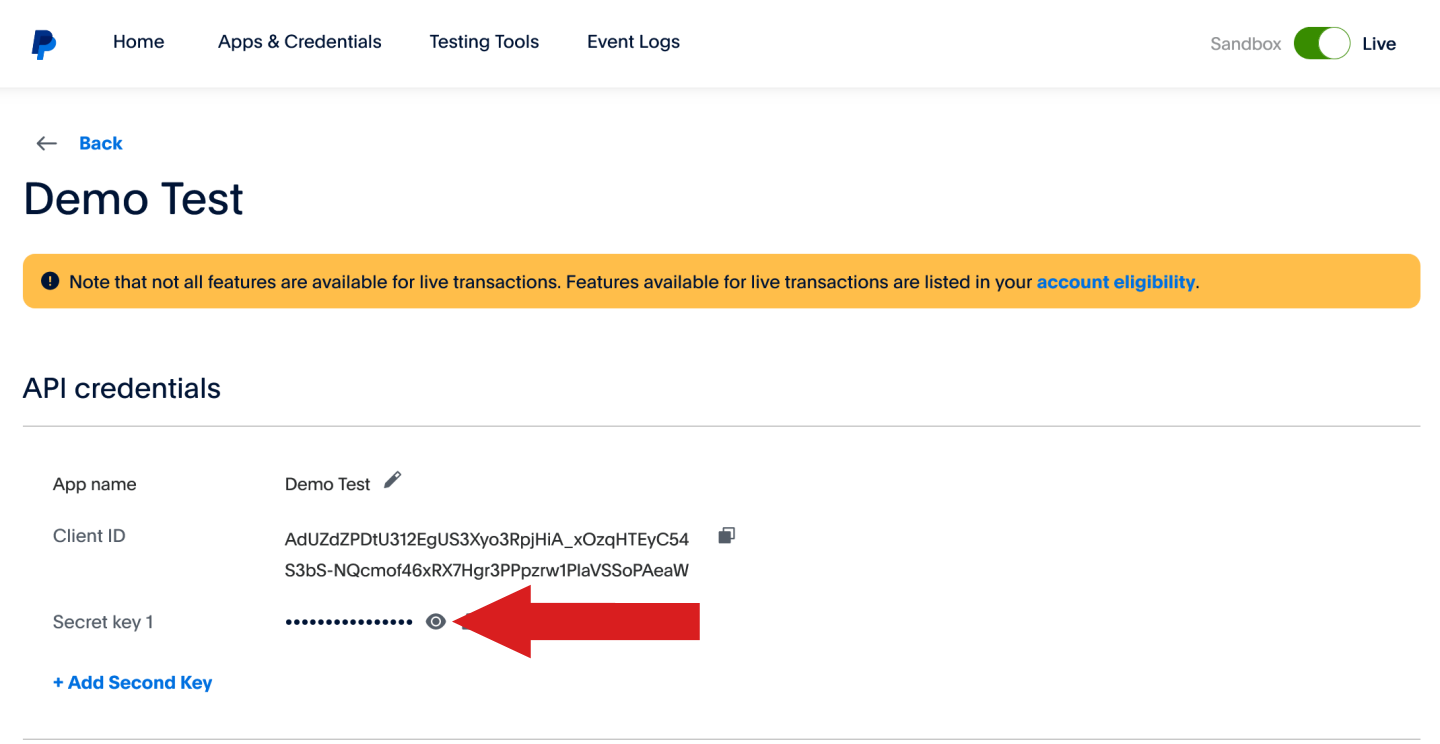
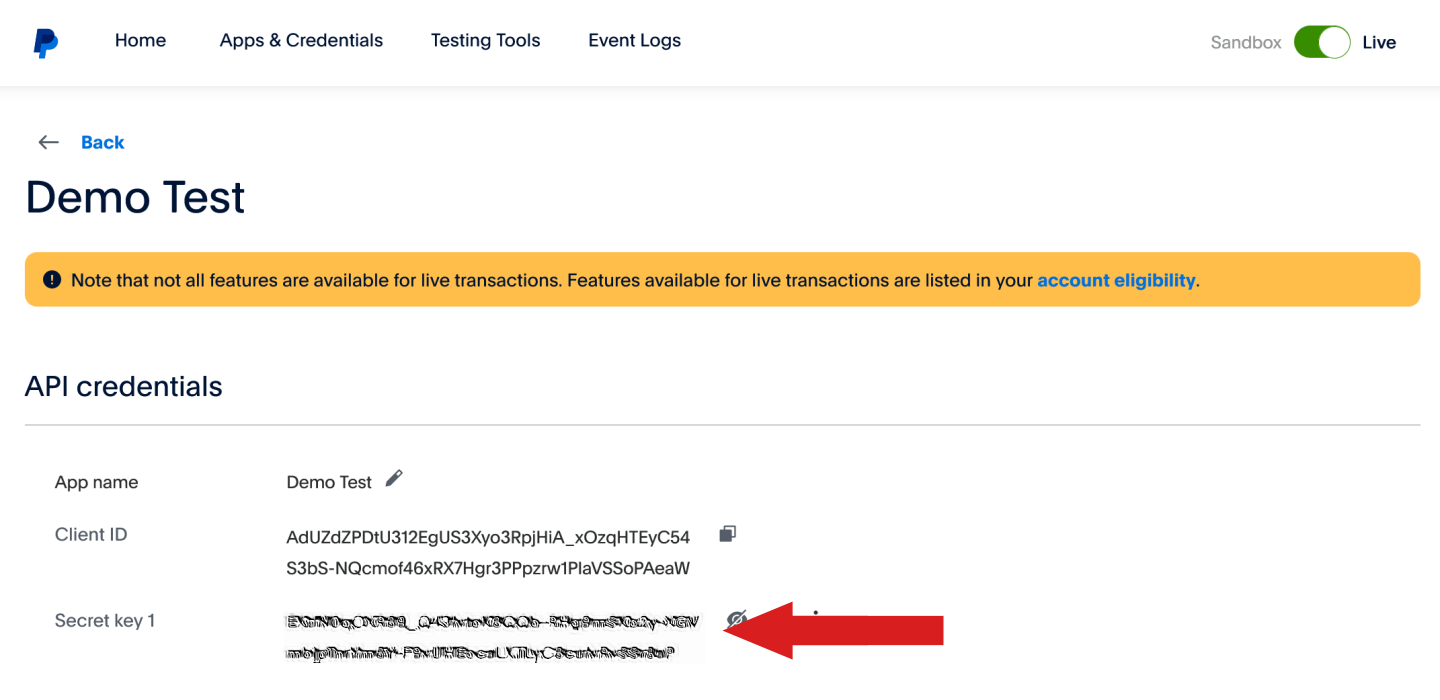
Step 6: Click "Show" to see the Secret Key.
TuCalendi PayPal integration
Step 7: Use the Client ID and Secret Key for your PayPal Integration with TuCalendi.
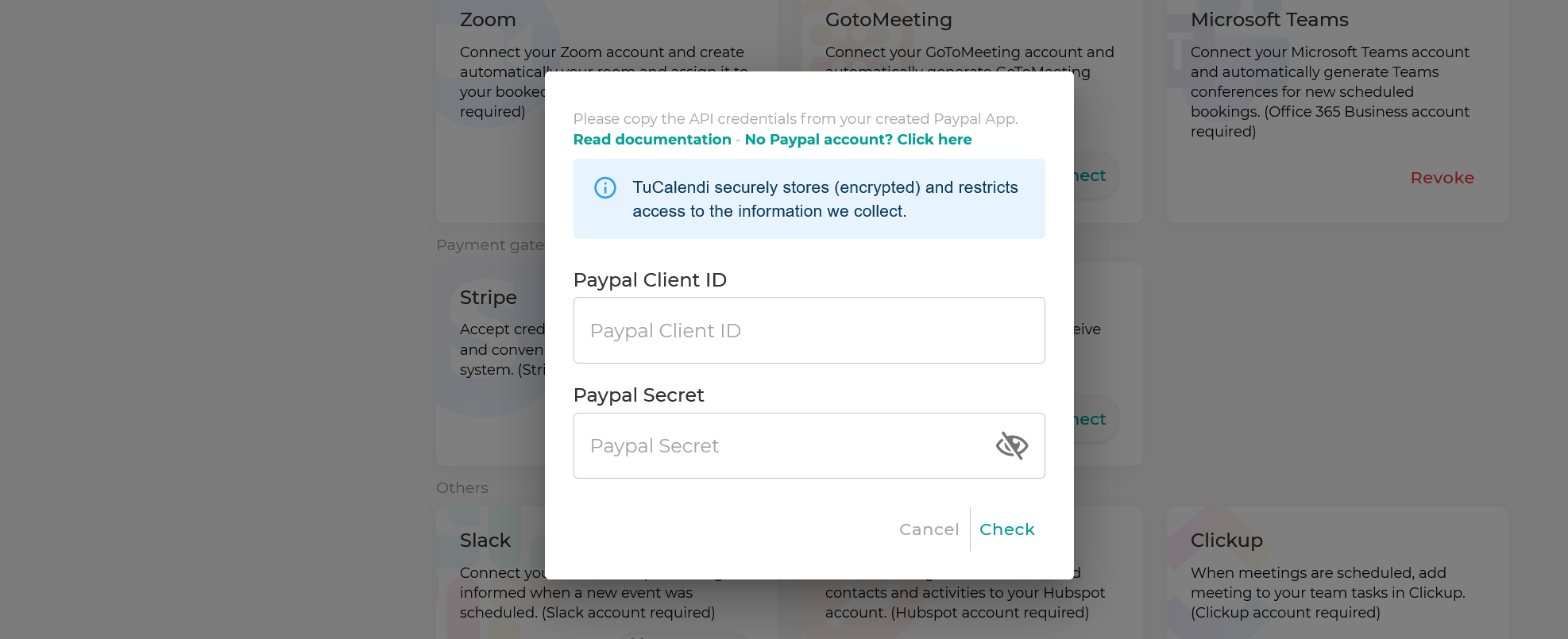
IMPORTANT: Once you have created the PayPal Live App, you need to copy and paste the Client ID and Secret Key into the PayPal integration popup in the TuCalendi integration section.