
If you are an Apple user and you use iCloud Calendar, you can integrate iCloud Calendar with TuCalendi so that all the appointments, meetings or events booked by your clients in TuCalendi's online calendar are synchronized with iCloud Calendar.
TuCalendi needs the permission of the iCloud account owner to access the calendar and perform the integration. We have prepared a very simple process to integrate both platforms.
In addition, for security and privacy reasons, iCloud uses two-factor authentication, so you need to complete a step in Apple to confirm the integration. The exact procedure is explained in this help article, so you won't have any doubts.
NOTE: An iCloud Calendar integration requires an iCloud account.
Log in to TuCalendi with your username and password. Go to the "Integrations" option.
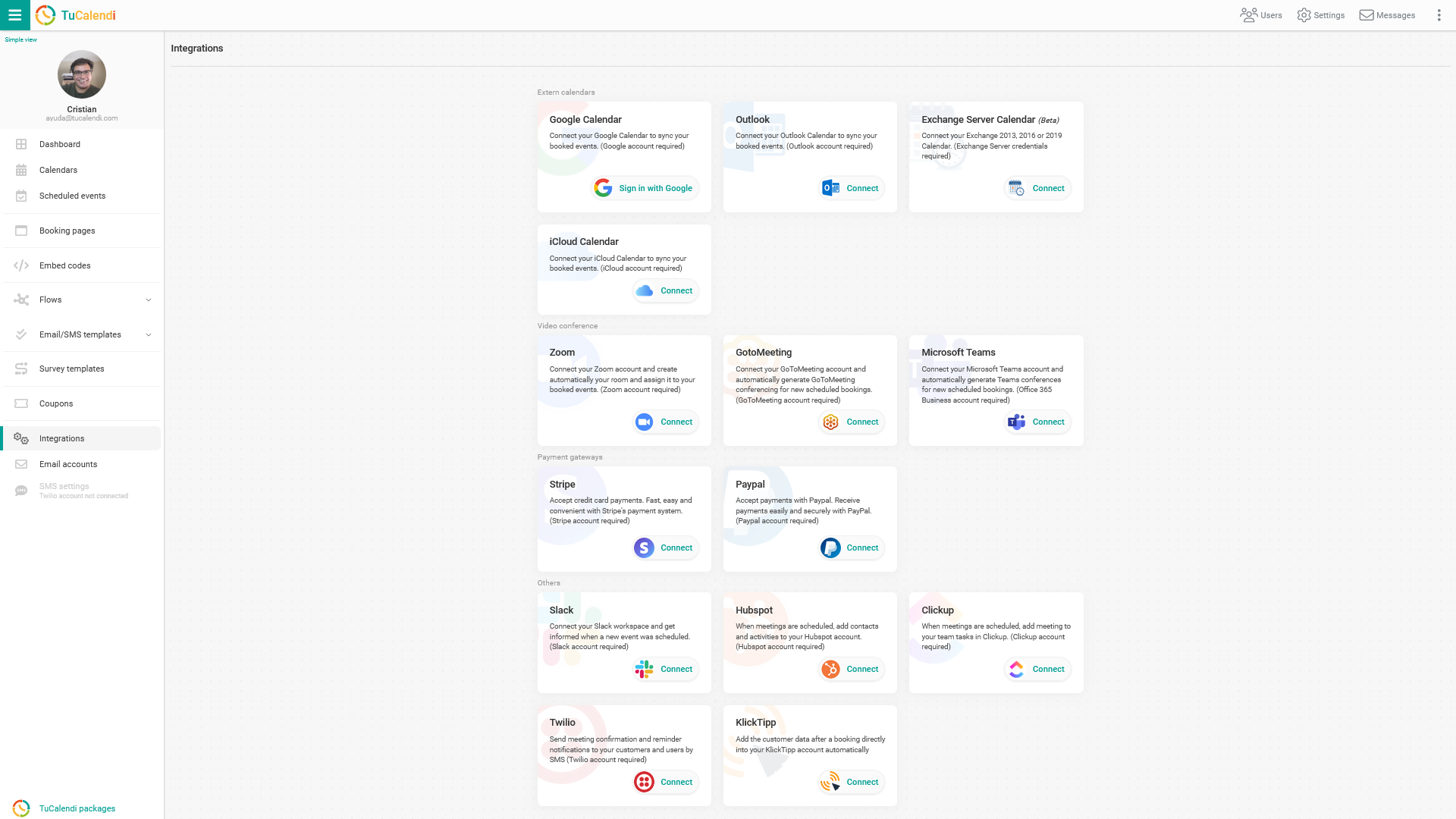
Integrate with iCloud Calendar
Select the "iCloud Calendar" option:
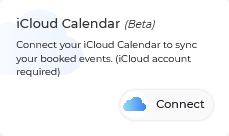
To integrate with iCloud Calendar, click on "Connect" and you will be taken to the iCloud verification page.
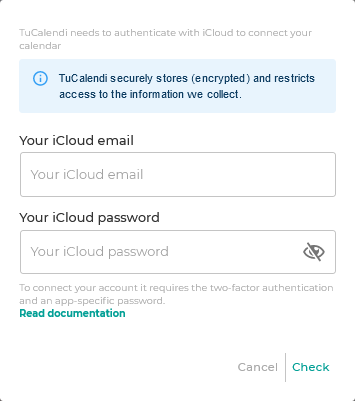
IMPORTANT: If you enter your iCloud username and password in this window, the integration will not be performed. You will receive a connection error.
To connect your iCloud account, two-factor authentication is required in addition to a password specific to the TuCalendi integration.
To set this specific password for TuCalendi, you must log in to your Apple account and verify with your Apple ID.
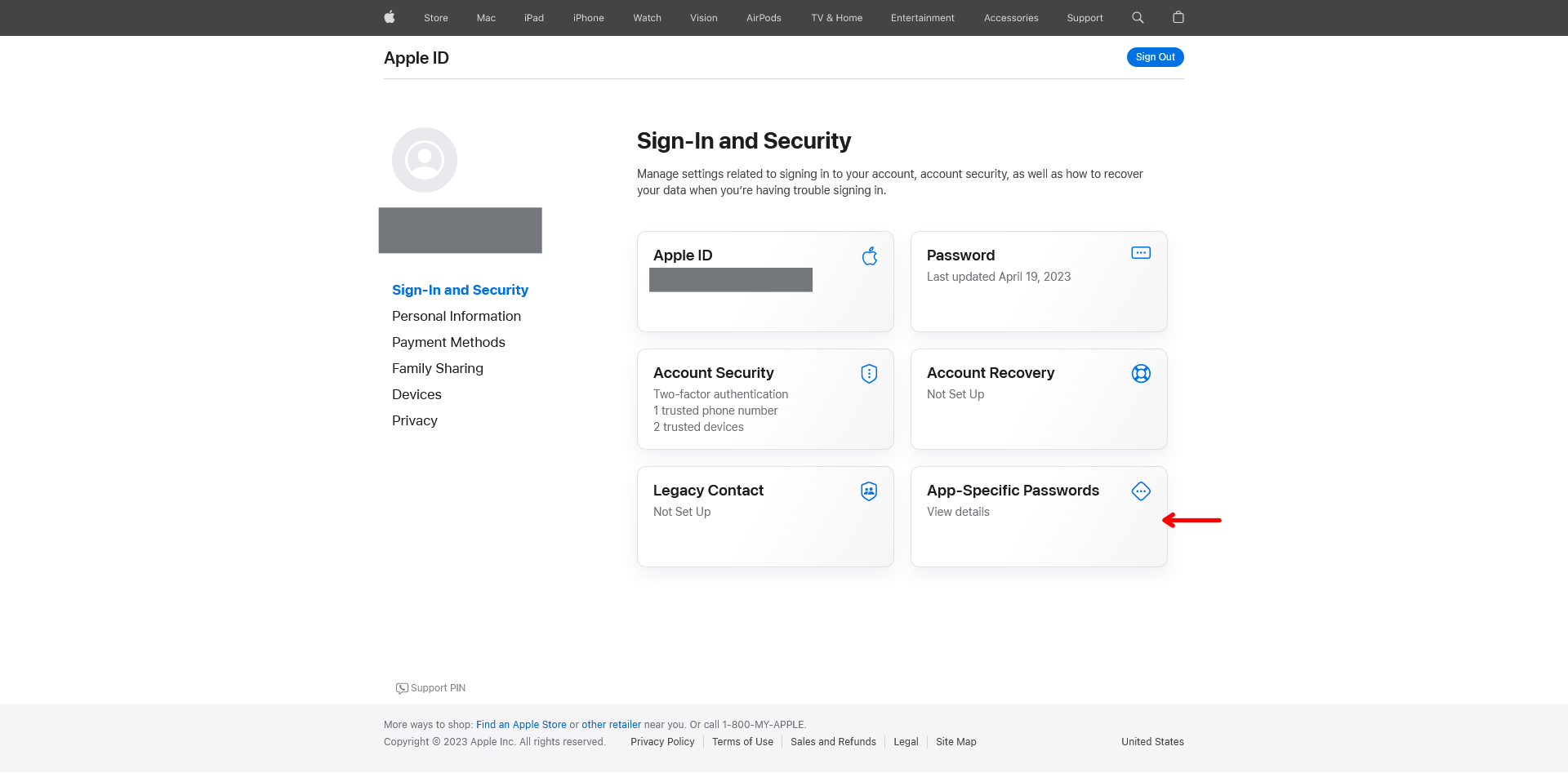
Click on the "App-Specific Passwords" field:
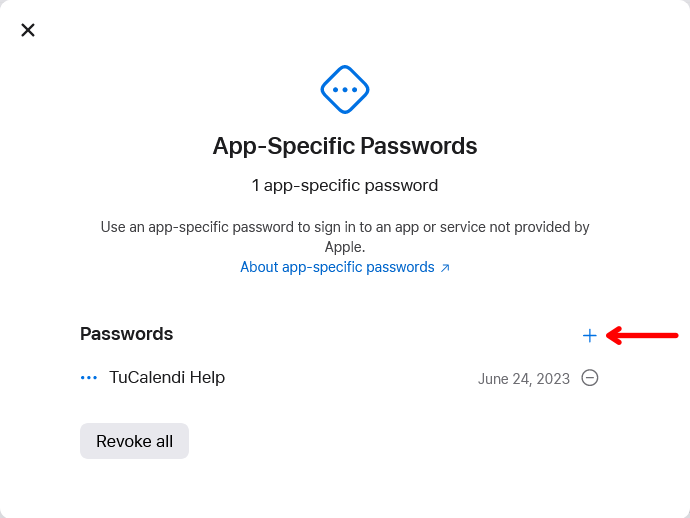
In our case, we already have a password, but we are going to create another one.
Click on the "+" symbol:
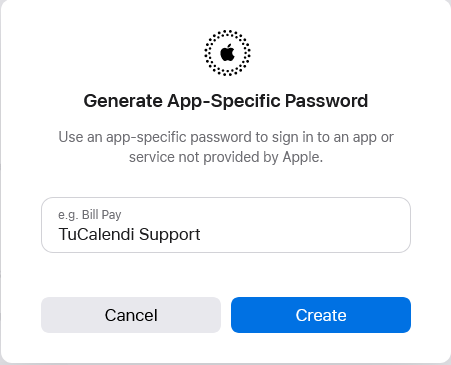
In the popup, enter the name of the platform or the alias you want to use to identify the password and click "Create". In this case, the password label is TuCalendi Support.
A new popup will then appear with the specific password to perform the integration with TuCalendi.
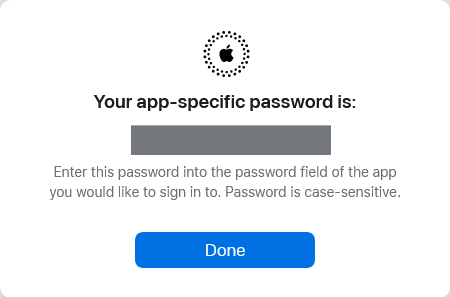
Copy the password and go back to the iCloud integration option in TuCalendi.
Now enter your iCloud ID and paste the generated password.
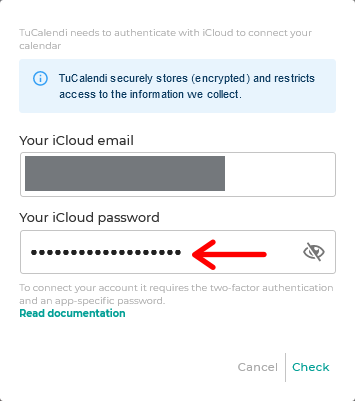
Click on "Check" and the integration with two-factor authentication and a specific password for TuCalendi is done.
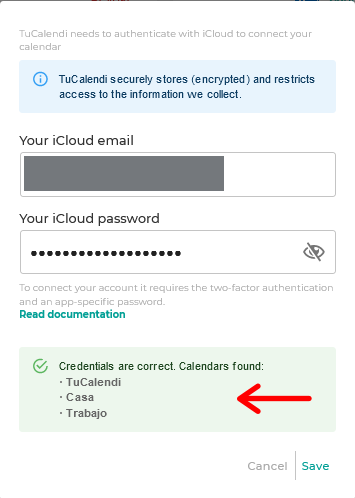
Just click "Save" to complete the integration.
Disconnect iCloud
If at any time you decide not to continue with this integration, you can revoke the permissions and iCloud Calendar and TuCalendi will be disconnected.
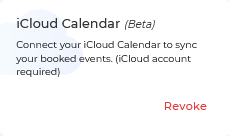
To do this, just click on "Revoke".
IMPORTANT: Once you have completed the integration between iCloud Calendar and TuCalendi, you must synchronize the events you want to be connected.