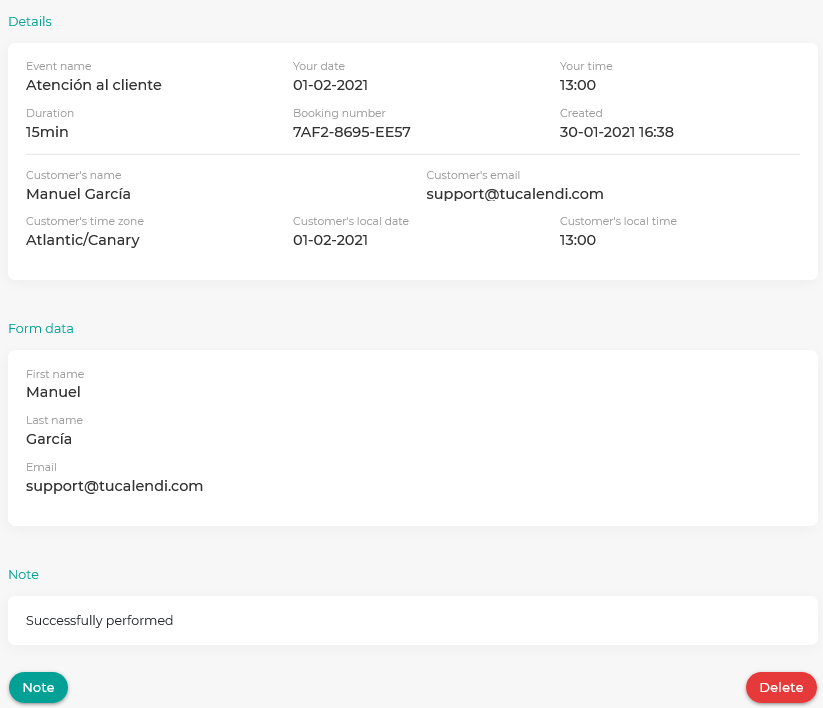
When a meeting or event that a client has scheduled with you has ended, it is very useful to include a note to remind you of what happened. In TuCalendi it is a very simple process.
Once logged in with your TuCalendi username and password, click on the "Scheduled events" option.
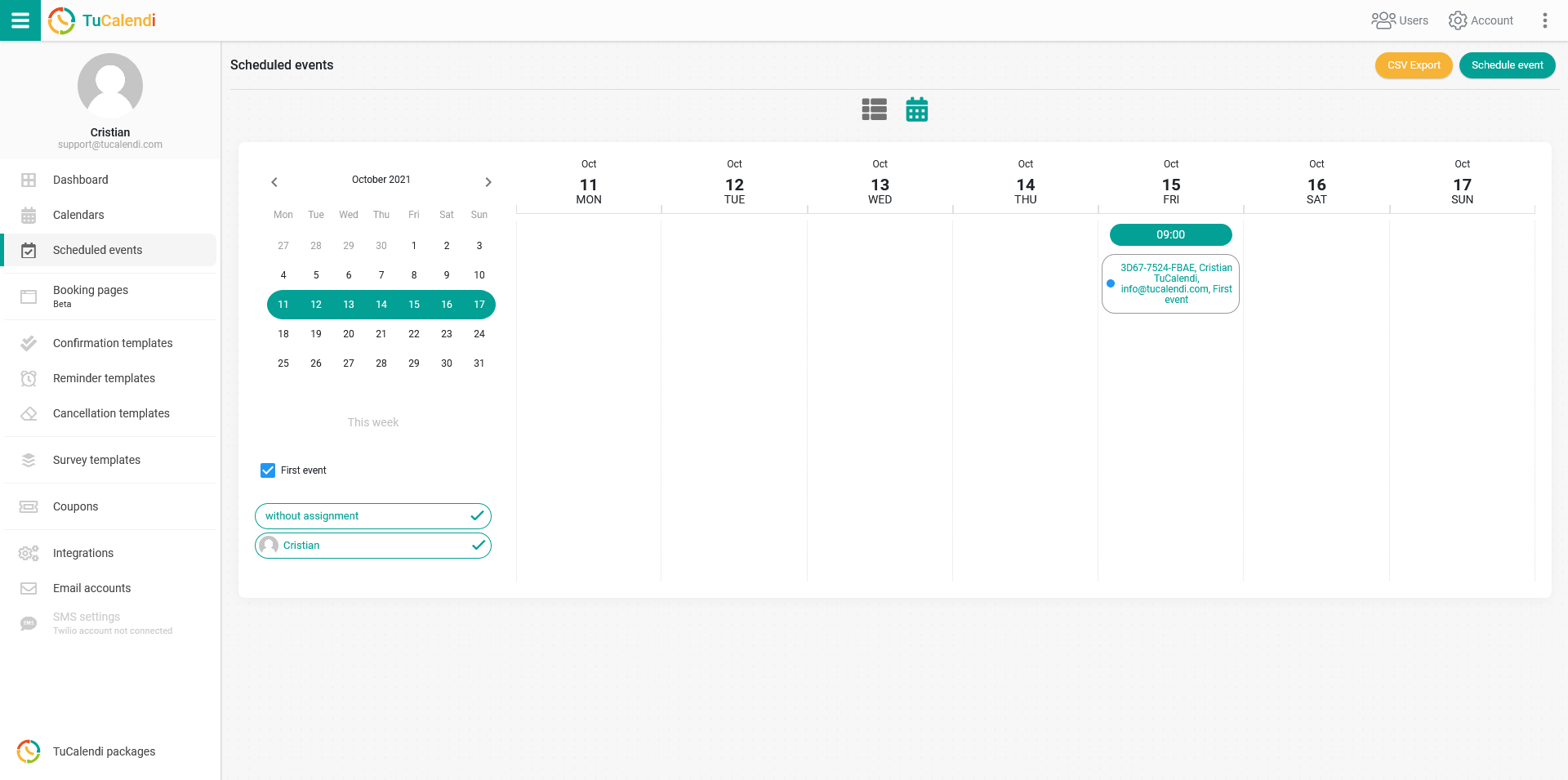
Locate the event that has already happened and to which you want to add a note. Click on the event to open the event details.
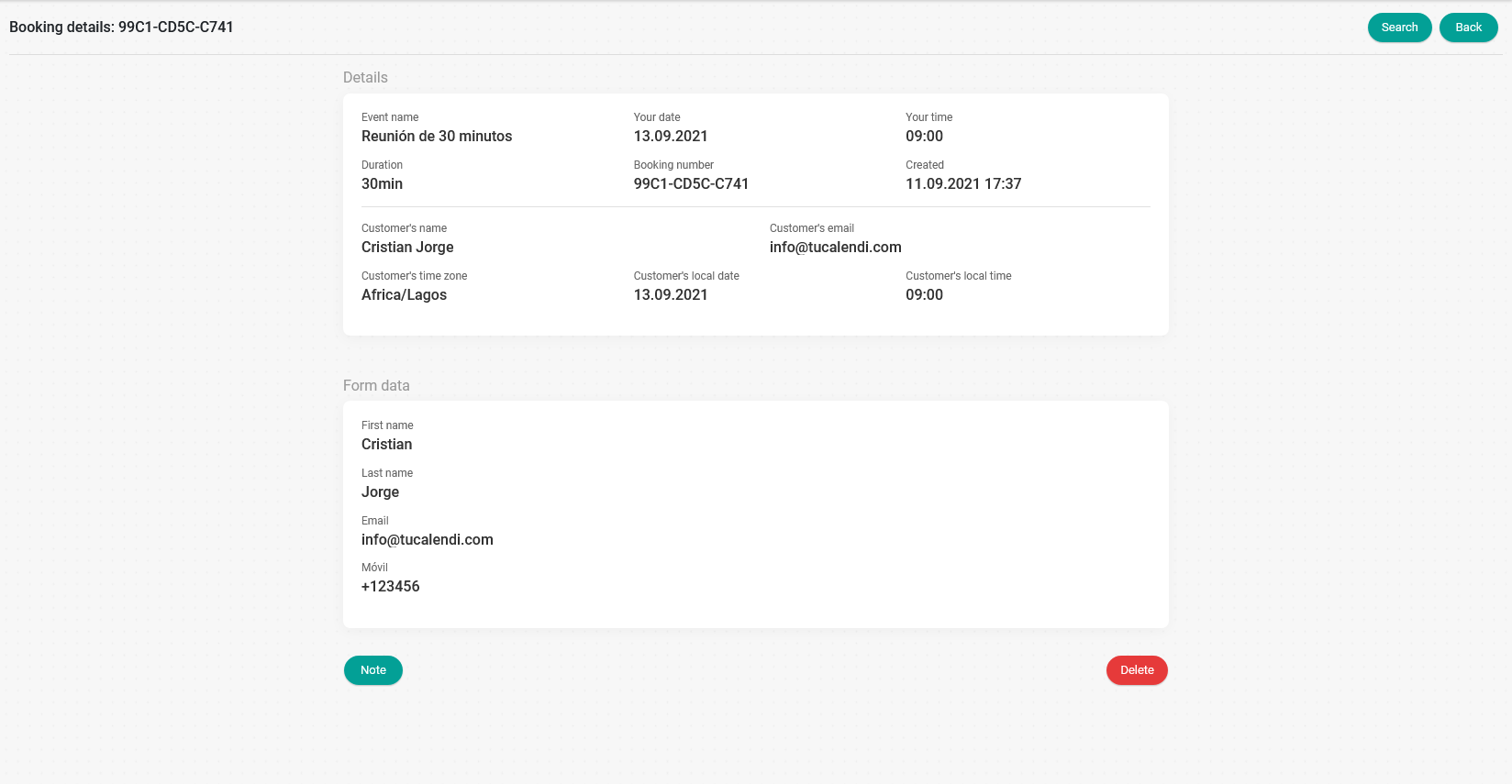
IMPORTANT: If the date and time of the event has not passed yet, the "Note" option will not appear in the details.
Click on the "Note" button. In the window that appears, you can choose from the predefined messages we have included. Select the option you want to add to the event details so that you can later recall what happened at the meeting.
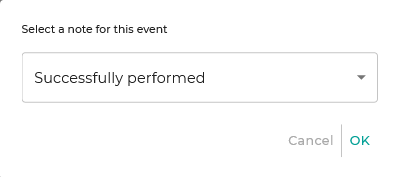
Then click "OK" to save the note in the event details.
When you go back to the event details, you will be able to read the note you have added.