
When you have a tool like TuCalendi for people to access your online calendar and book appointments or meetings with you, you usually want to receive as many bookings as possible. But for different reasons, you may not want everyone to be able to make several reservations for a particular event. For this reason, we have added the possibility to share single-use links of the events.
What are single-use links
All events in TuCalendi have their own URL so that clients can access the calendar with time availability and make the meeting bookings they need with you or your team. Single-use links are simply a way to convert TuCalendi event links so that they can only be used once.
Now that you know what single-use event links mean, let's see how to create and share these links so your clients can book a meeting with you.
How to share single-use links
Log in to TuCalendi with your username and password. In the side menu, select the "Calendars" option:
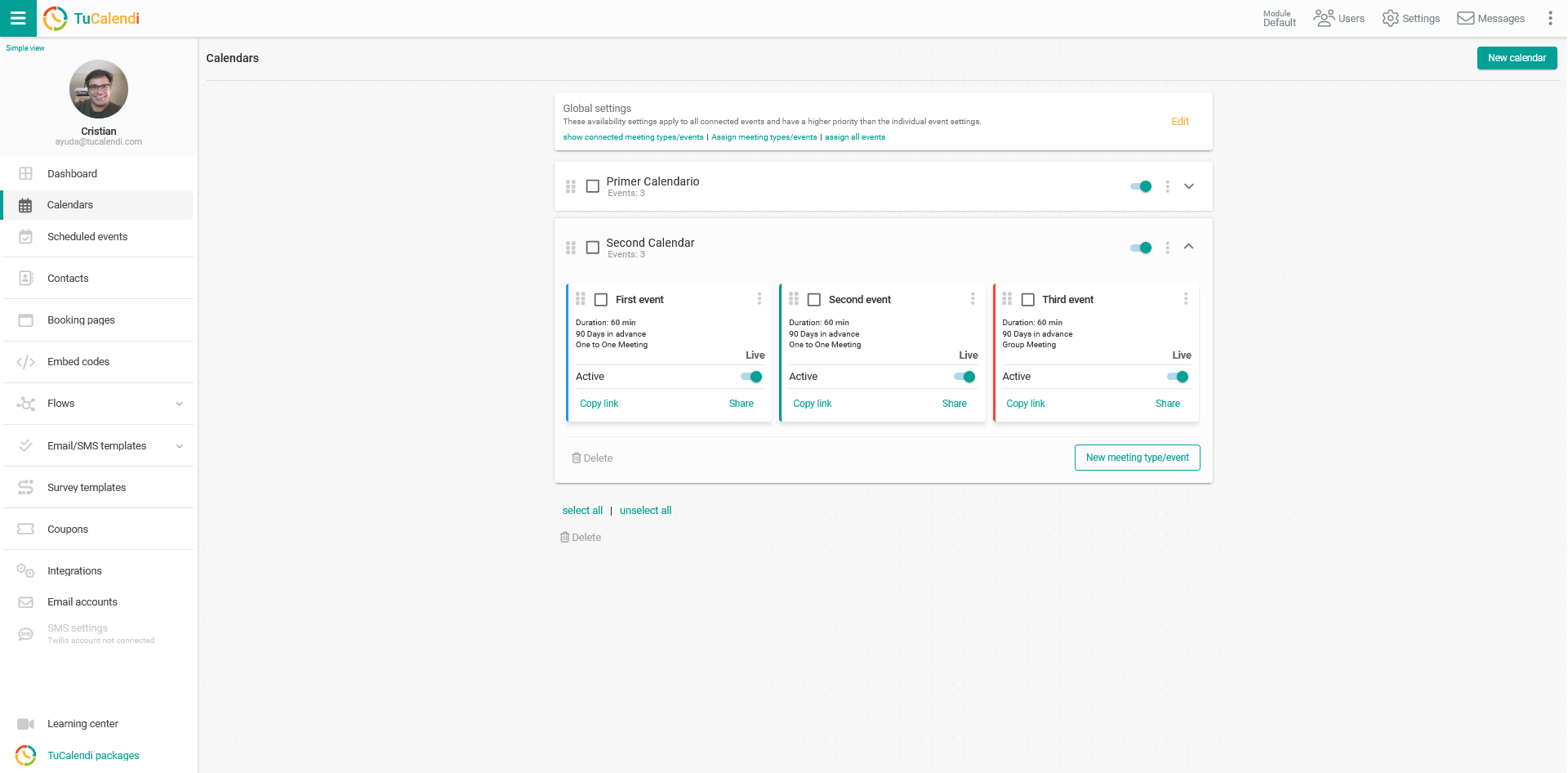
Open the calendar and locate the event you want to share with a single-use link:
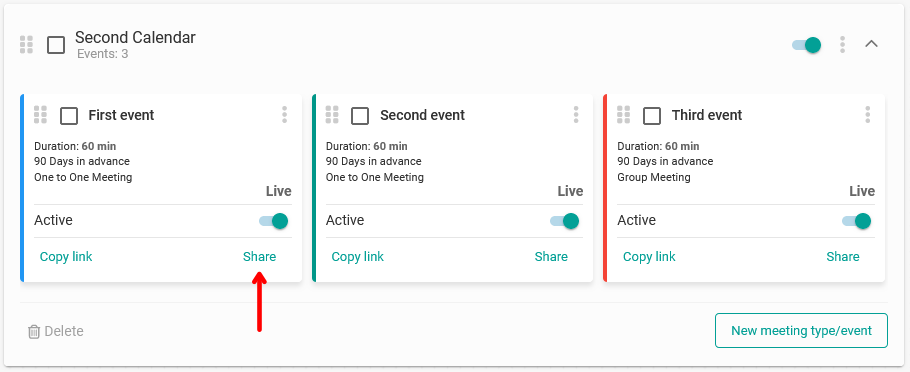
Click on "Share":
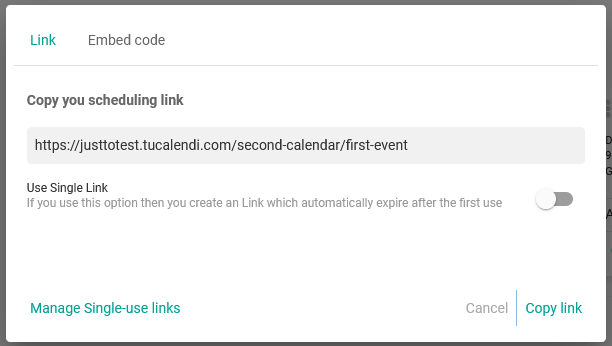
In the pop-up window, you can see the current link of the event. If you want to convert the current event link into a single-use link, you only need to activate the "Use single link" option:
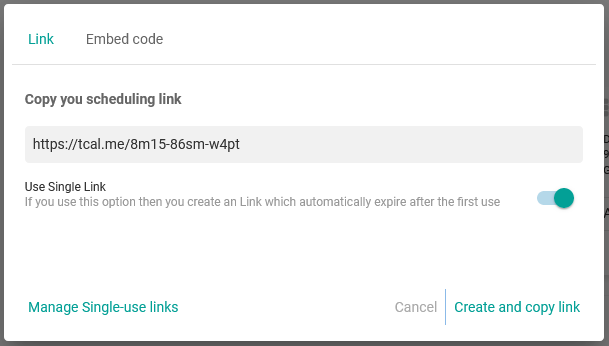
As you can see, the event link has changed and a new link with a random and unique code has been generated. When you share this new link, it can only be used once and stays valid until the first and only possible reservation is made.
Click on the "Create and copy link" option. This way, you can share the link with your customers on social networks, WhatsApp, email or embed it on a website, knowing for sure that it can only be used once.
Manage single-use links
With the "Manage one-time links" option, you can keep track of the single-use links you have created and shared:
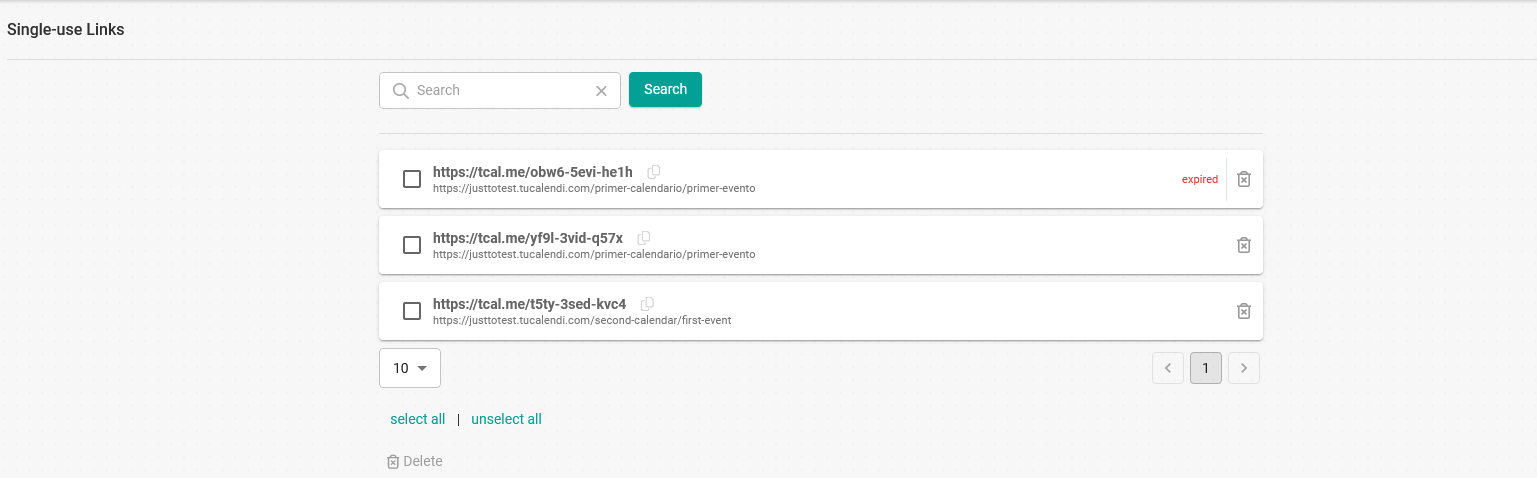
The available options are:
- List of the single-use links created.
- A link that has been used is marked as "Expired".
- Search for unique links. The search is done by the link code.
- Option to copy a created link that has not expired to share it again.
- Delete the created single-use links.
IMPORTANT: In the advanced configuration of an event, you can make the event only accessible with single-use links.