After creating the custom groups you have to give permissions to the users of the custom groups to set the privileges so that they can access the calendars and events that correspond to them.
Remember that for the role system to work correctly you must have activated the option in the roles and permissions menu.
Log in to TuCalendi with your username and password. Go to the "Calendars" option.
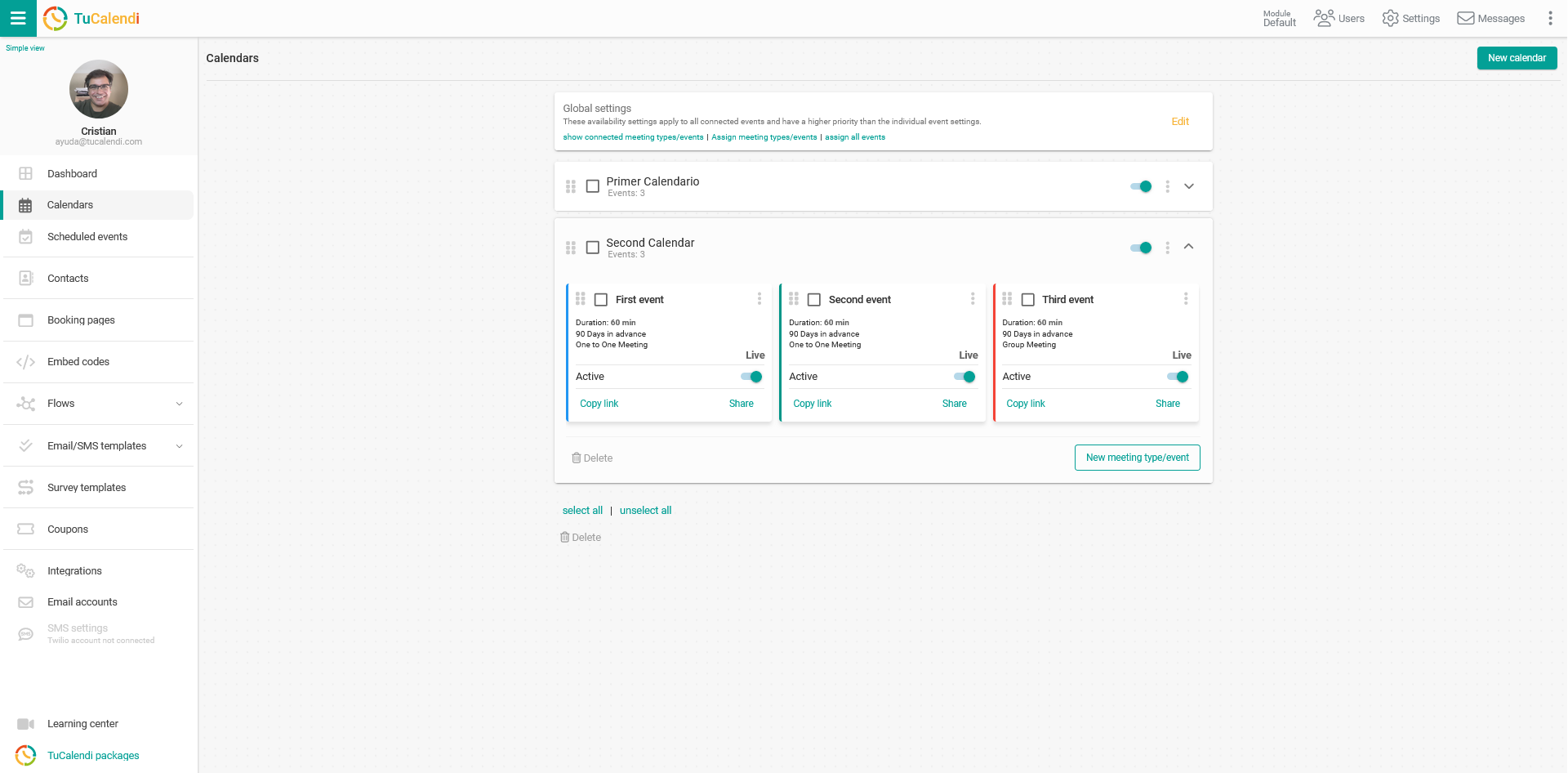
The first step is to give permissions to the calendar.
Calendar permissions
Locate the calendar you want to give permissions to and click on the three vertical dots to display the calendar options menu.
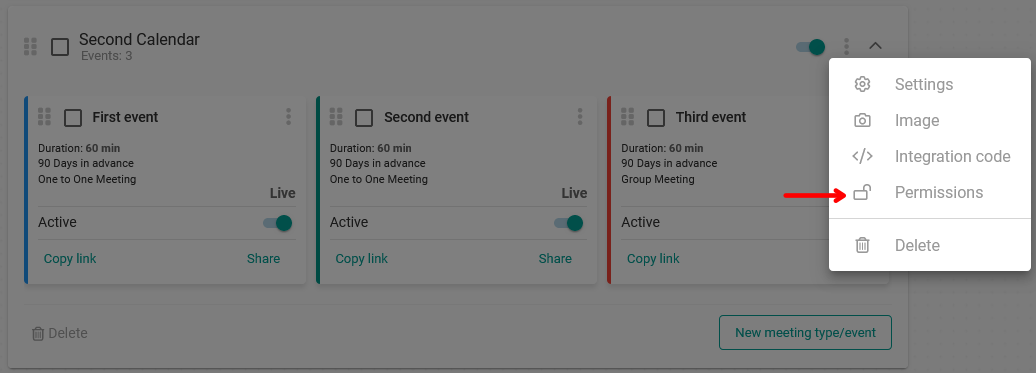
Select the "Permissions" option:
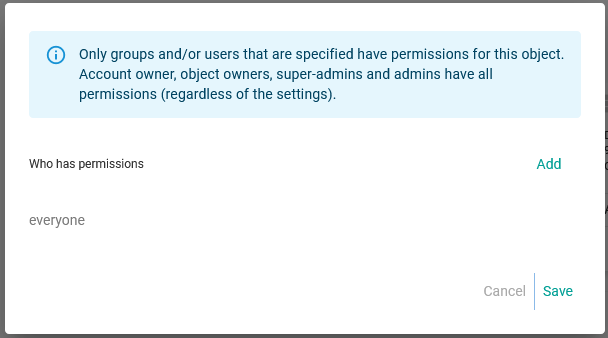
Only custom groups assigned in the calendar will have permissions to view the calendar.
Click "Add" to select the custom group(s) that will have permissions to this calendar:
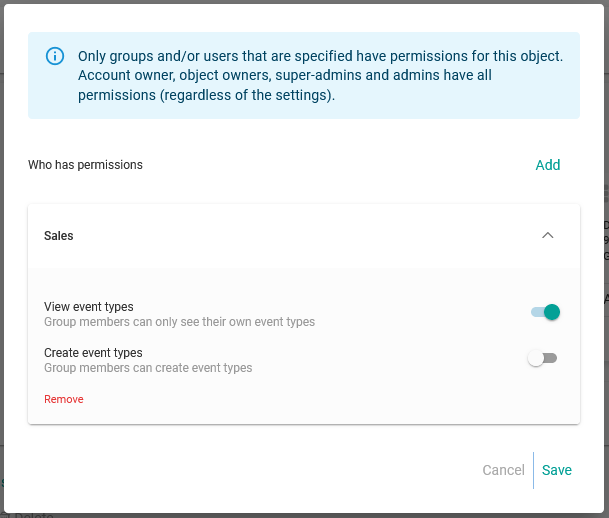
In our case we have selected the custom group named "Sales" and have only enabled the option that lets users in the group view their own events, but group members cannot create new events.
If you want the users of the group to be able to create new events, simply activate the other option.
Once you have configured the calendar permissions for the group, click "Save":
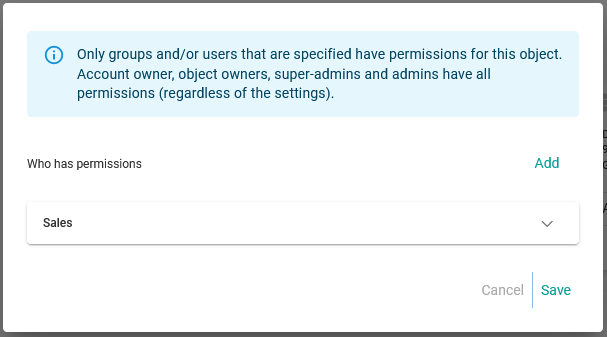
This way you have given a custom group permissions to access a calendar, but for the users to be able to see the events that correspond to them, you also need to assign the ownership of the event to the users.
Event owner
Locate the event you want to assign an owner to and click on the three vertical dots to display the event options menu.
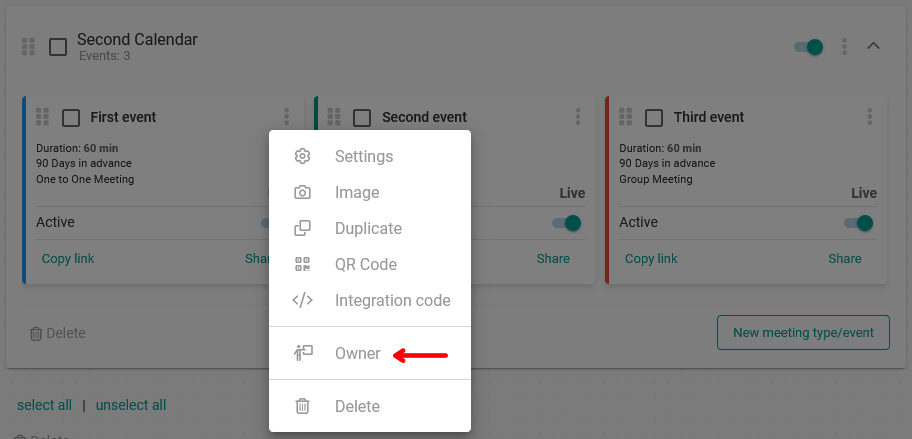
In the event options menu select "Owner":
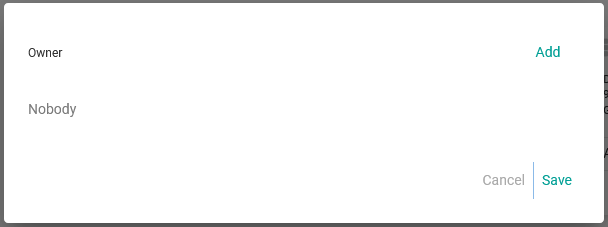
Initially the event has no owner.
To assign owners to the event, click "Add" to select the users who will be owners:
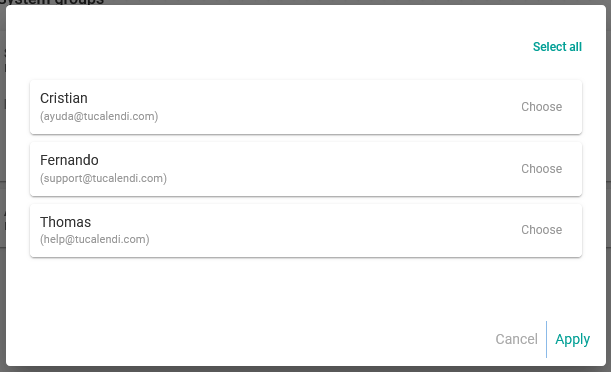
Choose the users and click "Apply":
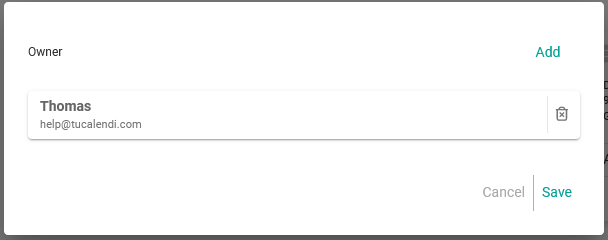
Here we have chosen the user named "Thomas". To finish assigning the ownership of the event, click "Save".
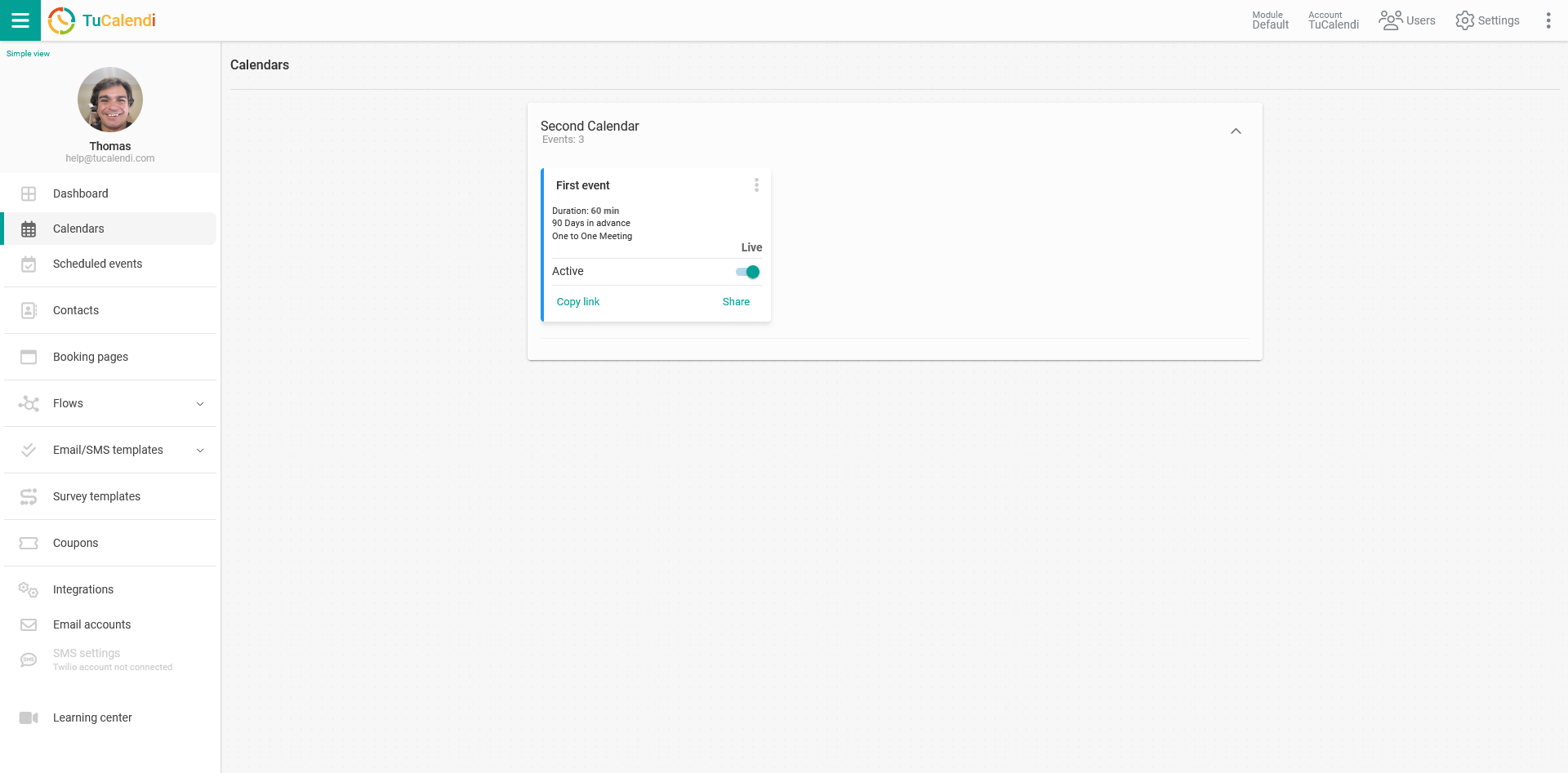
When the user "Thomas" logs into his TuCalendi account and goes to the "Calendars" menu, he will only see one calendar. Although this calendar has three events, he can only access the event he owns and he cannot create new events because he does not have permissions to do so.