
To customize the colors in the TuCalendi Widget, you need to access the "Appearance" option of the widget.
Choose the color template you want for your widget.
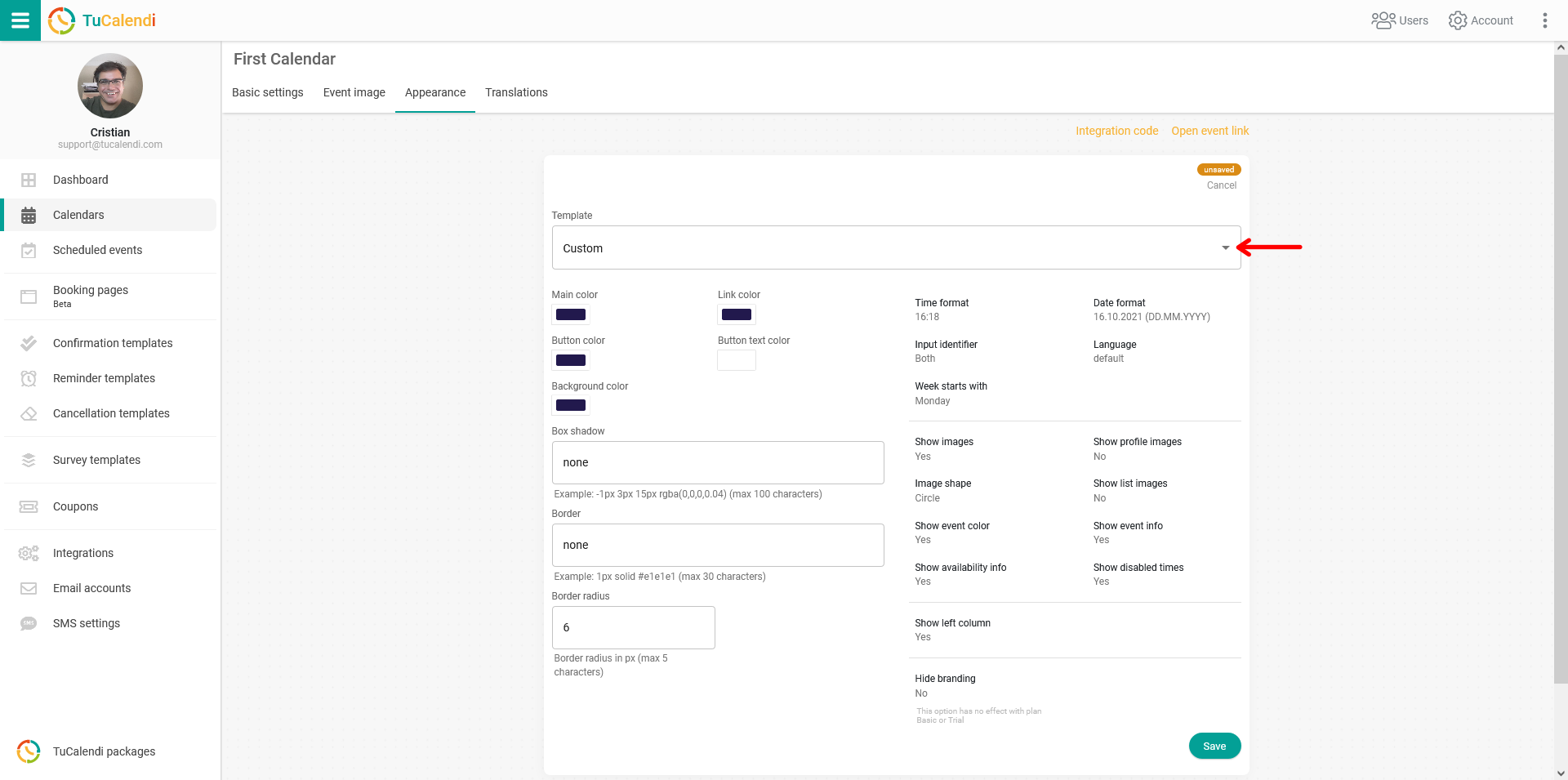
In this example, we have selected the "Custom" template.
You can change the colors of different elements of the widget:
- Main color
- Color of links
- Buttons color
- Background color
- Button text color
In all cases, you can pick one of the colors shown or enter the hexadecimal code of the color, simply by clicking on each of the colored fields.
In the example, we chose the following color scheme:
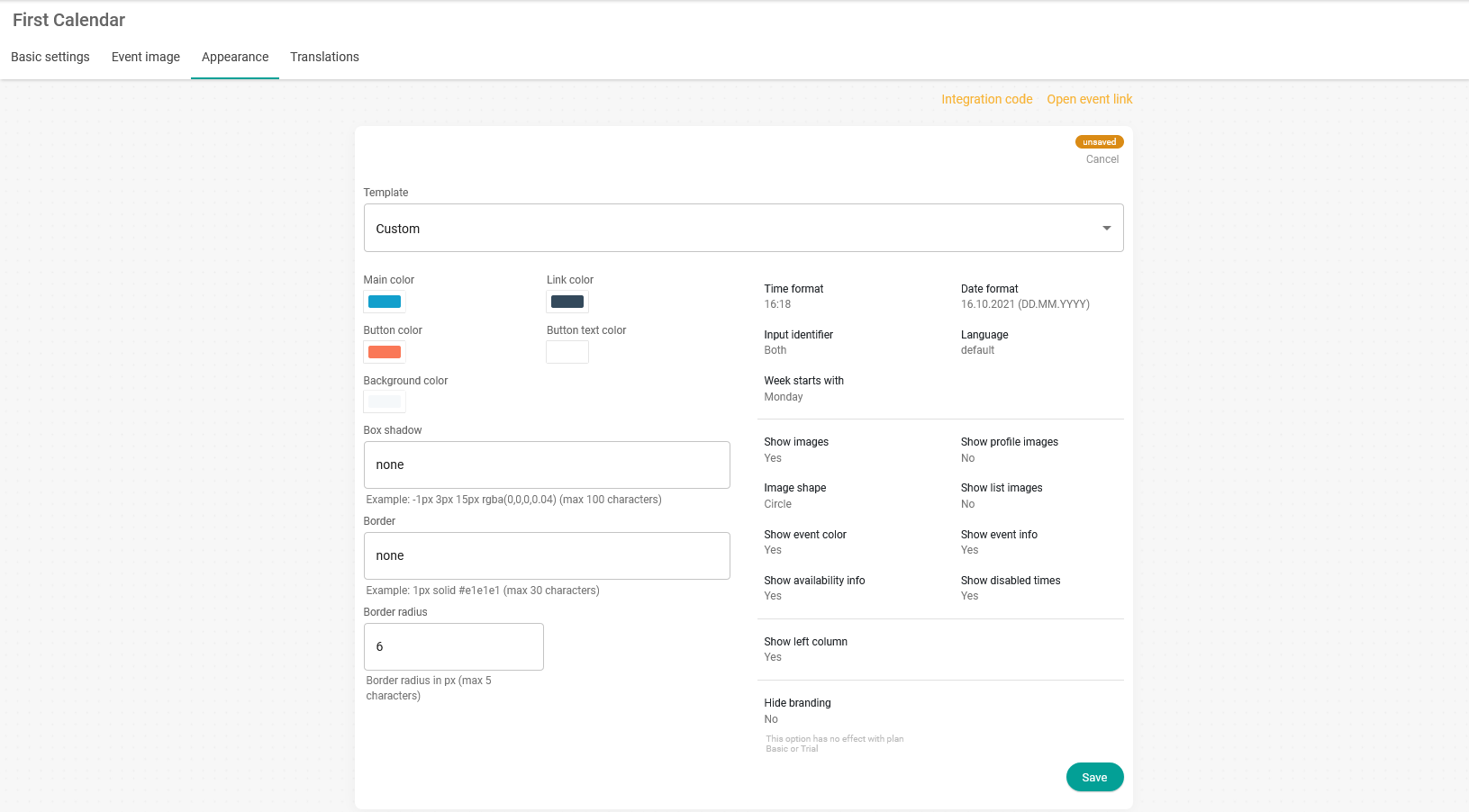
For the changes to take effect, you need to click "Save". The colors of the widget will then change, and it will display the new combination you have chosen.
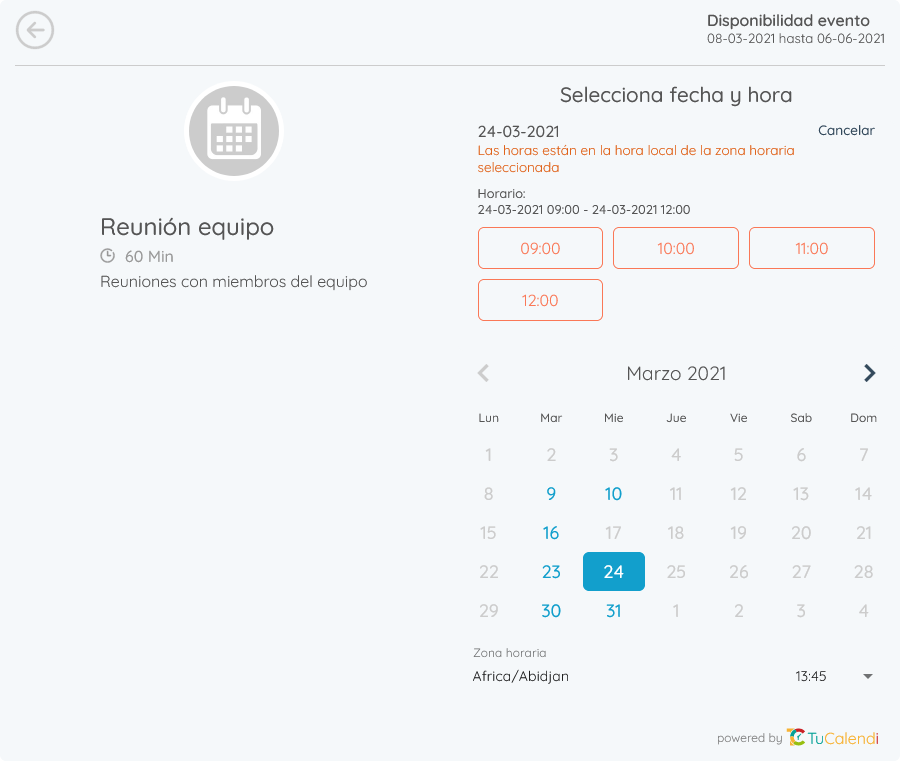
NOTE: If you don't change the color template, the TuCalendi widget will appear with the default colors we have set.