
You can change the appearance of the TuCalendi widget in a very simple way. The options to modify the widget's appearance give you the possibility of multiple customizations.
To access the widget appearance options, log in with your TuCalendi username and password. Go to the "Calendars" option.
Select the calendar whose appearance you want to change and click on the three vertical dots.
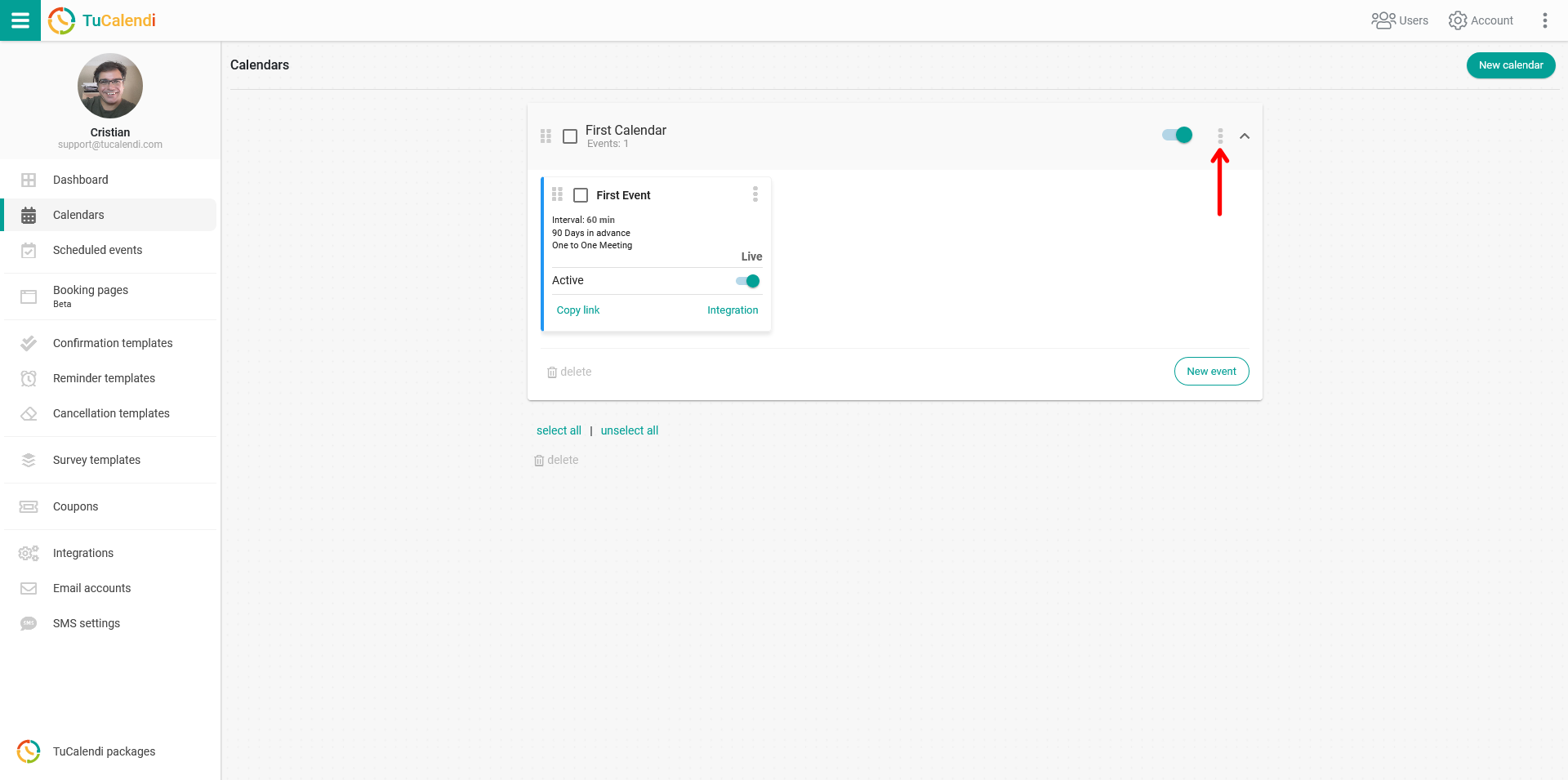
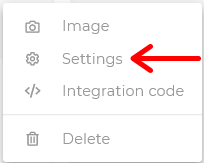
A menu will pop up. Click on "Settings".
You will enter the calendar settings. In the "Advanced (optional)" section, click on "Appearance".
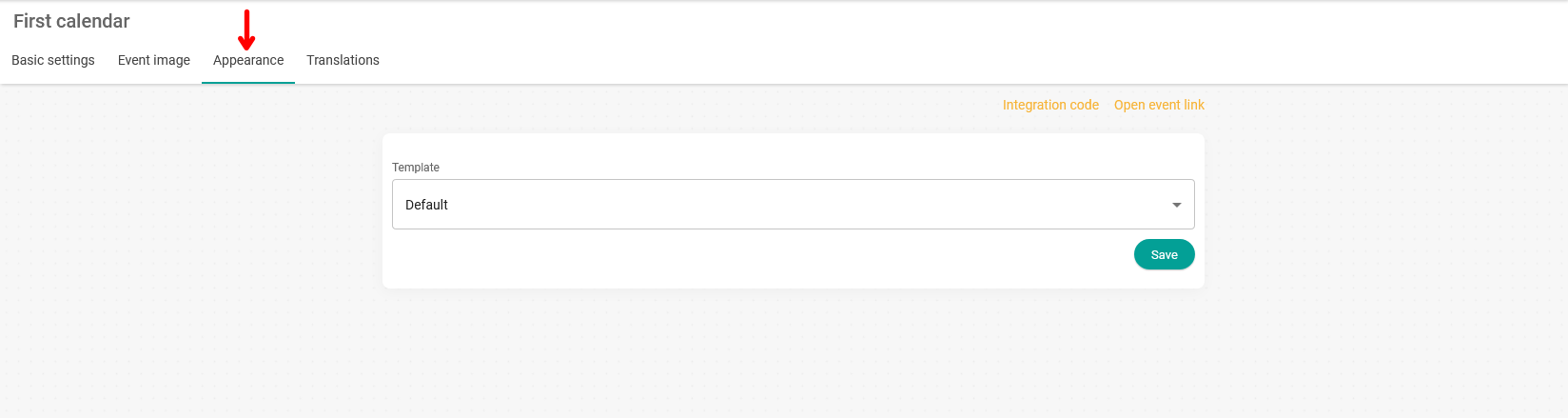
From here you can access the available appearance changes. You start from a default template, which has some default values.
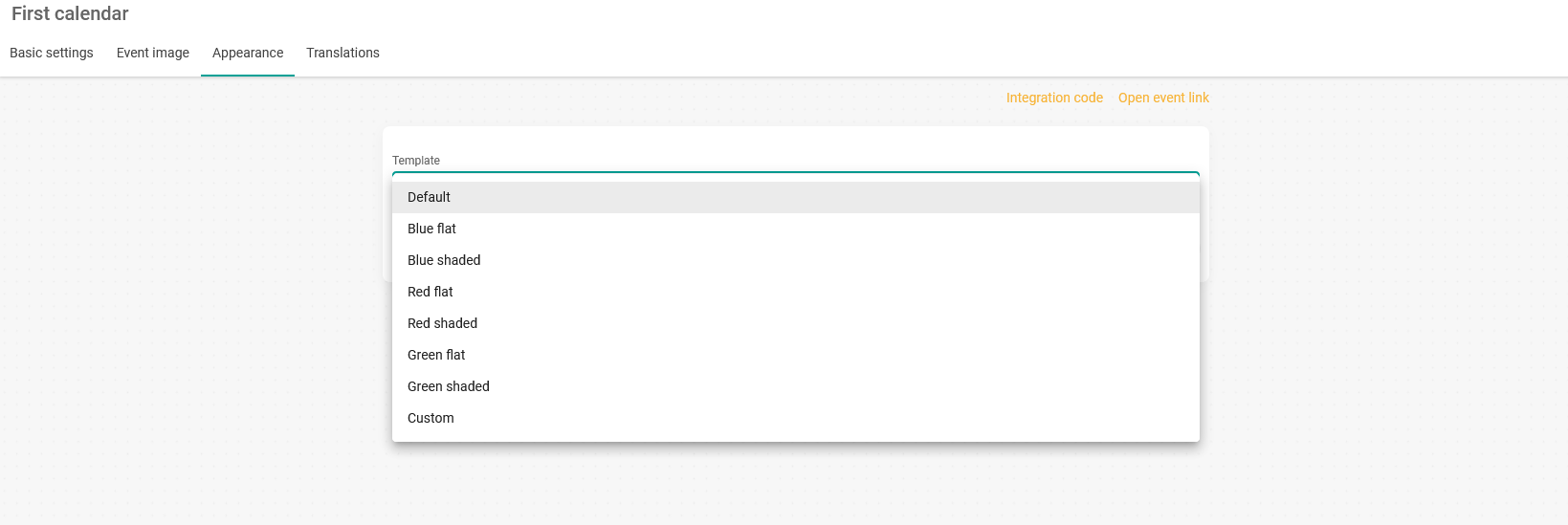
When the templates are displayed, you can choose the color template that best fits your corporate colors, or opt for the "Custom" option and start modifying the widget's appearance.
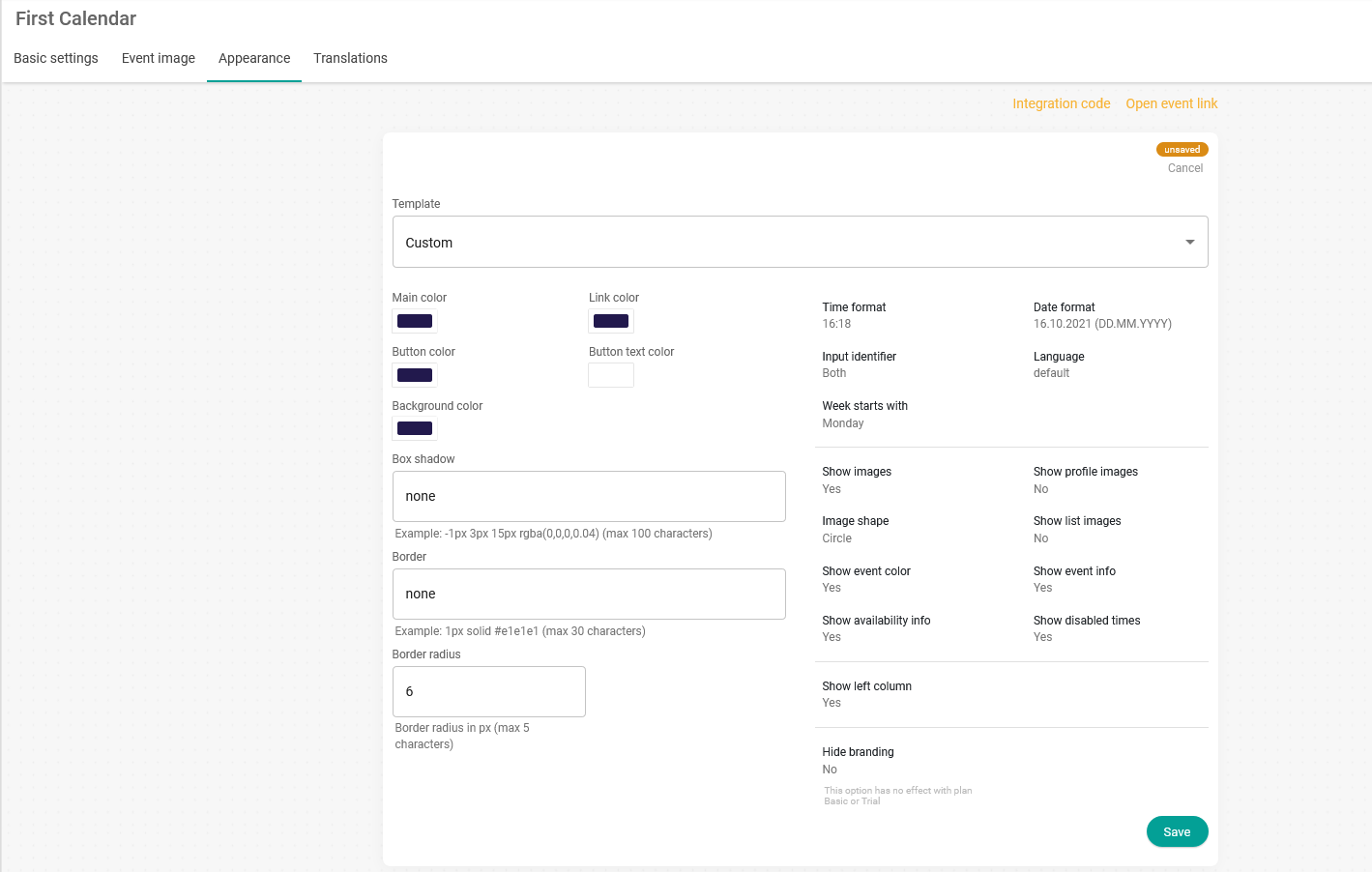
You can make the following changes to the widget's appearance:
- Set colors.
- Set borders and shadows.
- Change date and hour format.
- Set the widget language.
- Remove TuCalendi branding from the widget. (This option is not available in the Basic Plan or during the trial period).
- Input identifier.
- The starting day of the week.
- Show disabled or busy hours in the calendar.
Once you have made the changes you want, you can embed the widget code on your website or share the link to your online calendar by email, social networks or WhatsApp.