
To set the border and shadows of the main elements of the TuCalendi Widget, go to the "Appearance" option of the widget.
Choose your favorite template for your widget.
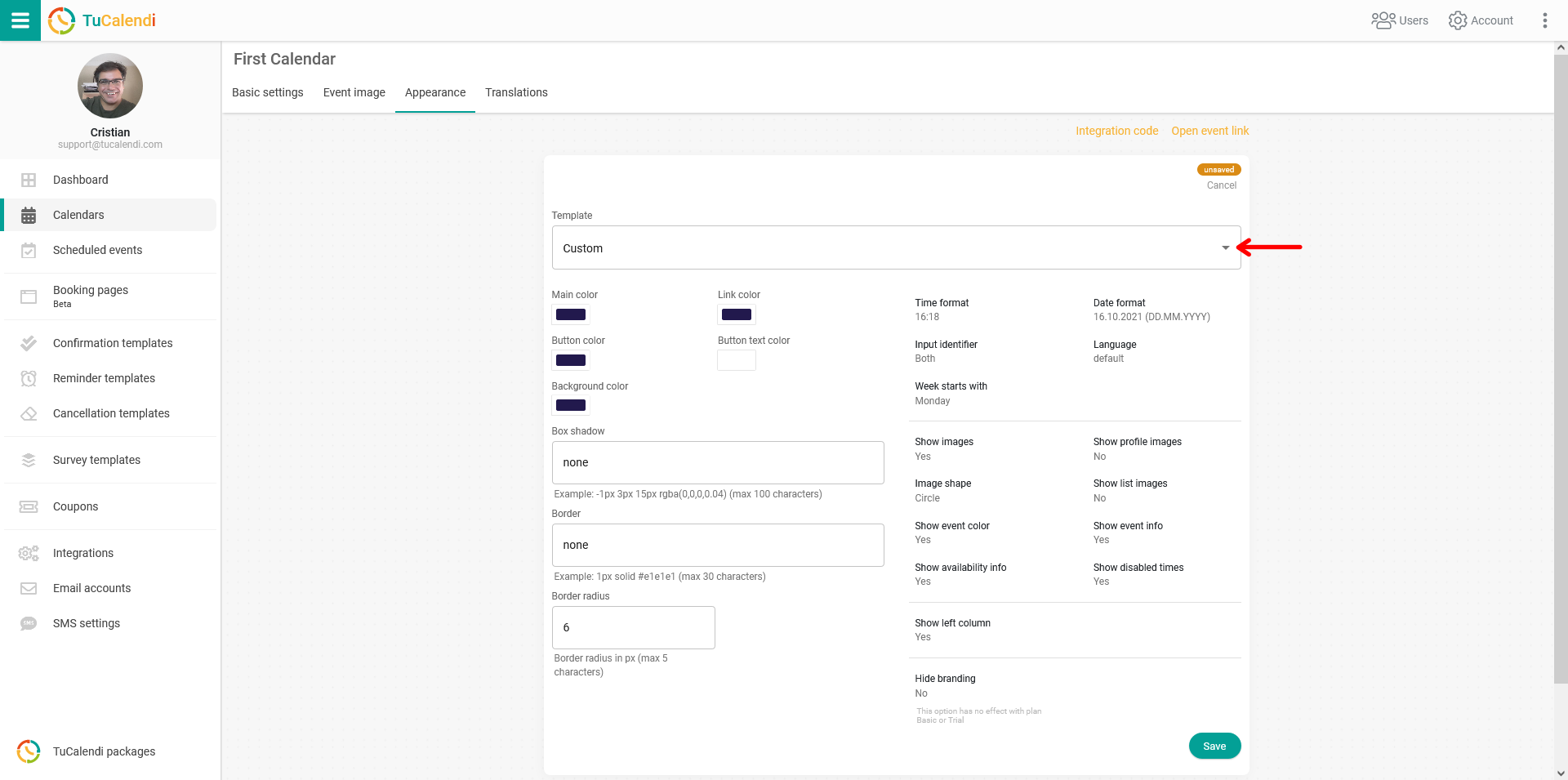
In this example, we have chosen the "Custom" template.
The available settings for shadow and borders are:
- Frame shadow
- Border
- Border radius
The appearance will change depending on the parameters you use. In this example, the color scheme and values chosen for the borders and shadow are as follows:
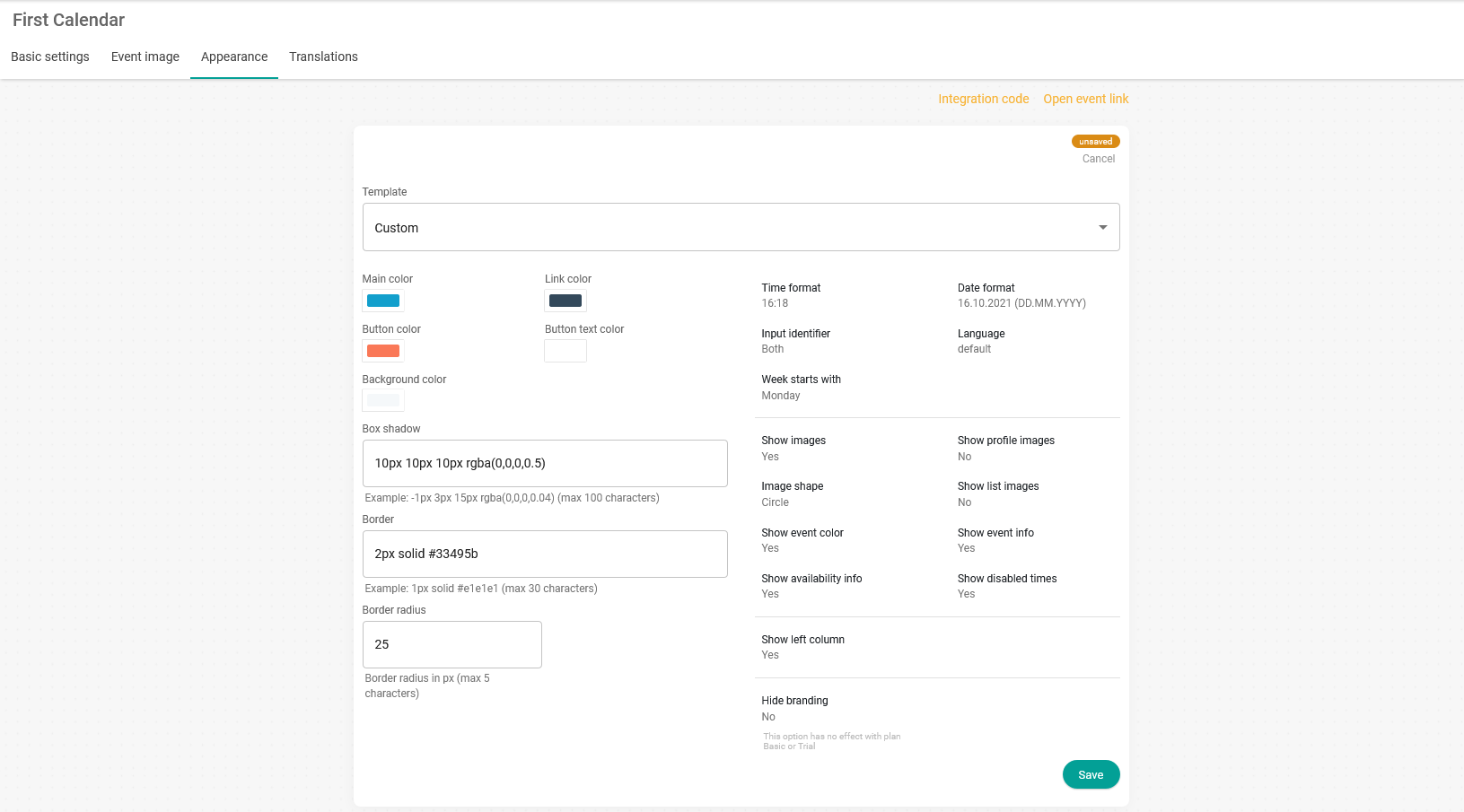
For the changes to take effect, click "Save". The widget configuration is now updated, and the widget appearance with the new combination looks like this:
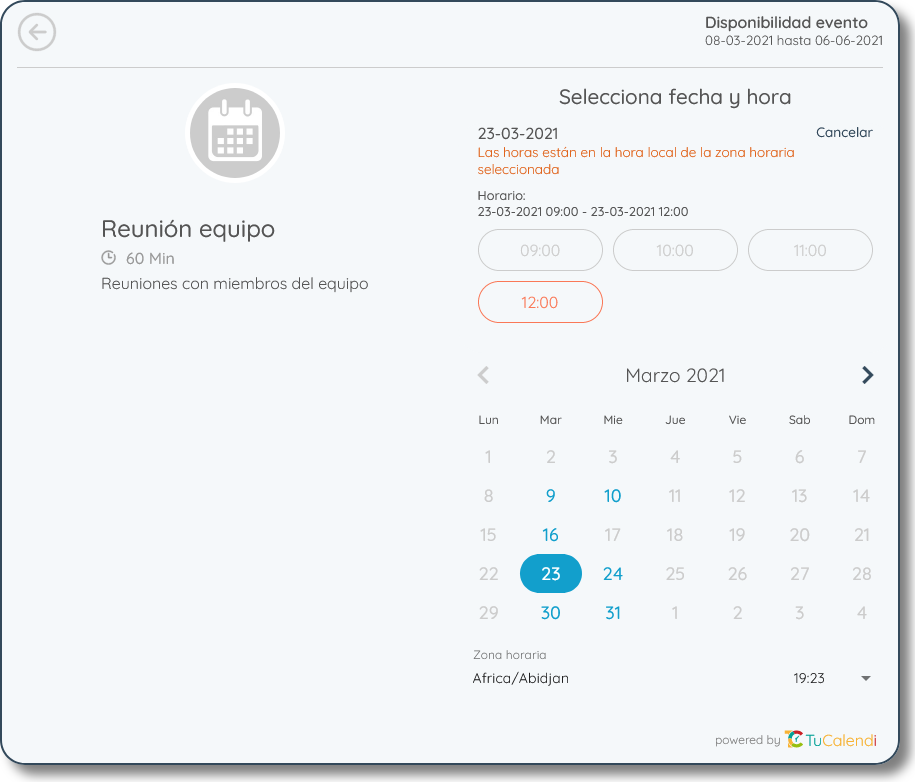
If you don't modify the template, the TuCalendi widget will appear with the default combination we have set.