
When you have a team working in Round Robin mode and the team members need to hold virtual meetings through the different video platforms available, each user assigned to the event must connect to the corresponding video platform.
IMPORTANT: When you choose Round Robin mode for an event, the video platform connection set up for the event is ignored and not taken into account. For a team in Round Robin mode to hold virtual meetings, each user assigned to the event needs to connect to the video platform.
Let's see how to connect a user in Round Robin mode to the video platform.
Log in to TuCalendi with your username and password. Go to the "Calendars" option:
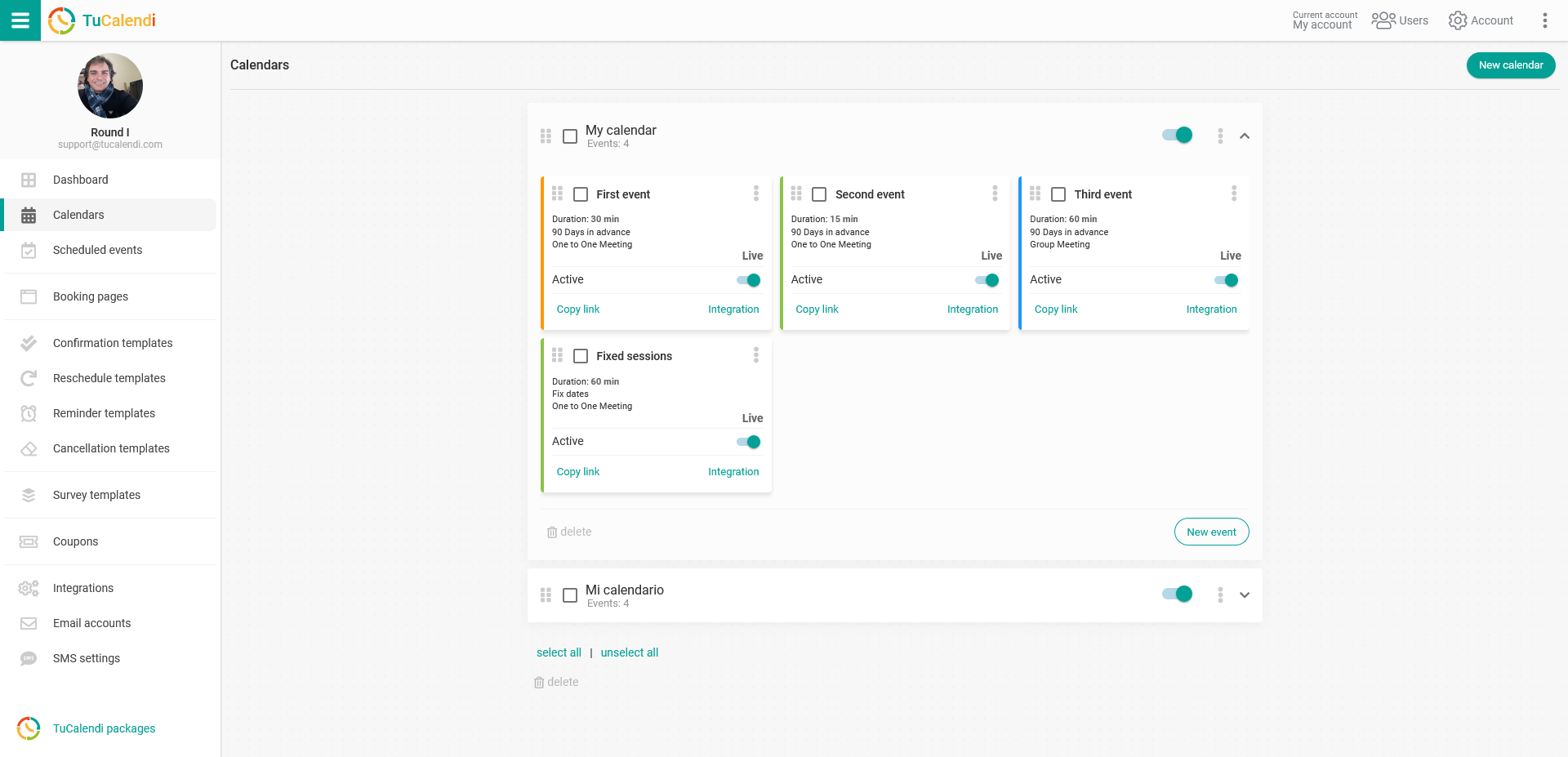
Locate the event for which you want to define the team type in Round Robin mode and the user assignment. Click on the event name.
The horizontal menu shows all the configuration options of the event.
Click on the "Assignment" block:
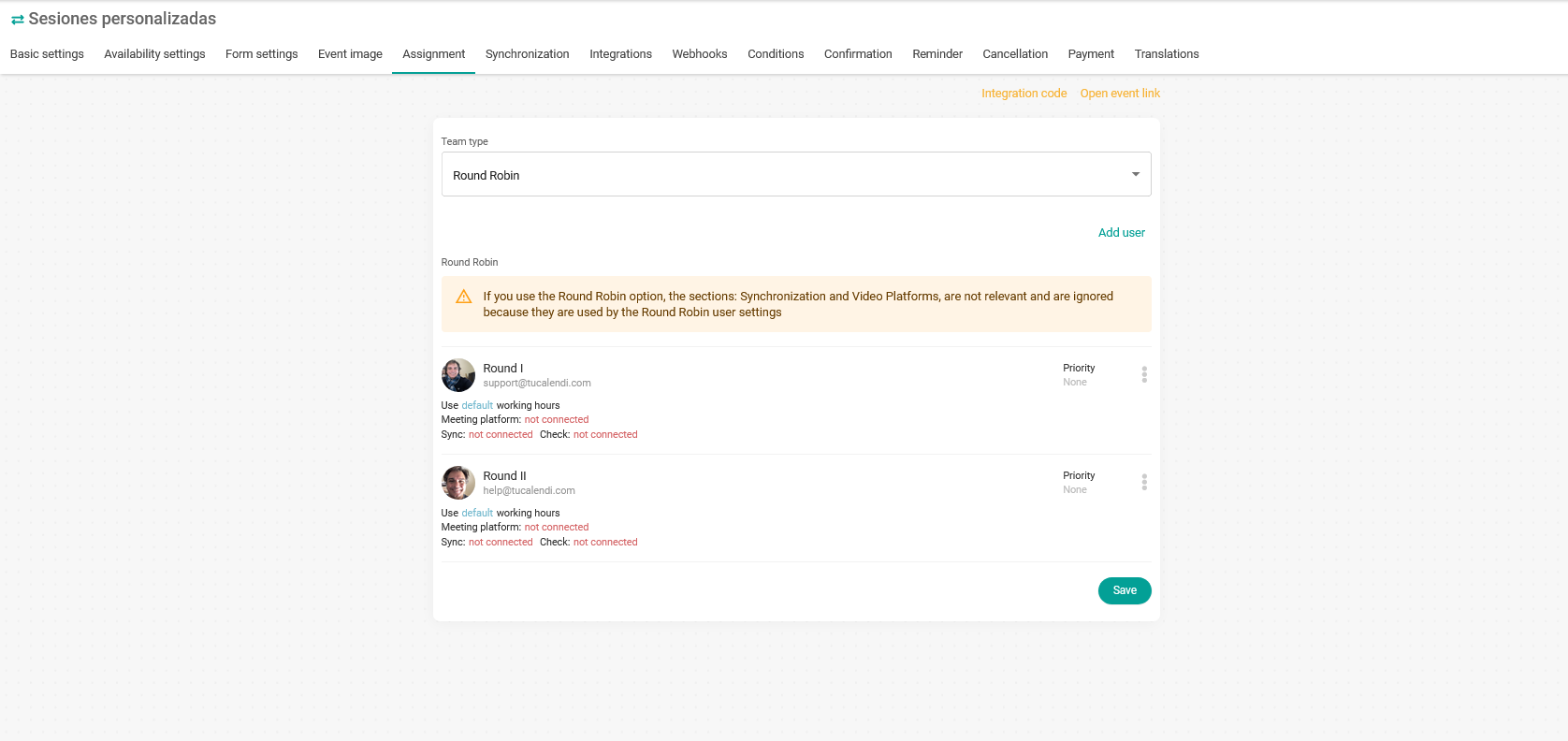
For each user, click on the three vertical dots:

This opens the menu with the configuration options for each team member assigned to the event:
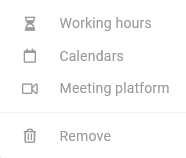
Click on "Meeting Platform" to connect to the video platform:
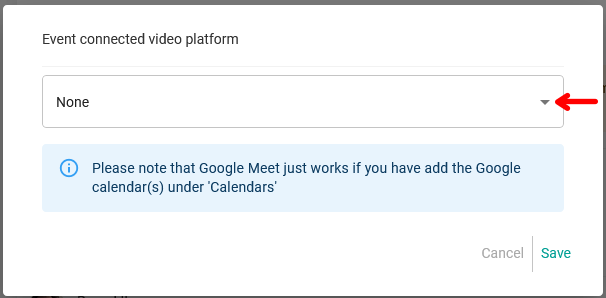
Click on the "Event connected video platform" field to display the menu with the different video platform integrations you have previously set up.
Select the one you want for each user and click "Save".
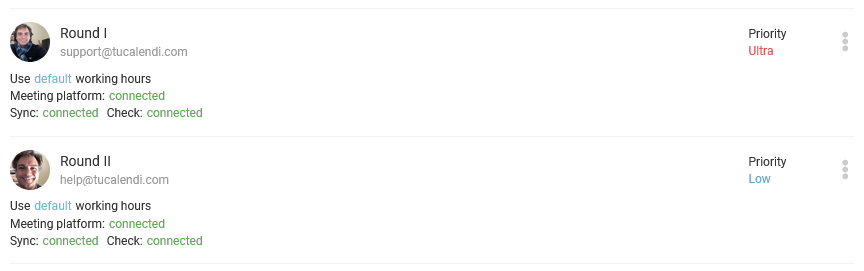
Once you have done this, each user will be updated and will show "Meeting platform: Connected", as you can see in the image.
From now on, the users assigned to the event in Round Robin mode will be able to hold virtual meetings with the video platform they have connected.