In the rotational or Round Robin mode for work teams, your customer's bookings will be handled by one of the users assigned to the event, taking into account the following configuration parameters:
- If the customer is a recurring customer, the same user who handled the previous appointment will take care of them.
- Priority of the assigned user. Each team member can be given a priority for handling appointments.
- Work schedule. Based on the time availability of each team member.
- Workload of each assigned user.
Access TuCalendi with your username and password. Go to the "Calendars" option:
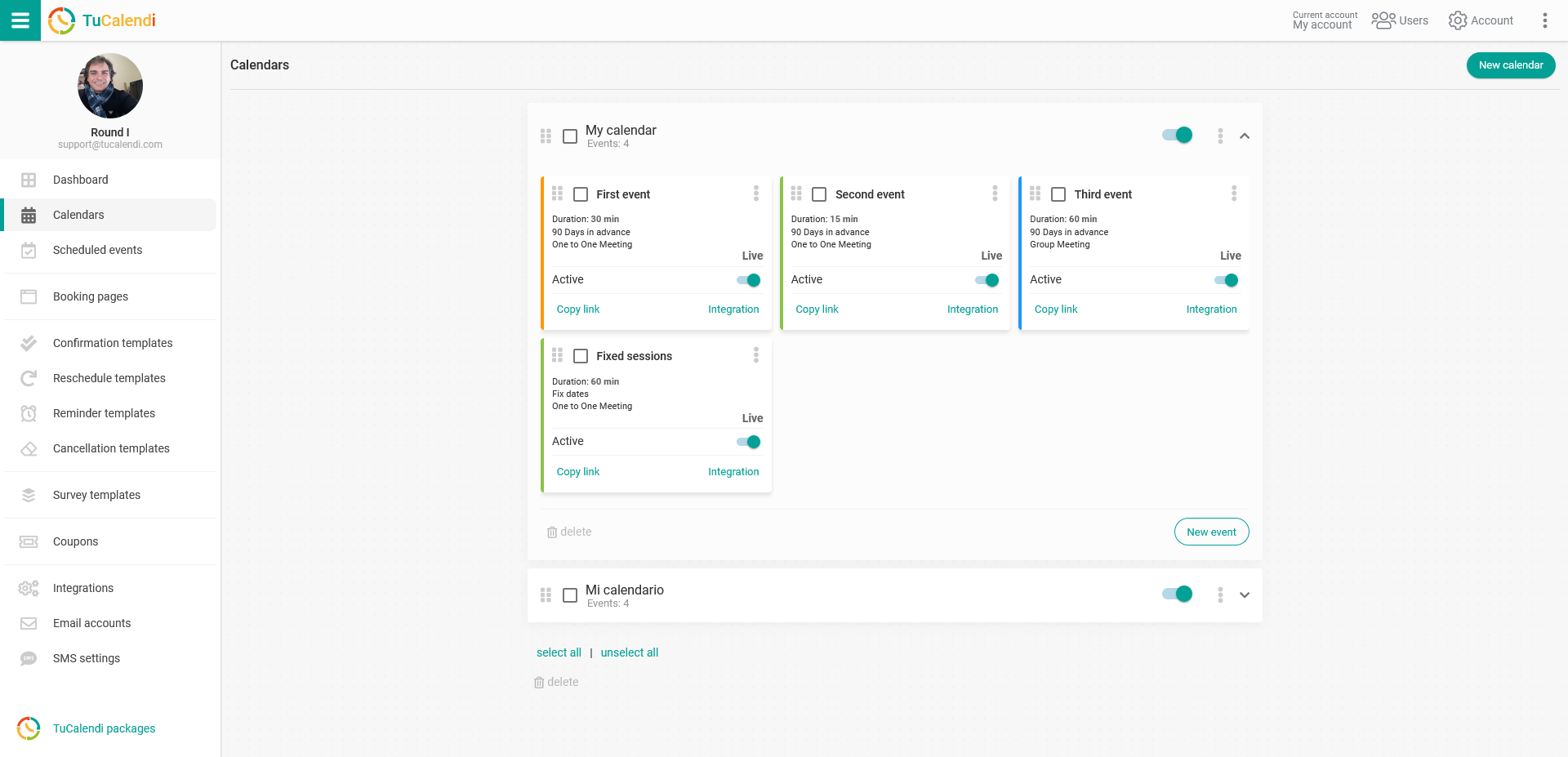
Find the event for which you want to define the work team type and user assignment. Click on the event name.
All the configuration options for the event will be displayed in the horizontal menu.
Click on the "Assignment" block to set the team type and assign the users who will be able to handle the bookings:
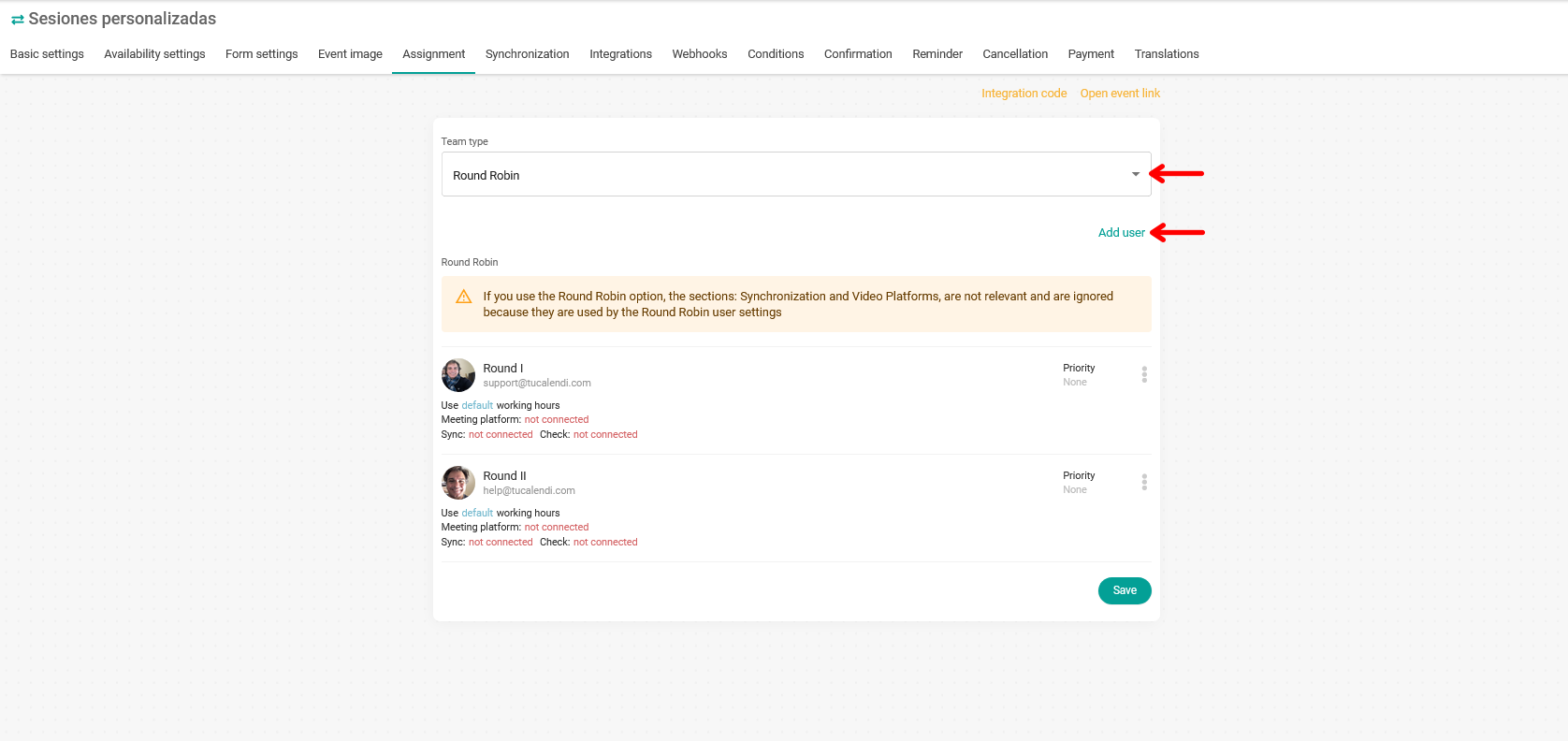
Click on the "Team type" field and select the "Round Robin" mode.
Once you have chosen the team type, click on "Add user" and the list of users in your team will open. Just select the ones you want to assign to the event.
IMPORTANT: When you choose the Round Robin mode for the event, the synchronization with the external calendars set up for the event, as well as the integration with video platforms, is ignored and not taken into account. For teamwork in Round Robin mode to work properly, it is absolutely necessary to synchronize the external calendar of each assigned user and also to connect each user with the video platform.
You need to set up each team member assigned to the event:

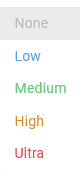
By clicking on "Priority" you set the priority of each user for handling each booking. The options are as follows:
Clicking on the three vertical dots takes you to the rest of the settings options for each team member assigned to the event:
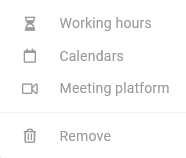
Work schedule, external calendar for synchronization and connection to the video platform for online meetings.
Of course, you can remove a team member assigned to the event at any time.
We will look at each of the settings options for each user in detail in separate tutorials.
Once everything is configured, click on the "Save" button to start receiving bookings for the event using the Round Robin mode for assigning users to bookings.
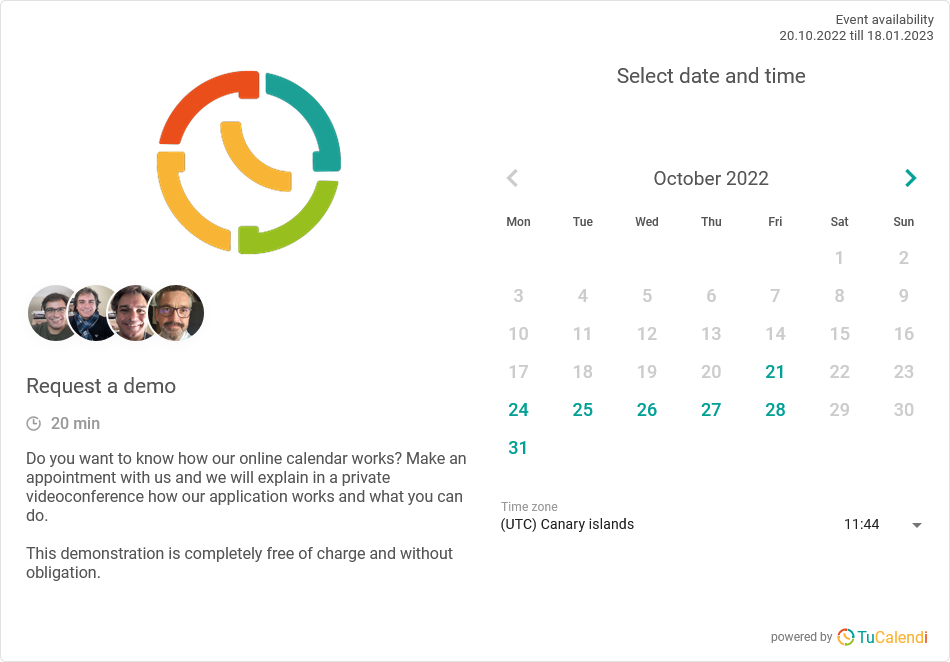
The widget will show the profile image of each user assigned to the event: