
Setting work schedules for users assigned to work type events in the Round Robin mode is essential for correctly setting up time availability for bookings.
Each member of a work team can set their own schedule in two different ways:
- Standard schedule, which is the same for all events.
- Specific schedule, which is unique for each event.
Log in to TuCalendi with your username and password. Go to the "Calendars" option:
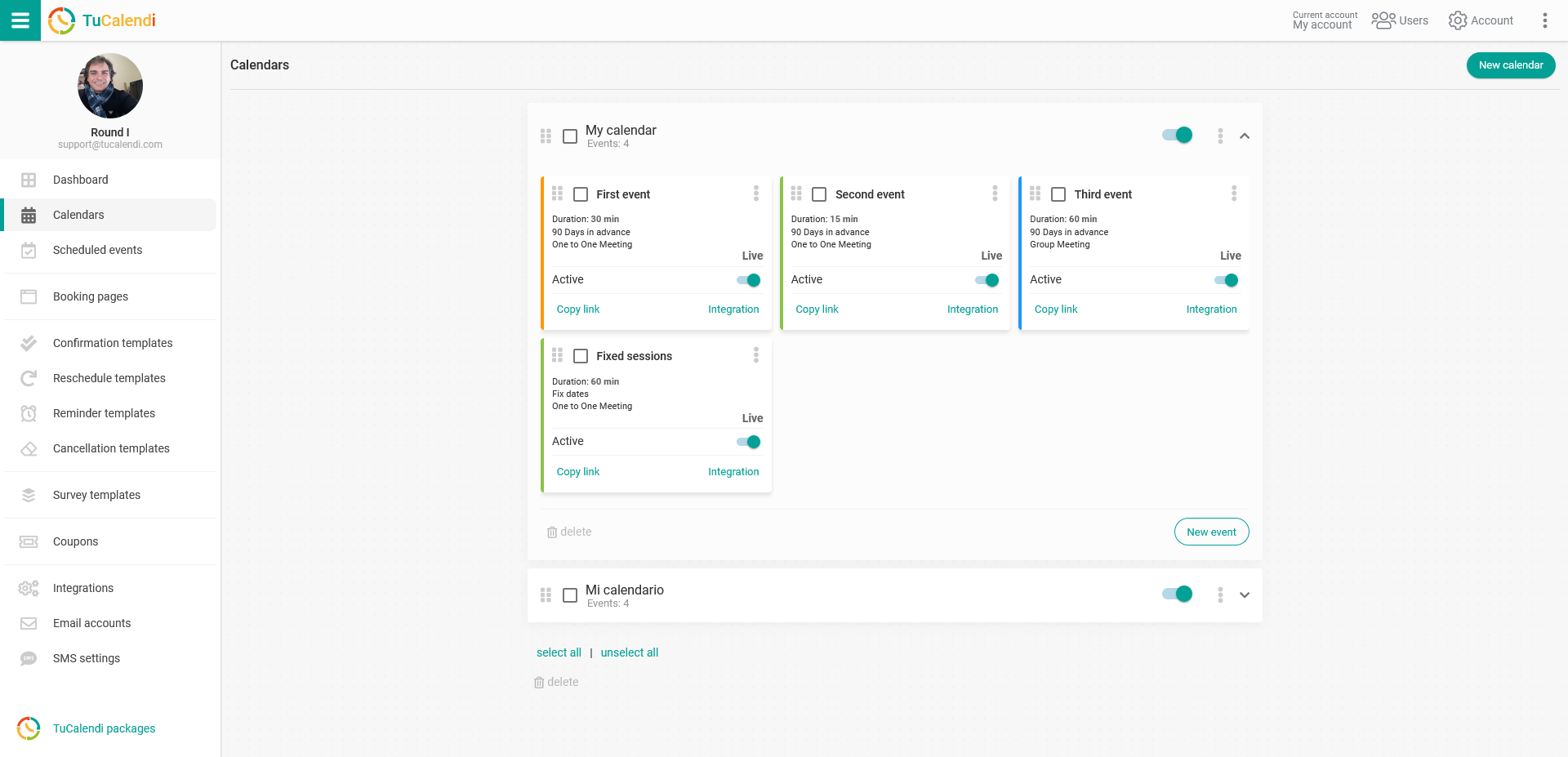
Locate the event that has a work team in Round Robin mode. Click on the event name.
The horizontal menu shows all the configuration options for the event.
Click on the "Assignment" block:
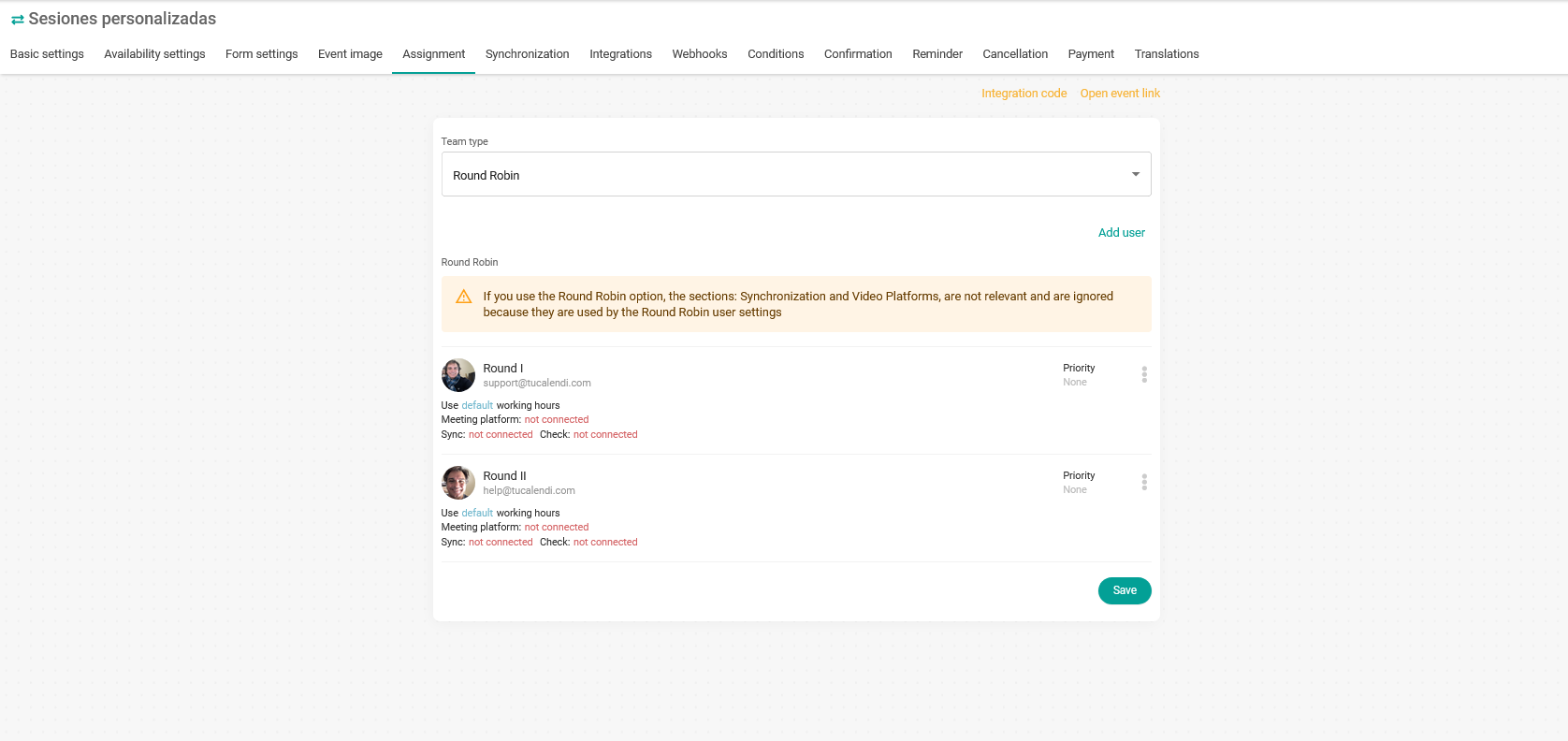
You need to set the work schedule for each member of the team.
Next to the user, click on the three vertical dots:

You will access the menu with the configuration options for each team member assigned to the event:
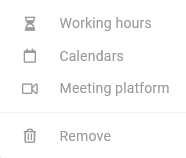
Click on "Working hours" and choose the option you prefer:
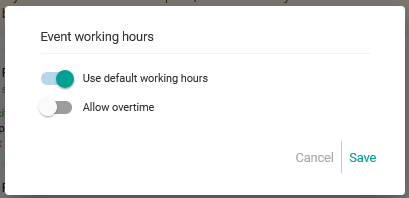
In this case, we have selected "Default working hours".
The default working hours are the user's own time availability, which must be set up individually for each user. The standard or default working hours are the ones the user always has, regardless of the event they are assigned to.
By disabling the user's standard working hours, you can assign the user specific working hours for the event they are assigned to:
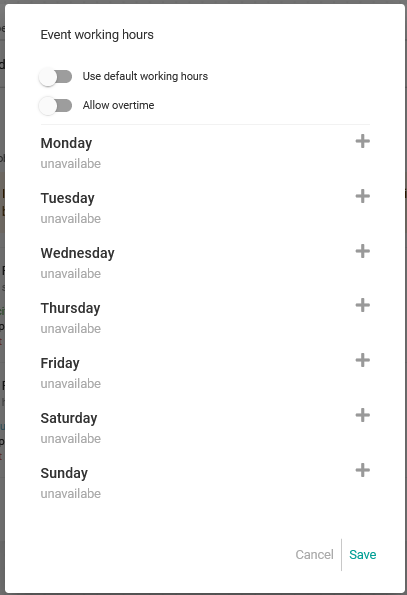
You can assign a schedule or time slots for each day of the week. When you have created it, click on "Save" for the changes to take effect.
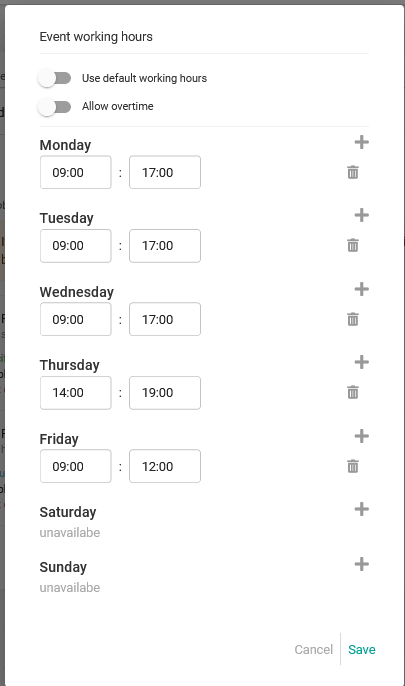
Another option is to enable "Allow overtime", so that the last hour set in the user's schedule is available for booking.
Each team member can have their own schedule, and you can combine all of them to offer all the availabilities.
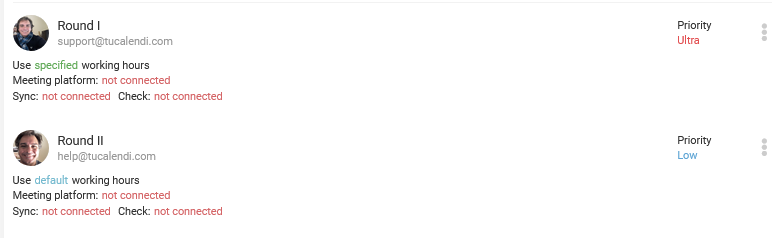
In this case:
- Round I has the specific working hours for the event.
- Round II has the standard working hours.