
When you have work teams in rotational or Round Robin mode and you have assigned several users to the same event, you can set the user priority to define the preference among the team members assigned to the event. Your customers' online booking is then assigned to the user who has the highest priority.
Setting user priority for team members is easy.
Log in to TuCalendi with your username and password. Go to the "Calendars" option:
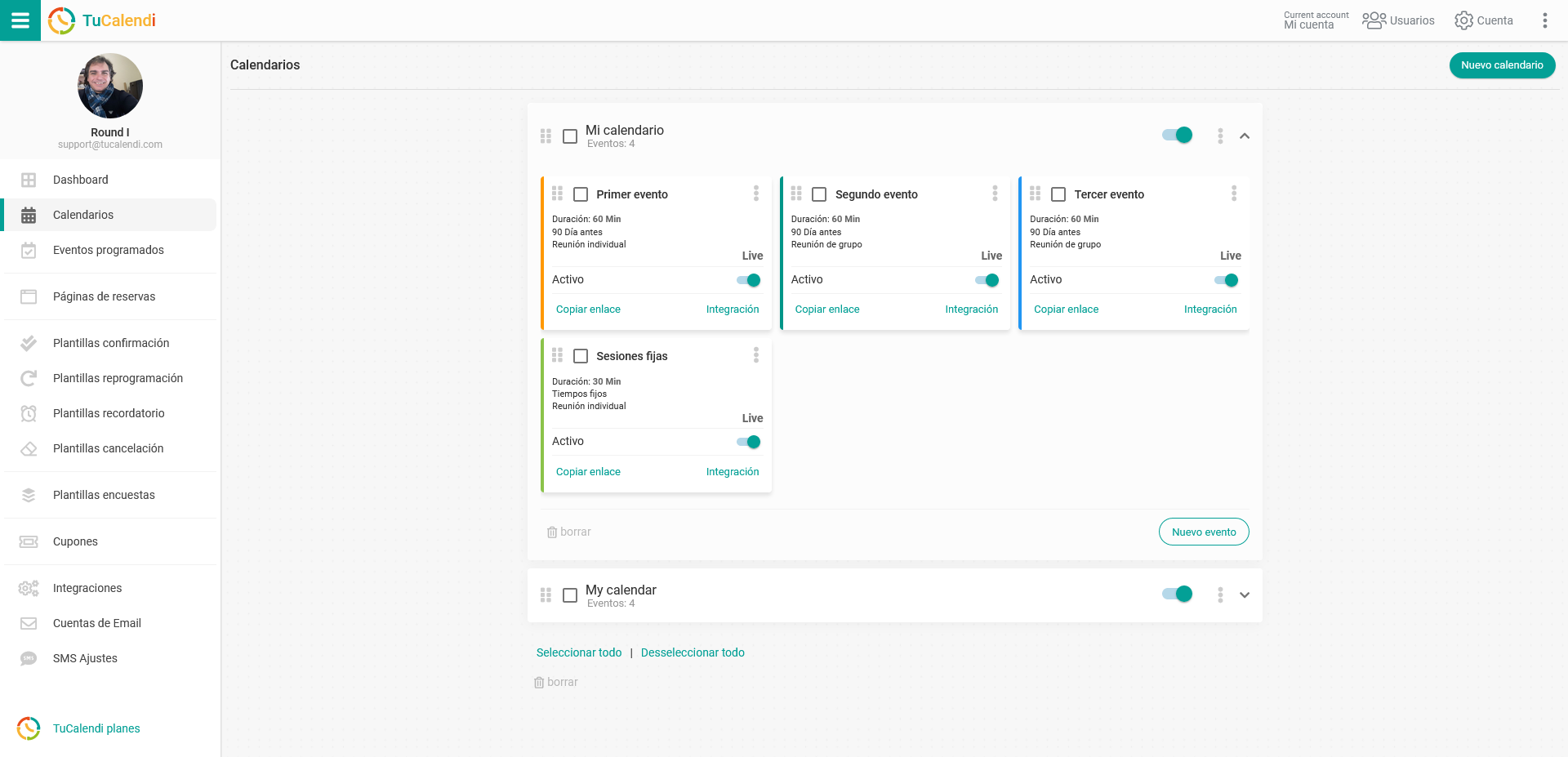
Locate the event that has the work team type in Round Robin mode. Click on the event name.
The horizontal menu displays all the configuration options for each event.
Click on the "Assignment" block:
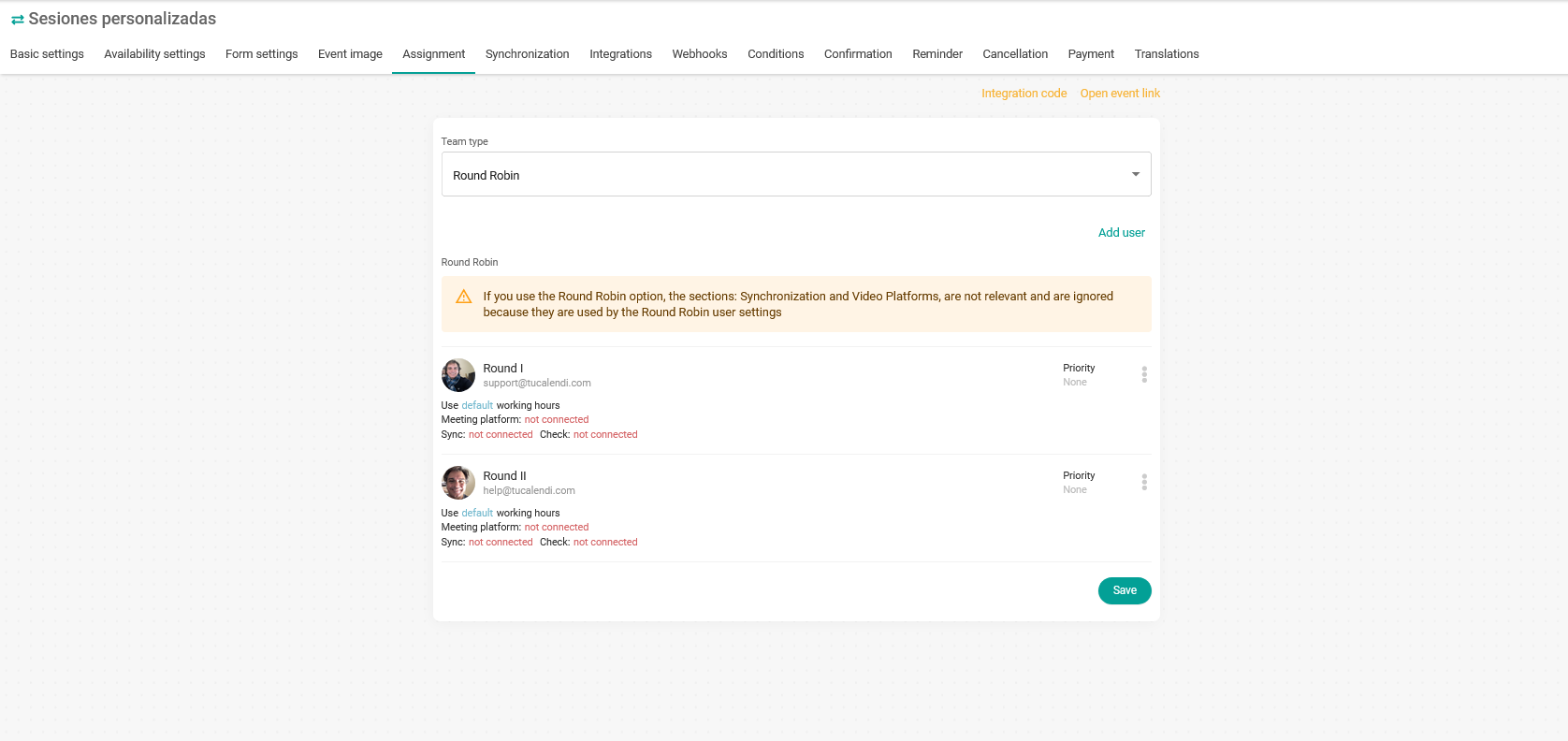
You need to set the priority for each member of the team.
For each user, click on "Priority":

Choose the priority that corresponds to each user of the work team:
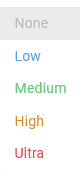
The options range from no priority "None" to the highest priority level "Ultra".
All users can have the same priority and the system will choose the most appropriate one in each case. If users have different priorities, the one that is available and has the highest priority will be chosen.
In our example, we have set the following priorities:
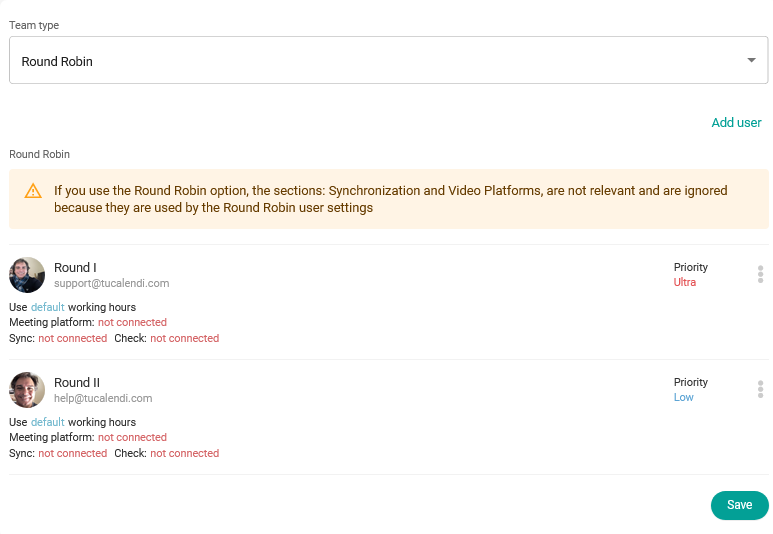
- Round I has "Ultra" priority.
- Round II has "Low" priority.
This means that if both users are available to attend a reservation, the booking will be assigned to Round I.