
We have added a new functionality for the availability of events when you want to offer them on fixed dates and times. Let's see how to create an event with fixed dates and times.
To configure a new event as an event with fixed dates and times, you must choose this option when you add a new event to a calendar. Afterwards, you can modify or set the time availability.
Keep in mind that you must decide whether it is a standard event or an event with fixed dates and times when you create the new event, because you cannot change the event mode later.
Log in to TuCalendi with your username and password. Go to the "Calendars" option:
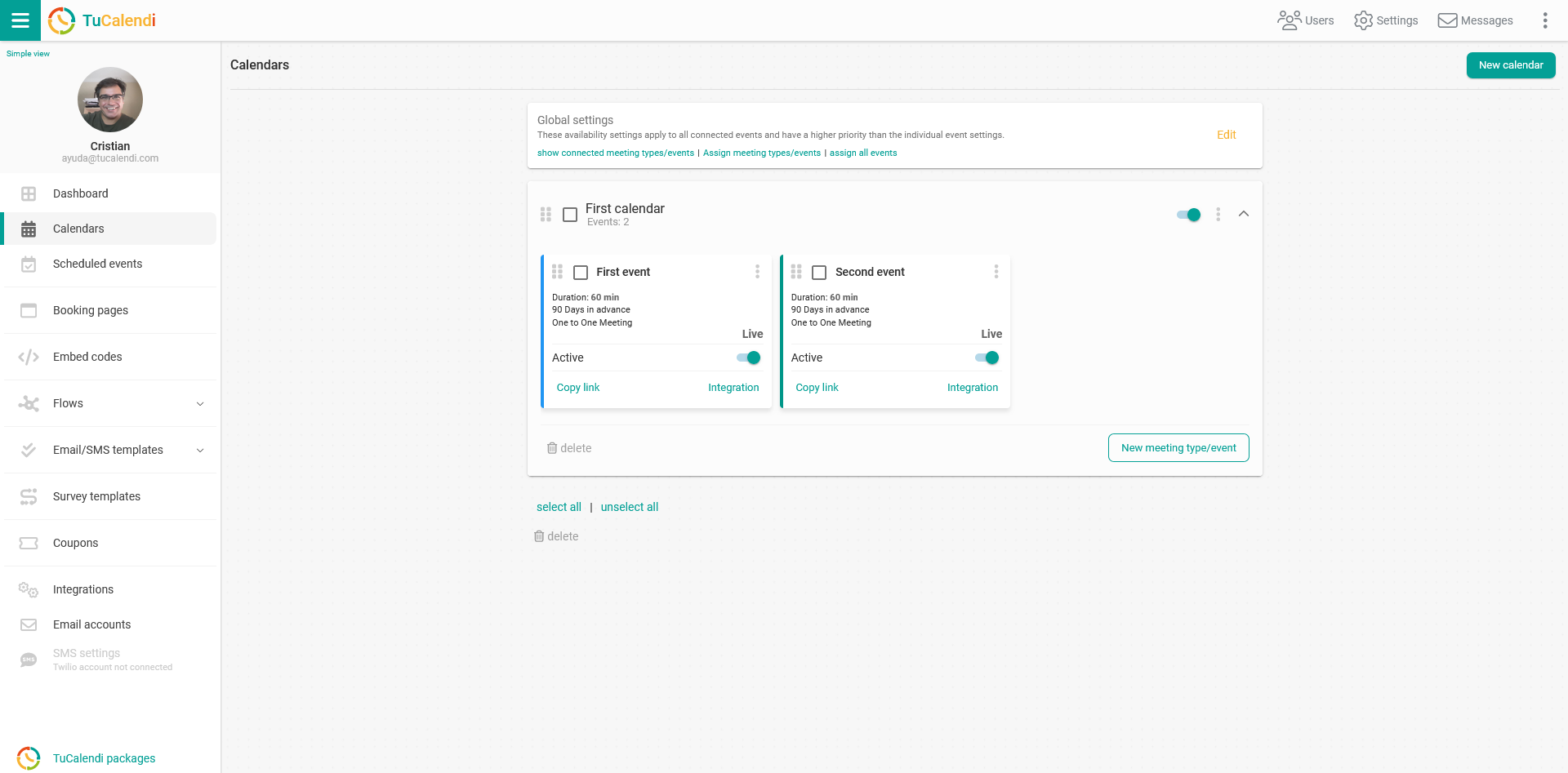
Click the "New event" button.
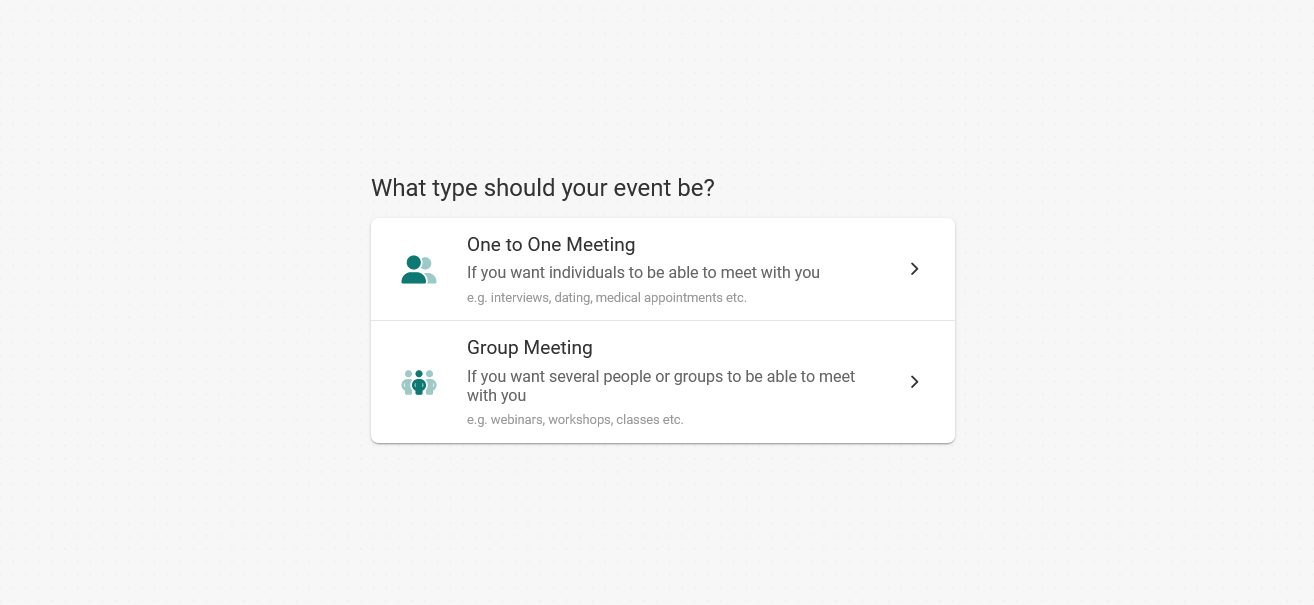
Choose the type of event you are going to create, "One to One meeting" or "Group meeting":
Then select the mode of the event you want to create:
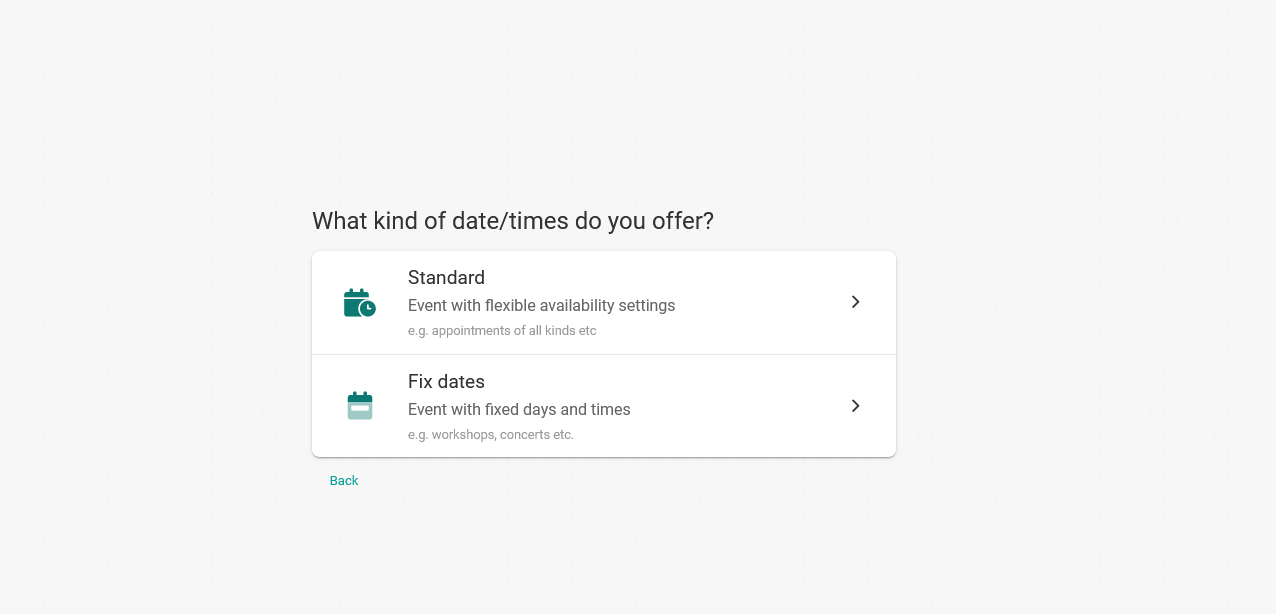
Select the "Fix dates" option and start entering the basic information about the event:
- The name, a brief description, the link of the event and a color that identifies it.
- You can also set the "Location" of the event.
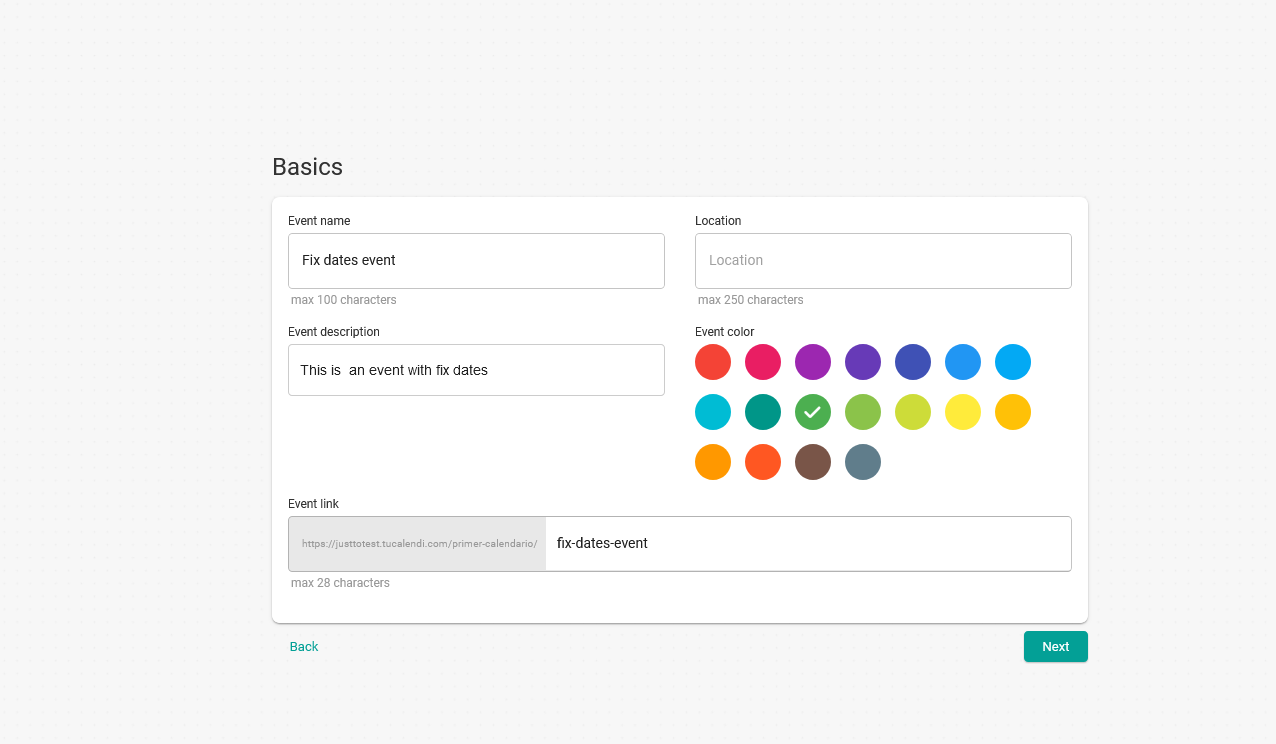
Click "Next" to continue creating the new event.
You can then set up the availability:
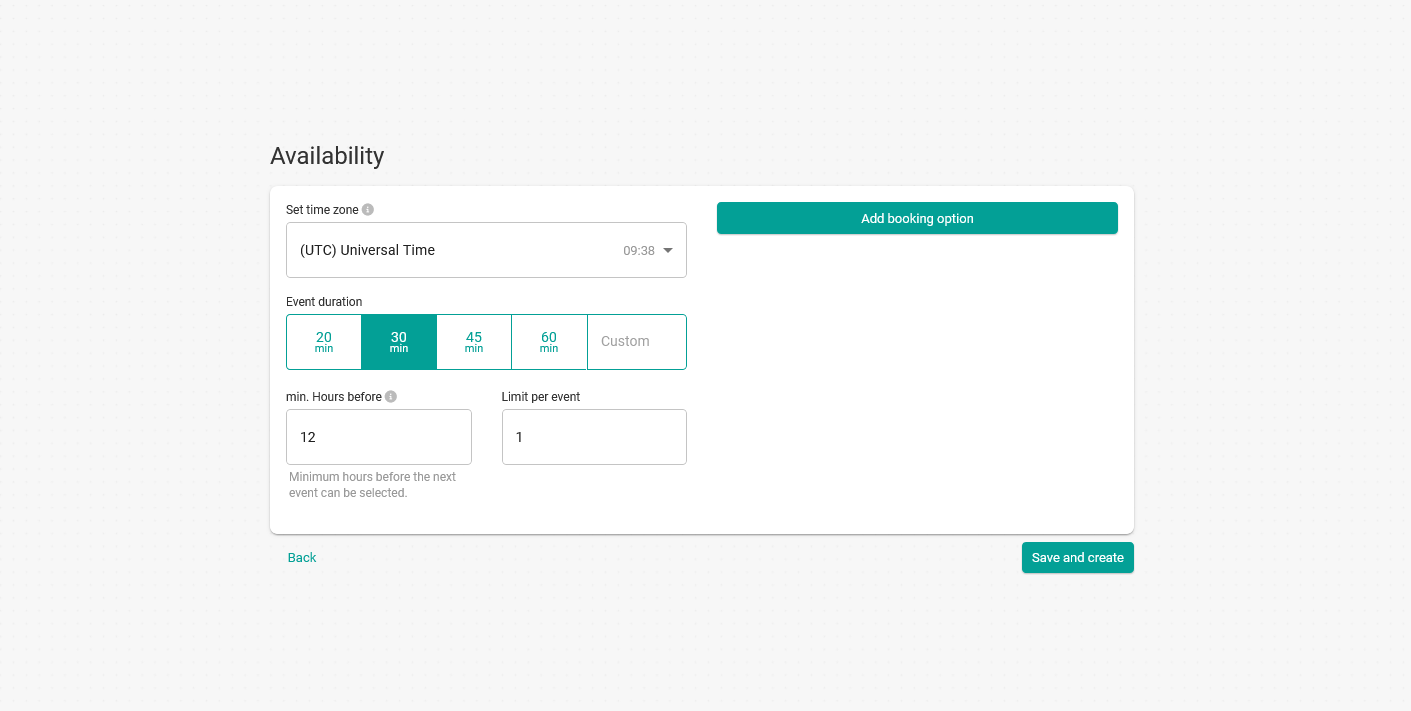
Click "Save and create", and with these three steps you will have created the event with fixed dates and times.
After you have created an event with all its details, you can edit the event and modify the availability at any time.
When you create an event, it uses a standard form by default. The form is the information requested from the client to make a booking. The standard form requests the following information:
- First name.
- Last name.
- Email.
You can customize the form and request the data you need by creating form flows.