
Follow up templates are personalized emails that are sent within the time frame you determine after the meeting is over, and they can be included in a workflow.
Let's see how to create the follow up email that is sent to customers when a meeting is over by creating a custom follow up template.
Log in with your TuCalendi username and password. Go to the "Email/SMS Templates" menu:
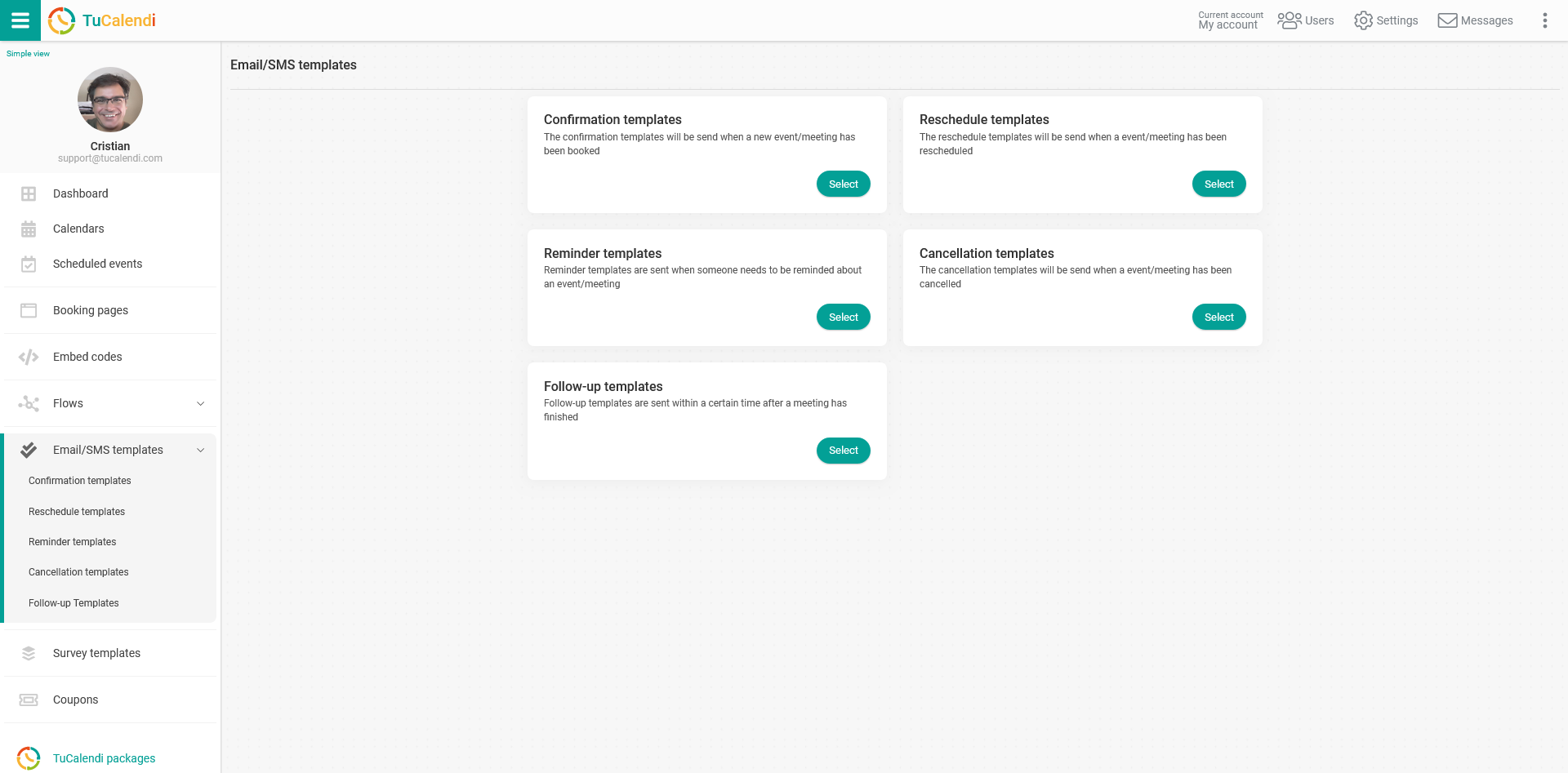
Click on "Select" in the "Follow-up Templates" option:
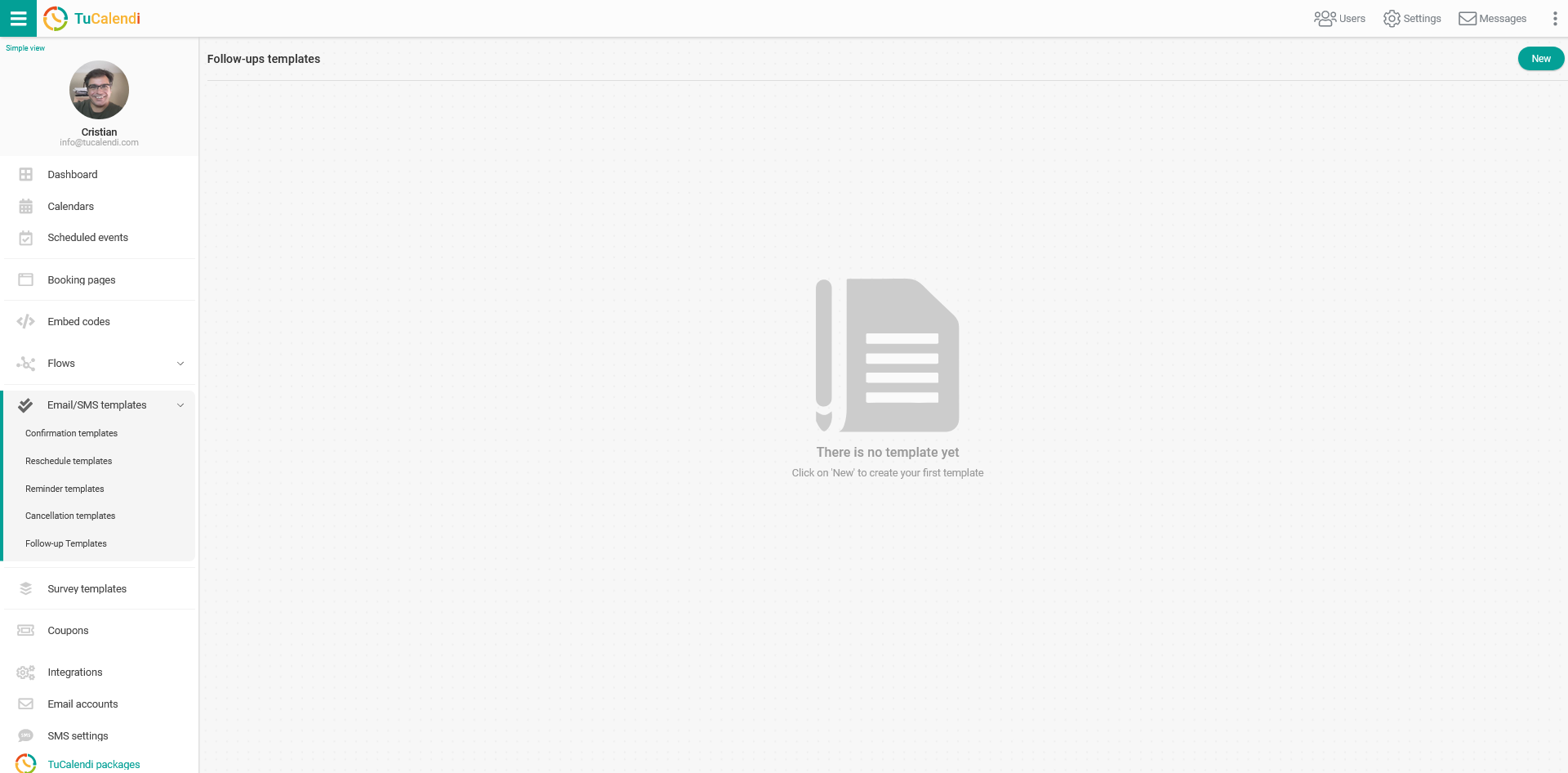
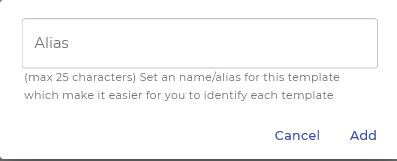
Click on the "New" button, enter the name you want to give the follow up template you are going to create and click on "Add":
Initially the template is blank, so you can fully customize it.
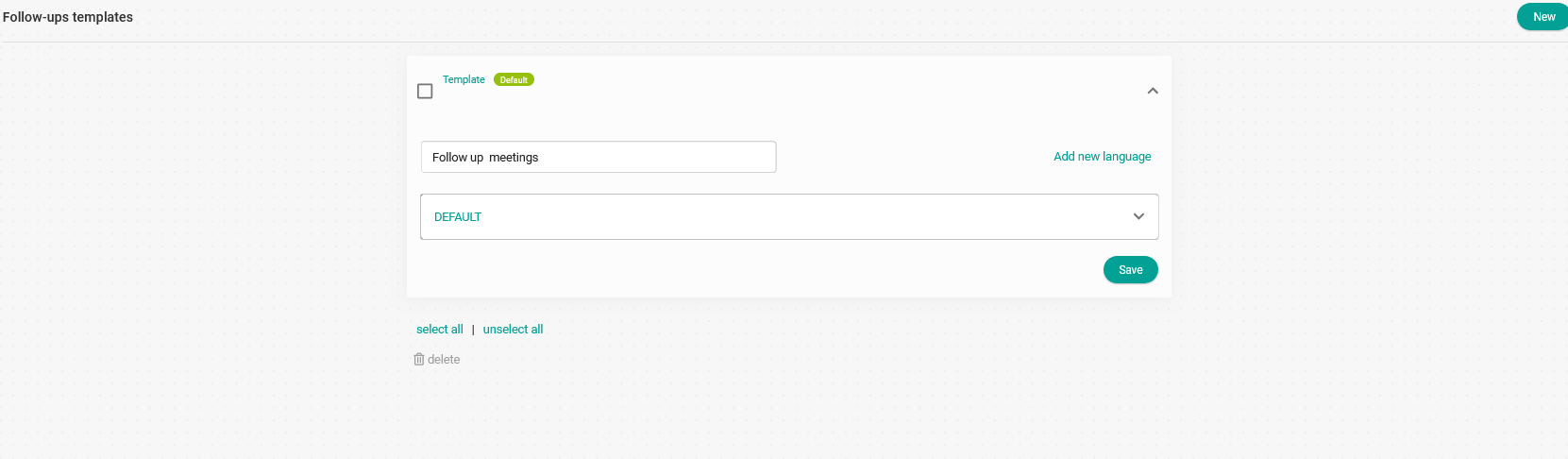
Click on the "DEFAULT" drop down to start customizing the follow up template.
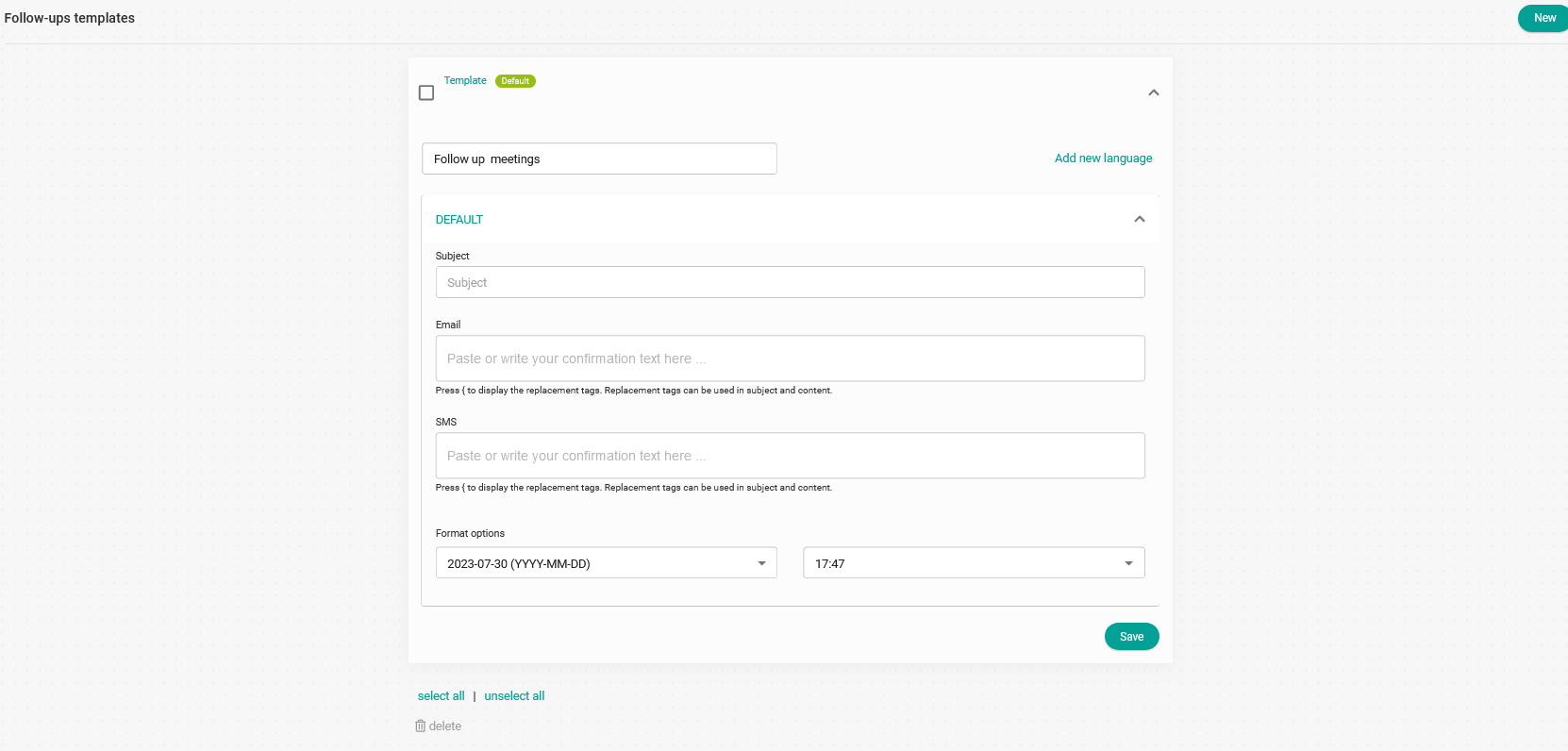
The "Subject" field sets the subject of the email that your clients will receive when the meeting ends.
Clicking on the "Email" field opens an editor that lets you write and customize the follow up template.
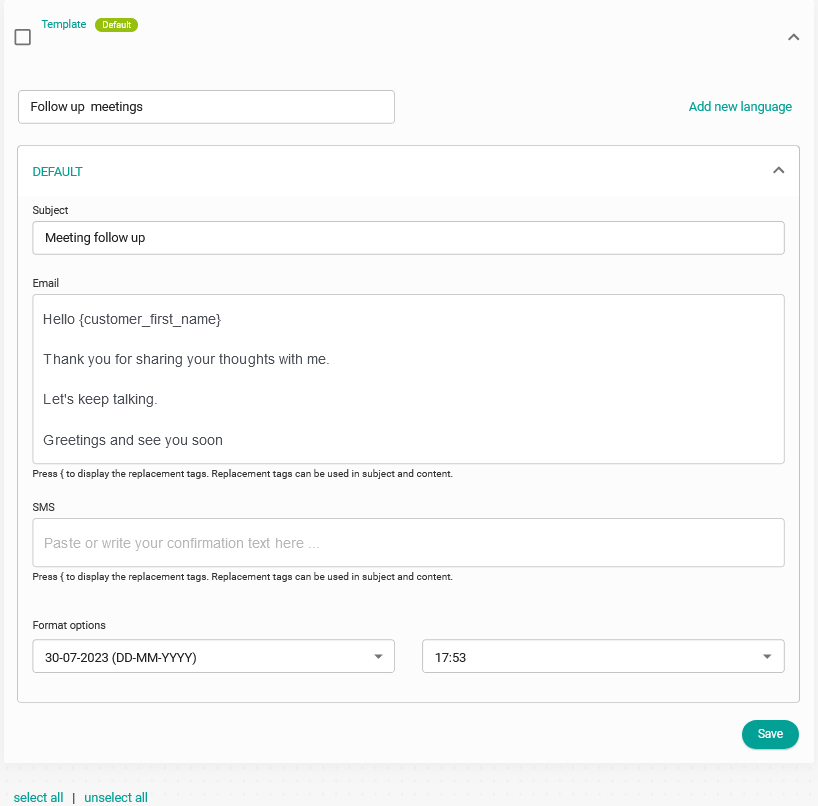
As with all TuCalendi templates, you can use the replacement tags available for follow up templates. This way, the information in the emails will be dynamic and personalized for each client. To see the tags, just type the character { and the list of tags will be displayed for you to choose from.
When you're done, click on "Save" and your follow up template will be stored so you can start using it in your workflows.
NOTE: You can have the template in different languages. Just click on "Add new language" and create the template in the languages you want.