
Although we all want to avoid cancellations of the appointments in our agenda, sometimes, for various reasons, customers may be forced to cancel the appointment they have scheduled from the online calendar.
An important feature for any online booking system is to give customers the possibility to directly cancel the scheduled appointment. In TuCalendi you can include a cancellation link in the event confirmation templates. Let's see how to enable this option.
Log in to TuCalendi with your username and password. Go to the "Email/SMS Templates" option.
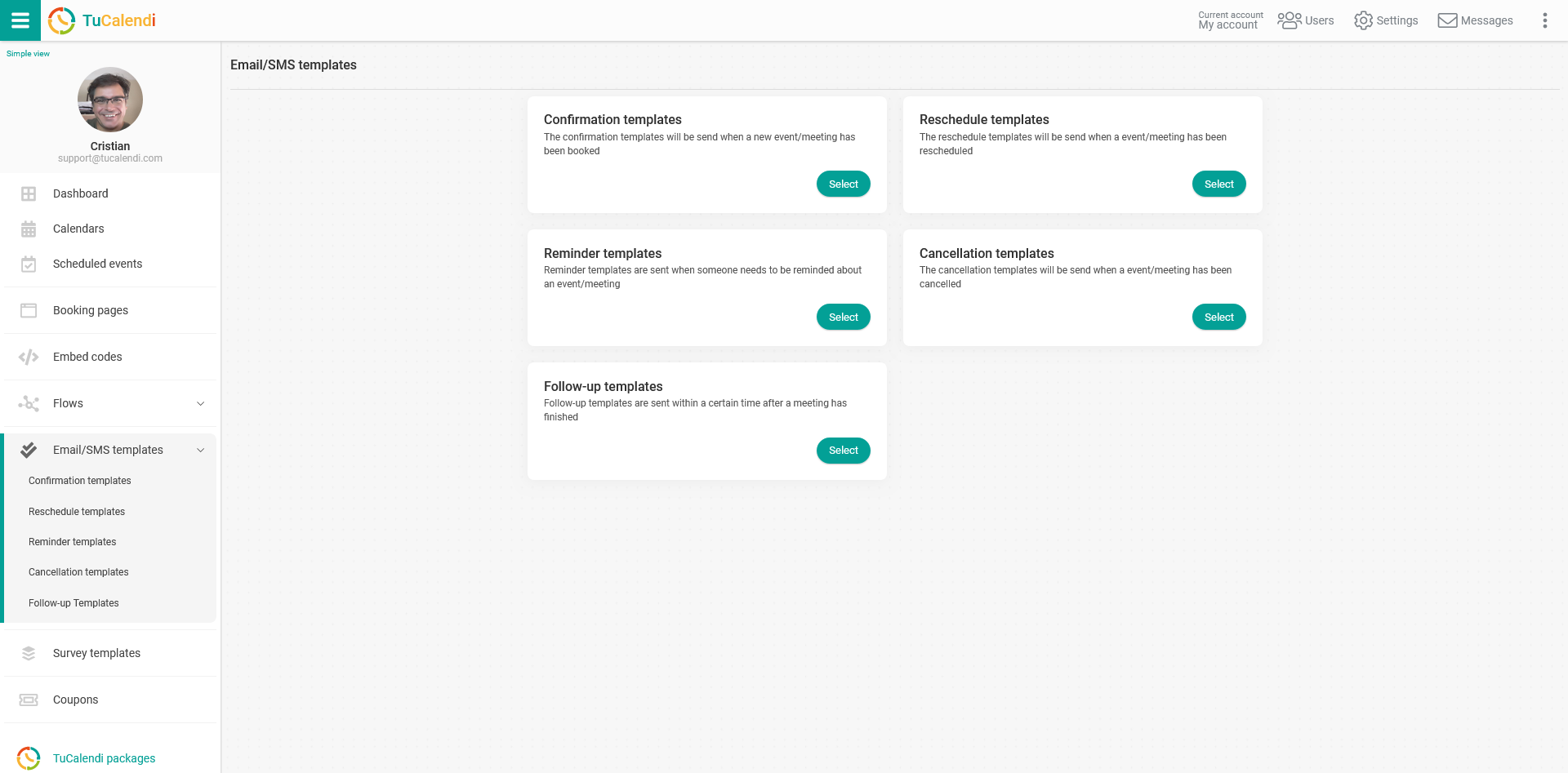
In the "Confirmation email" option, click "Select":
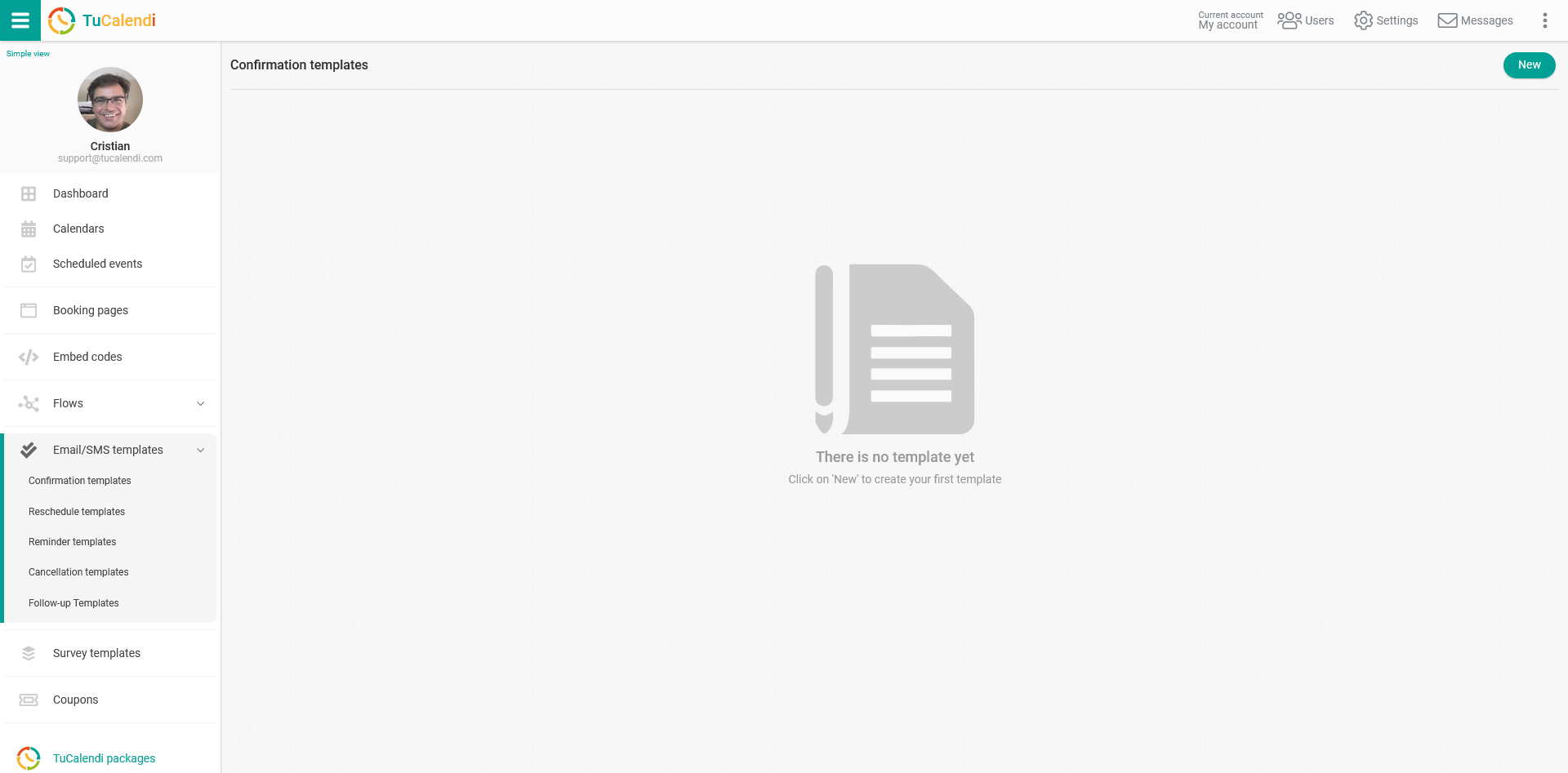
If you have not created any confirmation template yet, click the "New" button and enter the name you want to give the template you are about to create.
If you have already created a template and need to modify it, just click the template you want to edit.
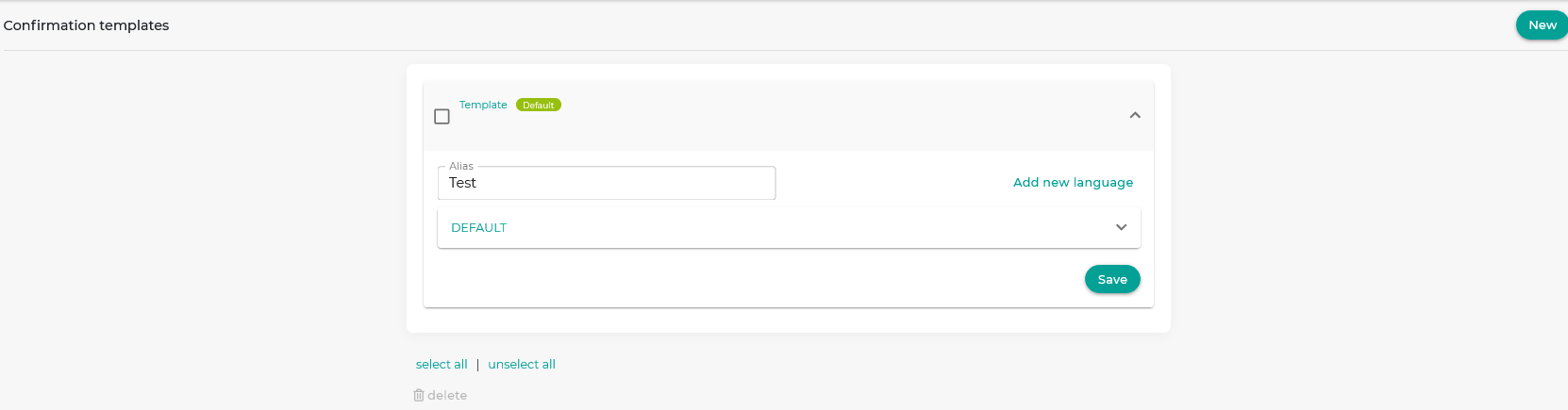
Initially the template is empty so that you can fully customize it. Click the field called "DEFAULT":
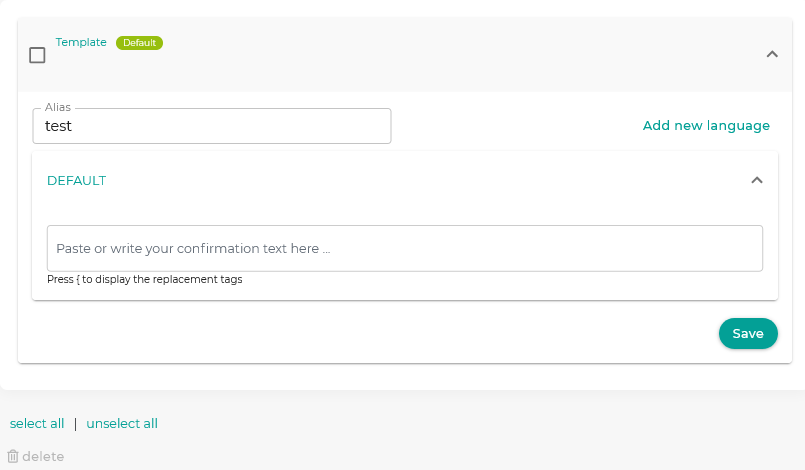
Clicking the box "Paste or write the confirmation text here..." opens the editor, where you can write the notification and include the different replacement tags available.
You can directly add the {cancel_link} tag, and the confirmation email will include a link customers can click to access the option to cancel the appointment.
You can also include a text with a link.
For customers, this way is visually more elegant.
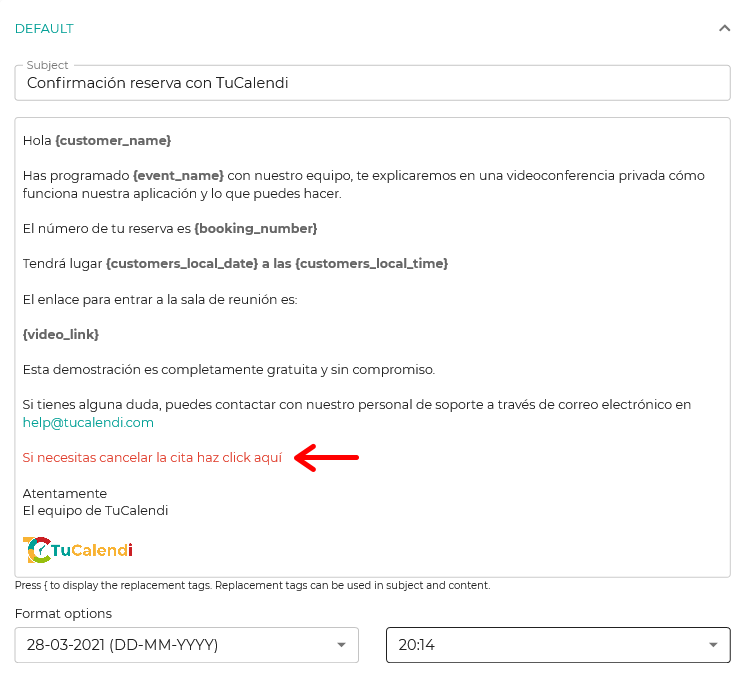
To do this, just click the insert link option in the confirmation template editor.
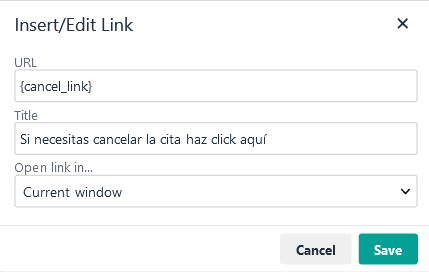
In the URL, include the replacement tag {cancel_link}.
When you have finished customizing the confirmation template, click "Save" and your customers will receive the confirmation email just the way you designed it.