
We have added a very important feature that lets customers who make a booking reschedule it. To enable this option, the reschedule link must be included in the confirmation templates.
You can do this very easily with the {reschedulelink} substitution tag. We have also added a security option for rescheduling bookings, the reschedule PIN, which you can use with the {reschedulepin} tag.
Let's see how to include the reschedule link in the confirmation templates and the extra security you get with the reschedule PIN.
Log in to TuCalendi with your username and password. Go to the "Email/SMS Templates" option.
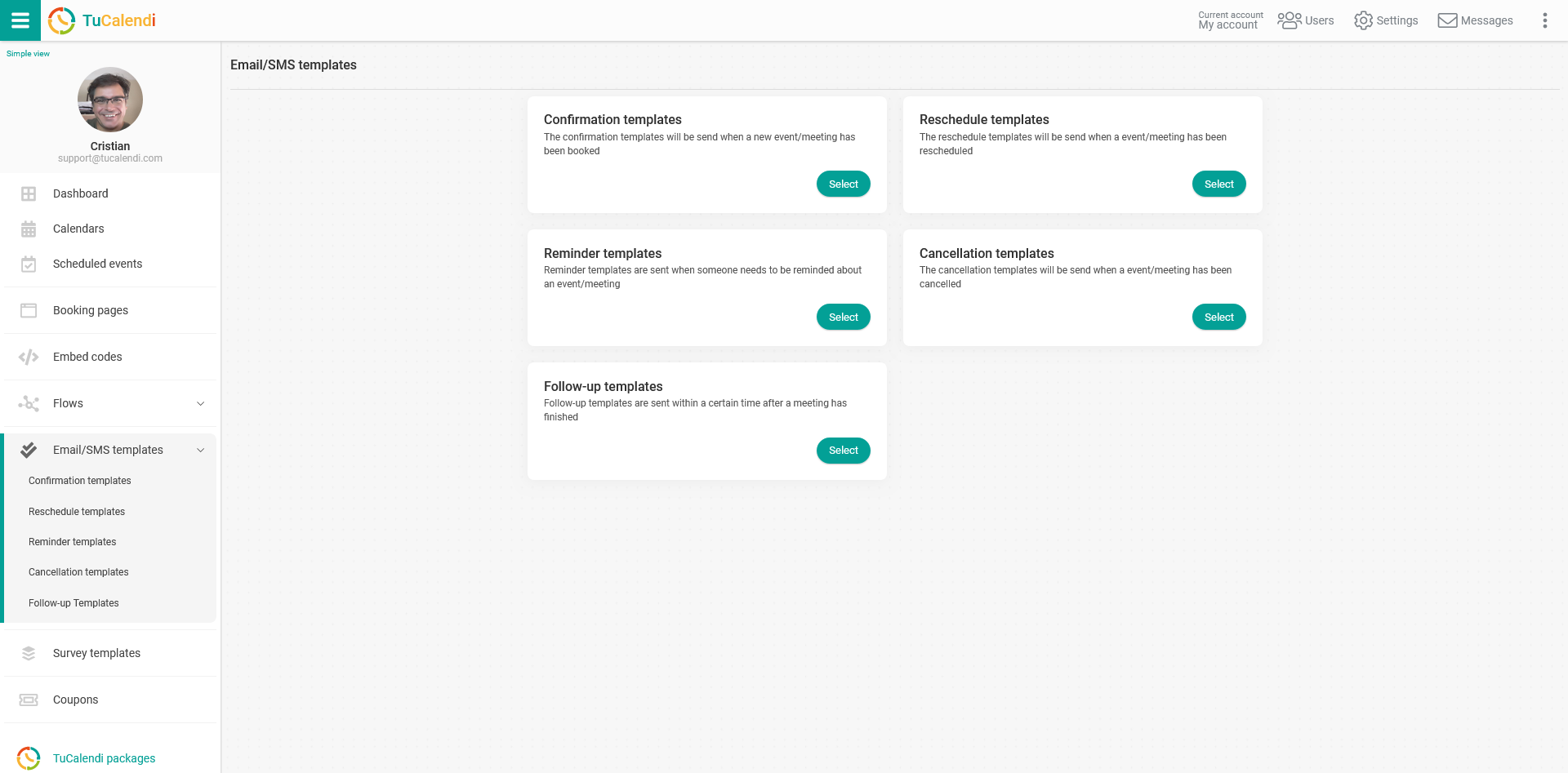
In the "Confirmation templates" option, click "Select":
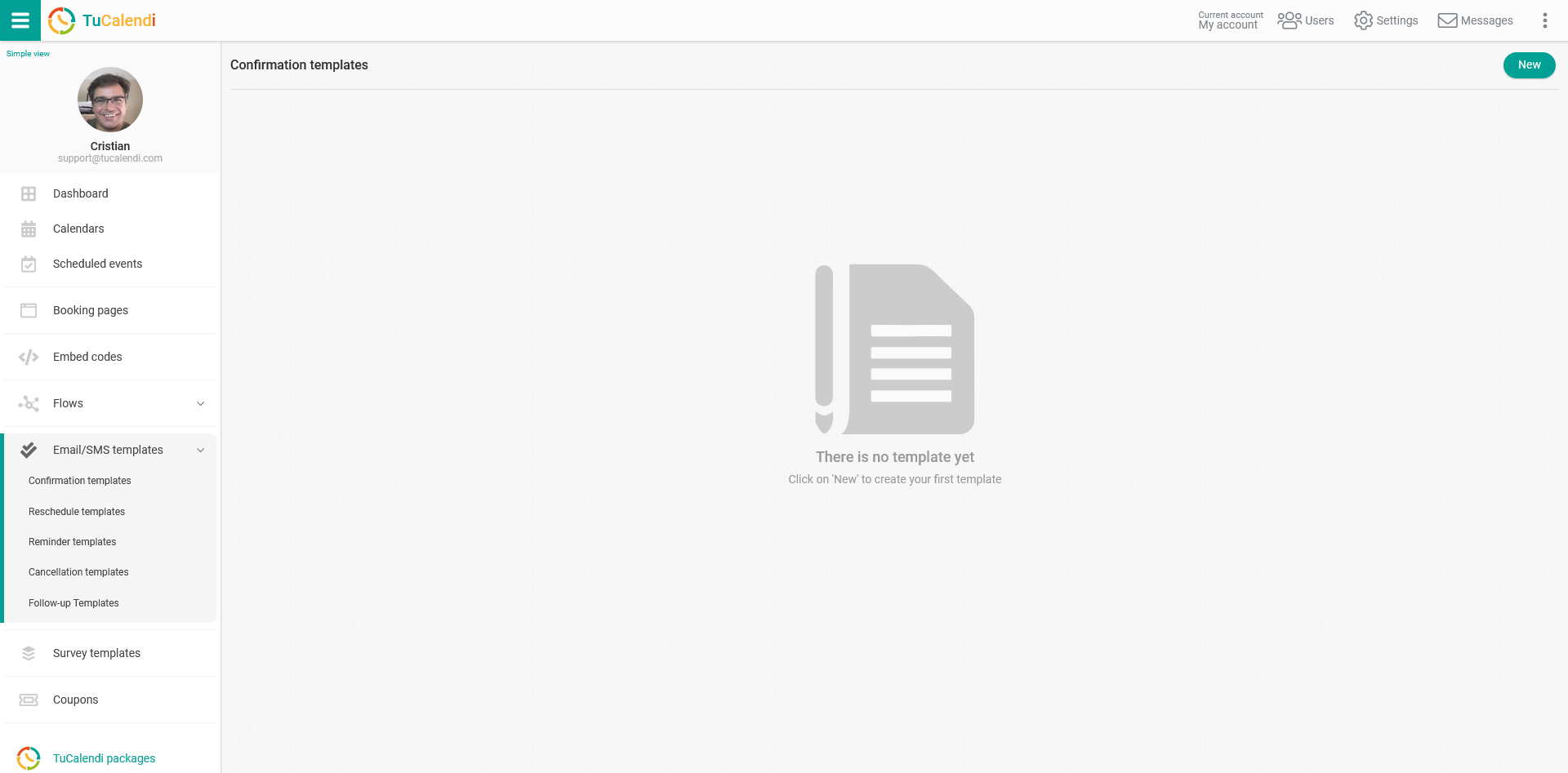
If you haven't created a confirmation template yet, click the "New" button and enter the name you want to give the template you are about to create.
If you have already created a template and need to modify it, just click the template you want to edit.
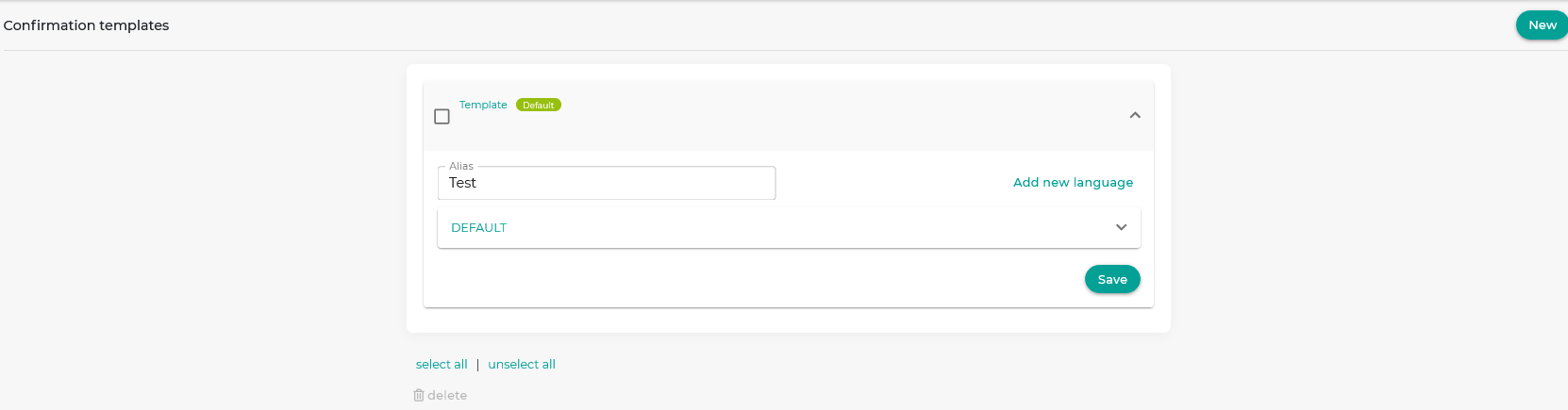
The template starts out empty so you can fully customize it. Click the field called "DEFAULT":
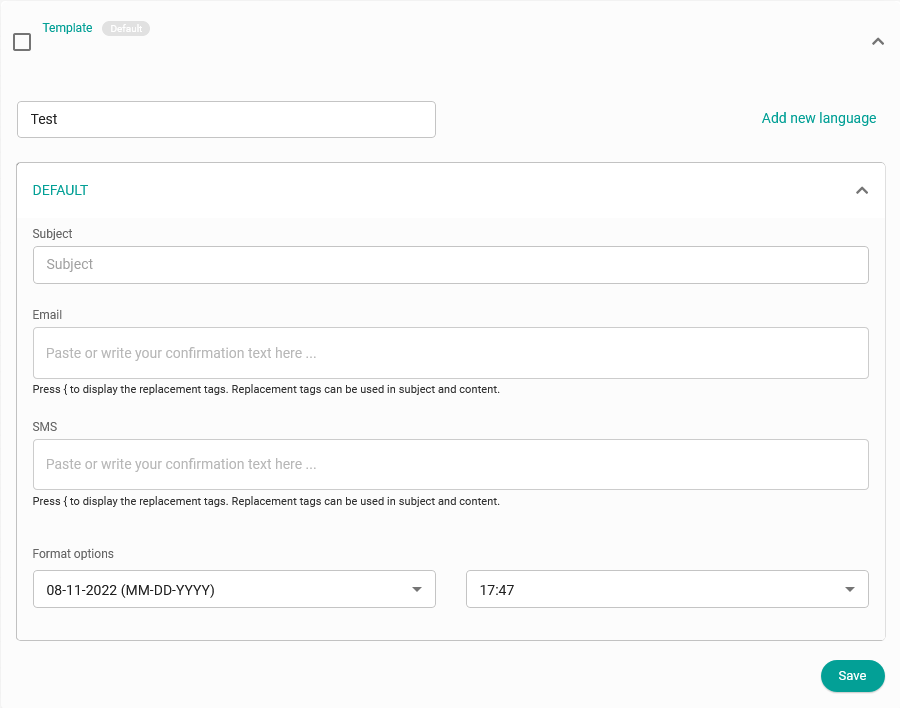
Clicking the "Email" field opens the editor, where you can write the booking confirmation notification and include the different substitution tags we have available.
For your customers to receive the link to reschedule a booking, you must add the {reschedulelink} and {reschedulepin} tags to the confirmation template. This way, the confirmation email your customers receive after booking with you will show the reschedule link and the PIN code, which adds extra security to rescheduling bookings.
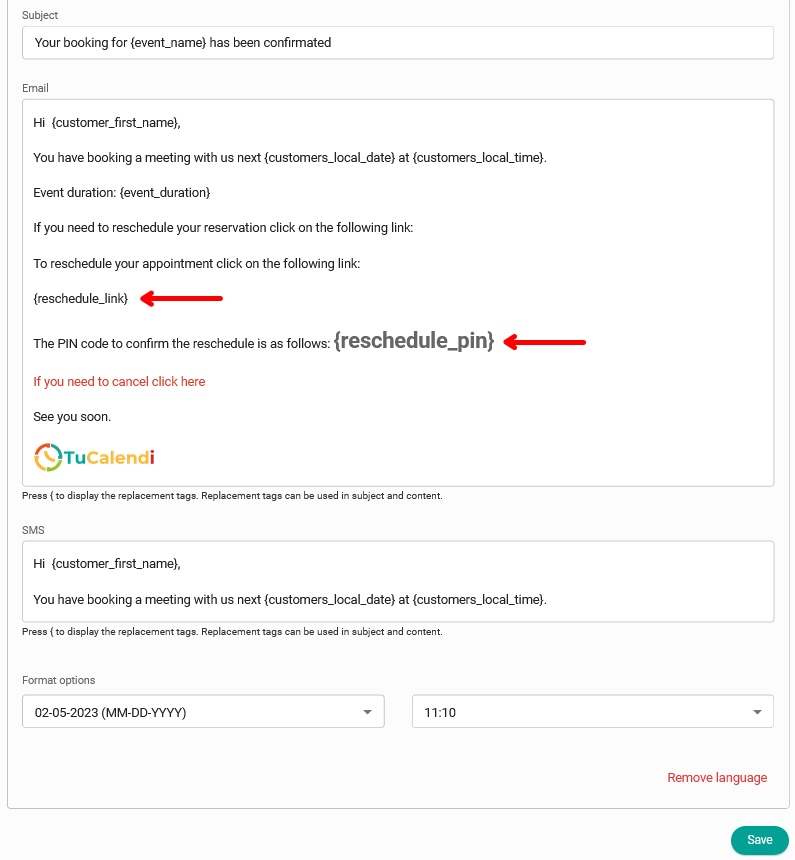
If you don't want the reschedule link to be shown directly, you can include the {reschedule_link} tag in a linked text.
To do this, just type the text you want, for example "To reschedule the appointment click here". Select the text and click the insert link option in the confirmation template editor:
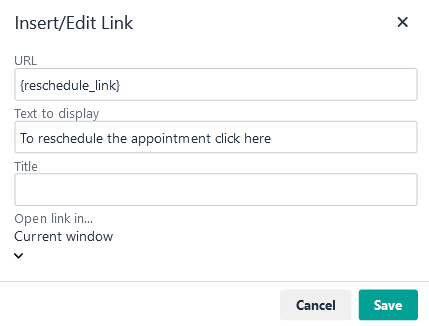
In the URL field, enter the substitution tag {reschedule_link} and click "Save".
The confirmation template will look like this:
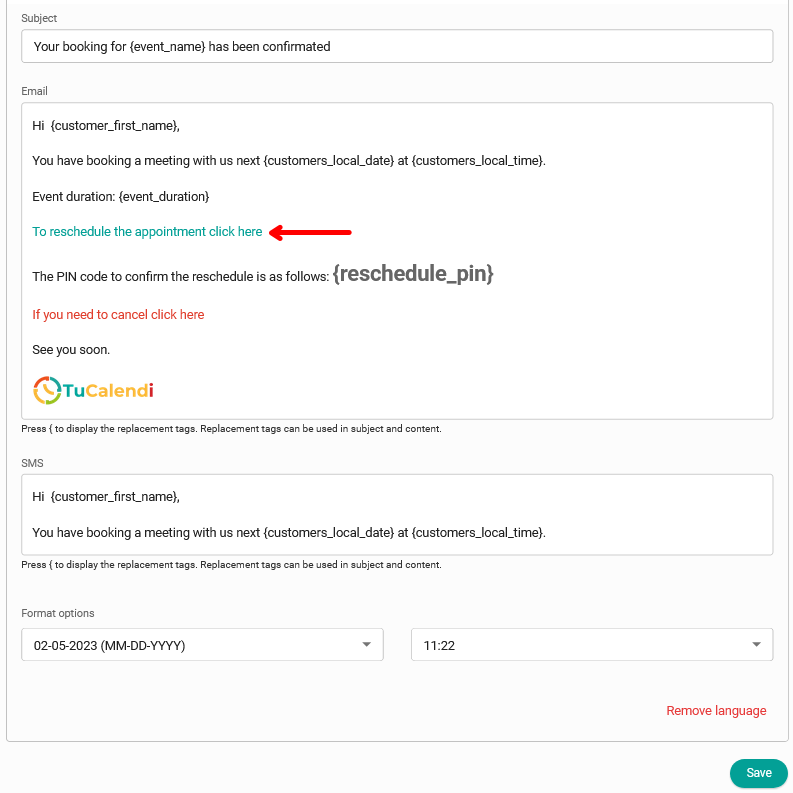
When you finish customizing the confirmation template, click "Save" and your customers will receive the confirmation email exactly the way you designed it.